Working a ticket
The ticket page - replying to the client or your team, logging time, working through tasks, booking a visit, and resolving it when the job's done.
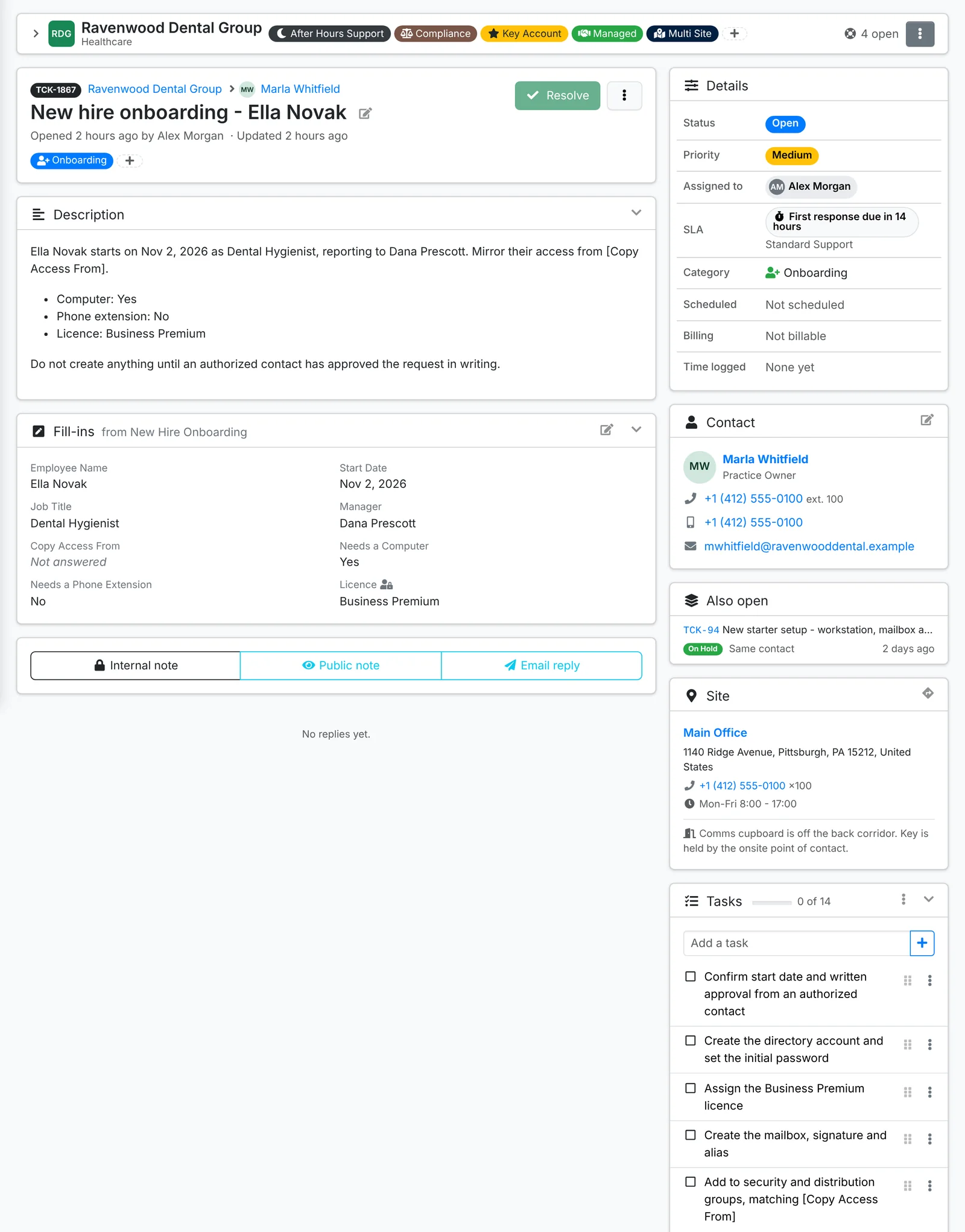
Click a ticket to open its page. On the left is the conversation and the reply box. On the right is everything you need to work it: its details, who it's for, where they are, its tasks and what's linked to it.
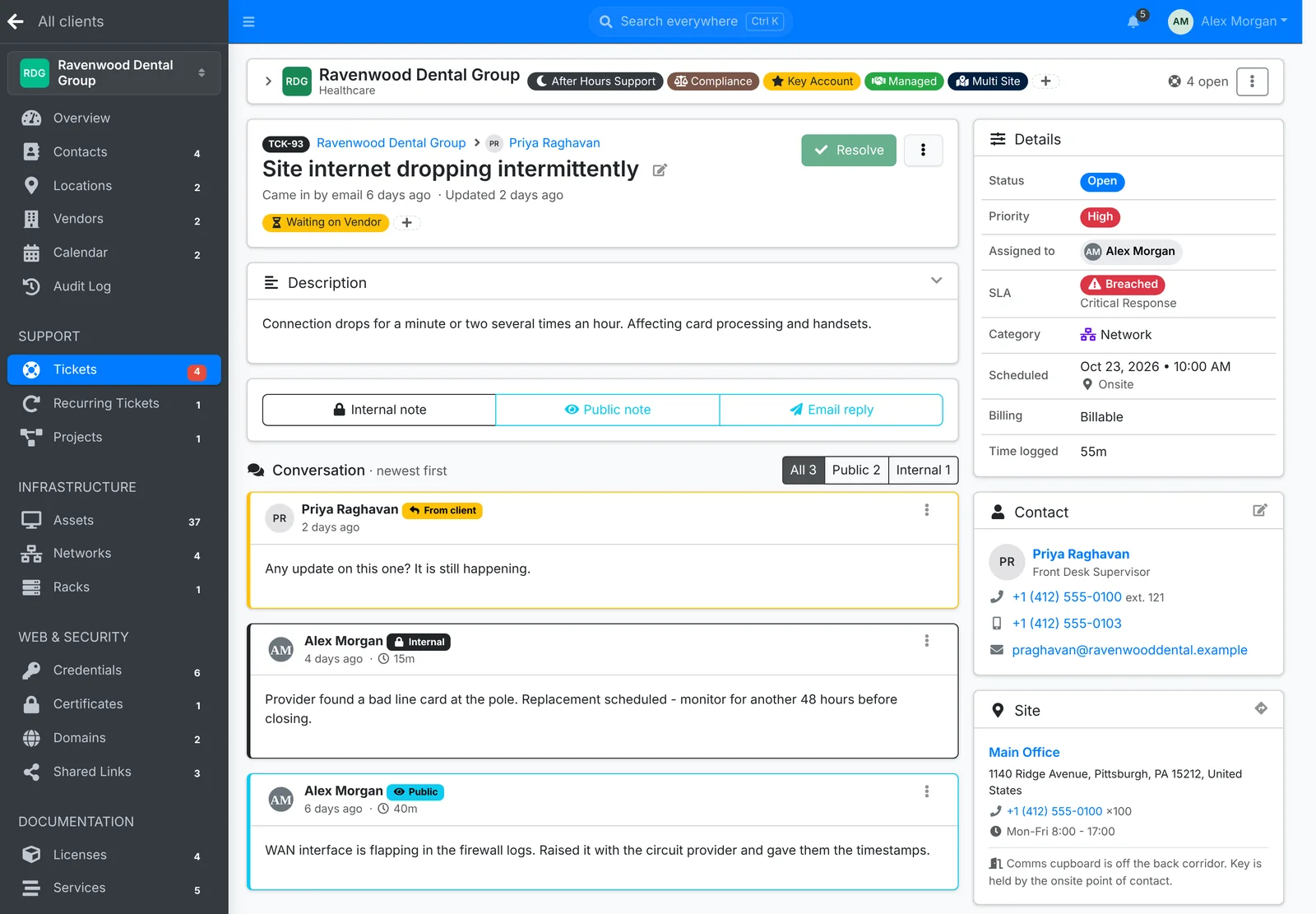
The header
At the top: the ticket number, the client and contact, the subject (click the pencil to edit the ticket), where it came from, and its tags. If someone else on your team has the ticket open, it says so here, so you don't both reply.
On the right is the one action for where the ticket is:
- Resolve while it's open. If the ticket has tasks, they must all be done first.
- Reopen and Close once it's resolved.
- Invoice once a billable ticket is done.
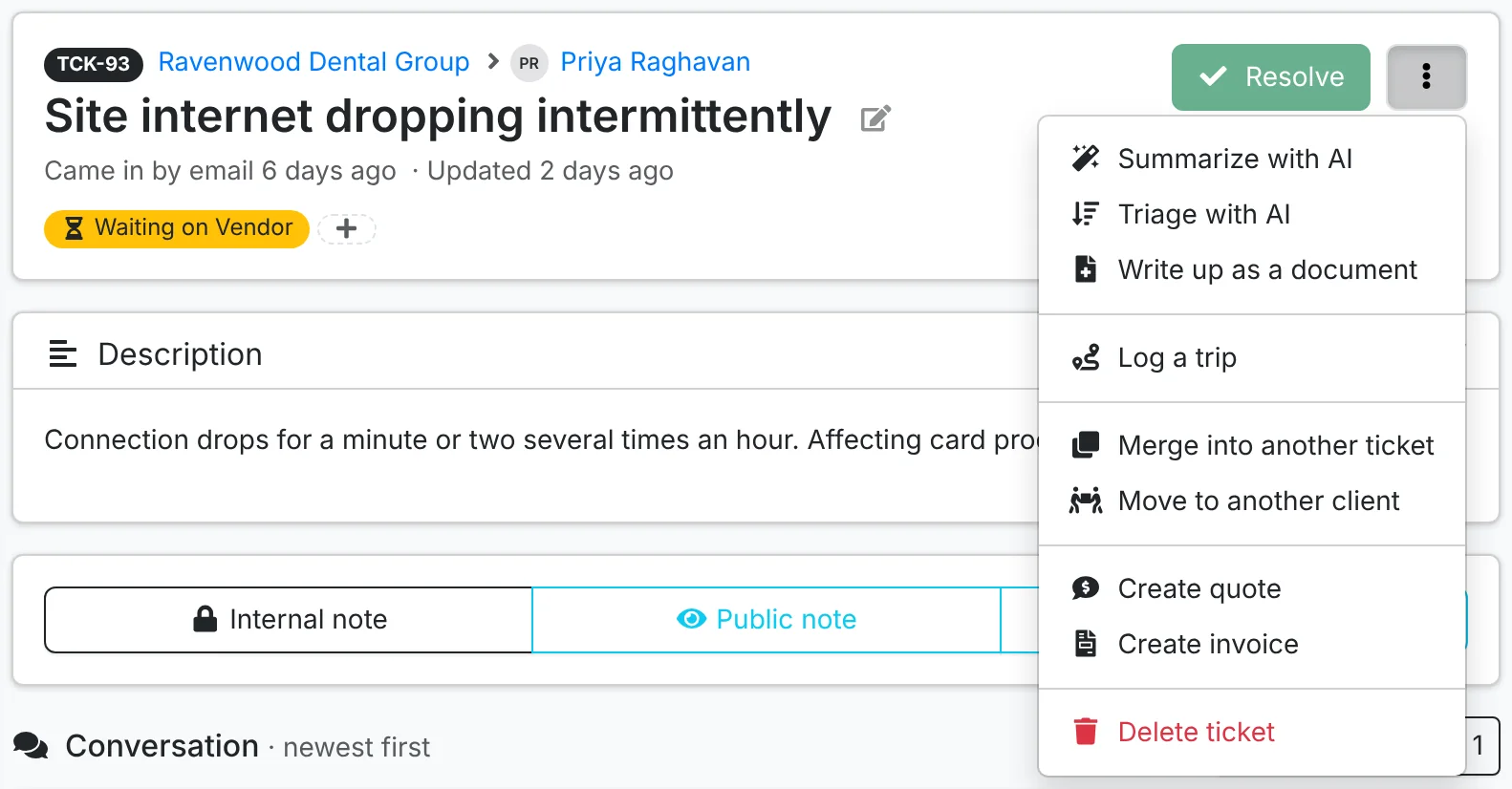
The ⋮ menu has the rest: Log a trip, Merge into another ticket, Move to another client, Create quote, Create invoice and Delete ticket. With AI set up, it also has Summarize with AI, Triage with AI and Write up as a document - see Using AI.
Details
The Details card shows where the ticket stands. Click a value to change it.
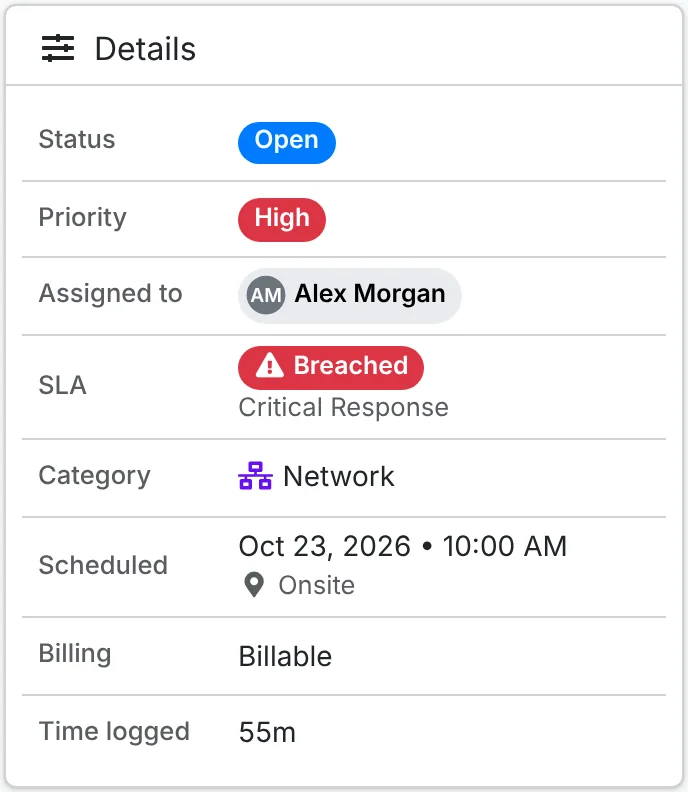
- Status - New, Open, On Hold, and any statuses your admin added, such as "Waiting on Vendor". Some statuses pause the SLA clock.
- Priority - Low, Medium, High or Urgent.
- Assigned to - the technician working it. They're told when you change it.
- SLA - the next target and when it's due, or Breached once it's missed. See SLAs below.
- Category, Scheduled (see Book a visit), Billing and Time logged.
Reply to the client or your team
Above the conversation are three buttons. Nothing is picked for you, so who sees a reply is always your choice:
| Button | Who sees it |
|---|---|
| Internal note | Only your team. For notes, findings and handovers. |
| Public note | The client, in the client portal. No email is sent. |
| Email reply | The contact and the ticket's watchers, by email, and it shows in the portal. Only there when mail is set up and the contact has an email address. |
Pick one and the reply box opens, with a line saying exactly who will see it.
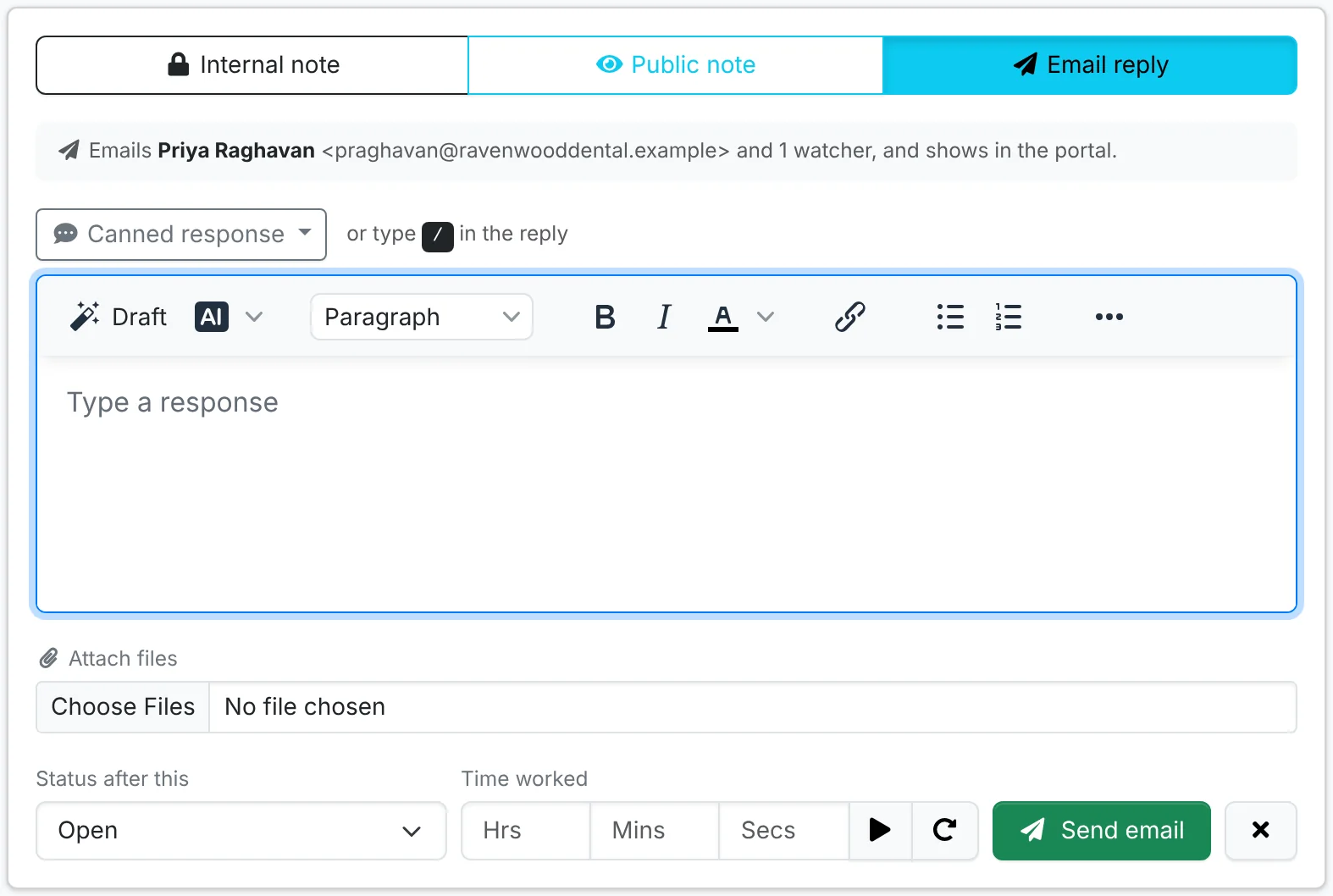
- Type your reply. To use a canned response, click Canned response or type / in the reply. See Canned responses.
- Add files under Attach files if you need to.
- Pick the Status after this - for example, set it to On Hold while you wait for a part.
- Enter the Time worked, or click ▶ to start a timer and let it count while you work.
- Click the button: Add note for an internal note, Post note for a public note, Send email for an email reply. Your signature is added to email replies.
If you try to leave the page with a reply half written, ITFlow asks first.
The conversation
Replies are listed newest first. Client replies are marked From client, yours Internal or Public, and each shows the time logged with it. Use All, Public and Internal above the conversation to filter it.
Each reply's ⋮ has Edit, Redact (to blank out something that shouldn't be kept, such as a password the client sent) and Archive.
Contact, site and vendor
- Contact - who the ticket is for, with their phone numbers and email. Click the pencil to change the contact.
- Site - the location's address, phone, opening hours and access notes, with directions.
- Also open - the client's other open tickets, in case they're about the same thing.
- Trips - the driving done for the ticket, for onsite work. See Trips and mileage.
Tasks
Tasks are the steps to the job. They come from the ticket's template, or you add them:
- Type in Add a task and press Enter.
- Tick a task when it's done. Drag tasks by their handle to reorder them.
- A task's ⋮ has Require approval: the task waits until someone approves it - Our team (a technician you pick) or The client (a contact, who approves it in the client portal or by email).
- The menu on the card has Mark all complete and Mark all incomplete.
The ticket can't be resolved until its tasks are done.
Linked records
The Linked card shows what the ticket is about and who's on it:
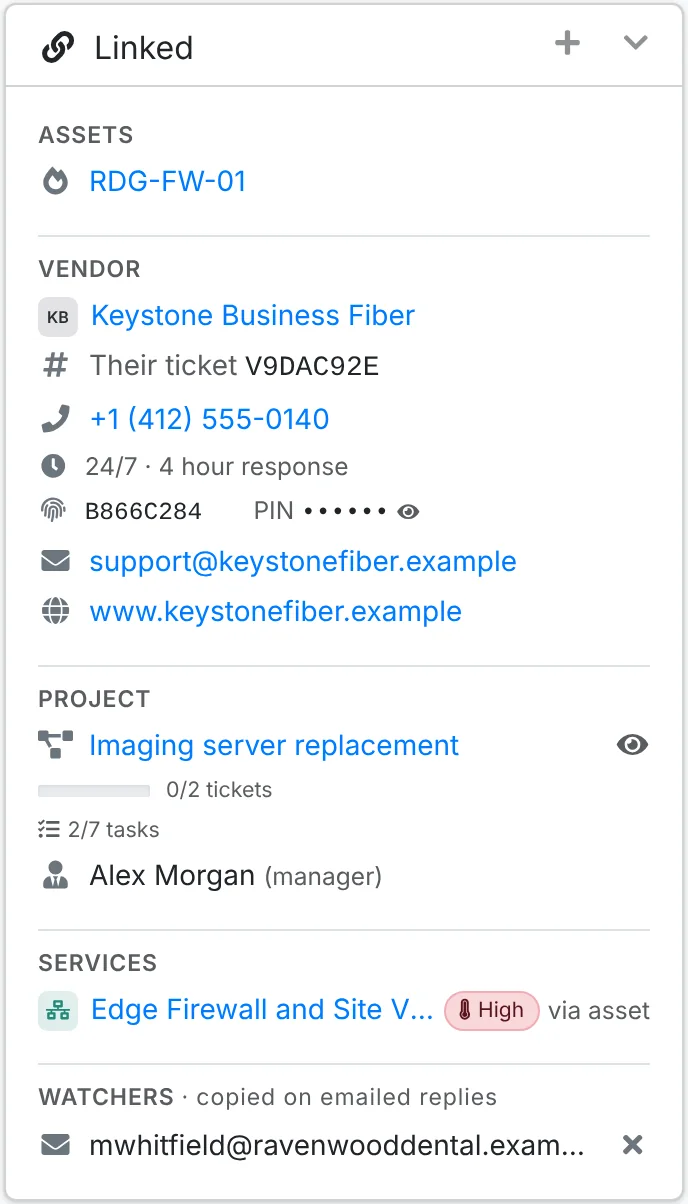
- Assets - the devices the ticket is about.
- Vendor - when a vendor is involved, their case number (Their ticket), support line, hours and SLA, account number and PIN, email and site, each with a copy button.
- Project - the project it's part of, with its progress.
- Services - the client services it affects, directly or through its asset.
- Watchers - extra people copied on every emailed reply, such as the client's IT contact.
Use the + on the card to Change assets, Change vendor, Change project, Link a service or Add watcher.
Fill-ins
A ticket raised from a template that asks questions has a Fill-ins card with the answers. A question left blank shows as Not answered: click the pencil to answer it, and the answer goes into the ticket's text wherever it's still waiting.
Book a visit or a call
Click Scheduled in the Details card, pick the Date and time and whether it's a Remote or Onsite visit. The contact, the watchers and the assigned technician are emailed the time, with a calendar invite, and the ticket shows on the calendar. Changing or cancelling it tells them the same way.
Resolve and close
When the work is done, click Resolve. ITFlow:
- emails the contact that it's resolved (when client emails are on), with a button to reopen it if it isn't fixed
- closes it by itself after a set time - your admin picks how long - unless the client replies, which reopens it
Click Close to close it straight away. Closing is final: a closed ticket can't be reopened. Clients are asked how you did when a ticket closes.
Merge, move and delete
- Merge into another ticket - when two tickets are about the same thing. Pick the ticket to keep and give a reason; this ticket is closed and can move its replies across.
- Move to another client - for a ticket raised under the wrong client.
- Delete ticket - only for tickets raised by mistake. Normally resolve or close them instead.
Billing a ticket
Set Billing in the Details card to Billable for work the client pays for. Once it's resolved, the ticket waits in Unbilled time with everything else to bill - or click Invoice on the ticket to bill it on its own. The Invoice window shows the time each technician logged, the hours that bills, and the client's rate. Create quote in the menu starts a quote from the ticket, for work that needs agreeing first.
SLAs
An SLA (service level agreement) sets how fast you reply to and fix tickets, by priority - for example, an Urgent ticket gets a first response within an hour and is fixed within four. Each client has an SLA, set on the Billing tab of their Edit window, or your default.
The ticket's SLA row shows the next target: First response due in 2 hours, then the resolution target once you've replied where the client can see it. Internal notes don't count as a response. A status that pauses the SLA, such as On Hold, stops the clock. When a target is close, the ticket turns amber; once it's missed, it shows Breached, and the SLA alert address and the technician are emailed. Your admin sets SLAs up in Tickets, statuses and SLAs.