Invoices
Bill a client - lines from your catalog, tickets, expenses and hardware - send it, let them pay it online, and see what's still owed.
Invoices are what you bill clients. Most are made for you - by recurring invoices each month, from unbilled time, or from an accepted quote - but you can make one by hand at any time.
The invoices list
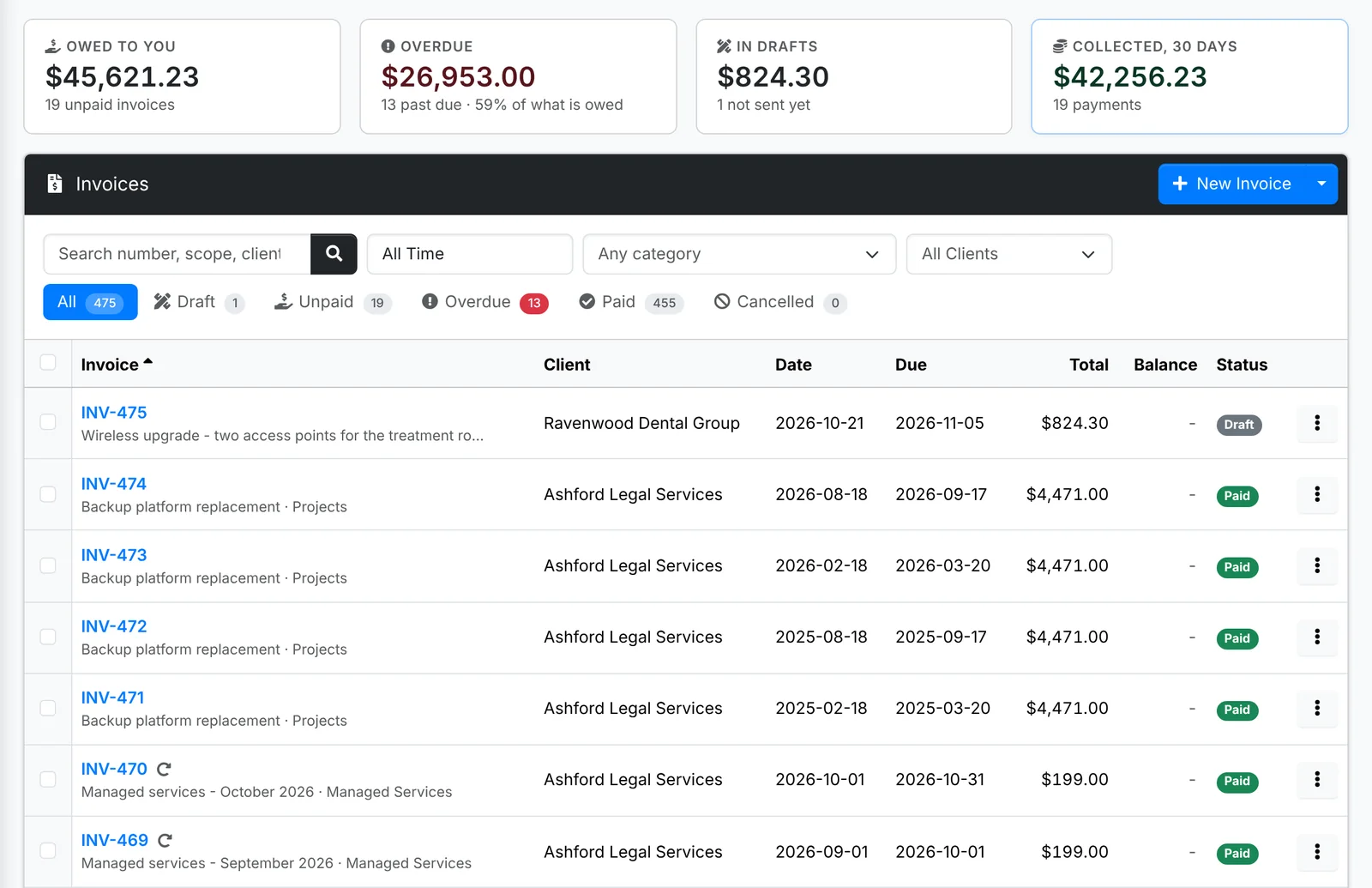
Along the top: what's Owed to you, what's Overdue, what's sitting In drafts and what you've Collected in the last 30 days.
The tabs are All, Draft (not sent yet - the client can't see them), Unpaid (sent and not paid in full), Overdue, Paid and Cancelled. Search by number, scope or client, and narrow by date, category or client. A circular arrow beside a number means it was made by a recurring invoice.
An invoice moves through these statuses:
| Status | Meaning |
|---|---|
| Draft | Being put together. The client can't see it, and it isn't owed yet. |
| Sent | Out with the client and owed |
| Viewed | The client has opened it |
| Partial | Part paid |
| Paid | Paid in full |
| Cancelled | Nothing more is owed on it. It stays on record. |
Make an invoice
- Go to Billing > Invoices (or the client's Invoices) and click New Invoice.
- Type the Scope - what it's for, in a few words.
- Pick a Category and the Invoice date. The Due date follows from the client's payment terms.
- Add a Discount if there is one, and click Create.
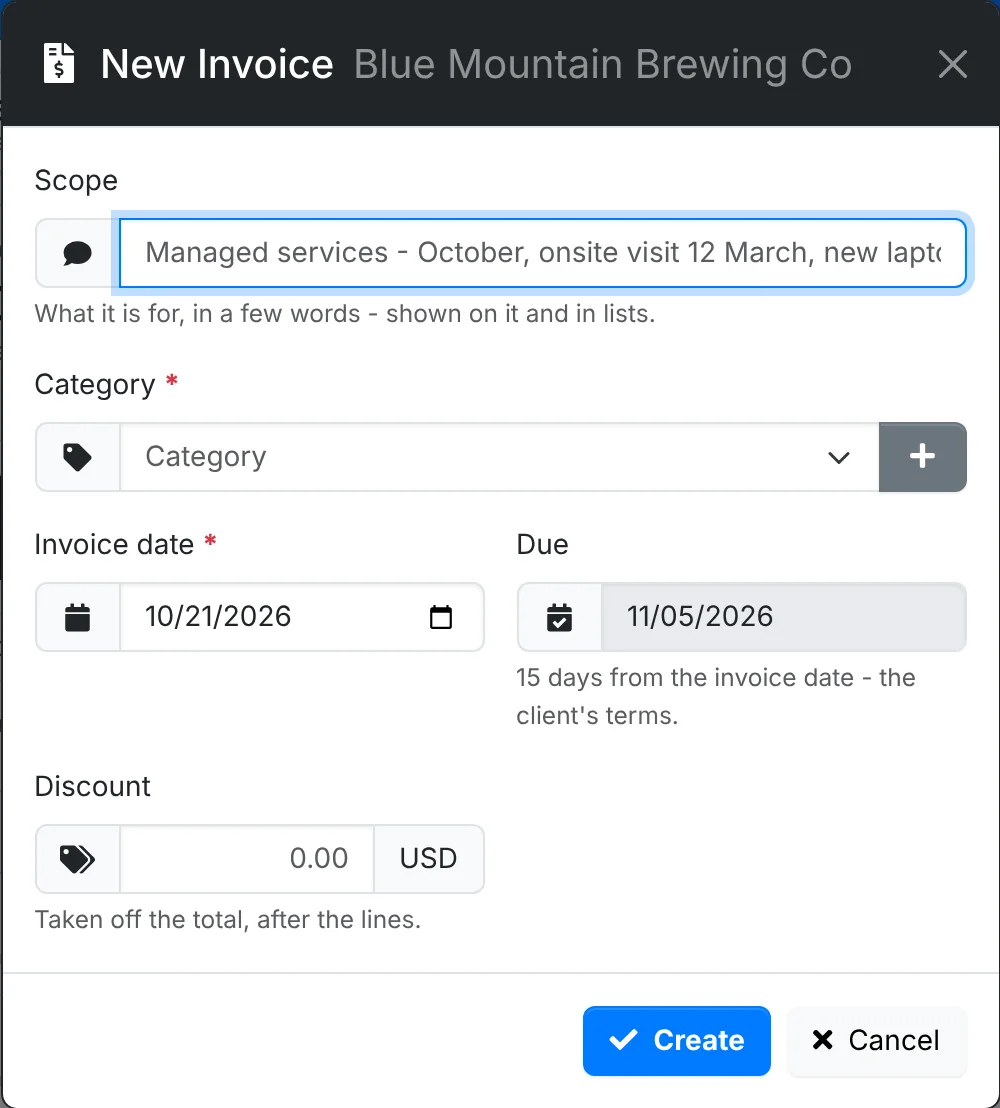
The invoice opens as a draft. Add lines at the bottom: type in Add a line and pick from the catalog, or type anything. Set the Qty, Price and Tax, and click Add. Drag a line by its handle to move it, and use its ⋮ menu to Edit or Remove it.
The Notes under the lines are printed on the invoice - payment details, terms, a thank you.
On a billable ticket, ⋮ > Create invoice bills that one ticket's time straight away - on a new draft invoice, or added to one of the client's drafts. With AI set up, Write it describes the work done for the client, from the ticket's replies and notes.
The invoice's page
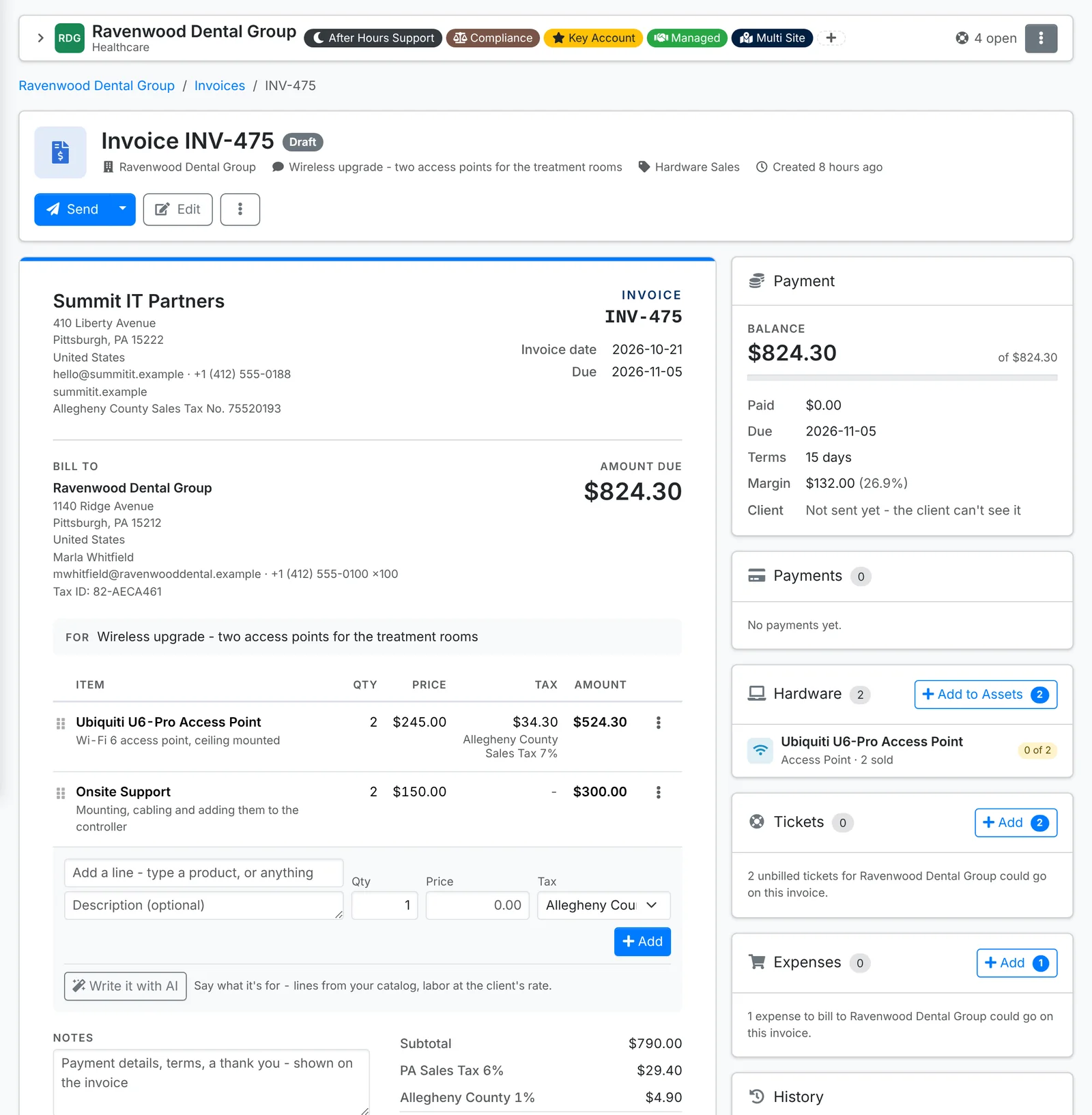
On the left is the invoice as the client will see it. Down the right:
- Payment - the balance, when it's due, the client's terms, any reminders sent or due, and your margin on it.
- Payments - each payment taken, with Add for another.
- Hardware - products on it that become client assets, with Add to Assets. See Hardware becomes client assets.
- Tickets and Expenses - what's been billed on it, and how many unbilled tickets and expenses could go on it, with Add.
- History - when it was made, sent, viewed, reminded and paid.
Add tickets and expenses
Add on the Tickets card lists the client's billable tickets, resolved or closed, that aren't on an invoice yet, with the time logged on each - rounded the way your admin set. Tick the ones to bill and change the hours if you need to.
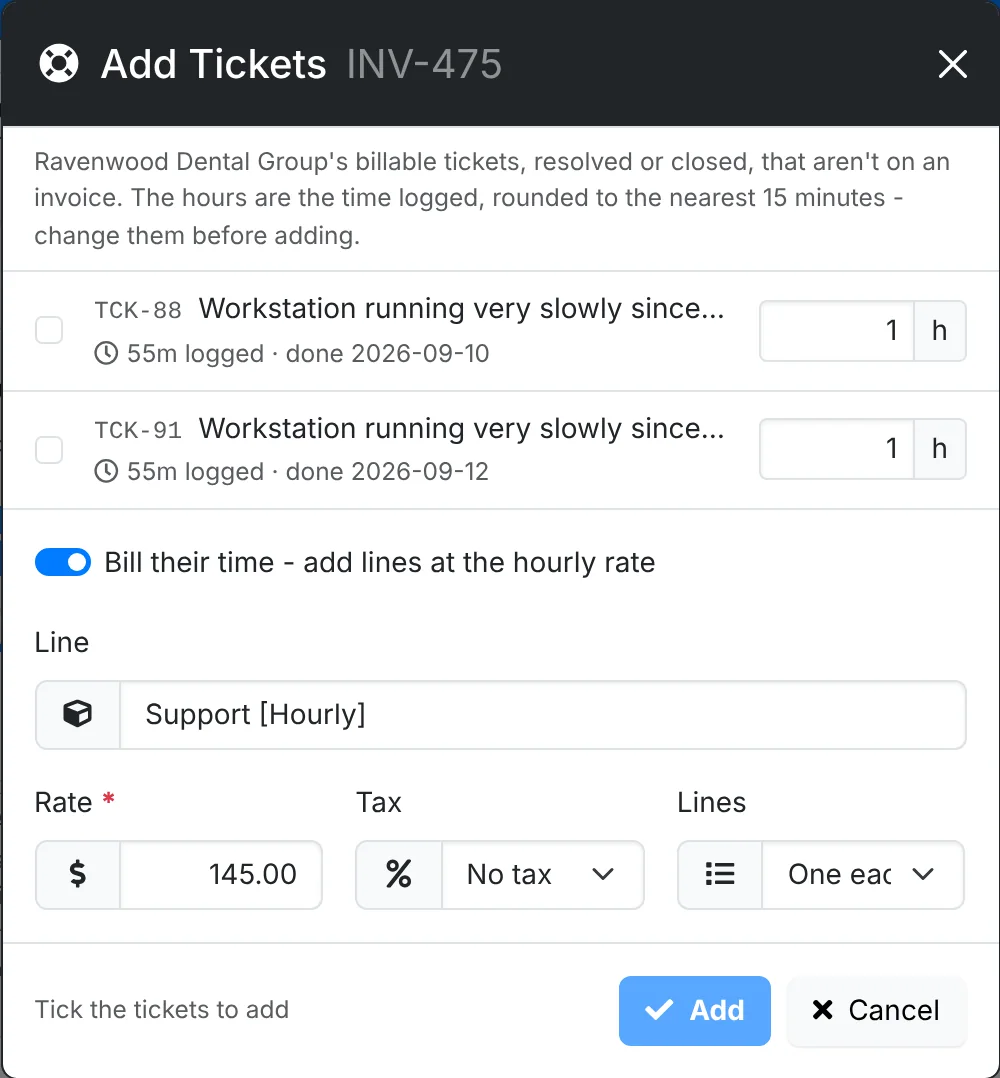
With Bill their time on, they're added as lines at the client's hourly rate - One each, or One for all of them. Switch it off to put the tickets on the invoice without adding lines, for work you've already billed by hand.
Add on the Expenses card does the same for billable expenses - what you paid on the client's behalf - at their cost with their markup. Each goes on as a line of its own.
To bill everything waiting for a client in one go, use Unbilled Time instead.
Send an invoice
Click Send on a draft. Pick who it goes to - the client's primary and billing contacts are ticked - add a message of your own if you like, and choose whether to Attach the PDF. The email has a link to view, pay and download it.
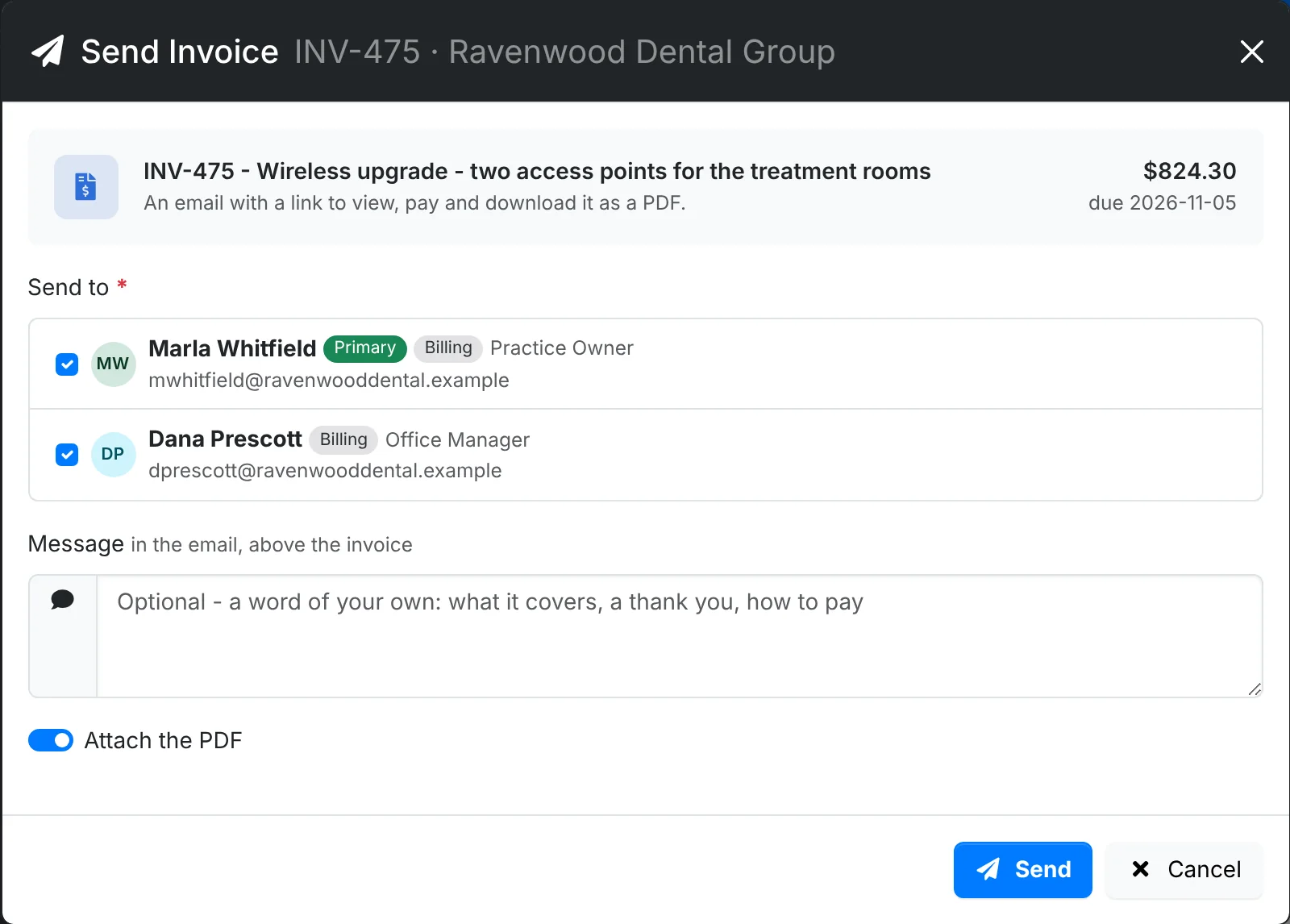
The arrow beside Send has two more ways:

- Quick Send - straight to the client's primary and billing contacts, with no window.
- Mark Sent - for an invoice that went out some other way, such as by post. It stops being a draft, counts as owed from now, and the client can open and pay it from its link.
Once sent, Send Again sends it again, and ⋮ > Send Reminder sends a payment reminder - see Reminders and statements.
Send needs outgoing mail set up and a primary or billing contact with an email address. Without them, the invoice has Mark Sent instead.
What the client sees
The link in the email opens the invoice, with Pay Now when your admin has set up online payments, Download PDF, the payments made on it, and what the client owes you in all. Clients who use the client portal see their invoices there too.
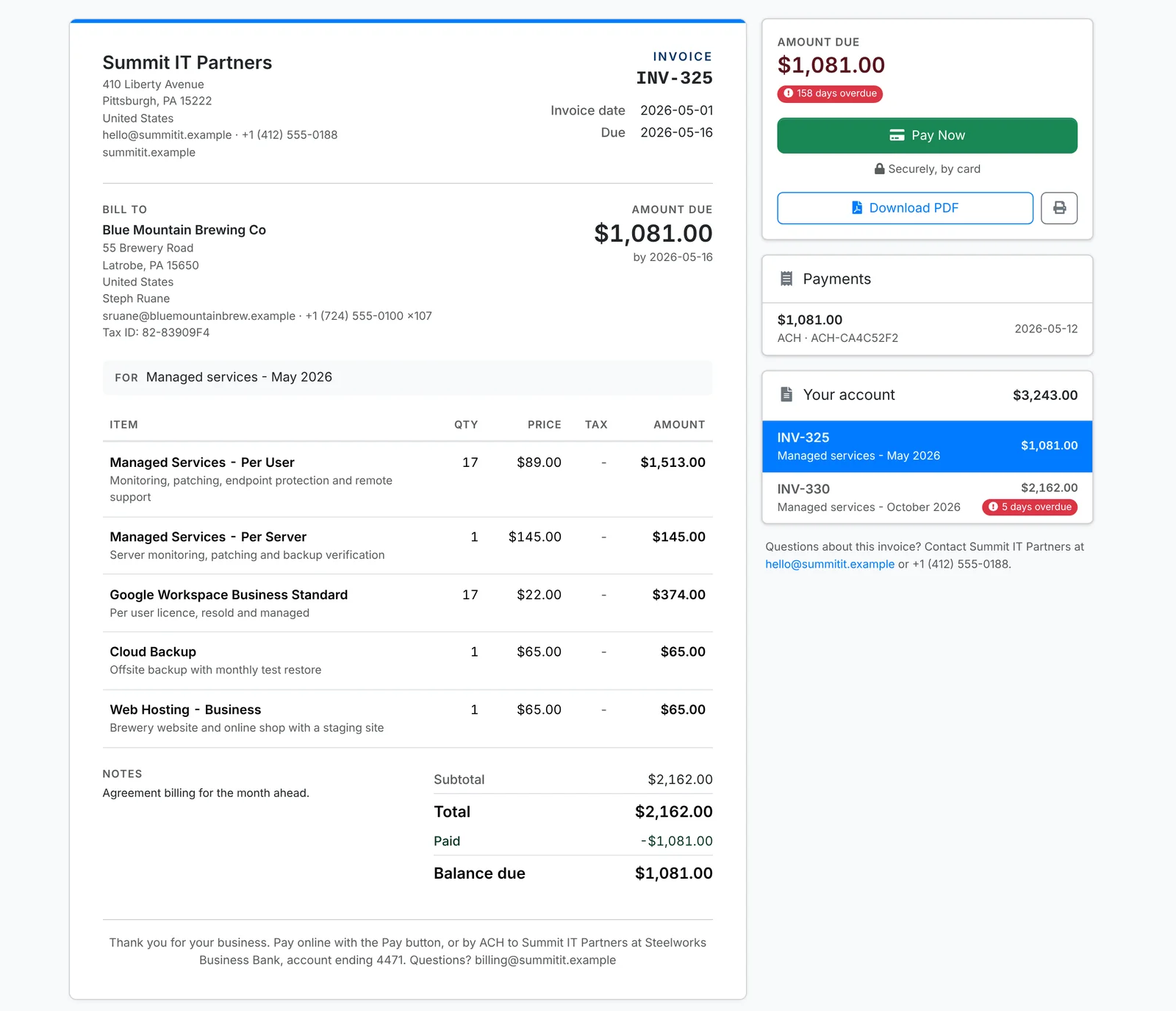
When the client opens it, the invoice is marked Viewed. When they pay online, the payment is recorded for you - see Taking payments.
Change, copy or cancel an invoice
A draft or unpaid invoice can still be changed: Edit for its scope, dates and discount, and the lines themselves. Once it's paid or cancelled, its lines are locked.
The ⋮ menu has:
- Download PDF, Print and Packing Slip - the items without prices, to go in the box
- Copy Client Link and View as Client
- Copy - a new draft with the same lines, scope, discount and notes
- Make Recurring - bill the same lines again every month, quarter or year from a recurring invoice
- Cancel Invoice - nothing more is owed on it, and it stays on record
- Delete - it goes for good, with its lines, payments and history. Its tickets become unbilled again, and its expenses and trips are to bill again.
Cancel an invoice that went to the client rather than deleting it, so your records still show it. Delete is for a draft made by mistake.
Your admin sets invoice numbering, the footer printed on every invoice, and late fees in Admin > Settings > Invoices and billing.