Raising a ticket
Tickets come in by email and from the client portal, or you raise them yourself - from scratch or from a template that sets the whole ticket up.
Tickets reach ITFlow in several ways:
- By email - when your admin has set up email to ticket, an email to your support address becomes a ticket, and replies to ticket emails land on their ticket. See Mail.
- From the client portal - clients raise their own tickets, or fill in a request form. See Tickets and requests.
- On a schedule - recurring tickets raise themselves. See Recurring tickets.
- From a project - a project template raises its tickets. See Projects.
- By you - for a phone call, something you spotted, or work you're planning.
Raise a ticket
- Click New Ticket - on the tickets list, a client's page, or the page of an asset, contact, location, vendor or service, which fills in what it can for you.
- On Details:
- Pick the Client and the Contact it's for. If they already have open tickets, ITFlow lists them, so you can add to one of those instead if it's the same problem.
- Pick a Template if one fits (see below).
- Type the Subject and the details.
- Set the Priority, the Category, who to Assign to, and a Due date if it has one.
- Add Tags, and switch on Mark Billable if the client pays for this work.
- On Related, link the Asset it's about (and Other assets), the Site, a Project, and a Vendor with Their reference if a vendor is involved. Add Watchers - people who get a copy of every emailed reply.
- On Tasks, add the steps to work through.
- Click Create Ticket.
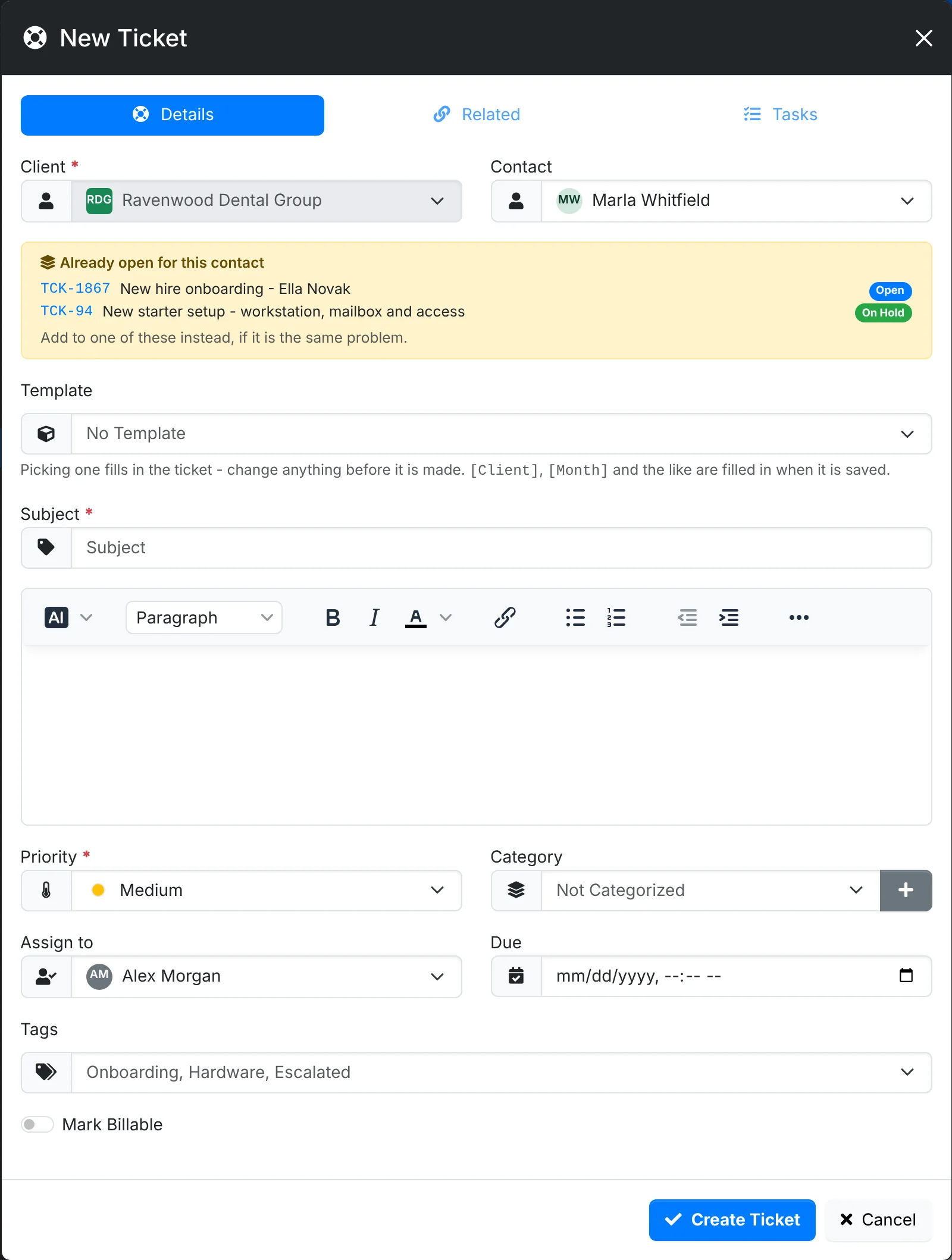
The contact gets an email saying their ticket is raised, when client emails are on, and the technician you assigned it to is told.
Start from a template
A ticket template sets up a whole ticket for a job you do often: the subject and details, the tasks, the category, priority, who it goes to, when it's due, its tags and whether it's billable. Your admin makes them in Ticket and project templates.
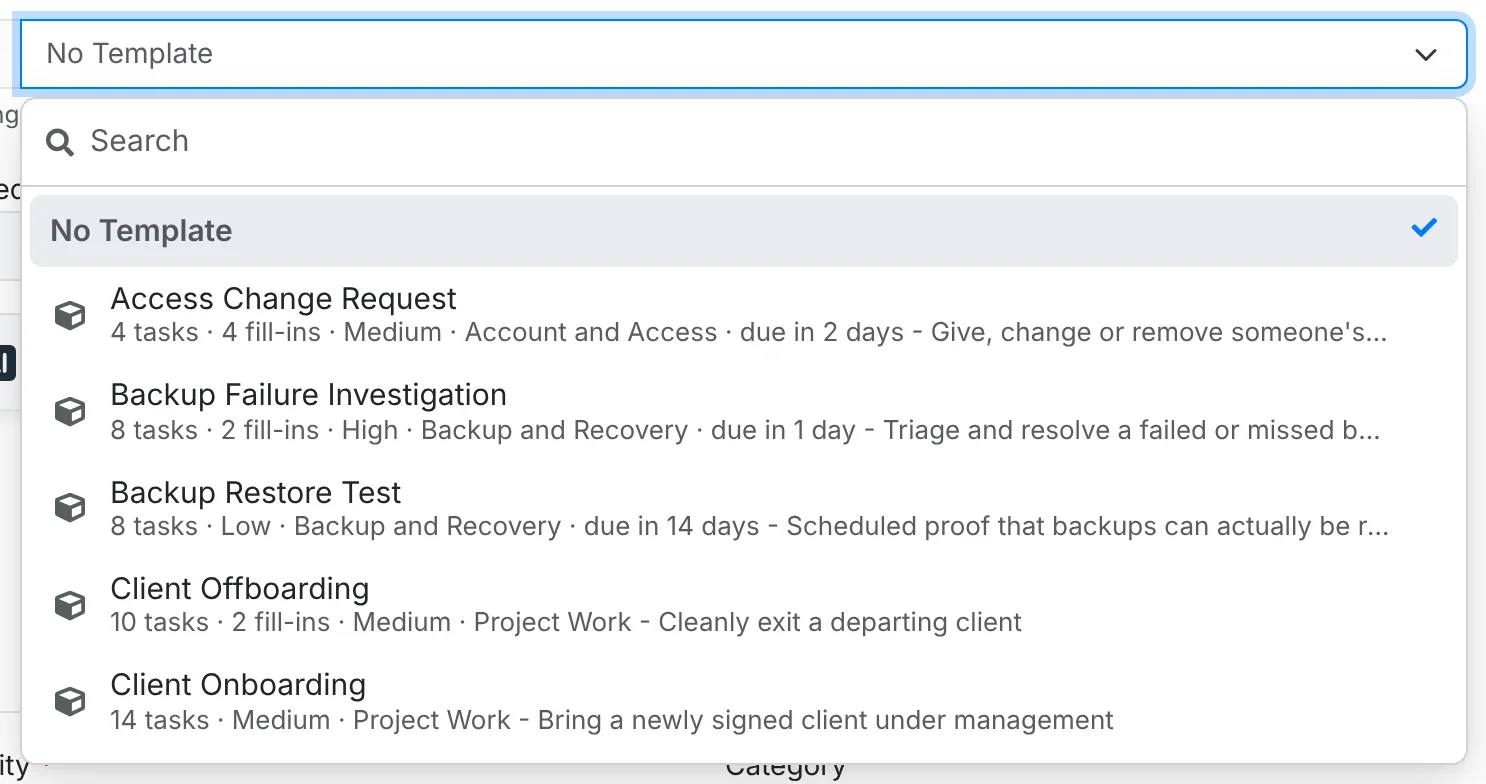
Click Template and pick one. The list says what each template sets up and how many tasks it has. Picking it fills in the form, so you see the ticket before it's made and can change anything.
Placeholders
Words in square brackets are filled in when the ticket is made:
| Placeholder | Becomes |
|---|---|
[Client], [Contact] | The client's and contact's names |
[Asset], [Site] | The ticket's asset and site |
[Agent] | The technician it's assigned to |
[Project], [Ticket] | Its project and its ticket number |
[Date], [Month], [Quarter], [Year] | When it's raised, such as "November 2026" or "Q4 2026" |
Fill-ins
Any other word in square brackets - [Employee Name], [Start Date] - is a fill-in: something the template asks for. When you pick the template, a box for each one appears at the top of the form. Your answers go wherever their name is in the subject, details and tasks.
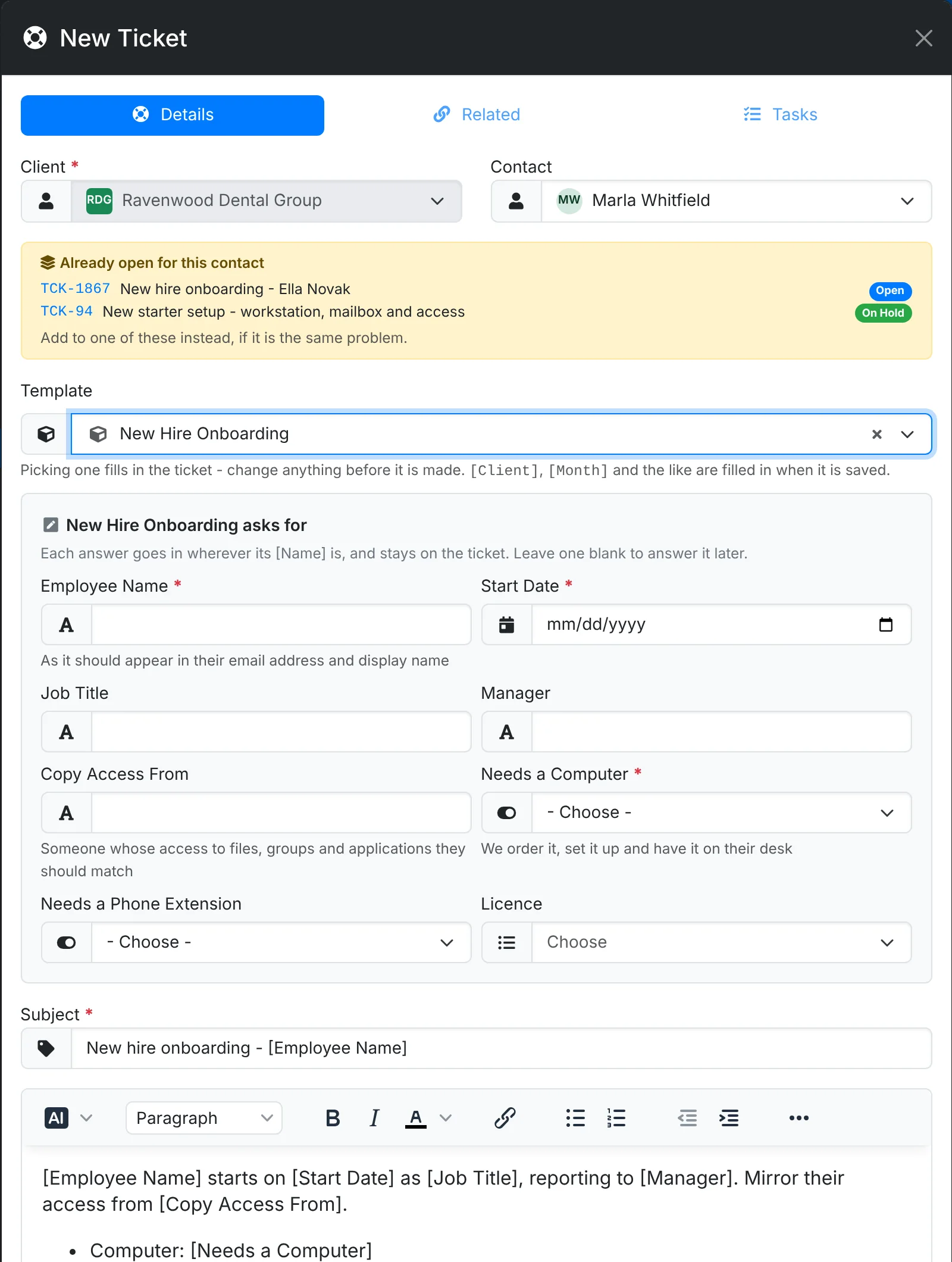
- A fill-in marked with a red star must be answered.
- Some are dates, some are yes or no, some are a choice from a list.
- Some tasks only apply to one answer. On New Hire Onboarding, "Order the computer" is only kept when Needs a Computer is Yes, and "Configure the phone extension and voicemail" when Needs a Phone Extension is Yes. Tasks for other answers drop out as you answer.
- Leave one blank if you don't know it yet. It stays in the text as
[Copy Access From], and can be answered on the ticket later.
The answers stay on the ticket in its Fill-ins card. See Working a ticket.
Raise the same ticket for many
To raise one ticket each for several clients or assets - a patch round, a quarterly check - tick them on the Clients or Assets list and use Bulk Action > Create Tickets (or Open Tickets on the clients list). The window offers templates and asks their fill-ins once, for all of the tickets. On the clients list, each ticket can go to the client's primary contact.