Taking payments
Record a check or bank transfer against an invoice, spread one payment over several invoices, charge a saved card, and let clients pay online.
A payment marks an invoice paid - in full, or in part - and puts the money in one of your accounts, so your books and the client's balance stay right. Payments come in three ways:
- you record one that came in by check, bank transfer or cash
- the client pays online by card, from the invoice's link or the client portal, and it's recorded for you
- you charge a card the client saved, or a recurring invoice does it by itself with autopay
Record a payment
- Open the invoice and click Add Payment - or use Add on its Payments card, or Add Payment in its row's menu in the invoices list.
- Amount starts at what's owed. Change it for a part payment - the line under it says whether it pays the invoice in full.
- Set the Date it came in, the Method (check, bank transfer and so on) and a Reference such as the check or transaction number.
- Pick the account it went Into.
- Leave Email a receipt on to send the client a receipt.
- Click Add Payment.
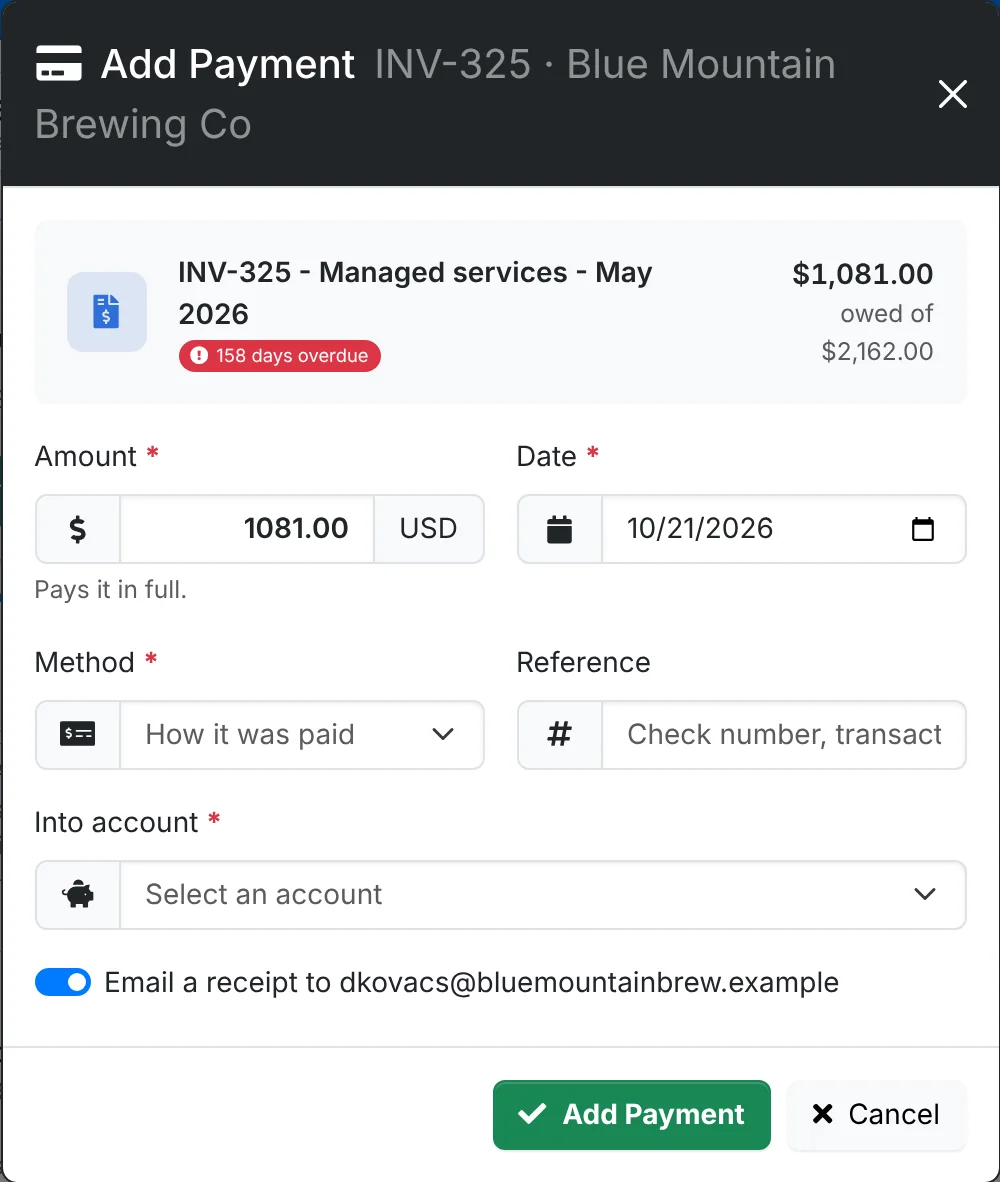
A part payment leaves the invoice Partial, with what's still owed. When the balance reaches nothing, it's Paid.
One payment for several invoices
When a client sends one check for several invoices, record it once. In the client's Invoices, use the arrow beside New Invoice and pick Batch Payment.
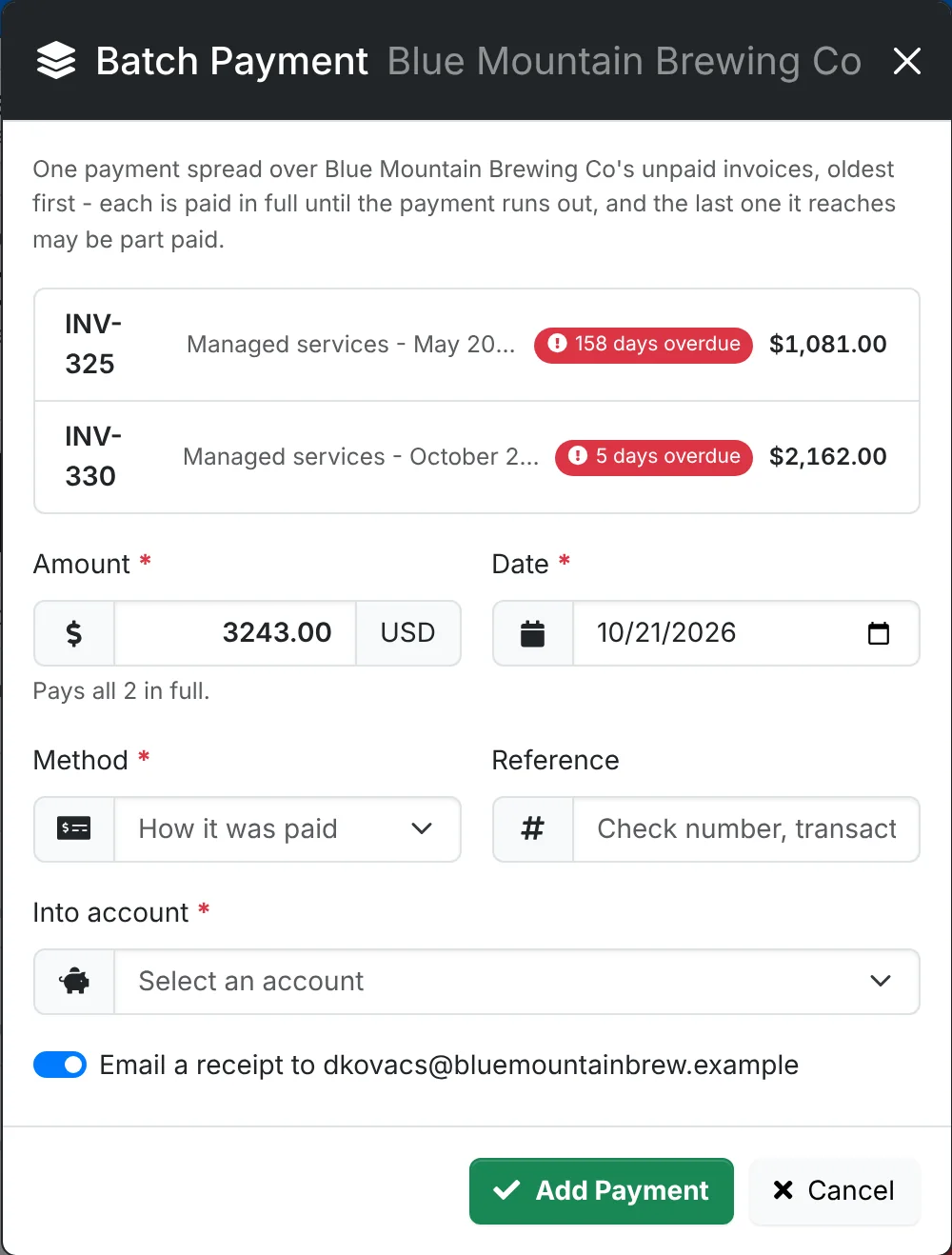
It lists the client's unpaid invoices. The payment is spread over them oldest first: each is paid in full until the payment runs out, and the last one it reaches may be part paid.
Online payments
When your admin has connected a payment provider such as Stripe in Admin > Payment providers, invoices get a Pay Now button - on the invoice's link and in the client portal. The client pays by card - in the portal they can pay several invoices in one go - and:
- the payment is recorded on the invoice, into the account your admin picked
- the client gets a receipt
- the provider's fee is recorded as an expense overnight, so your income and costs both add up
- an email goes to whoever your admin set to hear about invoices paid online
Your admin can limit online payment to invoices under a set amount.
Saved cards and autopay
A client can save a card in the client portal. Then:
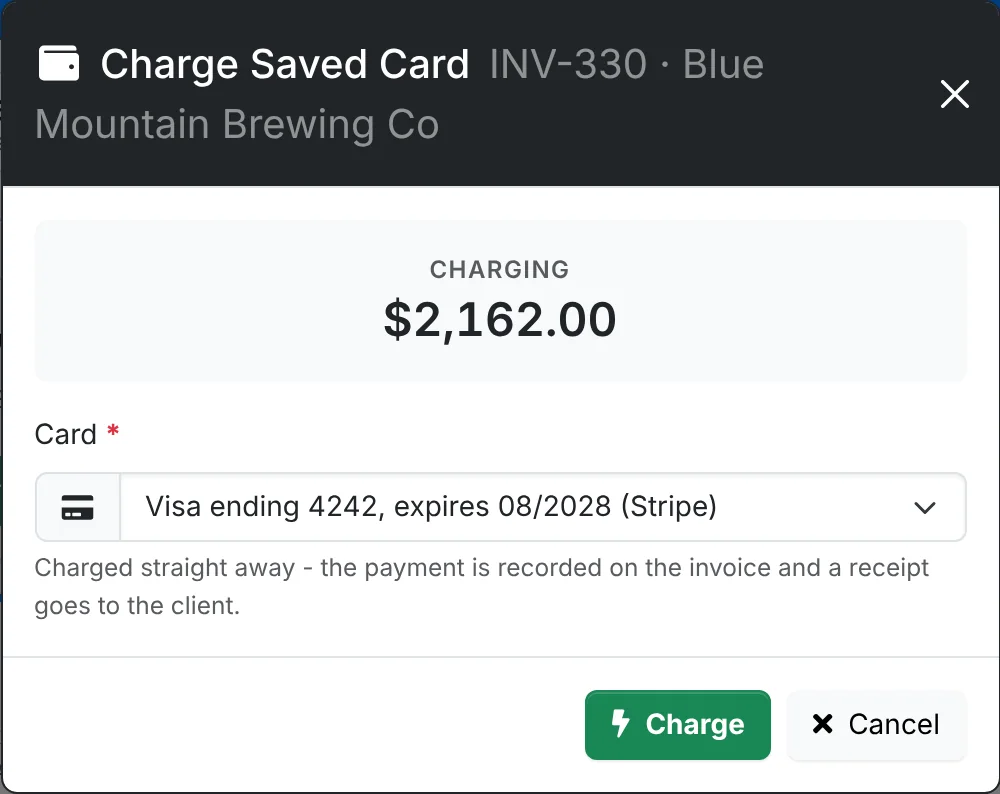
- on a sent invoice, the arrow beside Add Payment has Charge Saved Card. The card is charged straight away, the payment is recorded and a receipt goes to the client.
- a recurring invoice can charge the card by itself on the due date of each invoice it makes.
Change or remove a payment
Each payment is listed on the invoice's Payments card. Its ⋮ menu has Edit and Delete. Deleting a payment takes it off the invoice and its account, so the invoice is owed again - no money moves.
Every payment, and income that isn't for an invoice, is also listed in Finance > Income. Click one for its quick look, with Open Invoice, Email Receipt, Edit and Delete.
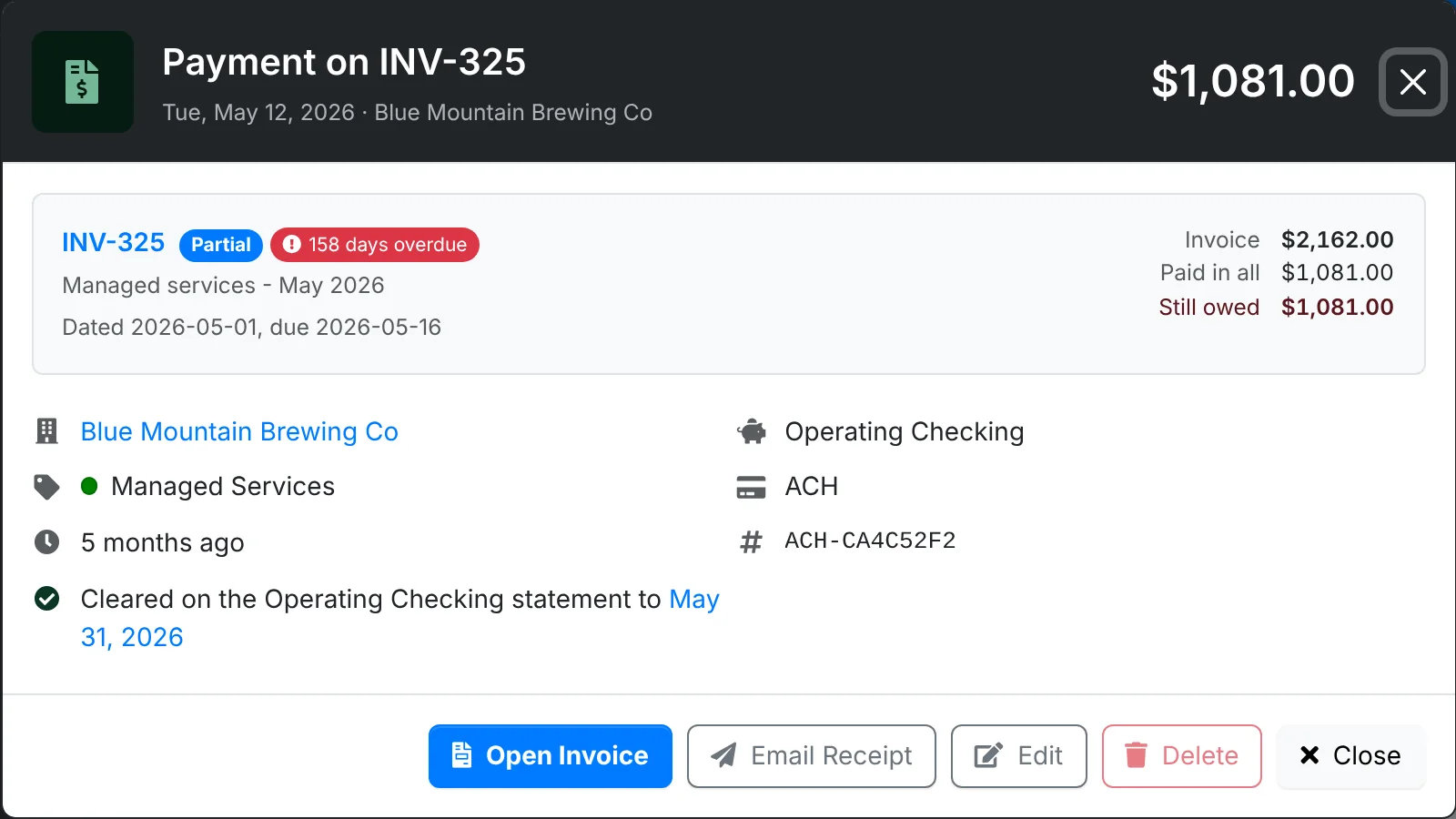
The quick look also says whether the payment has cleared on a bank statement, once you reconcile the account.
The payment methods in the Method list, and the accounts, are set up by your admin in Admin > Payment methods and Finance > Accounts.