AI
Connect an AI provider - a cloud service or a model on your own server - choose which model does what, and see every request made.
AI in ITFlow is optional and off until you connect a provider. Once it's set up, agents whose role includes AI get the features described in Using AI.
Add a provider
A provider is the service that runs the model: OpenAI, Anthropic (Claude), Google Gemini, Mistral, Azure OpenAI, Groq or OpenRouter in the cloud - or Ollama, LM Studio or any OpenAI-compatible server on your own network, so nothing leaves it.
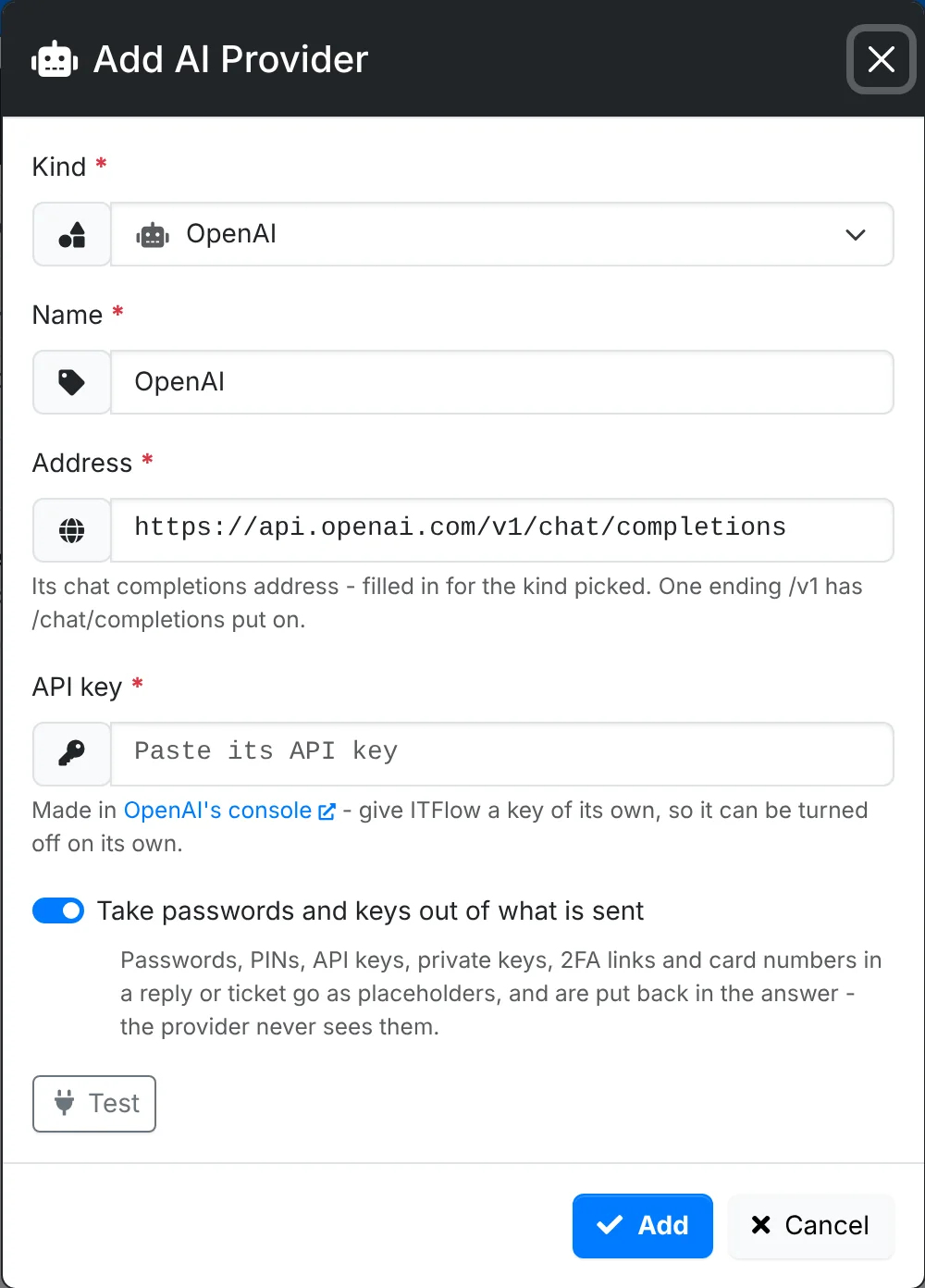
- Go to Admin > AI Providers and click Add Provider.
- Pick its Kind. The Name and Address are filled in for you.
- For a cloud provider, paste its API key - the window links to where you make one. Give ITFlow a key of its own, so it can be turned off on its own.
- Leave Take passwords and keys out of what is sent on. Passwords, PINs, API keys, private keys, 2FA links and card numbers in a ticket or reply then go as placeholders, and are put back in the answer - the provider never sees them.
- Type its first Model, as the provider names it, and click Test to check ITFlow can reach it.
- Save it.
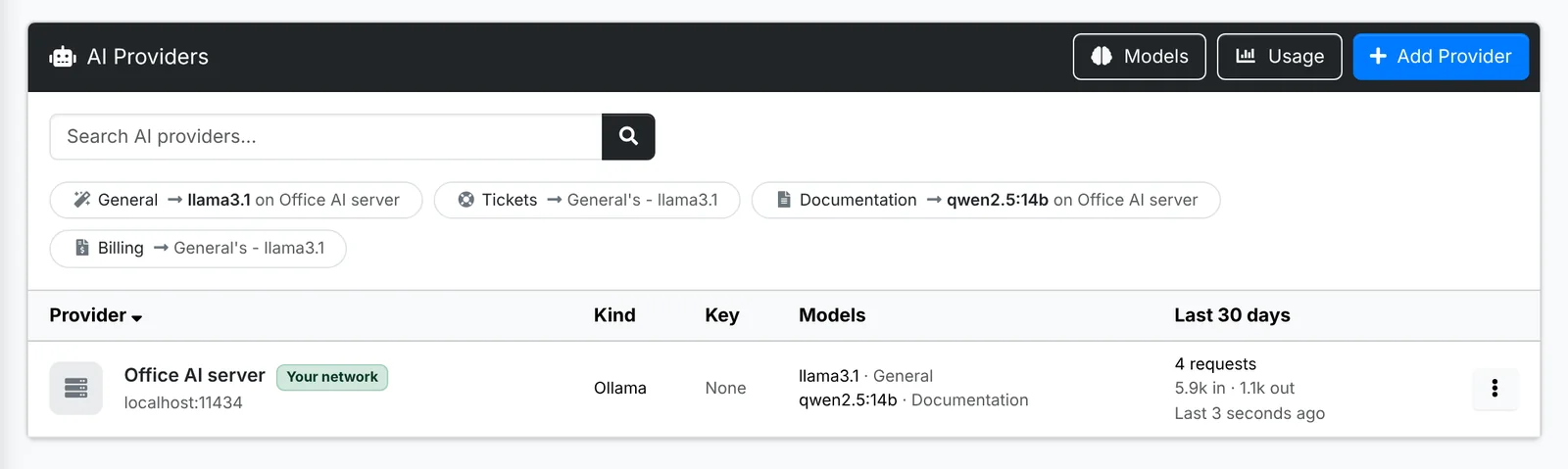
The list shows each provider, its kind, whether a key is saved (it's never shown), its models and what each is for, and its requests and tokens over the last 30 days. The chips across the top show which model each use is answered by.
Models and what they're for
Each model is for one use case:
| Use case | Covers |
|---|---|
| General | Everything without a model of its own - rewording and translating in any editor, and client briefings |
| Tickets | Drafting replies, triage, summaries, and rewording in the ticket reply editor |
| Documentation | Drafting and reviewing documents, writing a ticket up as a document, and drafting document templates |
| Billing | Writing quotes and invoices, and describing a ticket's work for its invoice line |
A General model is enough - every use falls back to it. Add others to send a use to a different model: a larger one for documentation, or a local one for tickets so client details stay on your network.
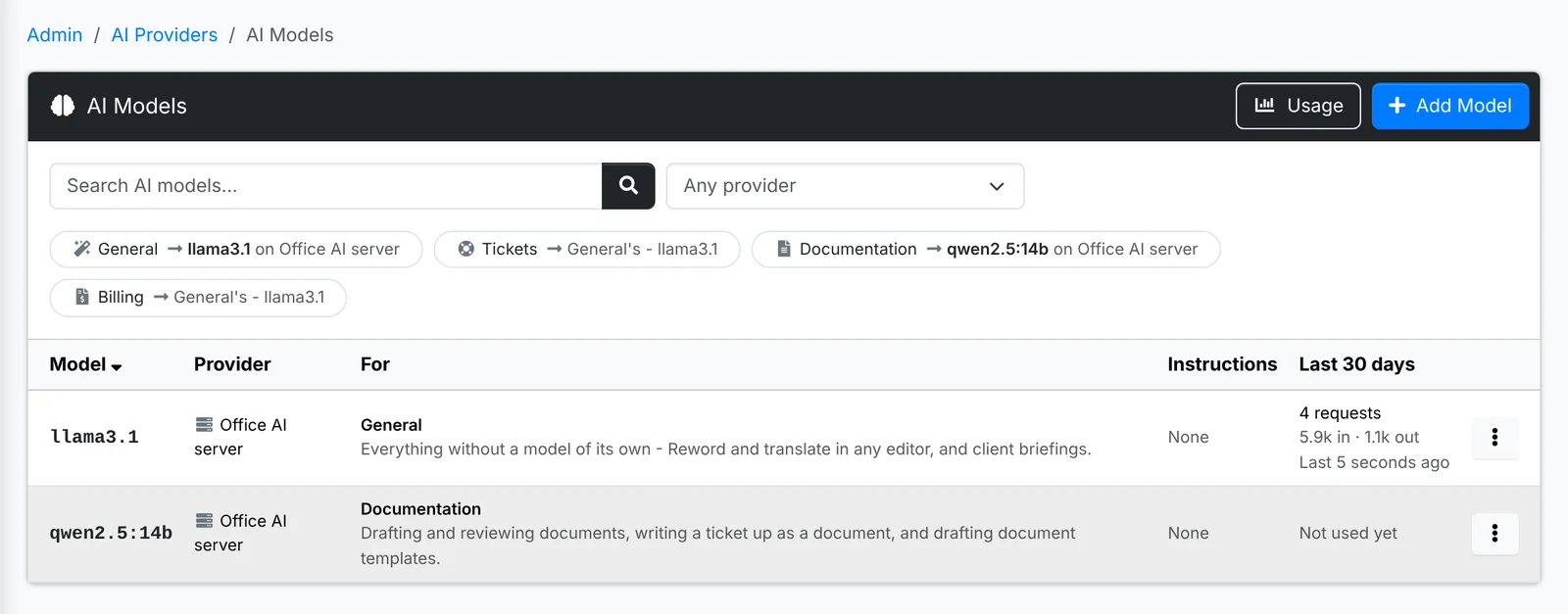
On Admin > AI Models, each model can have Instructions - your house style, sent with everything it's asked, such as "Write in US English" - and a Temperature. Leave the temperature empty unless you know the model takes one; newer models turn it away. Try it sends a test question.
Who can use it
AI is a part of each role, like Clients or Sales - see Roles. Admins can always use it. An agent can only use it on what their role already lets them see.
To have new tickets from email, the portal and the API triaged as they come in, set Triage new tickets with AI in ticket settings.
Usage
Admin > AI Usage lists every request made: when, the feature, who asked, the client it was about, the model, the tokens it took, how long it took, how many secrets were taken out first, and whether it worked - and why not, when it didn't.
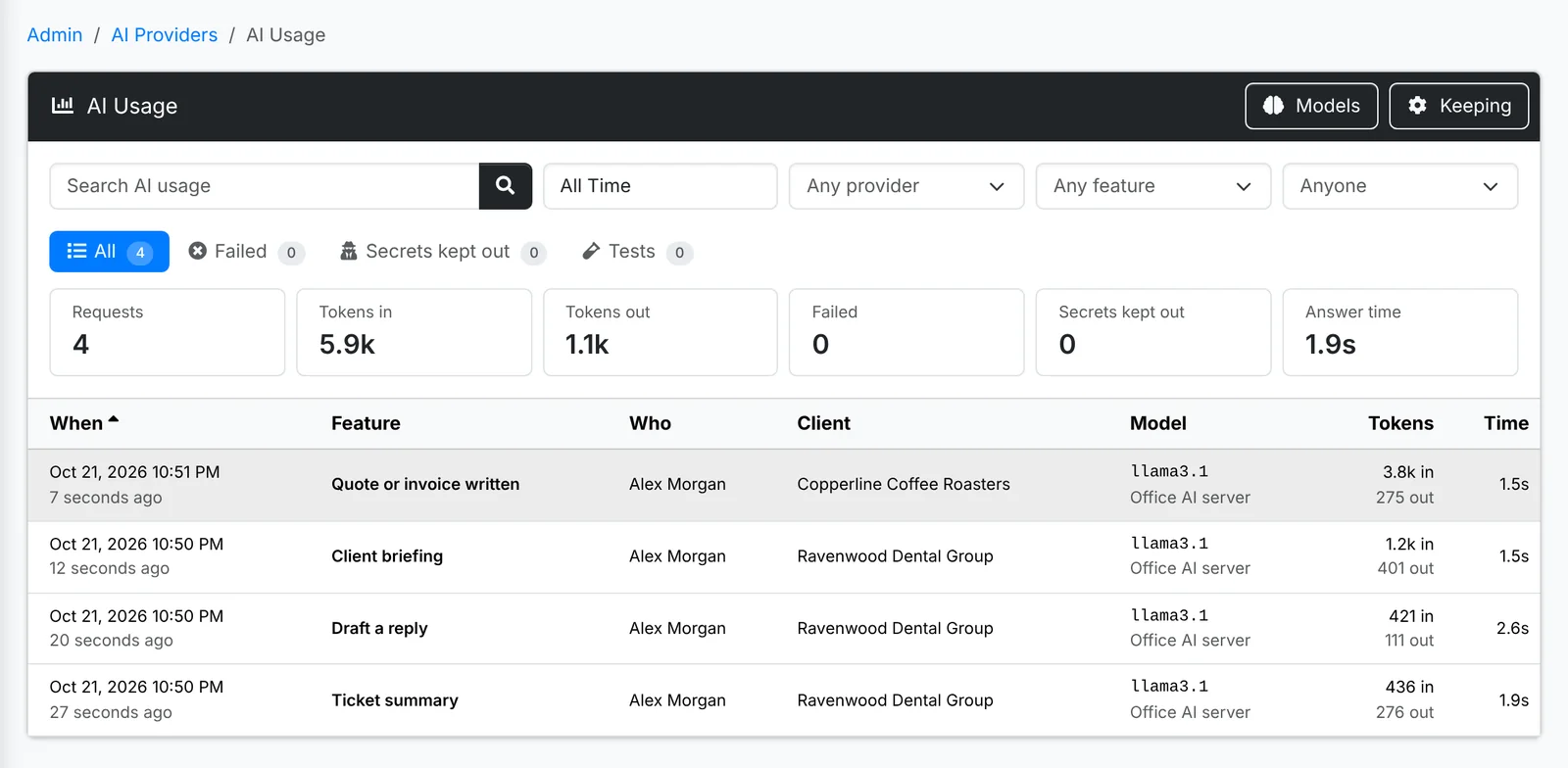
Totals for what's shown sit at the top. The tabs show the ones that Failed, the ones Secrets were kept out of, and Tests. Usage is kept as long as the audit log - see Logs.