Recurring tickets
Tickets that raise themselves on a schedule - monthly maintenance, backup checks, quarterly reviews - so routine work is never forgotten.
A recurring ticket is a ticket ITFlow raises for you on a schedule: every week, every month, every quarter. Use them for routine work you never want to forget - patching, backup restore tests, checking a client's firewall, the quarterly business review.
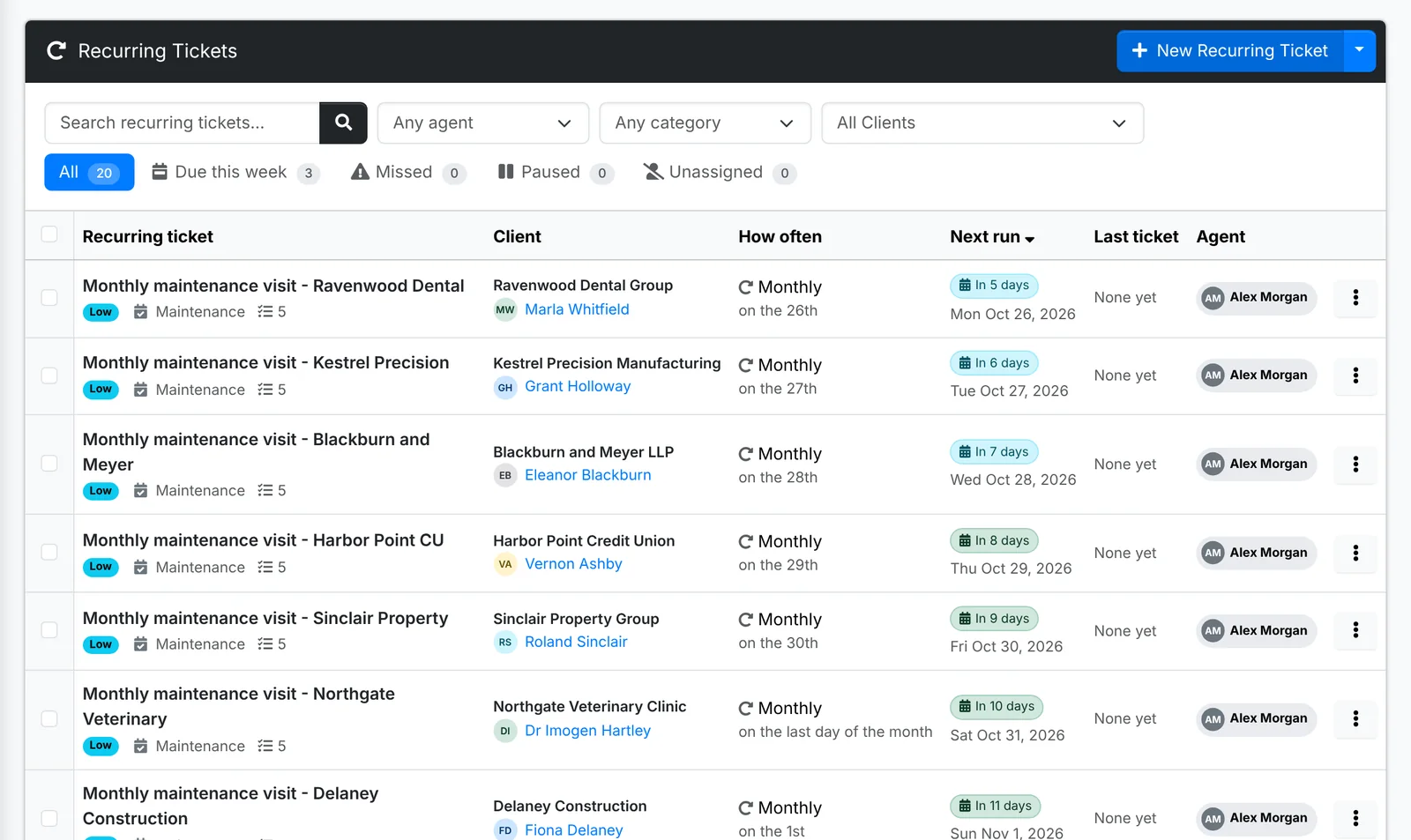
The list shows each one's client, How often, Next run, Last ticket and Agent. The tabs show All, Due this week, Missed (runs that didn't happen), Paused and Unassigned.
Set one up
- Go to Support > Recurring Tickets (or a client's Recurring Tickets) and click New Recurring Ticket.
- On Details, pick the Client and Contact, and a Template if one fits. Type the Subject and details, and set the Priority, Category, who to Assign to, and whether The tickets it raises are billable.
- On Schedule, pick the Frequency - every three days, weekly, biweekly, monthly, quarterly, twice a year or yearly - and the First run. The schedule is written out in plain words, with when it will next run.
- On Related, link the Asset it's for. On Tasks, add the steps.
- Click Create Recurring Ticket.
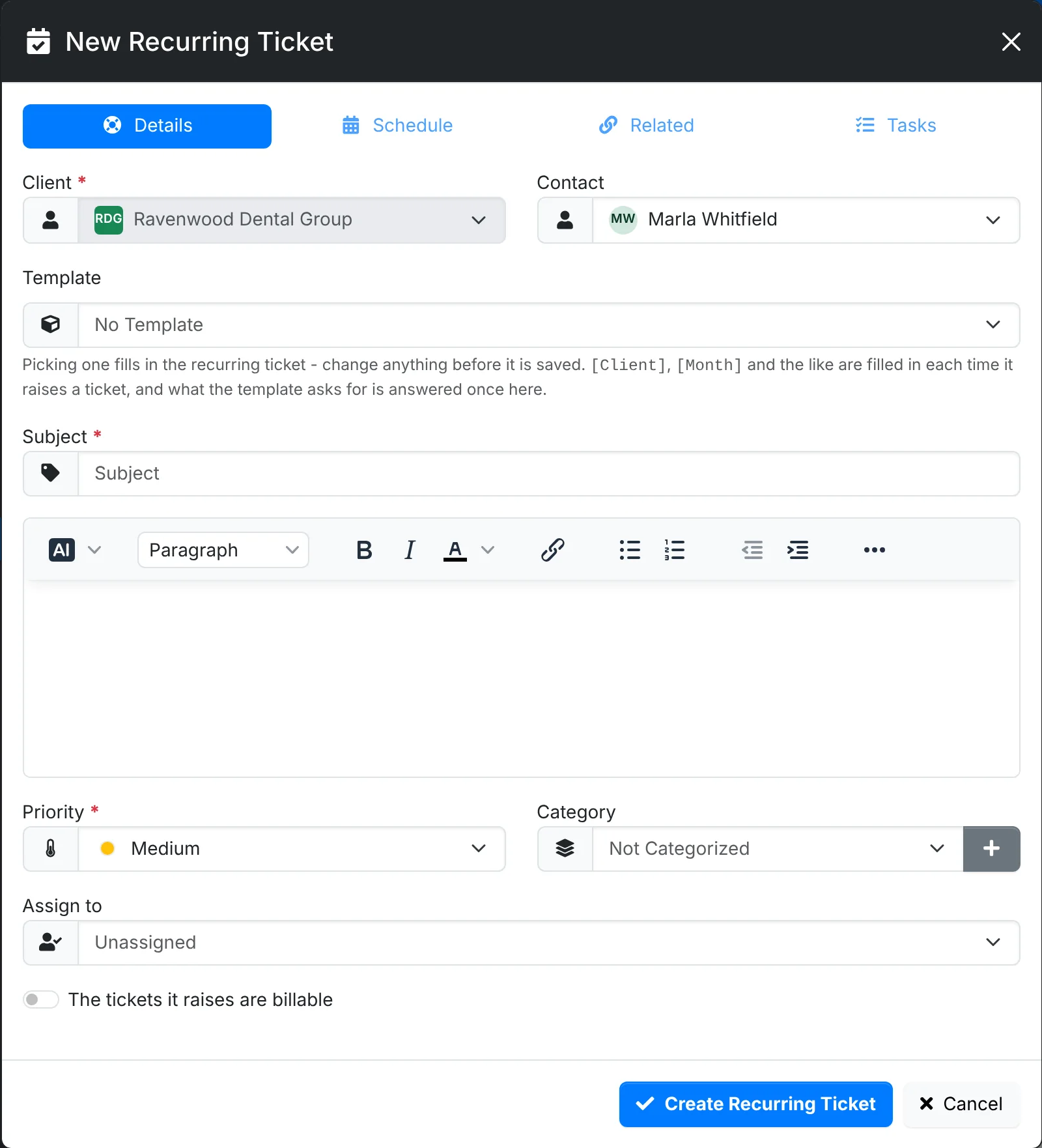
The nightly run raises the ticket on the day, then again each time it comes round. Monthly ones keep to the day they started on - the 31st runs on the last day of a shorter month.
Placeholders such as [Month] and [Quarter] are filled in each time it raises a ticket, so "Monthly maintenance - [Month]" becomes "Monthly maintenance - November 2026". A template's fill-ins are answered once, here, for every ticket it raises.
Run, pause and change
From a recurring ticket's ⋮ menu, or Bulk Action for several:
- Raise now - raise the next ticket straight away, without waiting for its day.
- Pause and Resume - stop it for a while, such as while a client is between contracts.
- Assign, Set priority, Set category, Set billing and Set next run.
- Edit and Delete.
The technician a recurring ticket goes to can be changed right in the list. Each ticket it raises is marked with the recurring arrows in the tickets list.