Using AI
Where ITFlow's optional AI helps - rewording replies, drafting and summarizing tickets, client briefings, documents and quotes - and what it does and doesn't see.
AI in ITFlow is optional. When your admin has connected an AI provider - a service such as OpenAI or Claude, or a model on your own server - you'll see an AI button or a with AI option in a few places. Everything it writes is a draft for you to check: nothing is sent, saved or charged until you say so.
Your role decides whether you can use it. If you don't see the buttons below, AI isn't set up, or your role doesn't include it.
In any editor
Every text editor - ticket replies, notes, documents - has an AI button in its toolbar. Select some text (or none, for all of it) and pick what you want:
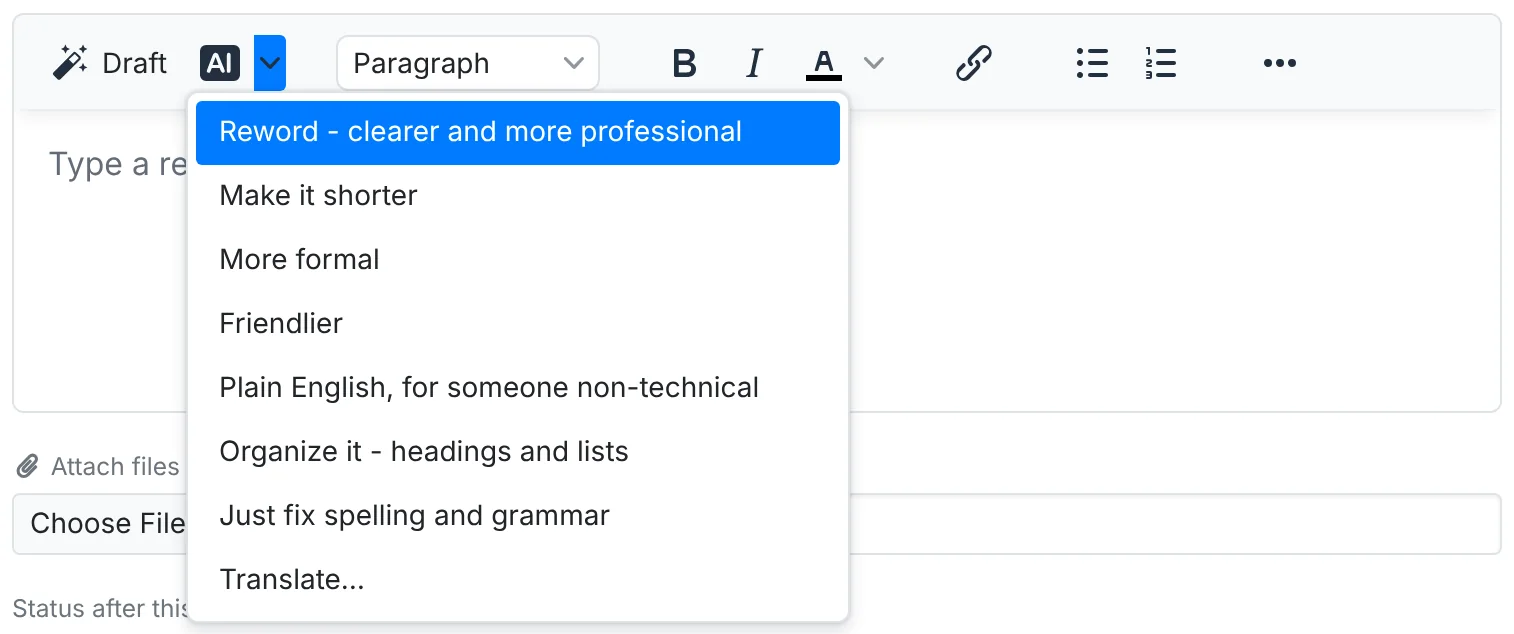
- Reword - clearer and more professional, Make it shorter, More formal, Friendlier, Plain English, for someone non-technical
- Organize it - headings and lists, for a wall of text
- Just fix spelling and grammar
- Translate... into another language
The text is replaced in one step, so Ctrl+Z puts back what was there.
On a ticket
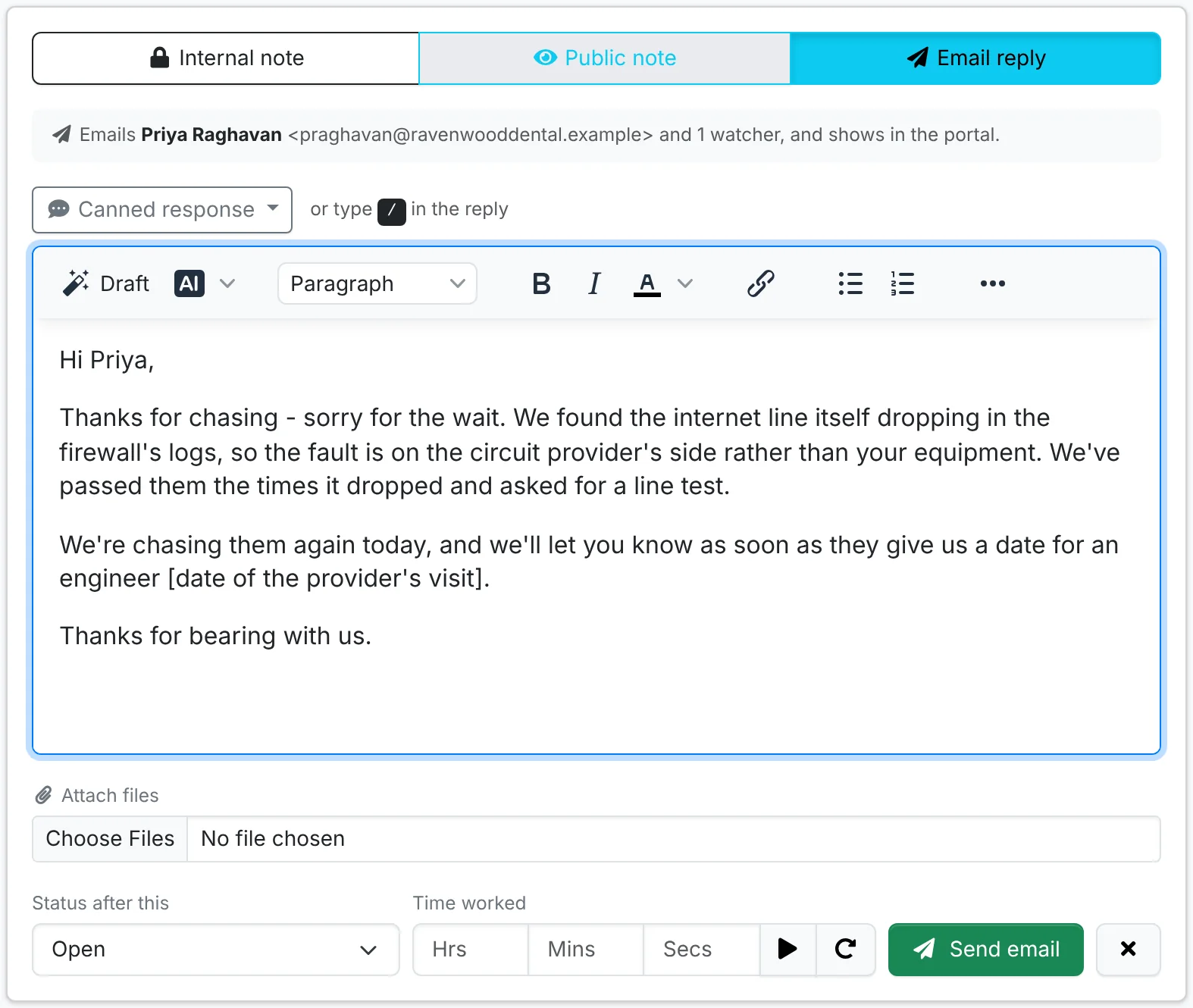
Draft in the reply editor writes the next reply for you - from the ticket so far, or from your own notes if you've typed some, such as "line fault, provider coming Thursday". It writes for whoever will read it: a technical note for your team, or a friendly reply for the client. Where only you know something - a time, a name - it leaves a gap in [square brackets] for you to fill in.
From the ticket's ⋮ menu:
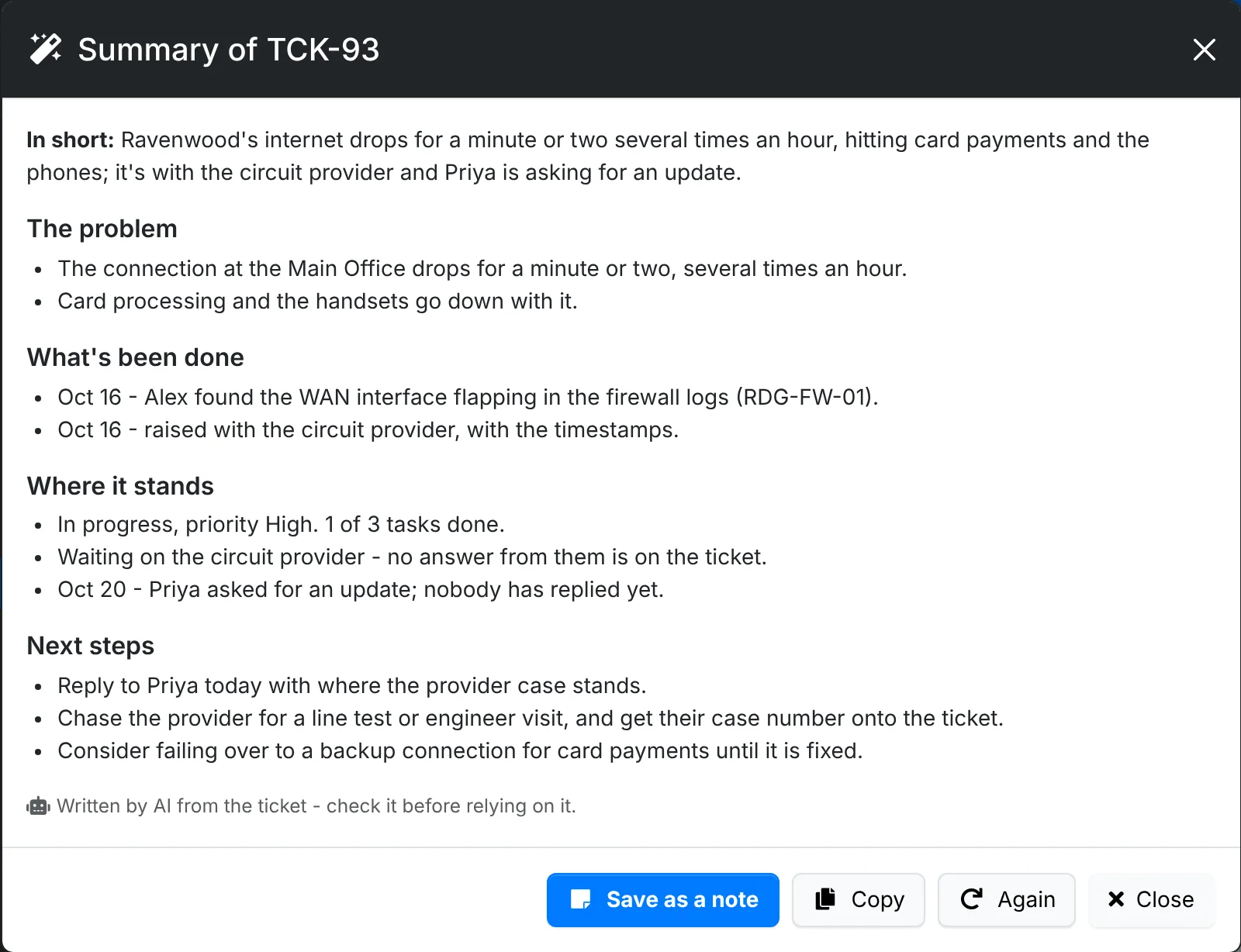
- Summarize with AI - the problem, what's been done, where it stands and what's next, so you can pick a ticket up cold. Save as a note keeps it on the ticket.
- Triage with AI - suggests a category and priority, for you to apply or dismiss. Your admin can have new tickets triaged as they come in.
- Write up as a document - turns a solved ticket into a how-to for the client's documentation, for next time.
Before a call or a review
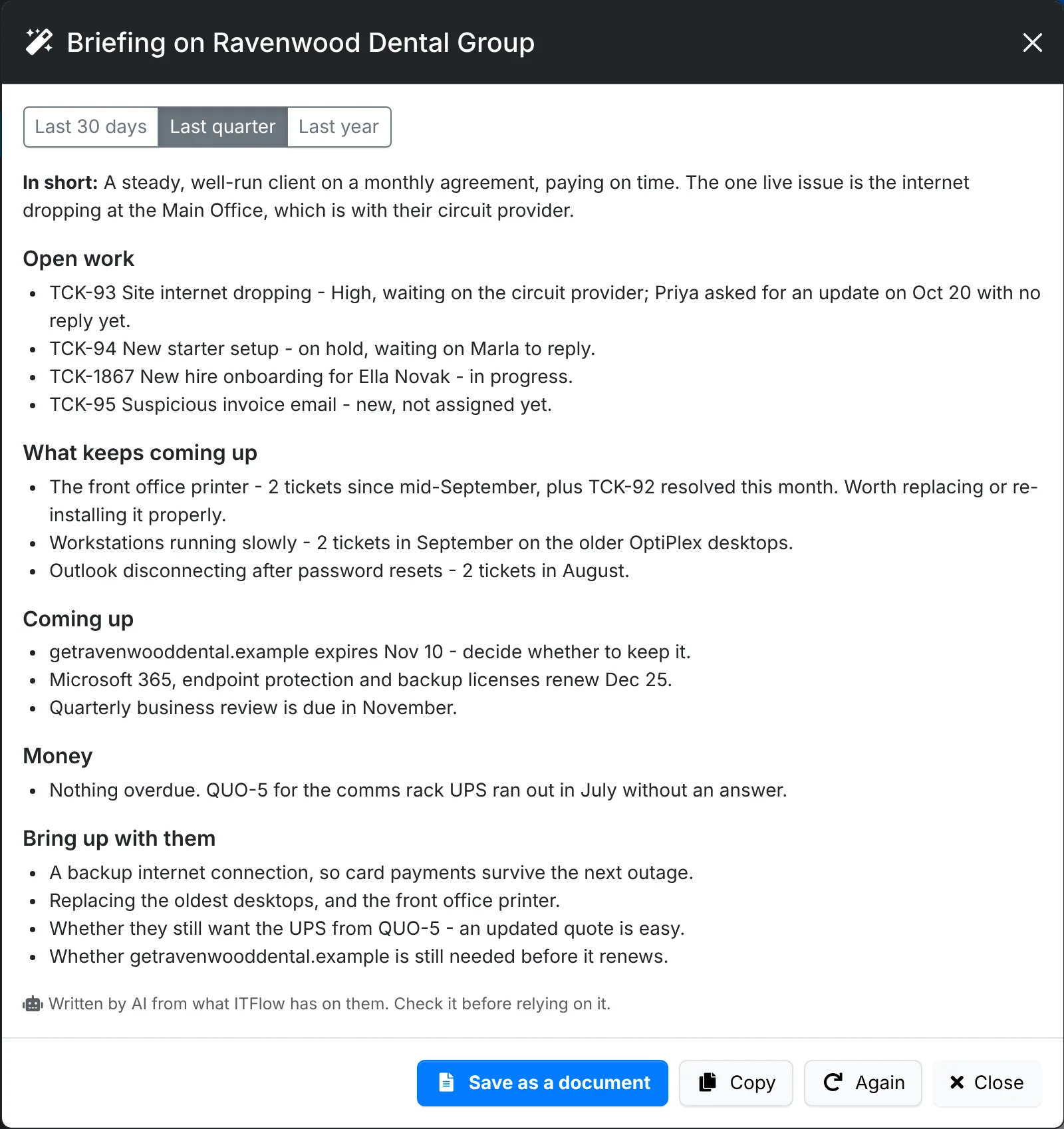
Briefing on a client's overview reads what ITFlow has on them - open tickets and what keeps coming up, renewals, money owed - and writes a one-page briefing, with things worth bringing up. Pick Last 30 days, Last quarter or Last year. Save as a document keeps it in the client's files.
Documents
- Draft it with AI on a new document writes a first draft from what you say it's for, using what ITFlow knows about the client - its sites, devices and services. See Files and documents.
- Review with AI on a document reads it as a senior engineer would, and points out what looks wrong, missing or out of date.
Quotes and invoices
Write it with AI, under the lines of a draft quote or invoice, turns a sentence such as "three new laptops for the new starters, set up and joined to the domain" into lines. It picks items from your catalog, adds labor in hours at the client's rate, and sizes per-user lines from the client's numbers.
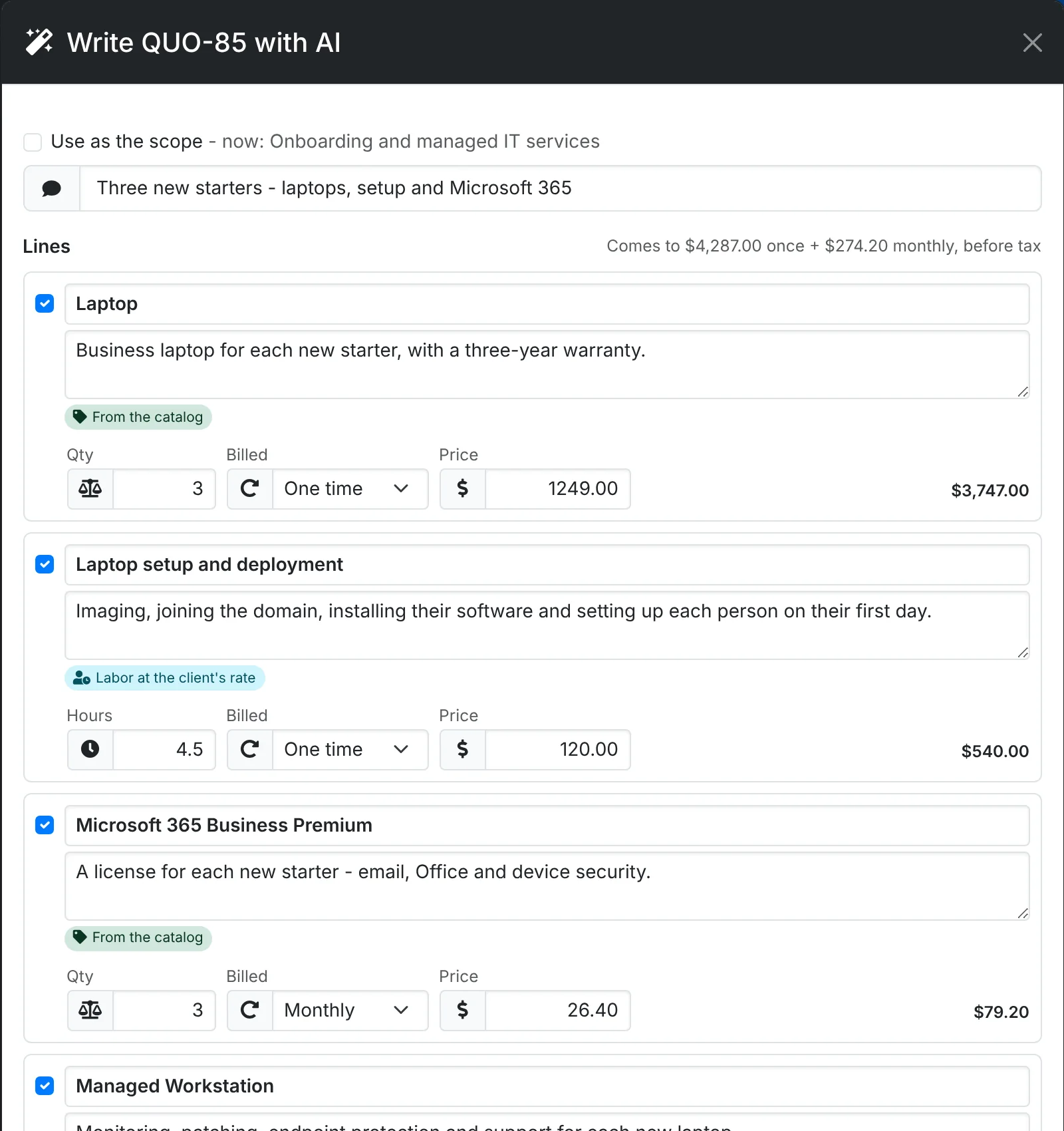
Prices always come from your catalog and the client's rate - AI never sets one. It tells you what it guessed, and what to confirm before you send. Change or untick any lines, and add them to the quote or invoice.
When you bill a ticket with Create invoice, Write it describes the work done in plain words for the client.
What it sees
- Only what's needed for the job: the ticket, the document, or the client's records you asked about.
- Passwords, PINs, API keys and similar secrets are taken out before anything is sent, and put back in the answer - unless your admin has turned that off for a provider on your own network.
- Every request is recorded - who asked, about which client, and when - in Admin > AI Usage.
Your admin sets up providers and models in Admin > AI Providers - see AI.