Tickets and requests
How clients raise tickets and requests in the portal, follow them, reply, approve tasks and confirm a fix - and what you set up so they can.
In the portal, a client can raise a ticket any time, follow what's happening on it, and reply - without an email getting lost on the way. Everything they do lands on the ticket in ITFlow, just as an email reply would.
The tickets list
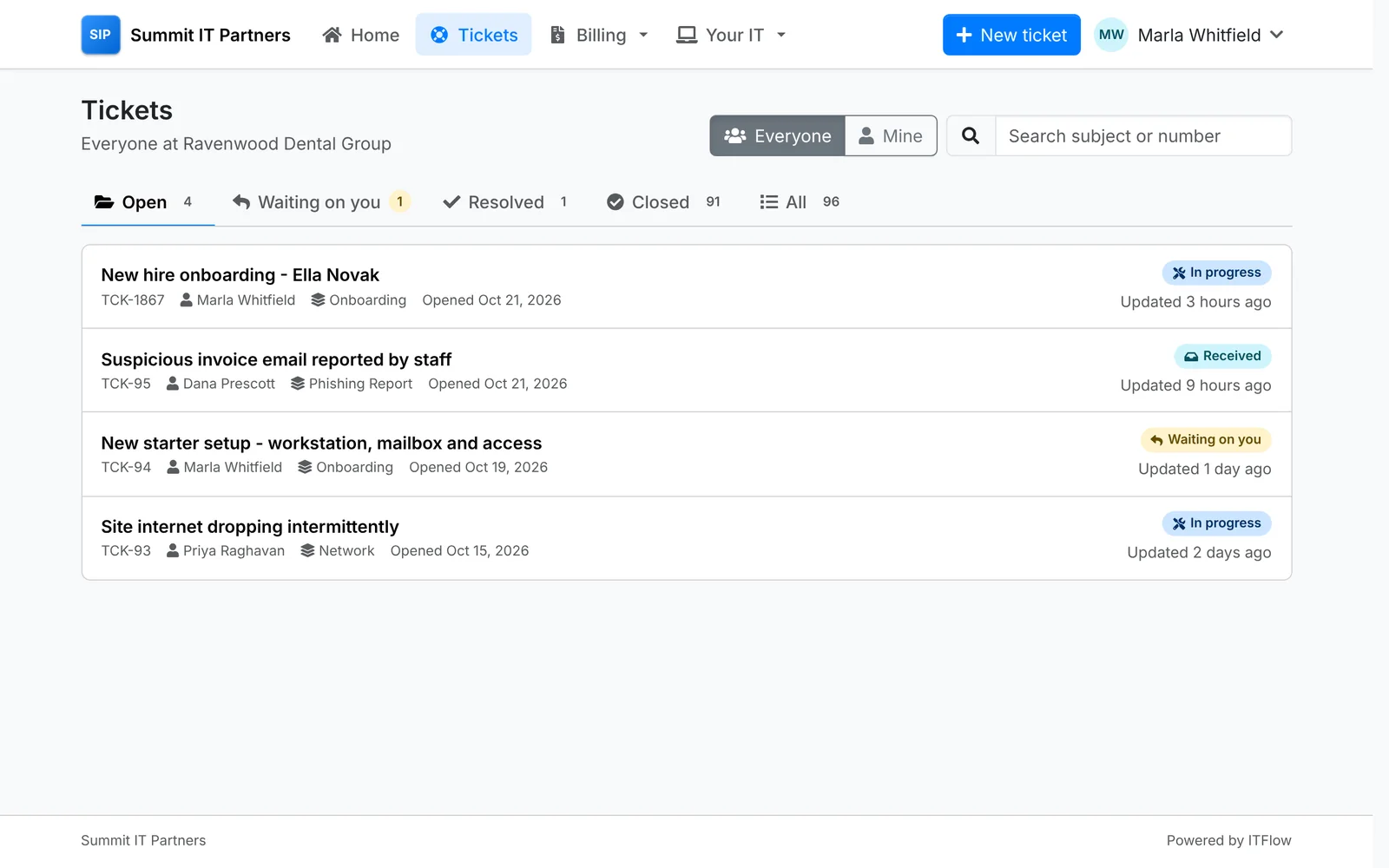
The tabs are where each ticket stands for the client: Open, Waiting on you (you've replied and need an answer), Resolved (fixed - for them to confirm), Closed and All. They can search by subject or number.
Most contacts see the tickets they raised. Primary and technical contacts see every ticket at their company, with Everyone and Mine to switch between the two.
Raise a ticket
New ticket asks what they need. Report a problem is a short form:
- a Subject, in a few words
- What is happening? - what they were doing, any error message, and when it started
- How much is it getting in the way? - which sets how urgent it is
- What is it about? and Which device? - their own devices are listed
- Screenshots or files, dropped in or chosen
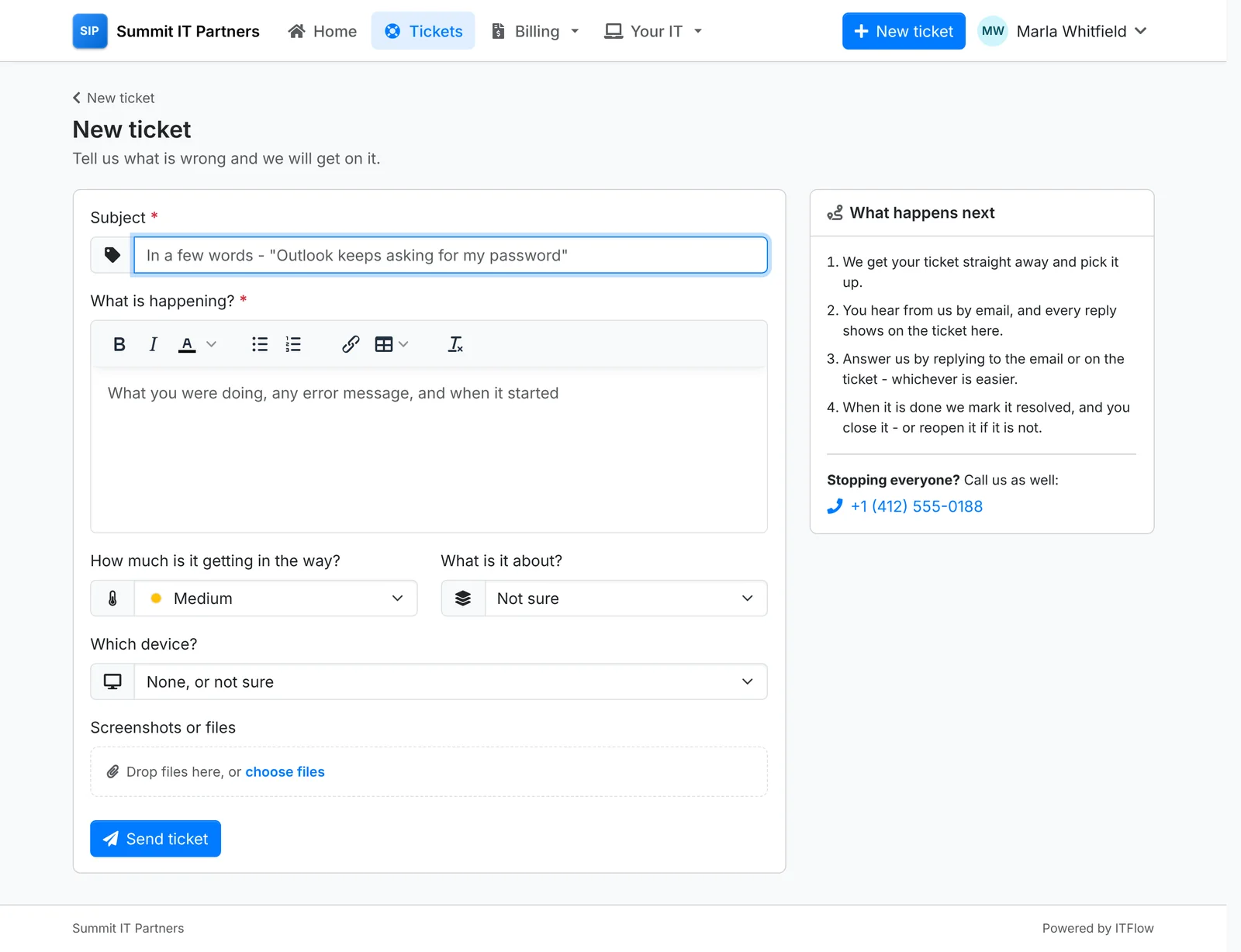
What happens next alongside tells them what to expect, with your phone number for when it's stopping everyone.
Clients can also start a ticket from elsewhere in the portal: Report a problem on a device fills the device in, and Ask us on an invoice or quote fills in the subject.
Request forms
Under Or ask for something, they see your request forms: "Ask for a new computer", "Onboard a new employee", "Someone is leaving", "Report a suspicious email". Each asks for exactly what you need to do the job - the new starter's name, start date, manager and whose access to copy - so you're not chasing the details afterwards.
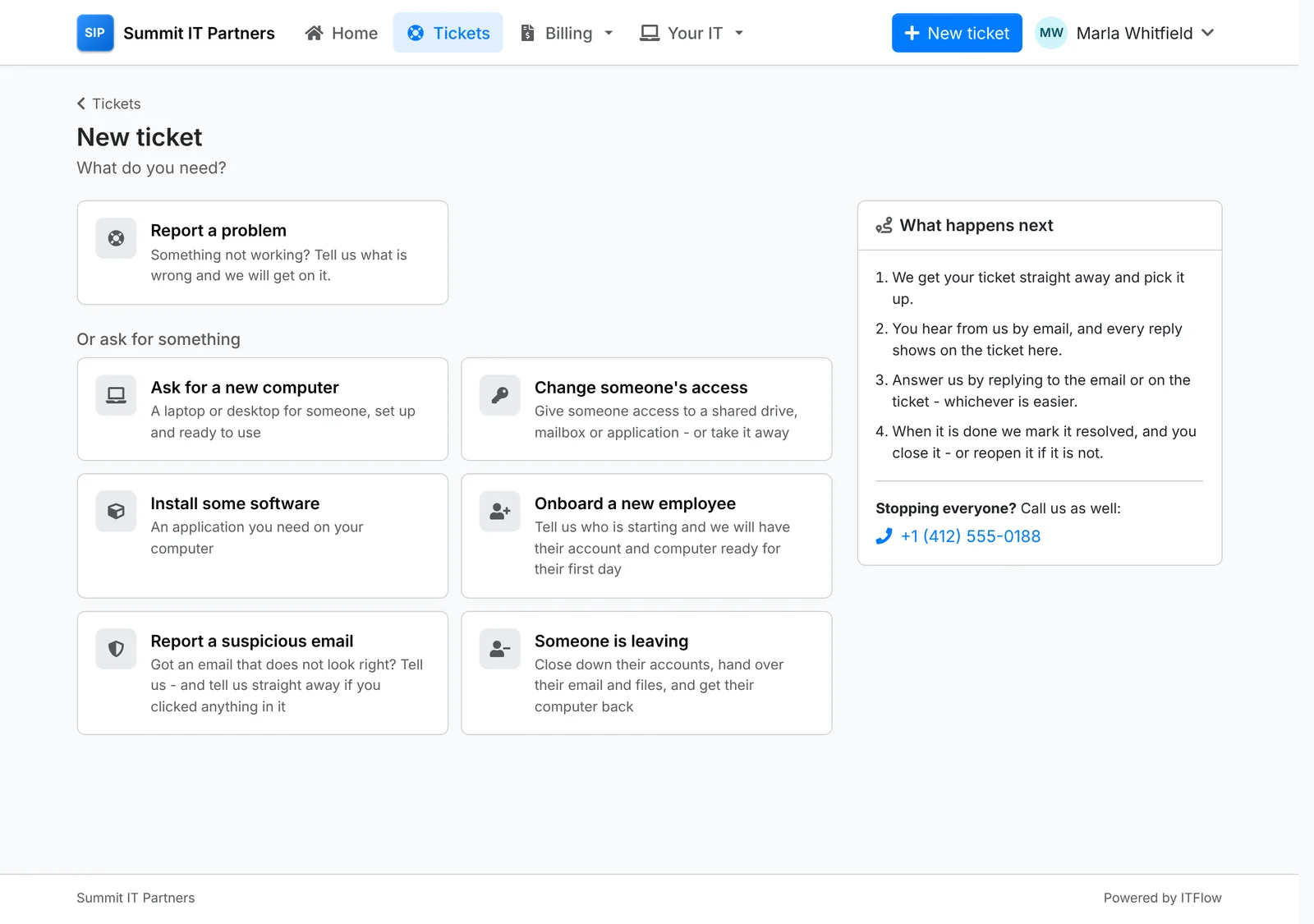
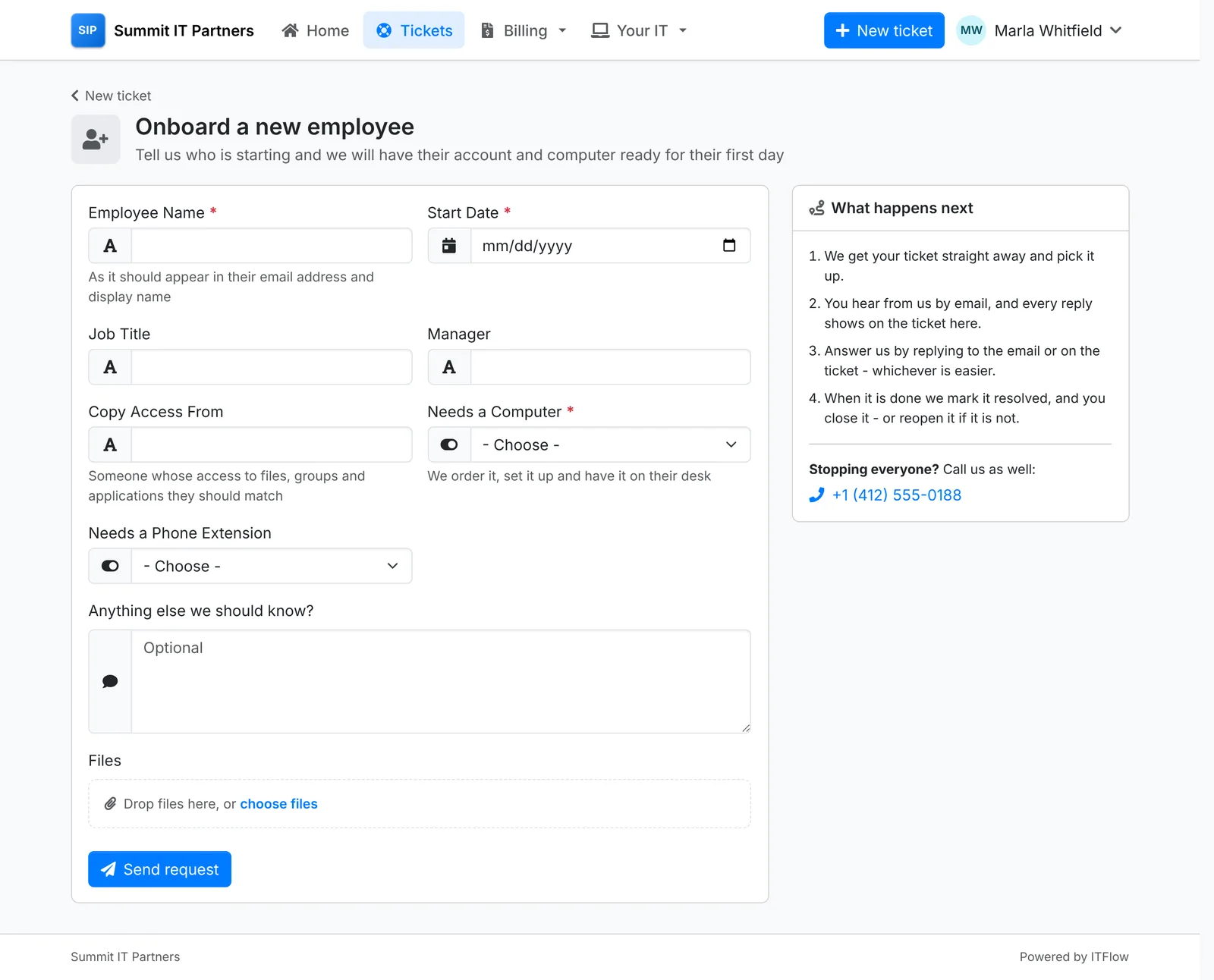
The ticket is raised from the form's template, with its category, priority, tasks and who it's assigned to. Request forms are ticket templates offered in the portal - for every client or some, to everyone or only primary and technical contacts. See Ticket templates.
Follow a ticket
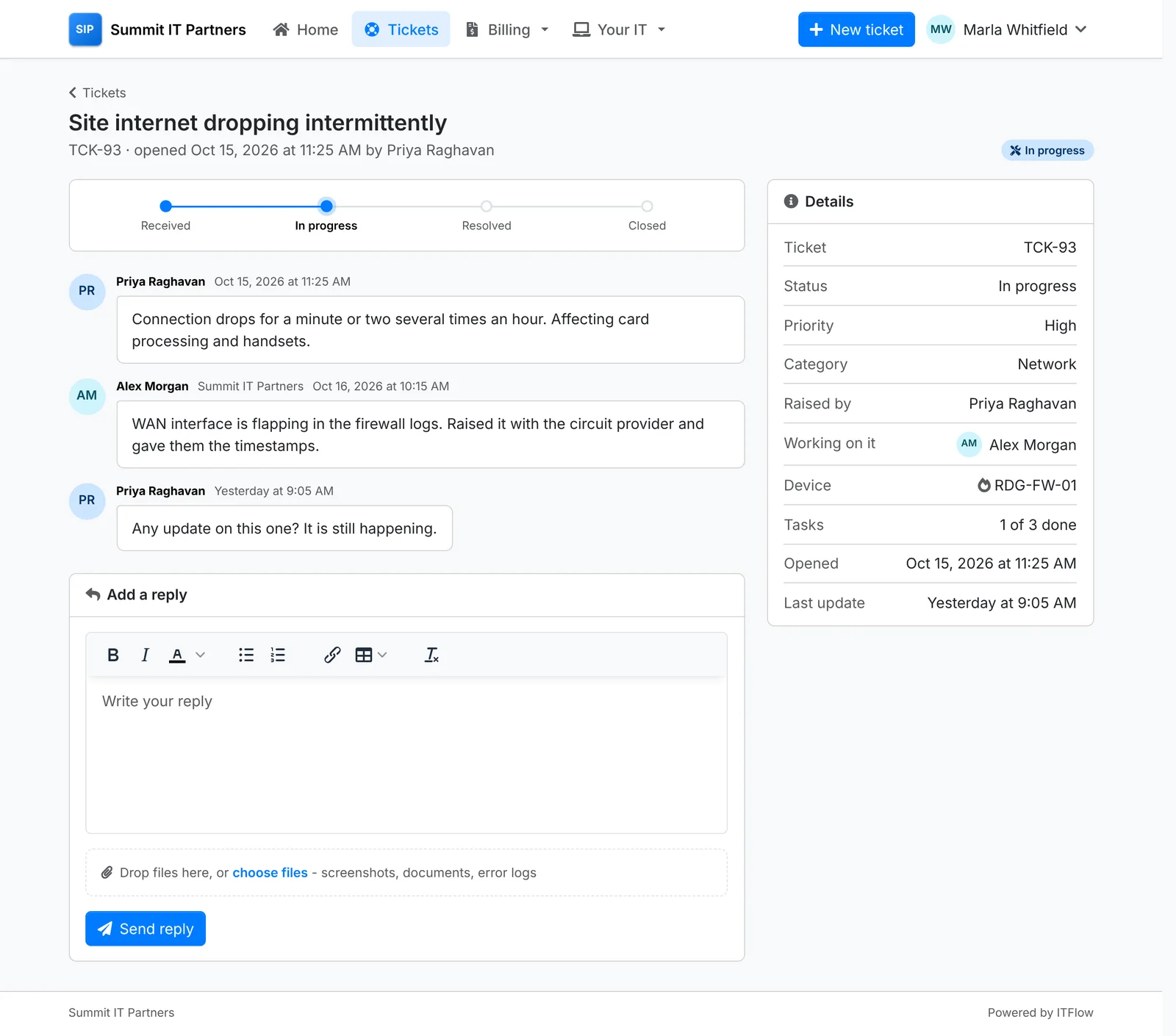
The ticket shows where it stands - Received, In progress, Resolved, Closed - and the conversation, oldest first, with their own messages on the right. Your internal notes never show. Down the side: its status, priority, category, who raised it, who's working on it, the device and how many tasks are done.
- Add a reply, with files, and click Send reply.
- It's fixed marks it resolved themselves.
- When you've resolved it, they're asked to confirm: Yes, close it, or No, reopen it if it's still not right.
- Once it's closed, they can rate it Good or Not good. Ratings show in the Customer Satisfaction report.
Approvals
When a task on a ticket needs the client's say-so - buying a replacement, giving someone admin access - the contact you picked sees it under Waiting for your approval on the ticket and on their home page, with Approve. They can approve it from the email too. The task is marked approved in ITFlow. See Working a ticket.