What clients see
A tour of the client portal - where your clients raise tickets, pay invoices and look up their own IT - so you know what they're looking at when they call.
The client portal is your clients' side of ITFlow. A contact you give access to signs in with their email address and can:
- raise tickets, follow them and reply, and ask for things with your request forms
- see and pay their invoices, accept quotes and save a card for autopay
- look up their devices, licenses, domains, documents and colleagues
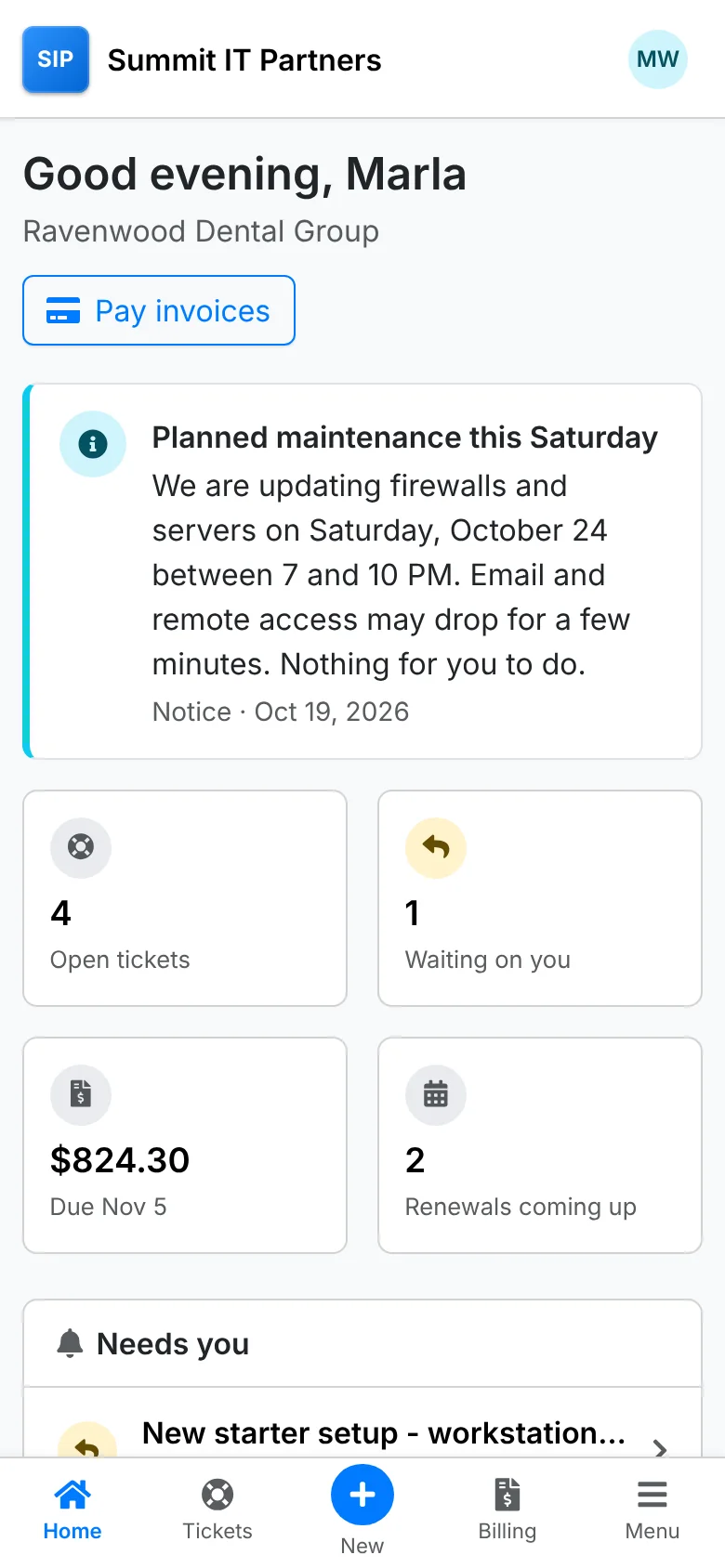
It carries your company's name and works on a phone as well as a computer. What each contact sees depends on their roles - see Giving contacts access.
Signing in
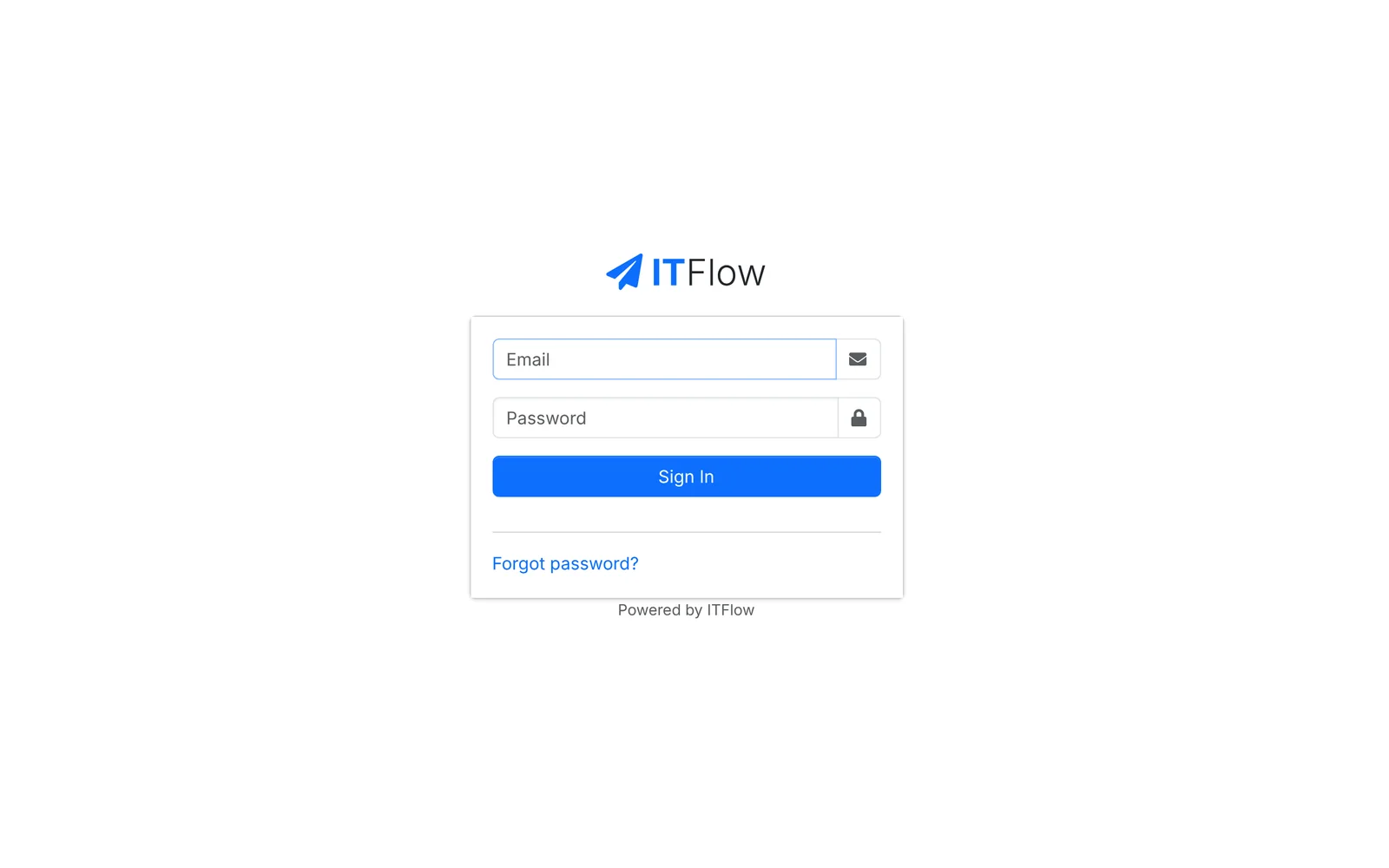
Clients sign in at the same address as you, with their email and password, or with their Microsoft account if you've set that up. Forgot password? emails them a link to choose a new one.
Home
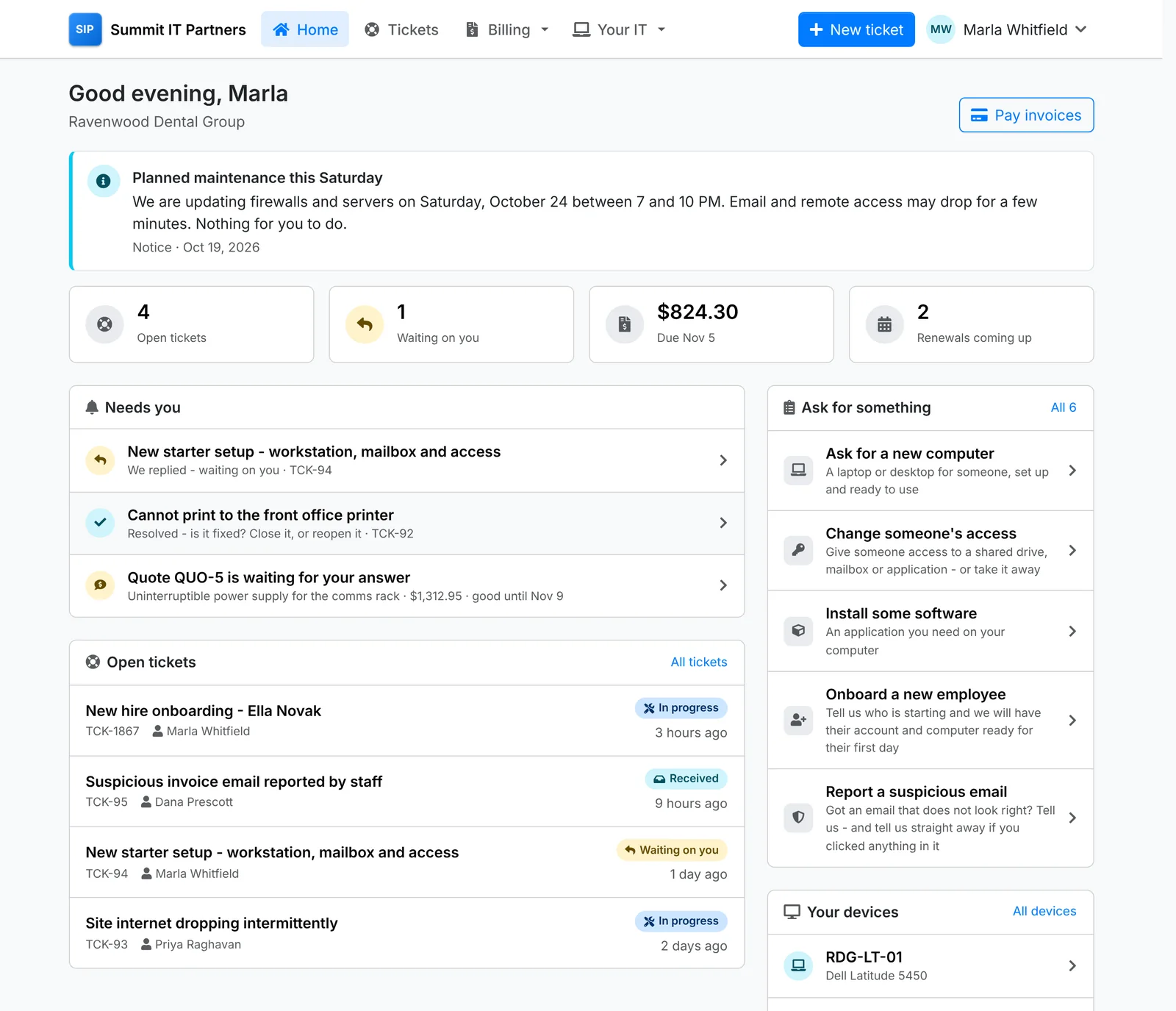
Home puts what matters first:
- Along the top: their Open tickets, how many are Waiting on you (on them), what's Due and when, and Renewals coming up. Pay invoices is a click away when something is owed.
- Needs you lists what's waiting on them: tickets you've replied to, tickets you've resolved for them to confirm, approvals, overdue invoices and quotes waiting for an answer.
- Open tickets, Your devices and what's Coming up for renewal.
- Ask for something shows your request forms - "Ask for a new computer", "Someone is leaving" - see Tickets and requests.
- Need us fast? gives your phone number and email.
Announcements you post - planned maintenance, a holiday closure - show at the top of every client's home, or one client's. Your admin adds them in Admin > Settings > Client portal.
Finding their way around
The bar along the top has Home, Tickets, Billing (invoices, quotes, recurring invoices, payments, statement, and cards and autopay) and Your IT (devices, licenses, domains and certificates, documents and contacts). New ticket is always there.
Their name opens Your account - their details, the emails they get from you, their password, two-step sign-in and phone PIN - and Activity, every sign-in and everything they did in the portal. They can switch to dark mode there too.
See it as they do
On a contact's page in ITFlow, View portal as them opens the portal as that contact sees it, in a new tab. It's read only - nothing you click changes anything or is recorded - so it's the quickest way to answer "I can't see my invoice".