Giving contacts access
Who can sign in to the client portal, what each contact can see there, and how you - or the client's primary contact - give and take away access.
Any contact with an email address can be given access to the client portal. What they see once they're in depends on their roles at the client.
What each contact can see
| Contact | Sees in the portal |
|---|---|
| Everyone with access | Their own tickets, raising new ones and request forms, and the devices they use |
| Billing contacts | Also invoices, quotes, recurring invoices, payments, statements, and cards and autopay |
| Technical contacts | Also every ticket at the company, and the company's devices, licenses, domains and certificates, documents and contacts |
| The Primary contact | Everything - and adds people, changes their roles and gives or takes away their portal access |
Roles are set on the contact's Roles tab - see Contacts. Primary and technical contacts can switch the ticket list between Everyone and Mine.
Give a contact access
- Open the contact and click Edit, then the Access tab.
- Under Client portal, pick the Login:
- With a password - they sign in with their email address and a password
- With their Microsoft (Entra ID) account - they sign in with their work Microsoft account, once your admin has connected Microsoft
- For a password login, leave Password empty and switch on Email them an invite to the portal. They get a link to set their own password, good for 7 days. The email never has a password in it.
- Click Save.
The contact's page then shows that they can sign in, and when they last did. View portal as them opens the portal as they see it, read only.
To take access away, set Login back to No access. Archiving a contact takes it away too.
The primary contact manages their own people
A client's primary contact - usually the owner or office manager - can look after their own people in the portal, under Your IT > Contacts:
- Add a person, with their roles
- change a person's details and roles
- Give access and email an invite, send it again, or turn access off
- Left the company for someone who's gone: their access is turned off straight away, and a ticket is opened for you to close down their email, accounts and devices
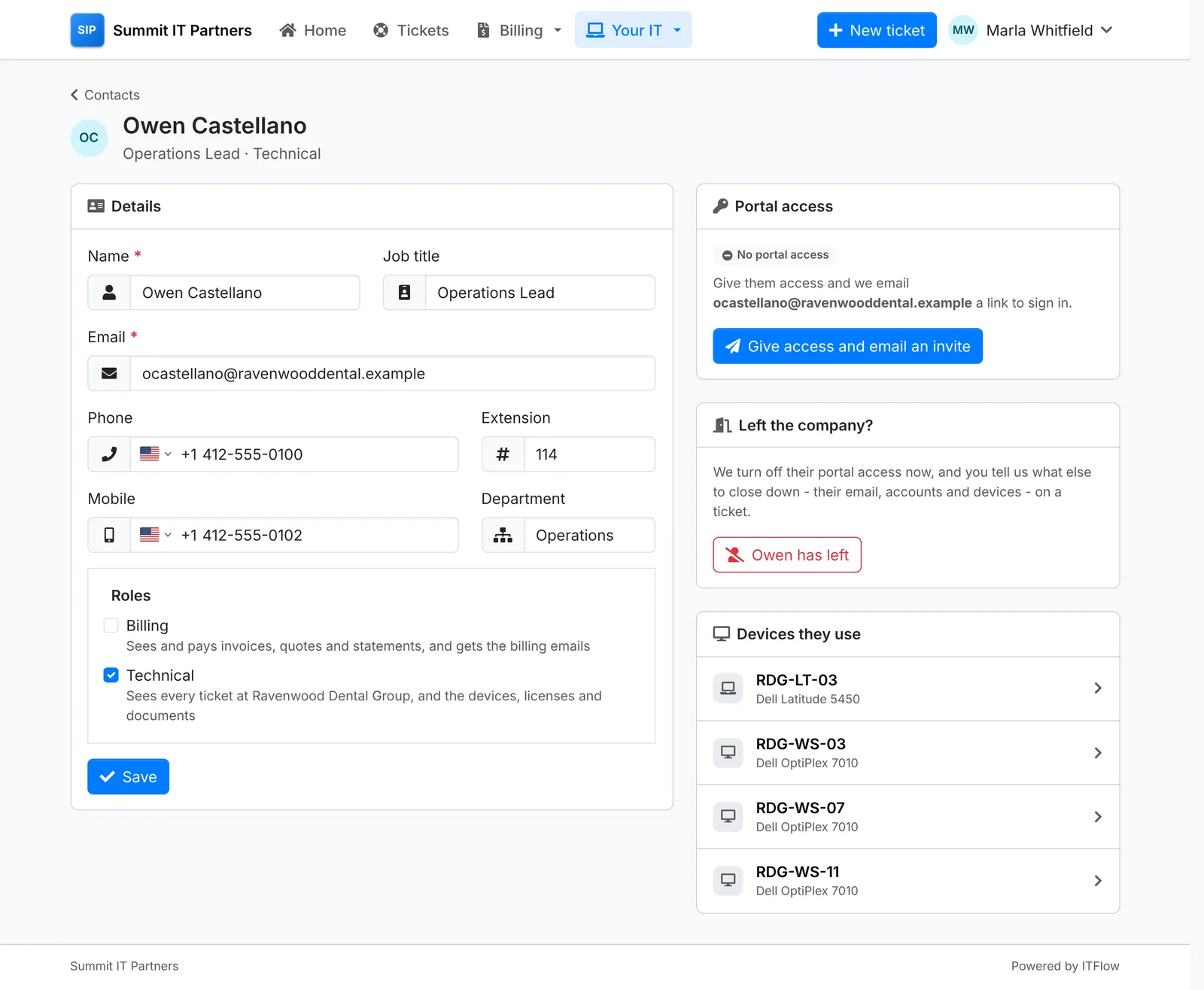
They can't change their own record or another primary contact's. What they change is recorded in the audit log, so you can see who did what.
Signing in safely
Each contact sets their own password, and can turn on Two-step sign-in with an authenticator app under Your account. Your admin can require it for everyone who signs in with a password, in Admin > Settings > Client portal.
If a contact loses their phone, open their contact page and use Turn off two-step sign-in. They sign in with their password alone until they set it up again.
Each contact also has a Phone PIN you can ask for when they call, to check it's really them. They can see and change it under Your account.
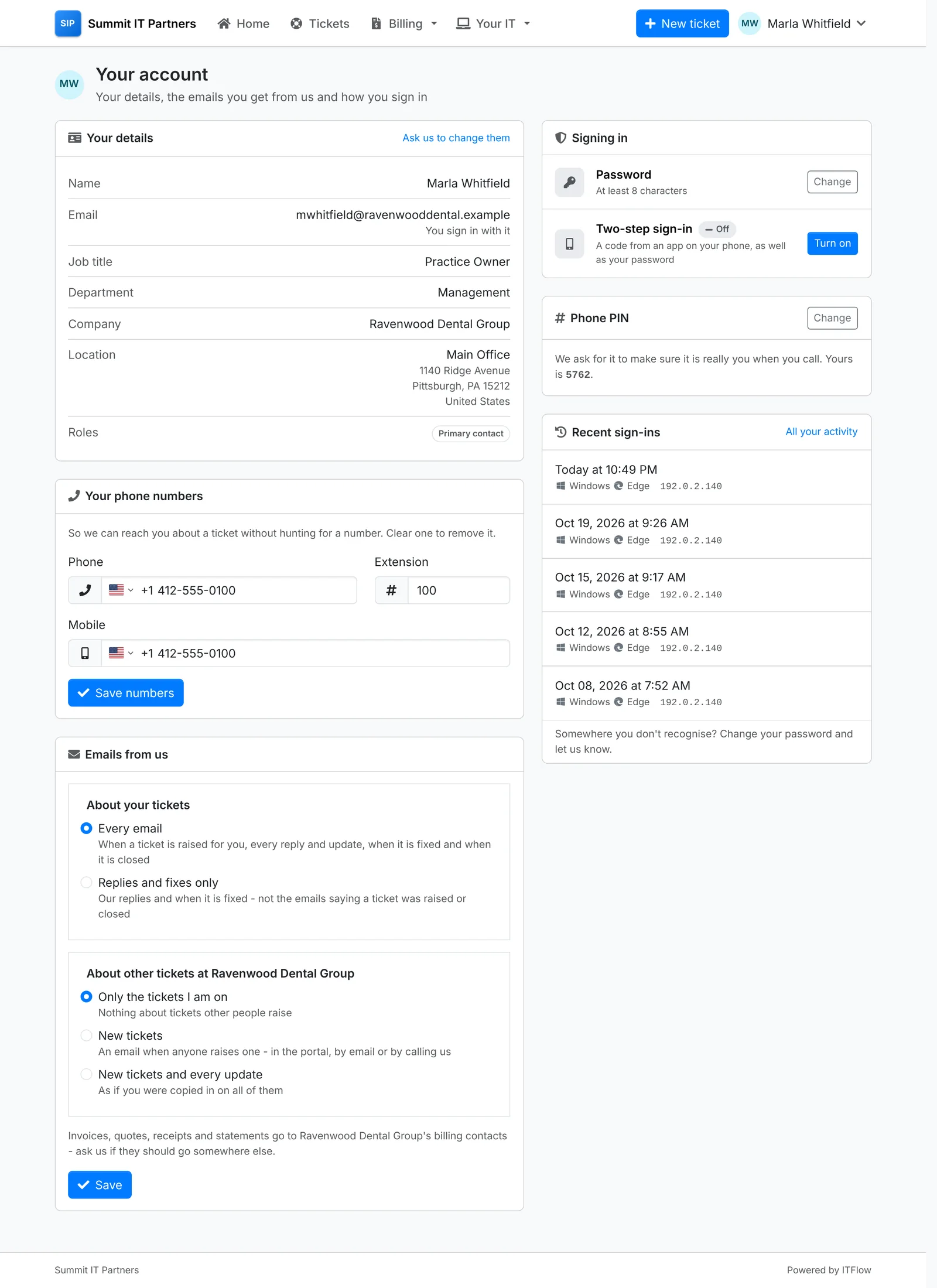
Under Your account, contacts choose which ticket emails they get - every update, or only replies and fixes - and whether to hear about other people's tickets at their company.