Importing statements
Bring a bank or card statement into ITFlow in one go - charges as expenses, deposits as payments and income - matched to your vendors and clients.
Instead of typing in every card charge and deposit, download the statement from your bank as a CSV file and import it. ITFlow reads it, matches each line to a vendor or client, leaves out what you've already entered, and lets you check everything before anything is saved.
There are two imports, for the two sides of a statement:
- Import Statement brings in the money out as expenses.
- Import Deposits brings in the money in - as payments on your clients' invoices, other income, or transfers from your other accounts.
They take the same file, so you can import a bank statement's charges and then its deposits.
Import a statement's charges
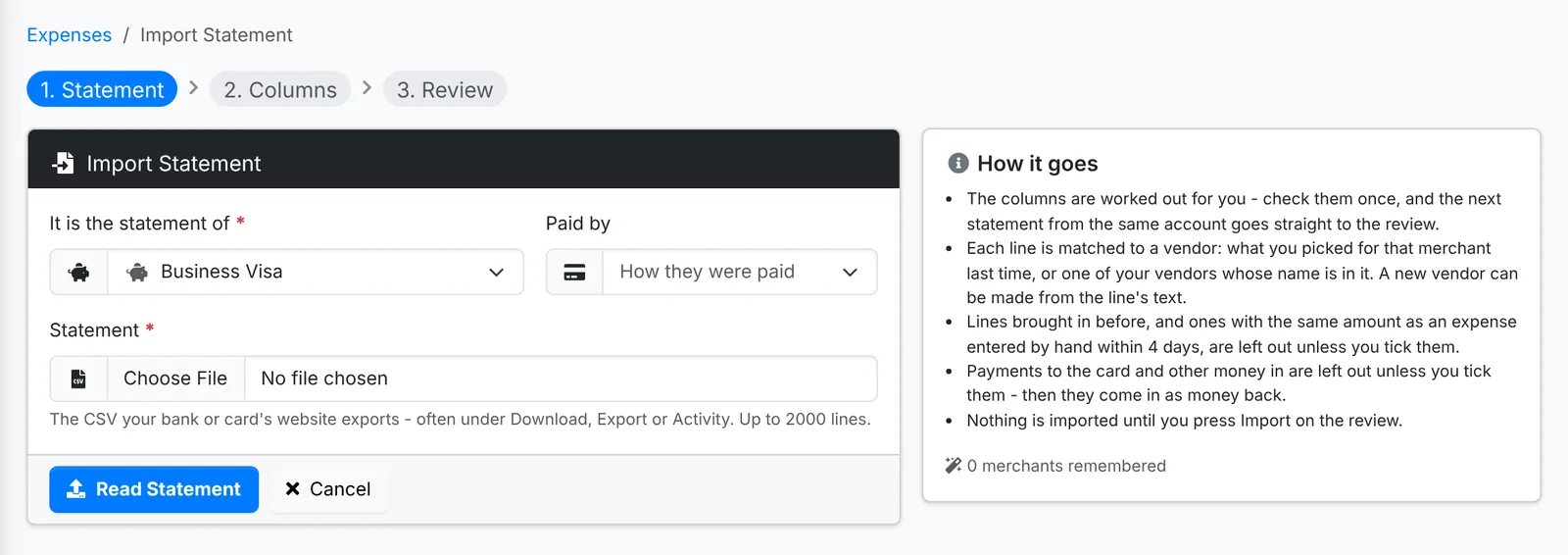
1. The statement
Go to Finance > Expenses, use the arrow beside New Expense and pick Import Statement - or use Import Statement on Accounts.
- Pick the account It is the statement of - the card or bank account.
- Pick how they were paid under Paid by, such as Credit Card.
- Choose the CSV your bank or card's website exports. It's often under Download, Export or Activity.
- Click Read Statement.
2. The columns
ITFlow shows the first lines of the file and works out which column is which: the Date and its format, the Description, a Reference, and the Amount - one column, or money out and money in in two. Check them, and whether A charge is positive or negative in this file.
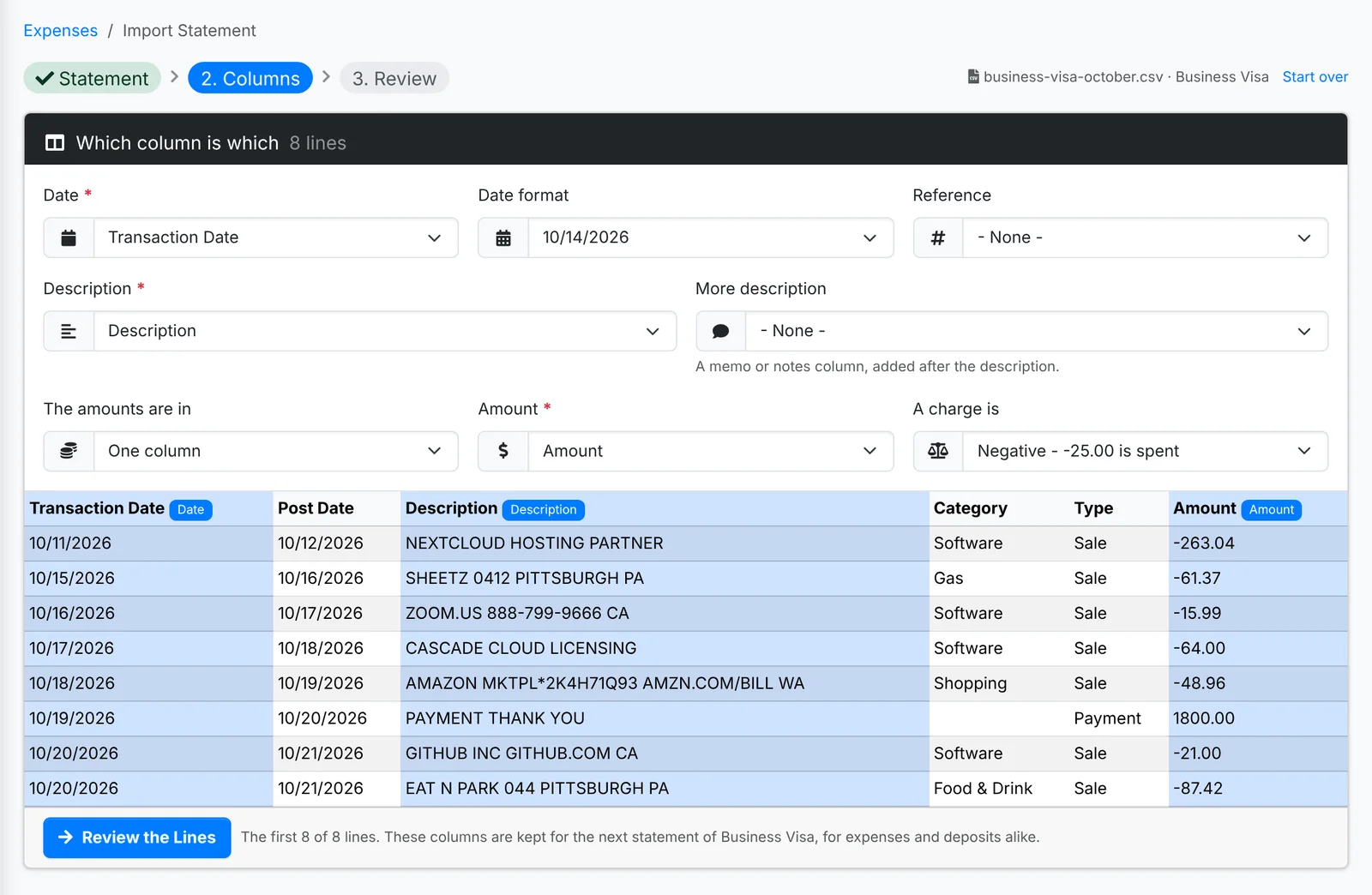
Click Review the Lines. The columns are remembered on the account, so the next statement from it goes straight to the review.
3. The review
Every line is listed with the vendor, category and client it was matched to.
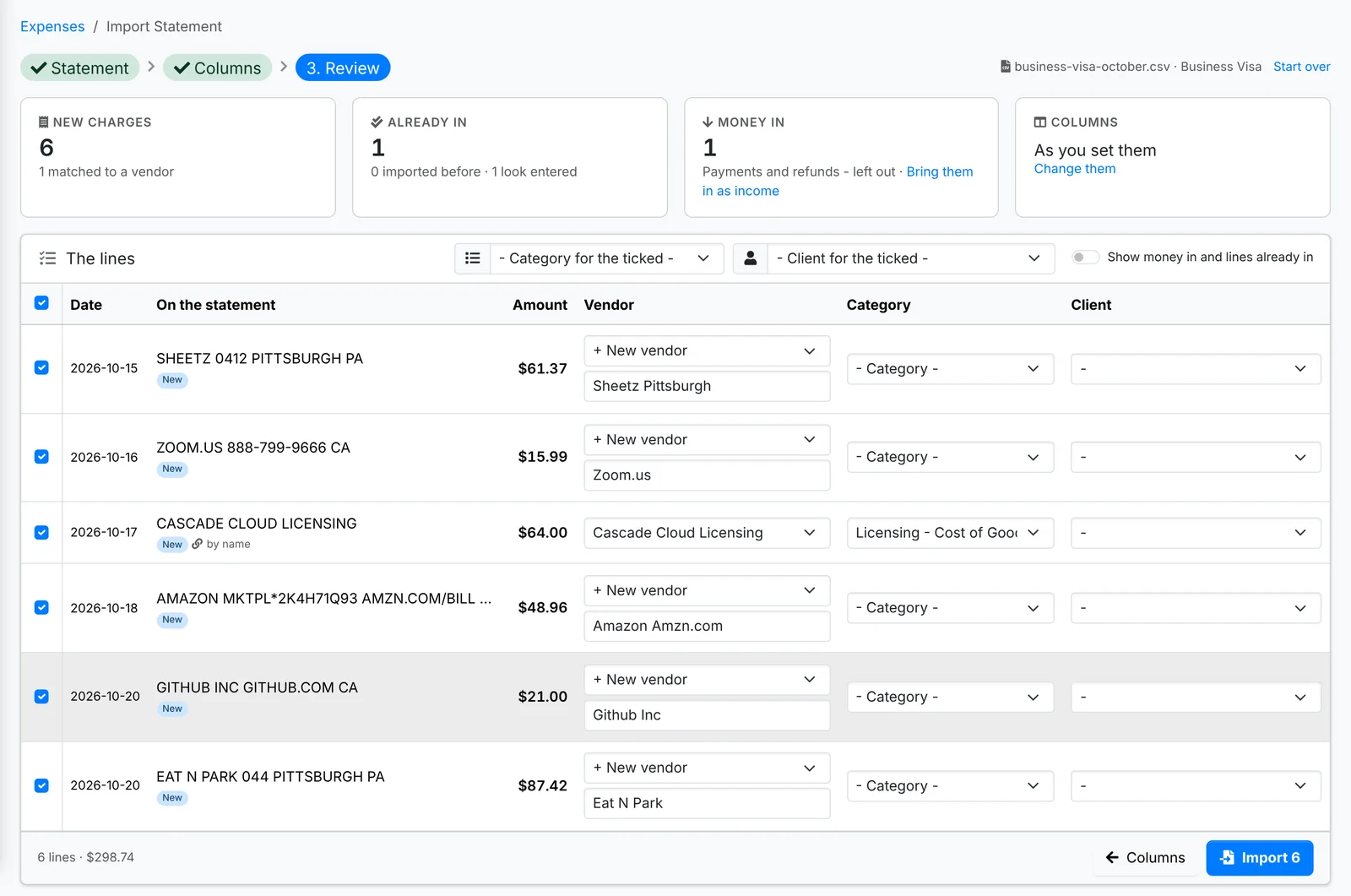
- A line is matched to a vendor you picked for that merchant last time, or one of your vendors whose name is in it. Otherwise it's a New vendor, named from the line's text - change the name if you like.
- Picking a vendor for one line fills in the other lines from the same merchant, and is remembered for next time.
- Lines already in - imported before, or matching an expense entered by hand within a few days - are left out unless you tick them.
- Money in - payments to the card and refunds - is left out, with a link to bring it in as income instead.
Set a category or client for all the ticked lines at once from the boxes above the list. When it looks right, click Import. Nothing is saved until you do.
The more statements you import, the less there is to check: each vendor you pick for a merchant is remembered, and the review shows how many merchants it knows.
Import deposits
Go to Finance > Income, use the arrow beside New Income and pick Import Deposits. Pick the account the deposits went into and how they're usually paid, and choose the file. The columns work the same way.
In the review, each deposit is matched as:
- a payment on a client's invoices - it shows which invoices it pays off
- other income, such as interest or a rebate
- a transfer from another of your accounts, such as a payout from your payment processor
Deposits imported before, ones that look entered already, and payouts recorded already are left out. Tick the ones to bring in, choose whether to email receipts for the payments, and import them.
Lines brought in from a statement start ticked when you reconcile the account.