Quotes
Put a price on work before you do it - one-off projects and monthly agreements - send it, let the client accept it online, and turn it into an invoice.
A quote sets out what you'll do and what it costs, for the client to say yes or no to. It can hold what's billed once - hardware, a project - and what's billed every month, quarter or year, such as a managed services agreement. When the client accepts, one click turns it into an invoice and, for the monthly part, a recurring invoice.
The quotes list
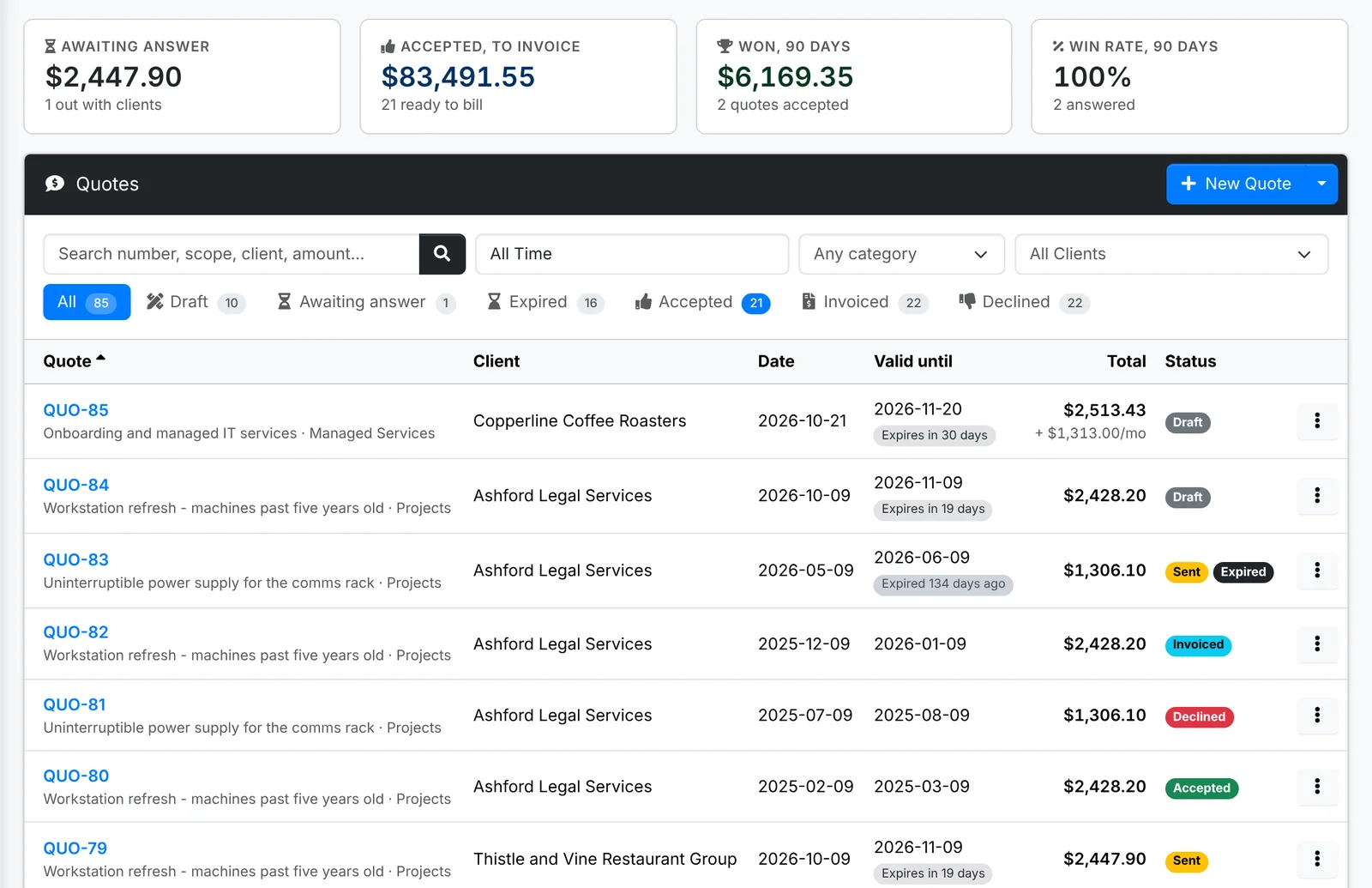
Along the top: what's Awaiting answer, what's been Accepted and is ready to invoice, what you've Won in the last 90 days and your Win rate.
The tabs are All, Draft (not sent yet), Awaiting answer, Expired, Accepted, Invoiced and Declined. Search by number, scope, client or amount, and narrow by date, category or client.
A quote moves through these statuses:
| Status | Meaning |
|---|---|
| Draft | Not sent yet - the client can't see it |
| Sent | Out with the client |
| Viewed | The client has opened it |
| Accepted / Declined | The client answered - online, or you marked it for them |
| Invoiced | It's been turned into an invoice |
A quote that passes its Valid until date shows Expired as well, and the client can no longer accept it online.
Make a quote
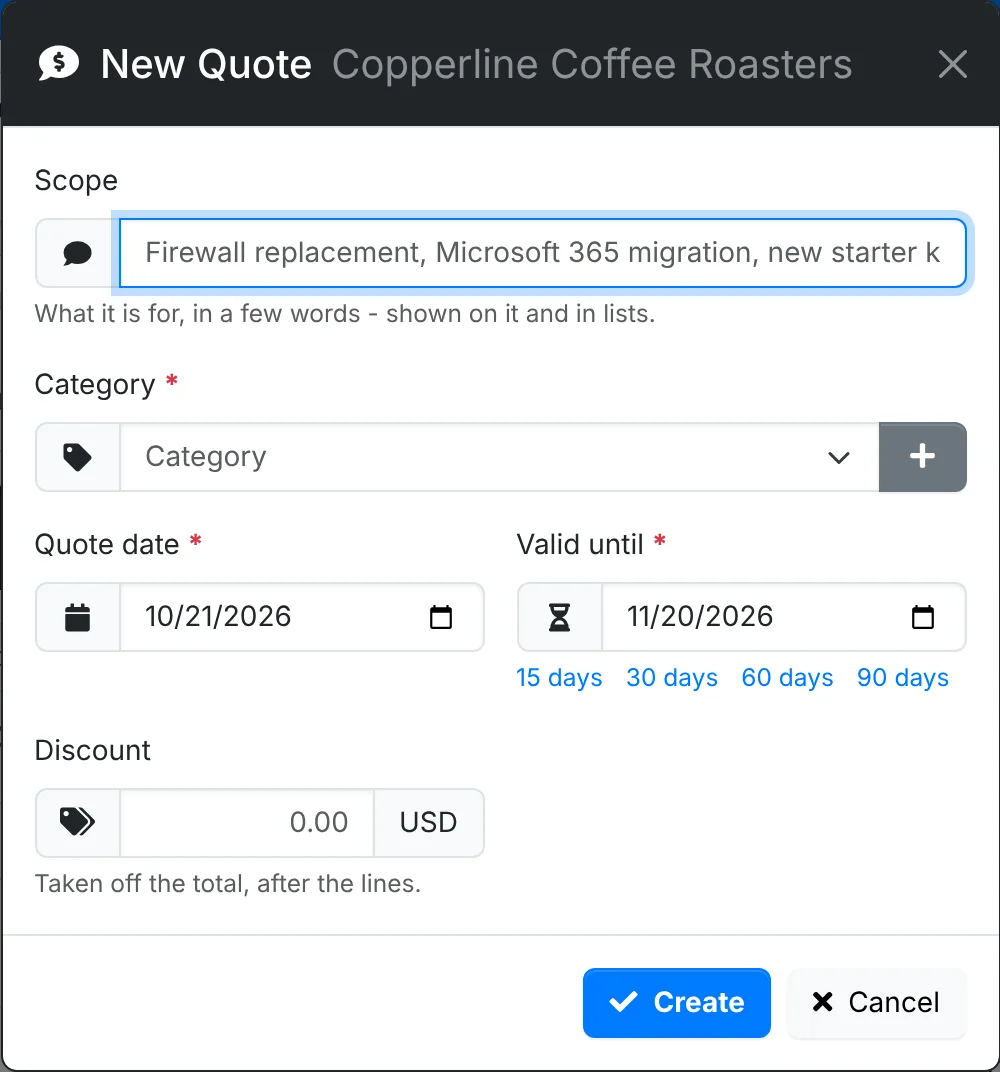
- Go to Billing > Quotes (or the client's Quotes) and click New Quote.
- Type the Scope - what it's for, in a few words. It's shown on the quote and in lists.
- Pick a Category, the Quote date and how long it's Valid until - the 15 days, 30 days, 60 days and 90 days links set it for you.
- Add a Discount if there is one. It comes off the total, after the lines.
- Click Create. The quote opens as a draft, ready for its lines.
Add the lines
At the bottom of the lines, type in Add a line. Pick an item from the catalog and its price, description and tax come with it, or type anything for a one-off line. Set the Qty, how it's Billed, the Price and the Tax, and click Add.
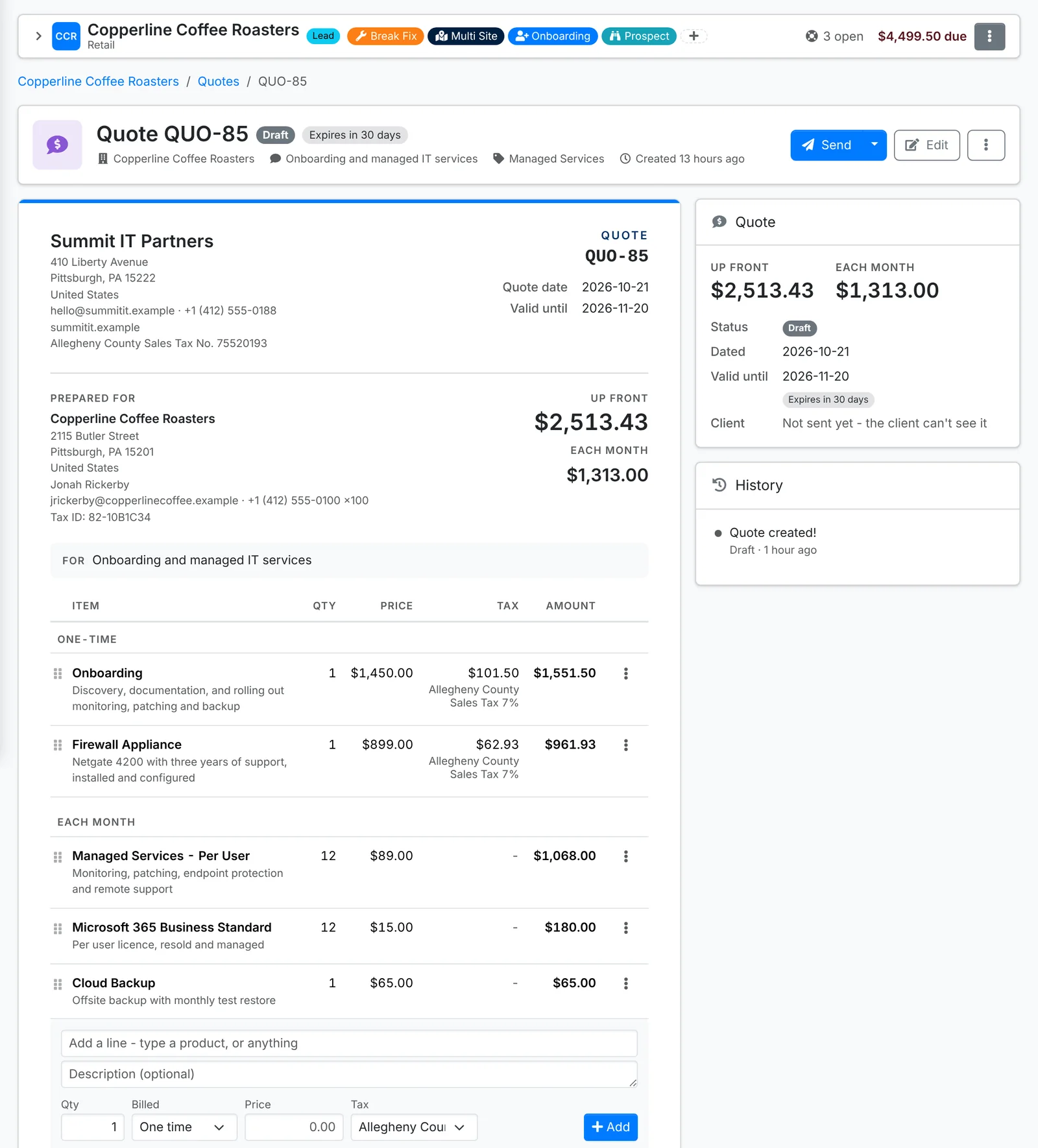
- Billed is One time, or Monthly, Quarterly or Yearly. The quote shows the two apart - what's paid up front and what's paid each month - with a total for each.
- Drag a line by its handle to move it. Its ⋮ menu has Edit and Remove.
- The Notes under the lines are shown on the quote - terms, what's included, what happens next.
With AI set up, Write it with AI under the lines drafts them from a sentence such as "three new laptops for the new starters, set up and joined to the domain". It uses your catalog's prices and the client's rate, and you check the lines before adding them. See Using AI.
Quoting from a ticket? On a billable ticket, use ⋮ > Create quote. The quote is linked to the ticket, and when it's invoiced the ticket goes on the same invoice.
Send it
Click Send. Pick who it goes to, add a message if you like, and choose whether to Attach the PDF. The email has a link to view it, accept or decline it, and download it.
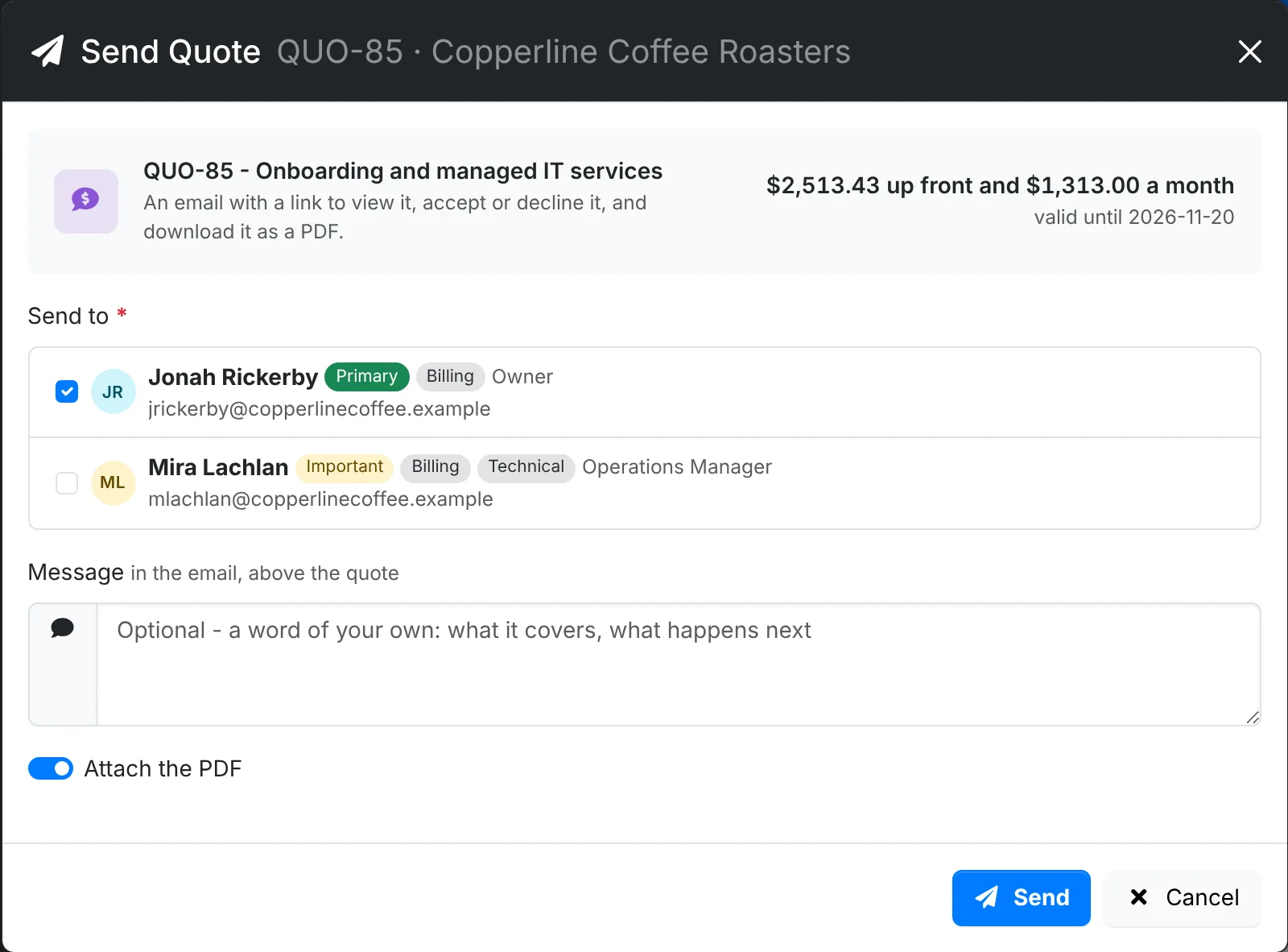
The arrow beside Send has Quick Send, which sends it straight to the client's primary contact, and Mark Sent, for a quote you gave the client some other way - it stops being a draft and its link works.
Send needs your outgoing mail set up, and a contact with an email address who is the client's primary, billing, technical or important contact. Without them, use Mark Sent.
What the client sees
The link opens the quote with Accept and Decline buttons, how long it's good for, and Download PDF. Clients who use the client portal see it there too.
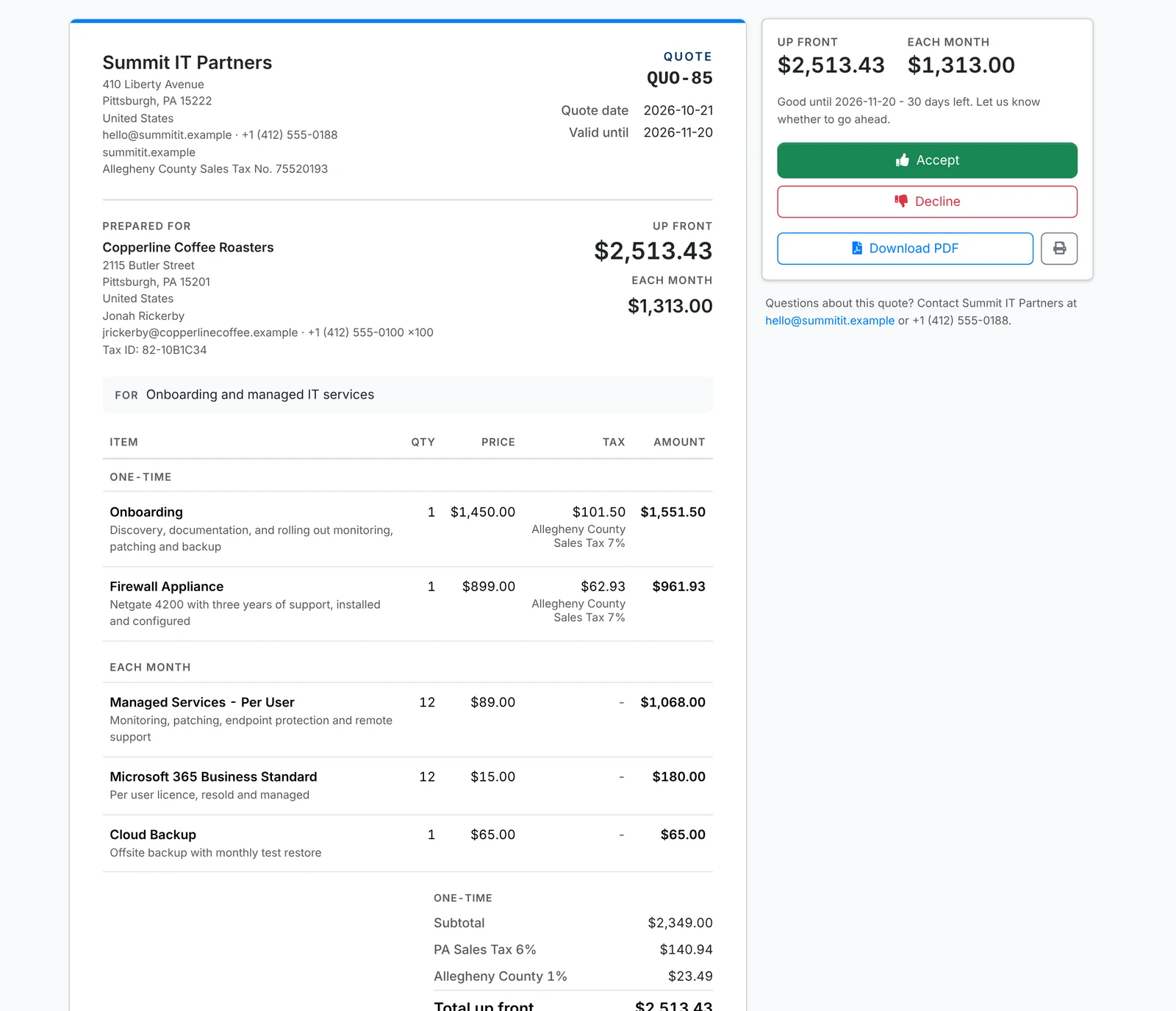
When they answer, you get a notification, and an email goes to the address your admin set for quote answers. The quote's History shows who answered, by name, and any note they left - a PO number, when to start. In the portal, a client can also send you a signed copy or a purchase order - it shows on the quote under From the client.
If they say yes by phone or email instead, use Accepted or Declined at the top of the quote yourself. Either way, its lines are locked.
When a quote expires
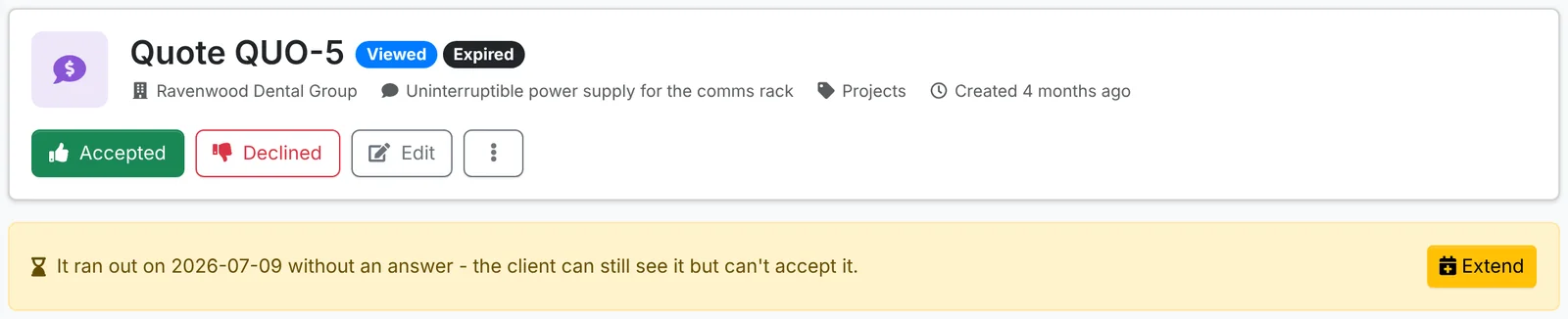
An expired quote can't be accepted online - the client can still see it. A banner on it says when it ran out: to give the client more time, click Extend and set a new Valid until date. If they've said yes another way, Accepted still works.
Turn it into an invoice
Once a quote is accepted, click Make Invoice - or Start Billing, when it has monthly, quarterly or yearly lines.
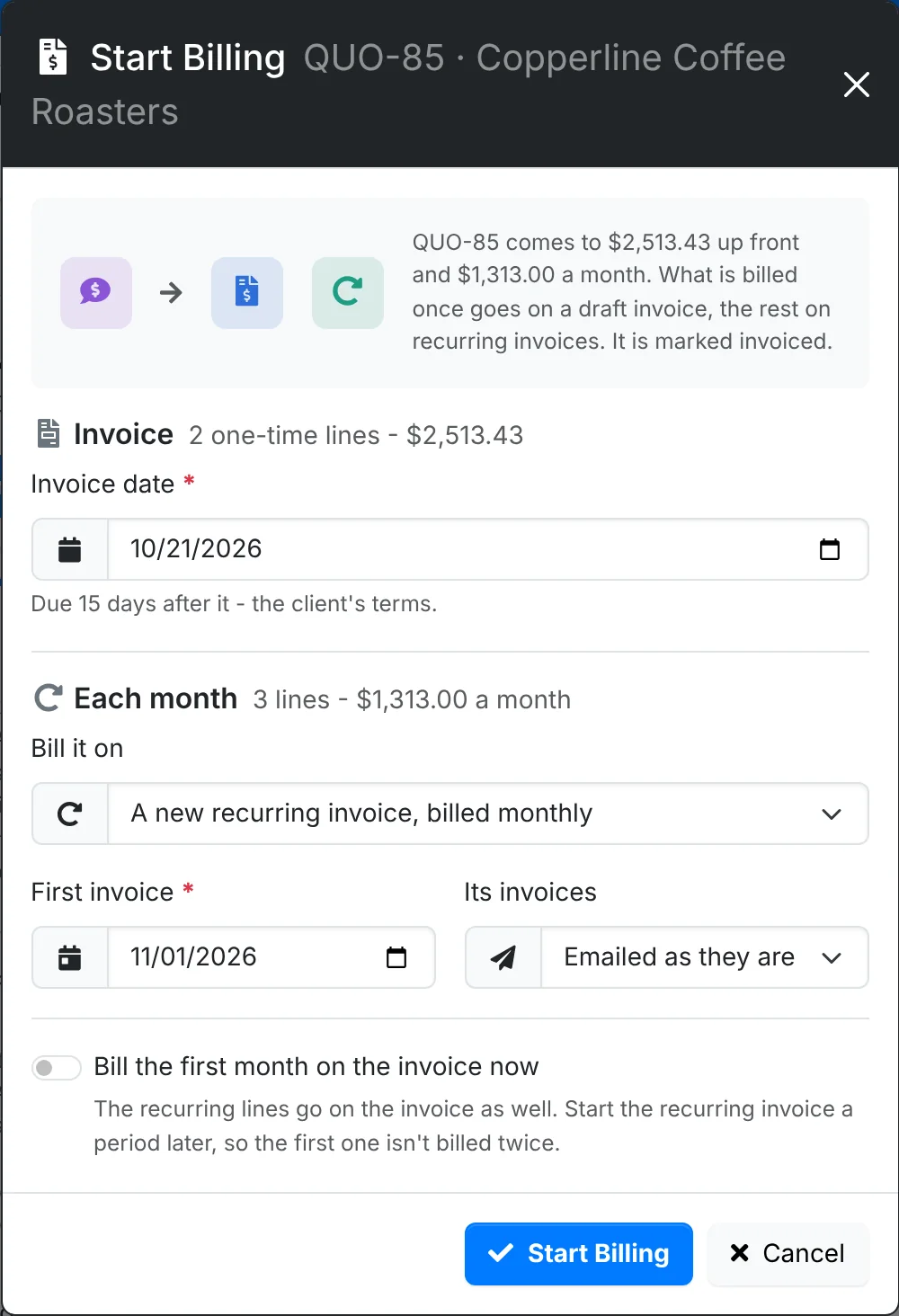
- What's billed once goes on a draft invoice with the quote's discount and notes. Set its Invoice date; it's due on the client's terms.
- Each kind of recurring line - monthly, quarterly, yearly - goes on a new recurring invoice, or is added to one the client already has. For a new one, pick the First invoice date and whether Its invoices are Emailed as they are made or Left as drafts to check.
- Bill the first month on the invoice now puts the first period on the invoice as well, for clients who pay their first month up front. Start the recurring invoice a period later, so it isn't billed twice.
The quote is marked Invoiced, with a link to what it became. The invoice is a draft, so you can check it before you send it.
Other things you can do
The ⋮ menu on a quote has:
- Download PDF and Print
- Copy Client Link and View as Client - the client's link, and how it looks to them
- Copy - a new draft with the same lines, for this client or another
- Mark Invoiced - for a quote billed some other way. It's marked invoiced without making an invoice.
- Delete - it goes for good, with its lines and history
Your admin sets the quote numbering, the footer printed on every quote and where answers are emailed, in Admin > Settings > Quotes.