Searching
Find any client, ticket, device, login or document from anywhere in ITFlow, by name, number, phone number or IP address.
The search box in the top bar searches all of ITFlow at once. Results show as you type, grouped by what they are, and you can open one without your hands leaving the keyboard.
Search from any page
- Click Search everywhere in the top bar, or press Ctrl K (⌘ K on a Mac) on any page.
- Start typing. After two letters, results start to show.
- Use ↑ and ↓ to move through them and Enter to open one. Ctrl Enter opens it in a new browser tab. Esc closes the search.
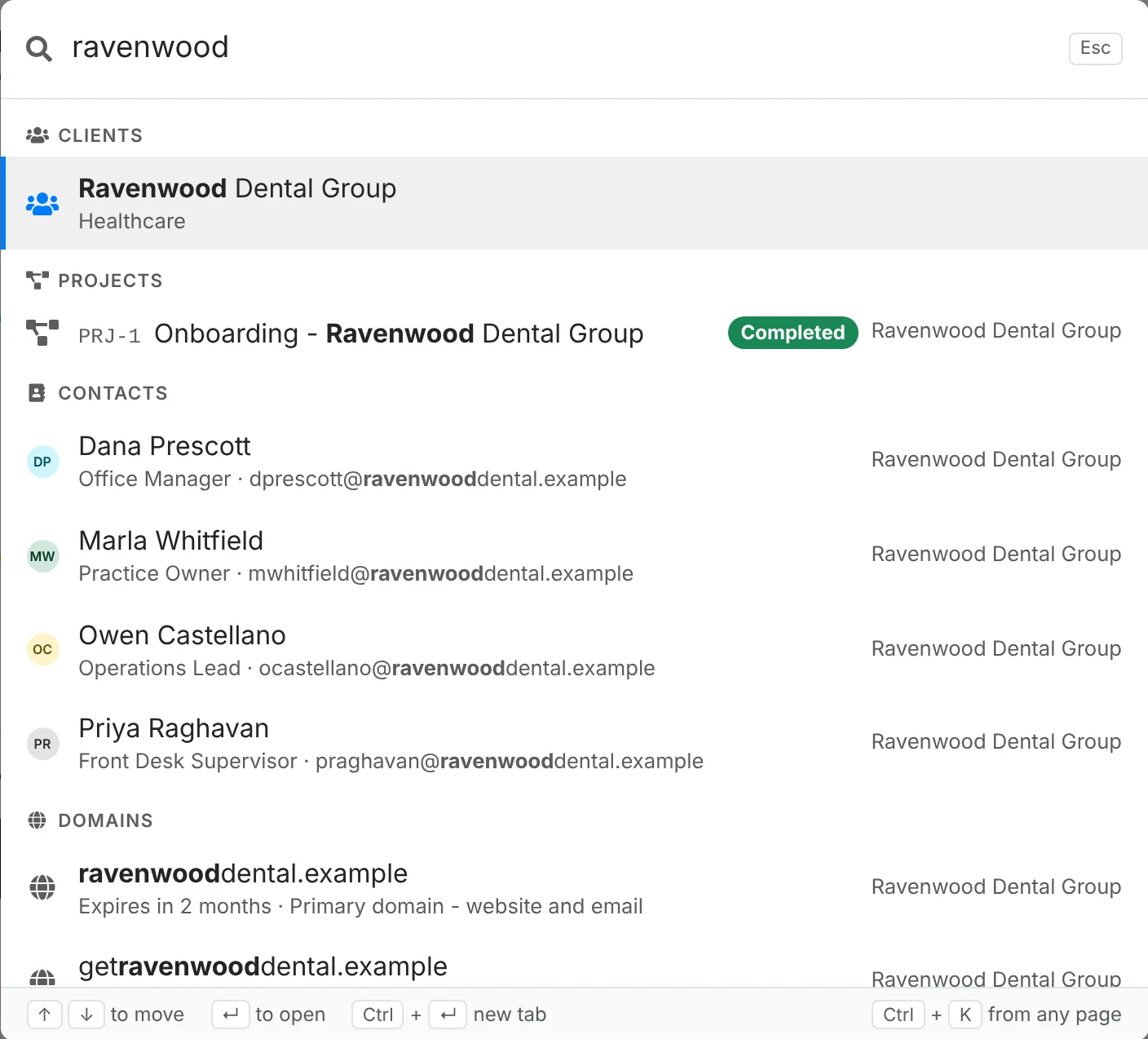
With nothing typed, the search window lists the clients you opened most recently, so getting back to one is two key presses.
What it finds
Search looks through clients, tickets, projects, contacts, locations, assets, networks and IP addresses, licenses, services, credentials, domains, certificates, documents, files, invoices, quotes, expenses, income, vendors, recurring tickets, products and tags. It only shows what your role lets you open.
A few things that are handy to know:
- Numbers come first. Type a ticket, invoice or quote number -
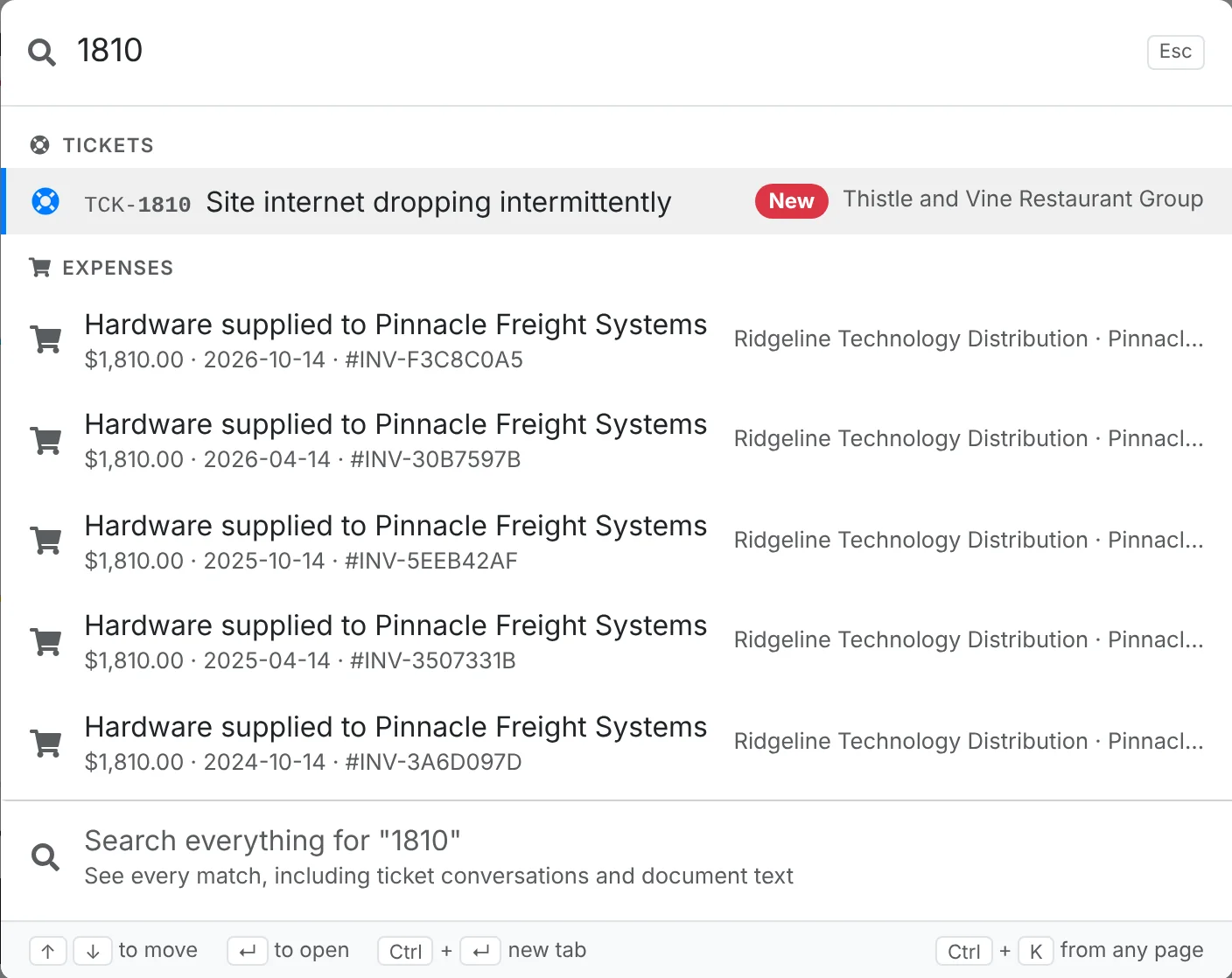
1810, orTCK-1810- and that record is the first result, so Enter opens it straight away. - Phone numbers, IP addresses and MAC addresses match. Type the number a client is calling from to find the contact, or an IP address to find the device that has it and the network it belongs to.
- Tags match. Searching
VIPfinds the clients, assets and tickets tagged VIP, with the tag next to each, and a Tags group to open each tag's list. - Products match by part number.
Search everything
The last line in the search window is always Search everything. It opens the full search page, which also looks inside ticket conversations and the text of documents - things the quick search leaves out to stay fast.
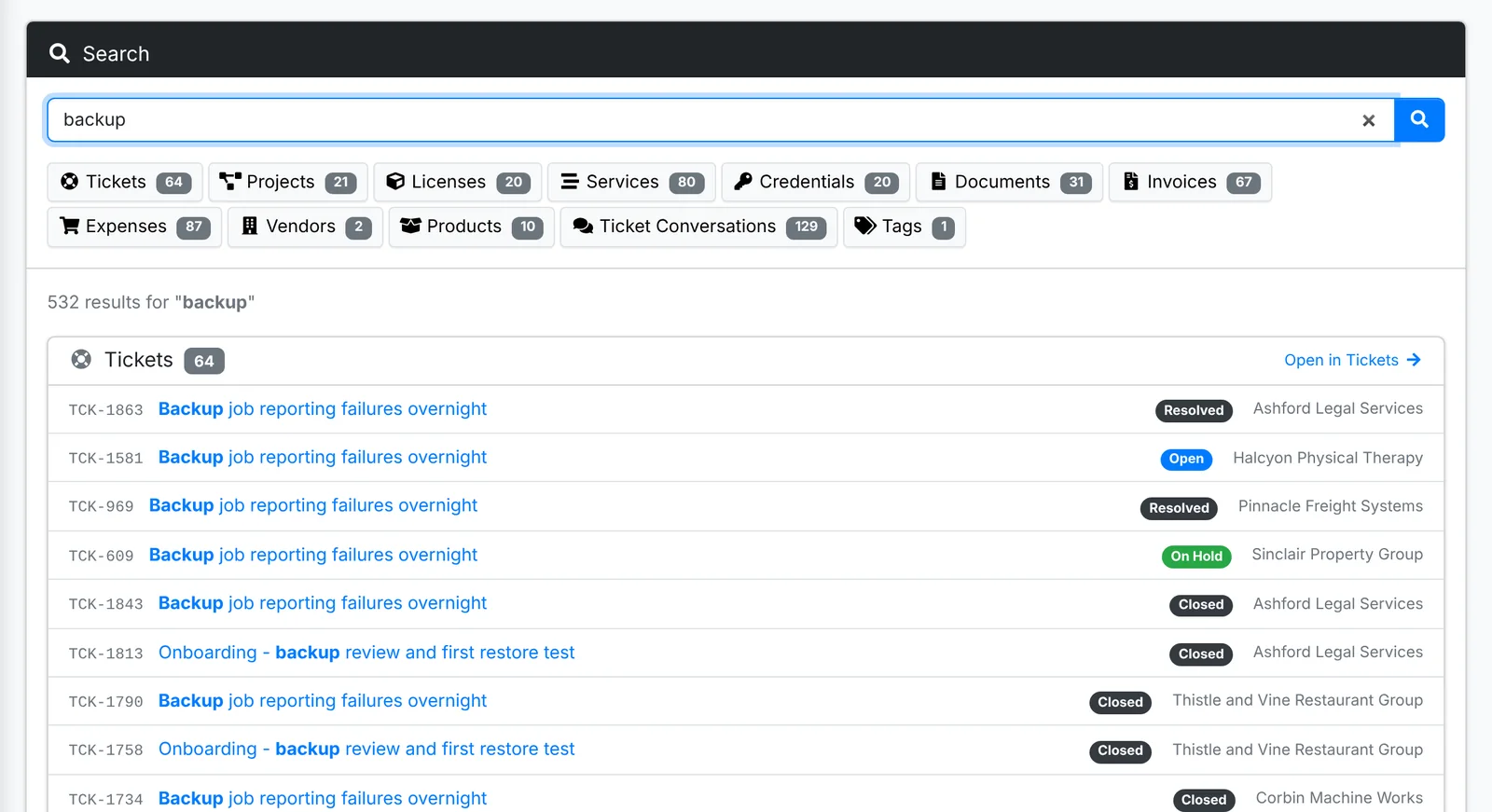
The full page shows how many of each kind it found along the top. Click one to jump to it, or Open in Tickets (and the like) to see the matches in their own list, where you can filter and sort them.
Searching a list
Every list in ITFlow also has its own search box at the top, which searches just that list - and keeps any filters you have set. See Lists, quick looks and bulk actions.
Admins can also find a setting this way: type late fee, logo or smtp in the search window and pick the setting to go straight to it.