Lists, quick looks and bulk actions
Every list in ITFlow works the same way. Learn it once - searching, filtering, sorting, quick looks, changing things in place and acting on many records at once.
Tickets, assets, invoices, credentials, expenses - every list in ITFlow is laid out the same way. This page walks through the parts using a client's assets, but the same buttons are in the same places everywhere.
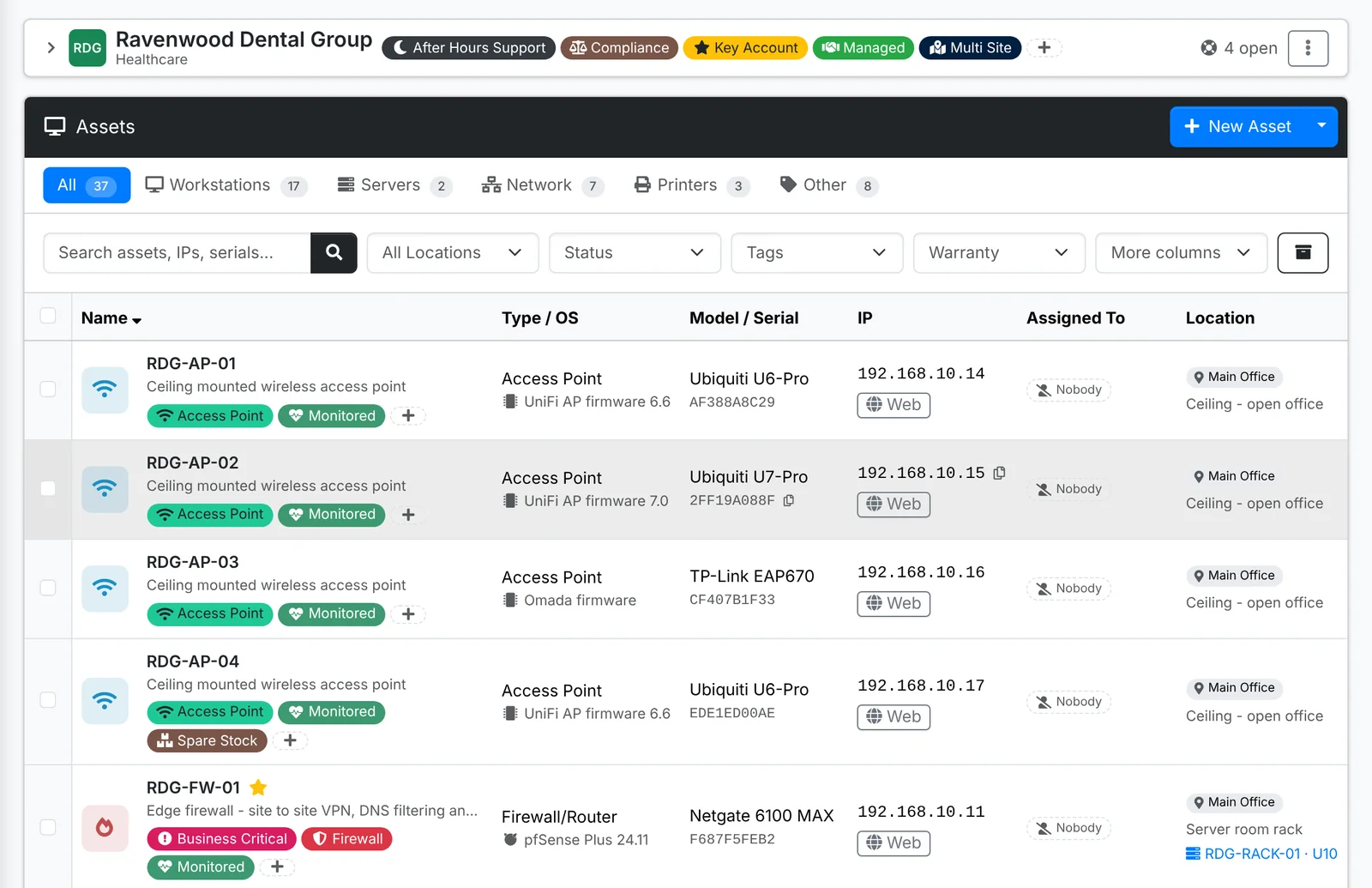
Find what you're after
- Tabs along the top split the list into the views you use most, each with a count: workstations and servers, open and closed tickets, unpaid and overdue invoices. The count follows your search and filters.
- Search - the box on the left - searches just this list. Press Enter or click the magnifying glass.
- Filters beside it narrow the list further: a client, a location, a status, a tag, a date range. Lists with many filters fold the extra ones under More filters, and on the busiest lists - clients and tickets - each filter you set shows as a chip you can remove on its own.
- Sort by clicking a column heading. Click it again to reverse the order.
- Archived - the box button at the right of the filters - switches to the archived records. Click it again to go back.
At the foot of the list you can change how many rows show on a page, from 5 to 500, and move between pages. Your choice is remembered for every list. You can also set it in Your account.
When a search or filter leaves nothing, the list says so, with Clear filters to go back to the whole list. A tab that only ever shows trouble - Overdue, Expiring soon - shows a tick when it's empty, because nothing there is good news.
Add something new
The blue button at the top right of the list adds a new record: New Asset, New Ticket, New Invoice. The small arrow beside it opens more choices, such as Import and Export.
- Import takes a CSV spreadsheet. The window has a template to download, so you can see which columns it expects.
- Export downloads the list as a CSV spreadsheet. It uses the same search and filters you have on screen, so set them first.
Quick looks
A quick look is a window with a record's essentials, so you can check something without leaving the page you're on. It has buttons for what you're most likely to do next, and, where the record has one, a button to open its full page.
Records that don't need a page of their own - a login, a domain, an expense, a payment - open in a quick look when you click them in their list. Records with a full page, such as assets and contacts, open that page from their list.
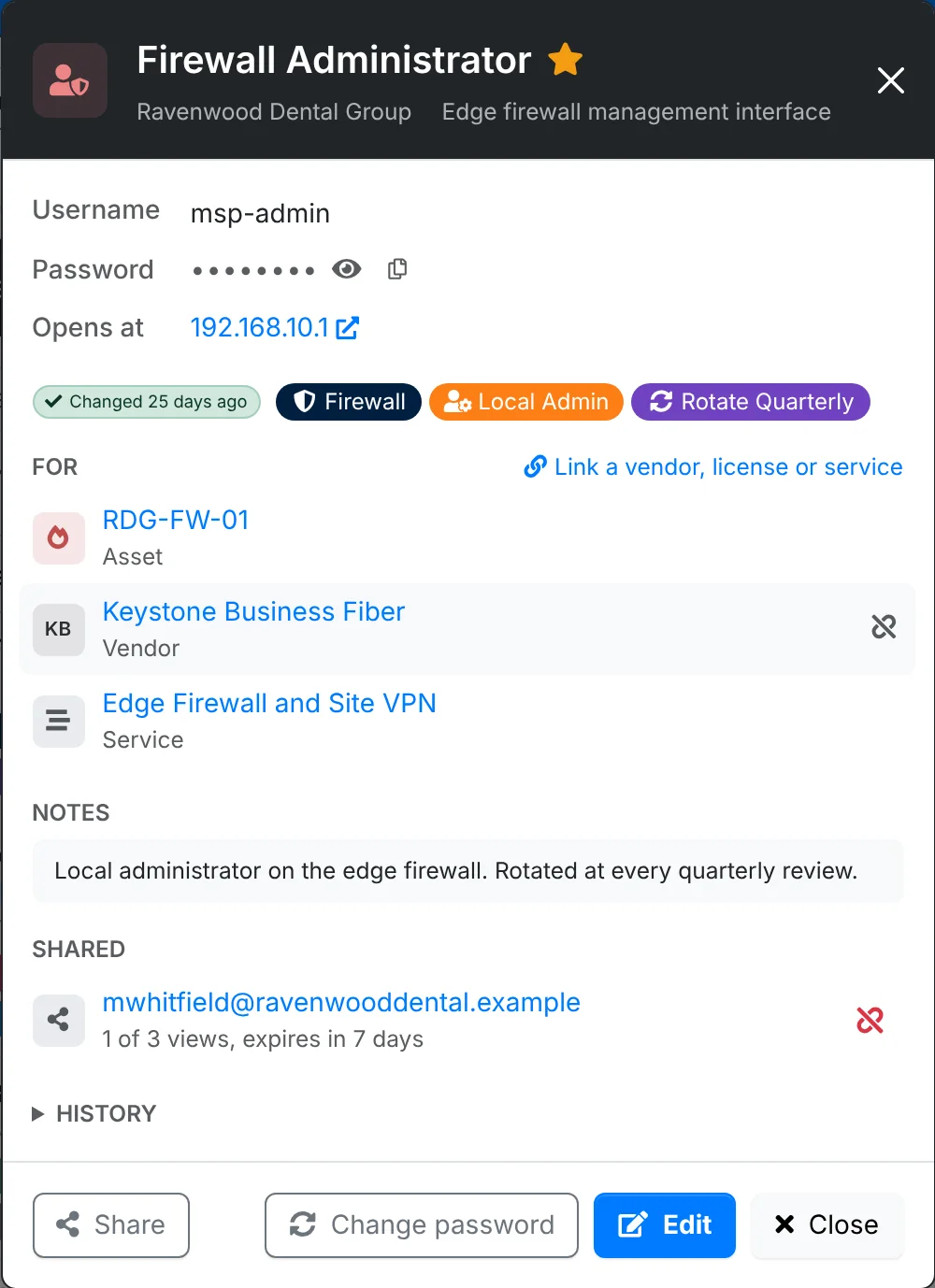
Quick looks also open from most places a record is mentioned - a ticket's asset, a contact's licenses, a vendor's expenses - so you can check something and carry on with what you were doing.
Change it where you see it
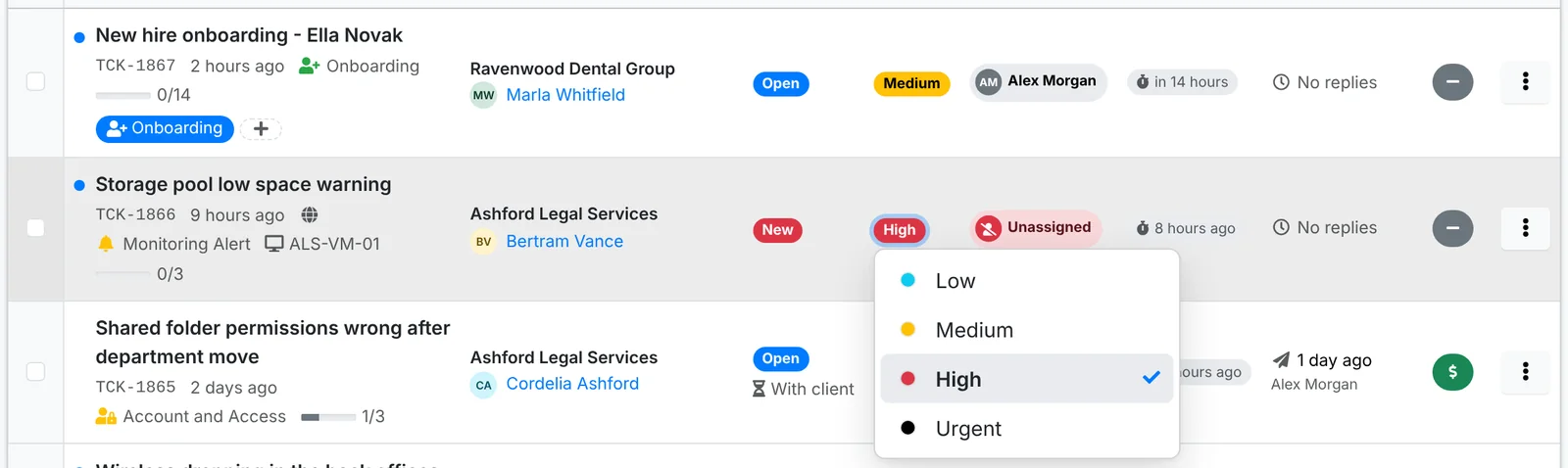
Many values can be changed right where they are shown, without opening an edit form. Click the value, pick a new one, and it saves straight away:
- a ticket's status, priority, assigned technician and whether it's billable
- a project's manager and a recurring ticket's technician
- an asset's status, location and assigned contact, and a contact's location
Copy buttons
Point at an IP address, MAC address, serial number, email address, phone number, username or password and a small copy button appears beside it. Click it to copy the value.
Tags
Tags look the same on every list and page: a coloured label with an icon. The + at the end of a record's tags opens a list of tags to tick or untick. Tags are a quick way to mark things - VIP clients, devices on monitoring, logins to rotate - and to find them again with the Tags filter or search.
Admins can type a new tag's name straight into the tag list to make it. See Categories and tags.
Bulk actions
To do the same thing to several records at once:
- Tick the box at the start of each row. The box in the column heading ticks every row on the page.
- Click Bulk Action at the top of the list. It shows how many rows are ticked.
- Pick what to do. Some actions ask for more first - which contact to assign, which status to set - in a window.
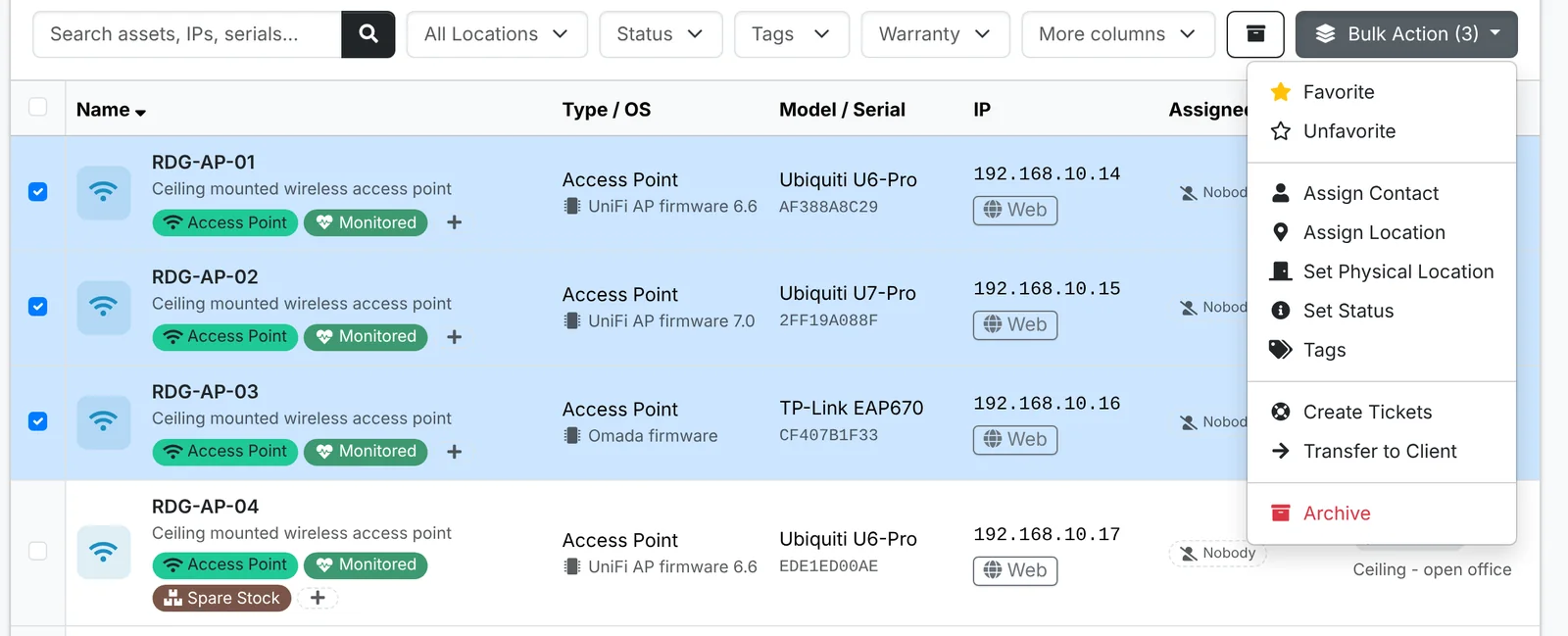
What's in the Bulk Action menu depends on the list and on your role: assigning, tagging, setting a status, archiving and so on. A bulk action only changes records you're allowed to change.
Record pages
Most records also have a full page of their own. They share one layout:
- the actions along the top - edit, share, new ticket and the rest
- the key details in cards
- everything related - tickets, files, licenses, history - in tabs with counts. Most pages remember the last tab you had open.
Forms
Forms have an icon in front of every field. Long forms are split into tabs; if you save with a required field empty on another tab, ITFlow takes you to it.
ITFlow asks before it deletes or turns off anything, and before you leave a page with a reply or note you haven't saved.