Security
The sign-in page, a login key for agents, how long two-step sign-in remembers a browser, alerts for failed sign-ins, and the rules for shared links.
Admin > Settings > Security sets how your team signs in, and the rules for sharing passwords outside ITFlow.
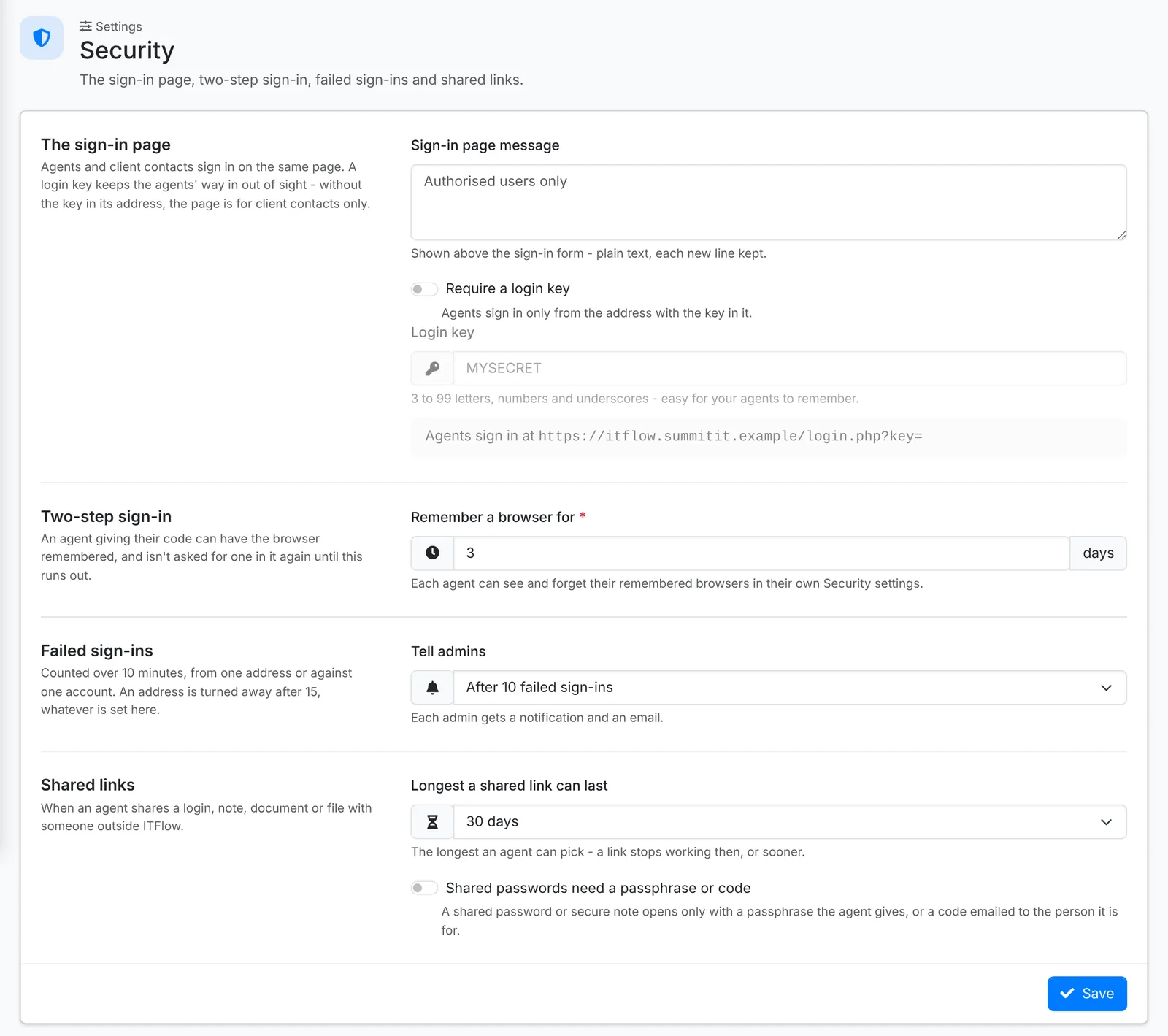
The sign-in page
Agents and client contacts sign in on the same page.
- Sign-in page message - shown above the sign-in form, such as "Authorised users only".
- Require a login key - agents can then sign in only from the address with your Login key in it, such as
https://itflow.example.com/login.php?key=SUMMIT. Without the key, the page is for client contacts only, which keeps the agents' sign-in out of sight. Pick a key that's easy for your team to remember.
Two-step sign-in
Each agent sets up two-step sign-in - a code from an authenticator app - from their own account. Remember a browser for so many days lets them skip the code on a browser they've used before. Each agent can see and forget their remembered browsers in their own security settings.
To make it compulsory, require it for each user, or several at once - see Users. For portal contacts, see Client portal settings.
Failed sign-ins
Failed sign-ins are counted over 10 minutes, from one address or against one account, and an address is turned away after 15. Tell admins after so many failed sign-ins sends each admin a notification and an email.
Admin > Sign-ins shows who signs in from where, and which addresses are being turned away - see Users.
Shared links
The rules for shared links - logins, notes and files sent outside ITFlow:
- Longest a shared link can last - the longest an agent can pick. A link stops working then, or sooner.
- Shared passwords need a passphrase or code - a shared password or secure note then opens only with a passphrase the agent gives, or a code emailed to the person it's for.
Everything sensitive is in the audit log: every time someone looks at or copies a password, shares something, or exports data. See Logs.