Expenses
Record what the business spends - with the receipt, the account it came from and the client it was for - and bill client costs on with a markup.
An expense is money the business spent: a bill from a vendor, a card purchase, hardware for a client, a team lunch. Recording them keeps your accounts right, gives your accountant the receipts, and lets you bill a client for what you bought on their behalf.
You don't have to type every one. Recurring expenses record the regular ones for you, and Import Statement brings in a whole card or bank statement at once.
The expenses list
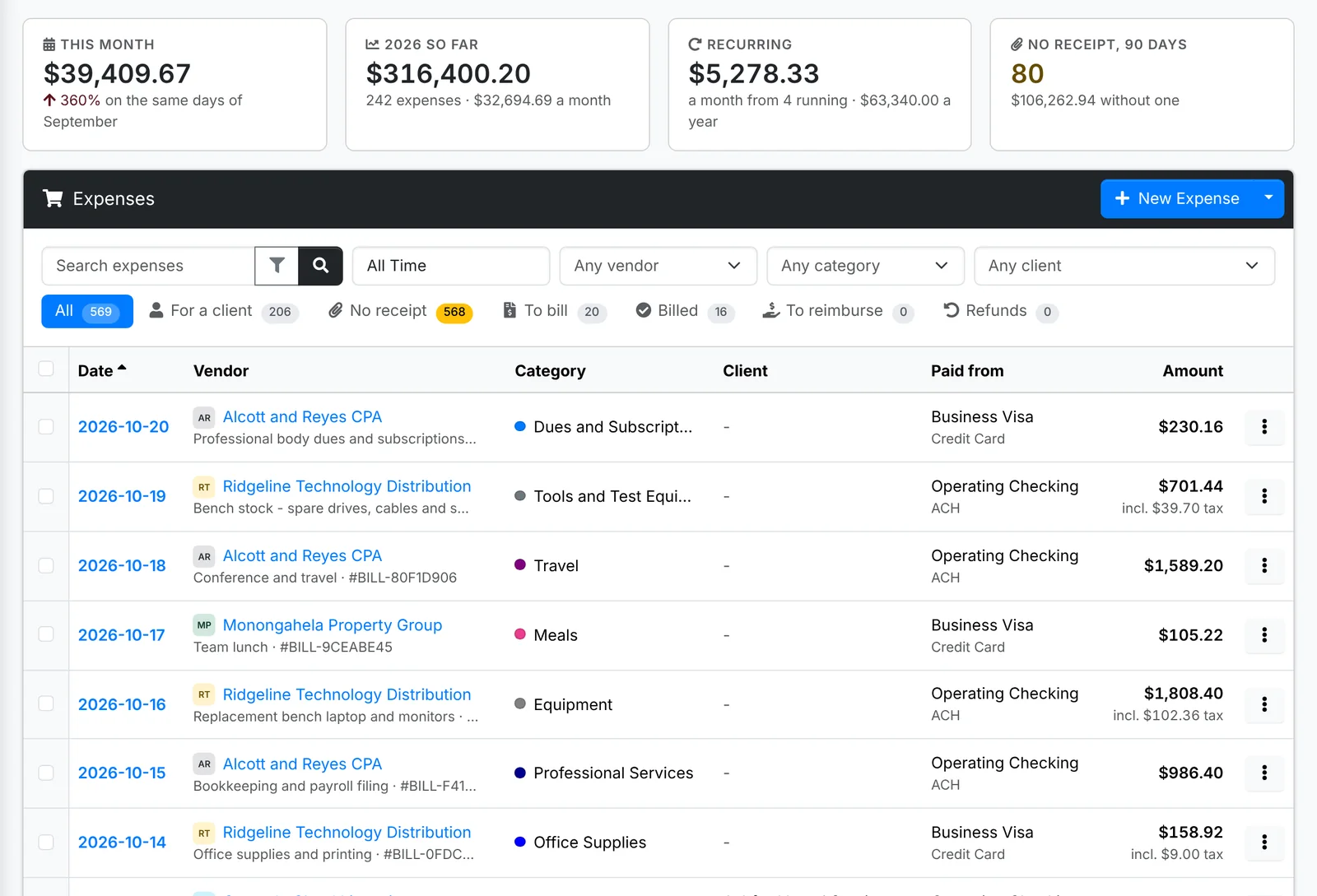
Along the top: what you've spent This month against the same days last month, the year So far, what your recurring expenses come to a month, and how many expenses from the last 90 days have No receipt.
The tabs are All, For a client, No receipt, To bill (billable, not on an invoice yet), Billed and To reimburse (paid personally by someone on the team). Search, and narrow by vendor, category, client, account, how it was paid and date. The total of what's shown is under the list.
Tick expenses and use Bulk to set their category, account, payment method or client, make them billable, reimburse them, or delete them.
Add an expense
- Click New Expense.
- Pick the Vendor - who it was paid to - and type the Amount. Picking a vendor fills in the rest from your last expense with them.
- Pick the Category and the Date.
- If the amount includes tax, pick the Tax included rate. The Tax part is worked out for you - change it to what the receipt says.
- Pick the account it was Paid from and how it was Paid by. If someone on the team paid it out of their own pocket, pick Paid personally and who paid it.
- If it was for a client, pick the Client. It counts as a direct cost of theirs in the Client Profitability report. Switch on Bill it on to them to bill it, with a markup.
- Add a Reference (their invoice or order number) and a Description.
- Attach the Receipt - a photo or a PDF. On a phone, you can take the picture right there.
- Click Add Expense.
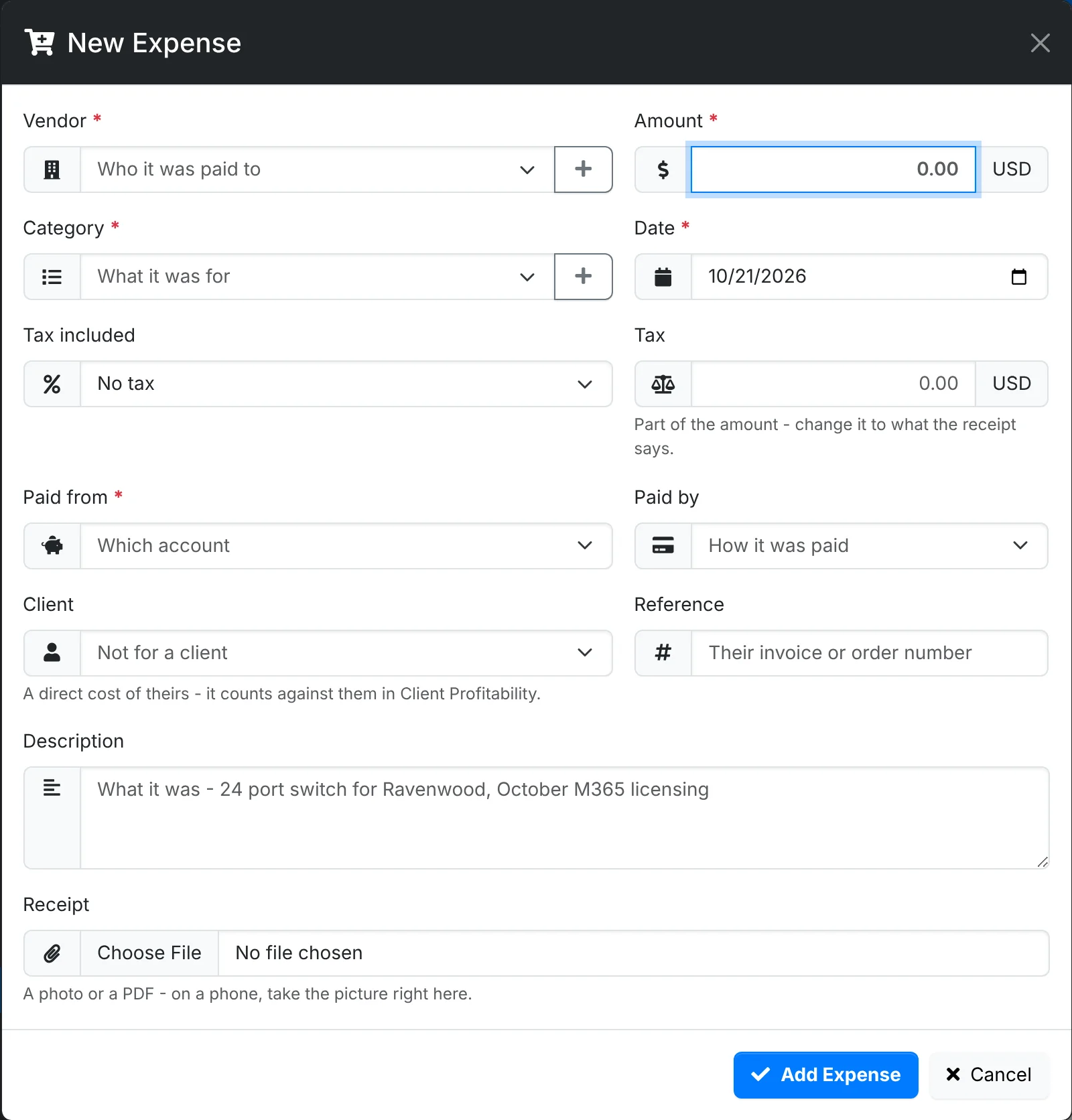
The vendors here are your own - the businesses you buy from - not your clients' vendors.
The expense's quick look
Click an expense to see it with its receipt.
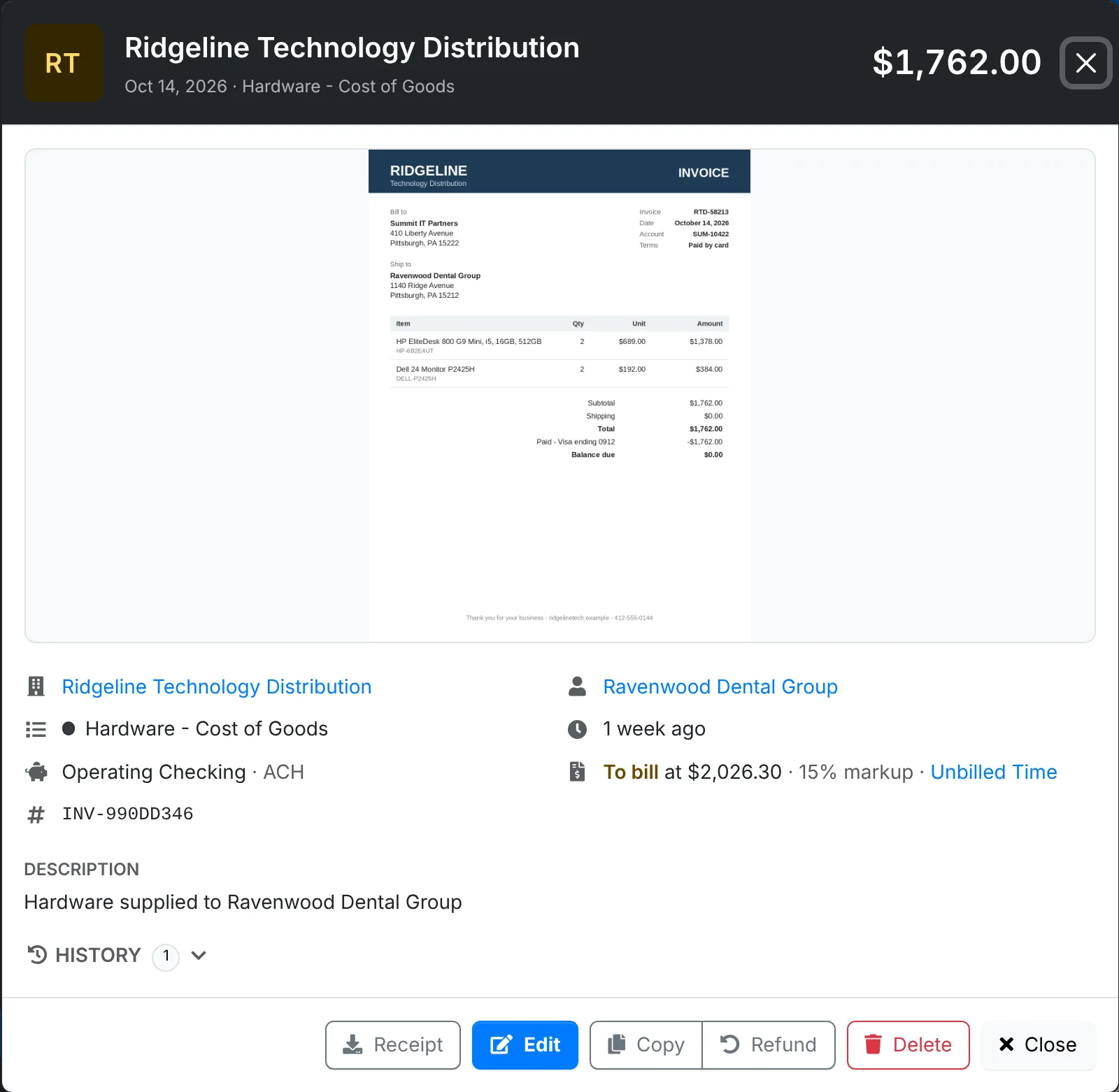
It shows the vendor, category, account, reference and client. For a billable expense, it says what it bills and whether it's waiting in Unbilled Time or already on an invoice. History lists every change.
Along the bottom: Receipt to download it (or Attach one if there's none), Edit, Copy and Delete.
Bill an expense to the client
When you buy something for a client - a part, a license, a courier - switch on Bill it on to them and set the markup. Your admin sets the markup it starts with. The expense waits under To bill and in the client's Unbilled Time, and goes on their next invoice at its cost plus markup, with a line of its own. You can change the price before billing it.
To make several billable at once, tick them and use Bulk > Set Billable.
Pay someone back
An expense Paid personally is owed to whoever paid it, and waits under To reimburse. Tick the ones to pay back and use Bulk > Reimburse: pick the account it's Paid back from, the date, how and a reference, and click Pay Back. Each expense still counts as spent on its own date; the money leaves the account on the day you pay it back.
Mileage works the same way - see Trips and mileage.
Expenses Report, in the menu beside New Expense, shows spending by category and month. Spend by Vendor in Reports shows who you pay the most - and the vendors to send 1099 forms to.