Files and documents
A client's written documentation and uploaded files in folders - runbooks, procedures, diagrams, contracts - with versions, reviews and templates.
Files holds two kinds of thing, side by side in the same folders:
- Documents - pages written in ITFlow: runbooks, procedures, how-tos, onboarding checklists. They're searchable, have versions, can be shared and shown in the client portal.
- Uploads - files you upload: PDFs, diagrams, photos, spreadsheets, signed contracts.
Find your way around
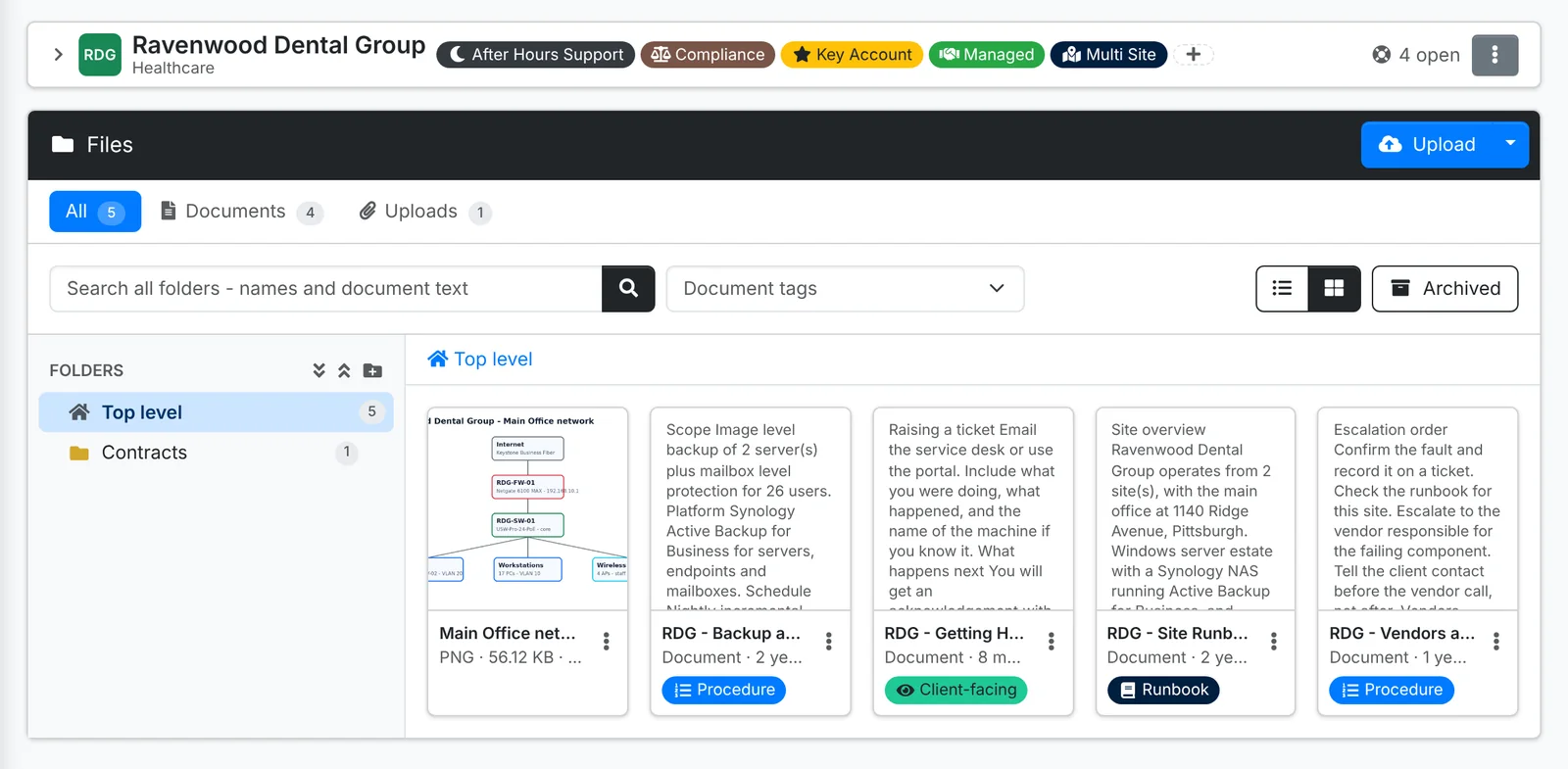
- Folders are down the left, with how many items each holds. The buttons above them expand or collapse the tree and add a folder.
- The tabs show All, Documents or Uploads. A Review due tab appears when documents are due a review.
- Search all folders searches every folder at once - names and the text of documents - and shows where each result lives.
- The list and grid buttons switch views. The grid shows real previews: image thumbnails, the first page of a PDF, the start of a document. Click one to open the previewer, and use the arrow keys to move between files.
- Markers show which items are shared by link and which are visible in the client portal.
To upload, drag files from your computer onto the list - they go into the folder you're in - or click Upload.
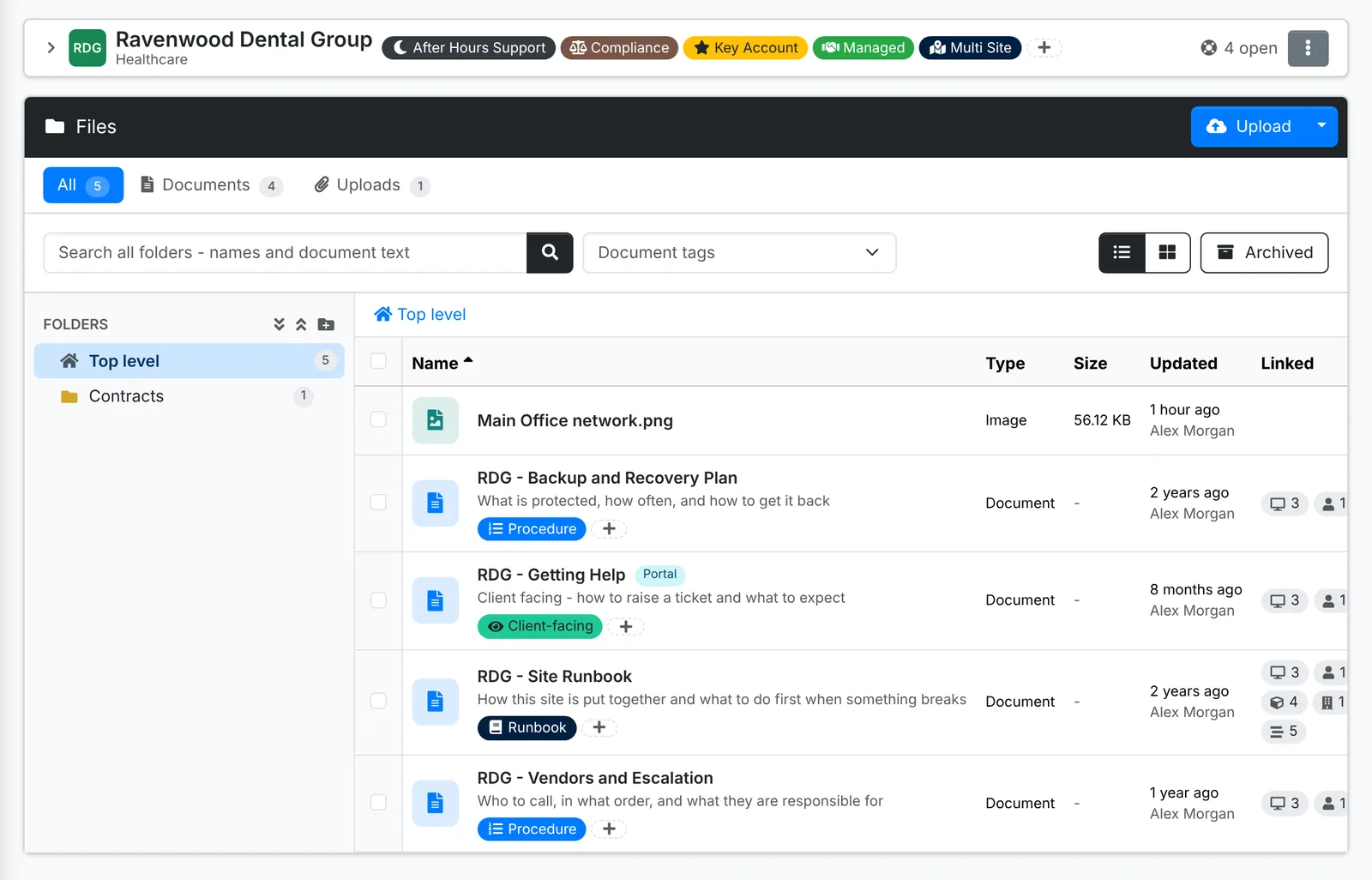
Tick items and use Bulk Action to move, tag, archive, restore or delete them together.
Upload files
- Open the folder to put them in and click Upload.
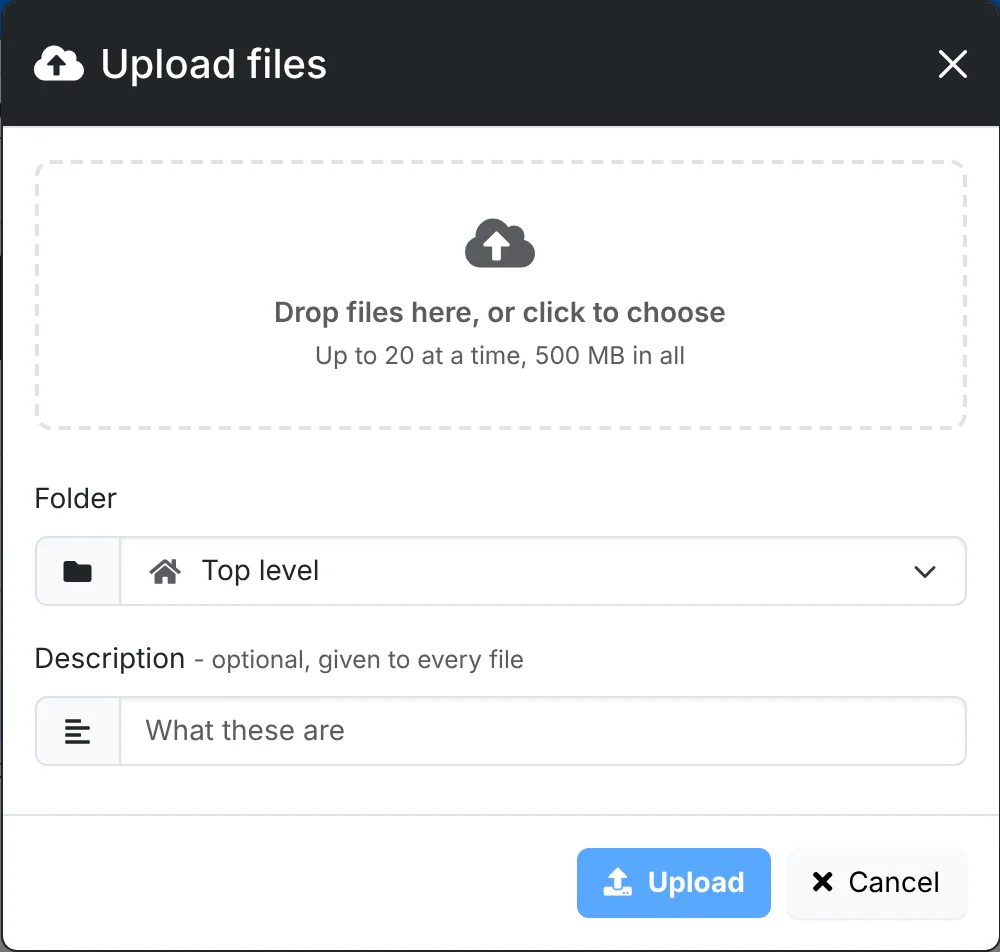
- Drop files onto the box, or click it to choose them. The window lists them and checks their size before anything is sent, and tells you about any it skipped.
- Pick the Folder and add a description if you like.
- Click Upload.
Click a file to open its quick look: a preview, its folder, who uploaded it and when, whether it's shared, and what it's linked to.
Write a document
- In Files, use the arrow beside Upload and pick New document.
- Give it a Name and a summary, pick its folder, and write it in the editor. Tables, images and formatting all work.
- Click Create.
With AI set up, Draft it with AI writes a first draft from what you say it's for, using what ITFlow knows about the client. See Using AI.
Start from a template
Your admin can keep document templates - a network overview, a backup runbook, a new starter checklist - that fill themselves in from the client. Use Document from template in the same menu:
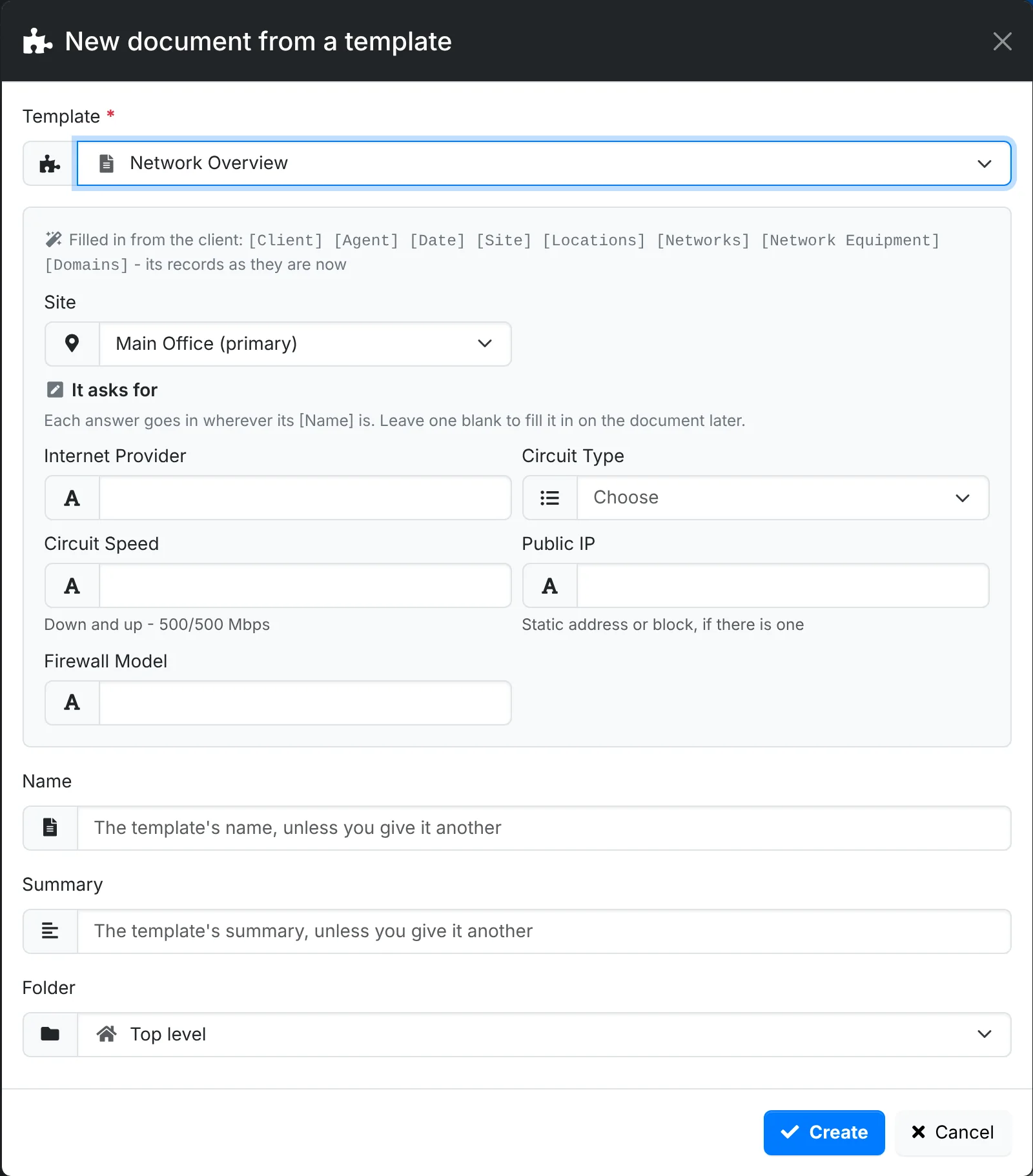
- Pick the Template.
- ITFlow shows what it fills in from the client - their name, sites, contacts, and tables of their networks, servers, domains, licenses and the rest, as they are now - and the Site to use.
- Answer what it asks for, such as the internet provider or the firewall model. Leave one blank to fill in later.
- Change the Name or Summary if you like, pick the folder, and click Create.
When a template is required for the client - every managed client should have a network overview, say - Files lists the documents it should have across the top, each a click from making it. See Document templates.
The document's page
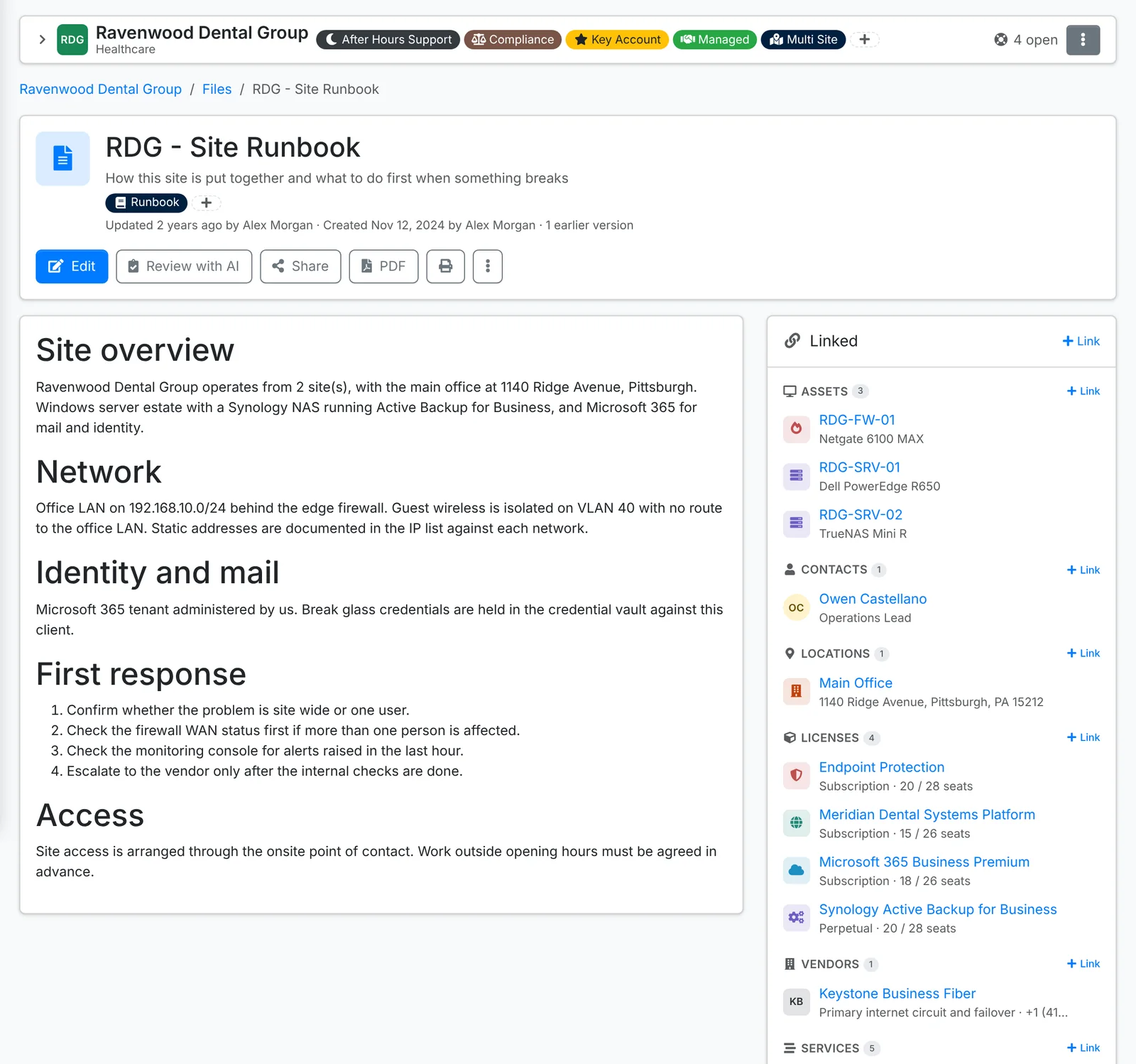
Along the top: Edit, Share, PDF and print, and the ⋮ menu with Rename, Move, Link, Show in client portal (or Hide from client portal), Archive and Delete.
- Linked lists the assets, contacts, locations, licenses, vendors, services and files the document is about. Use Link to add more. A document linked to an asset shows on the asset's page, and so on.
- Versions keeps every earlier version. View one, restore it (the current one is kept as a version too), or delete it.
- Show in client portal lets the client's technical contacts read it in the portal - for how-tos written for them.
Reviews
A document made from a template can be due a review - every 6 months, say. Its page then says Review due, or when the next review is and who last reviewed it, with Mark reviewed. Editing a document counts as reviewing it. The client's overview counts documents due a review.
Share a document or file
Share sends a document or a file to someone outside ITFlow as a link that ends after a set time. Documents can be printed from the link, and files downloaded. See Shared links.