Locations
A client's offices and sites - how to get there, who to ask for, and what's at each one.
A location is one of the client's sites: the head office, a branch, a warehouse. Its page is what a technician needs on the way out of the door - the address with directions, the opening hours, who to ask for when they arrive, access notes, and everything that's there.
The locations list
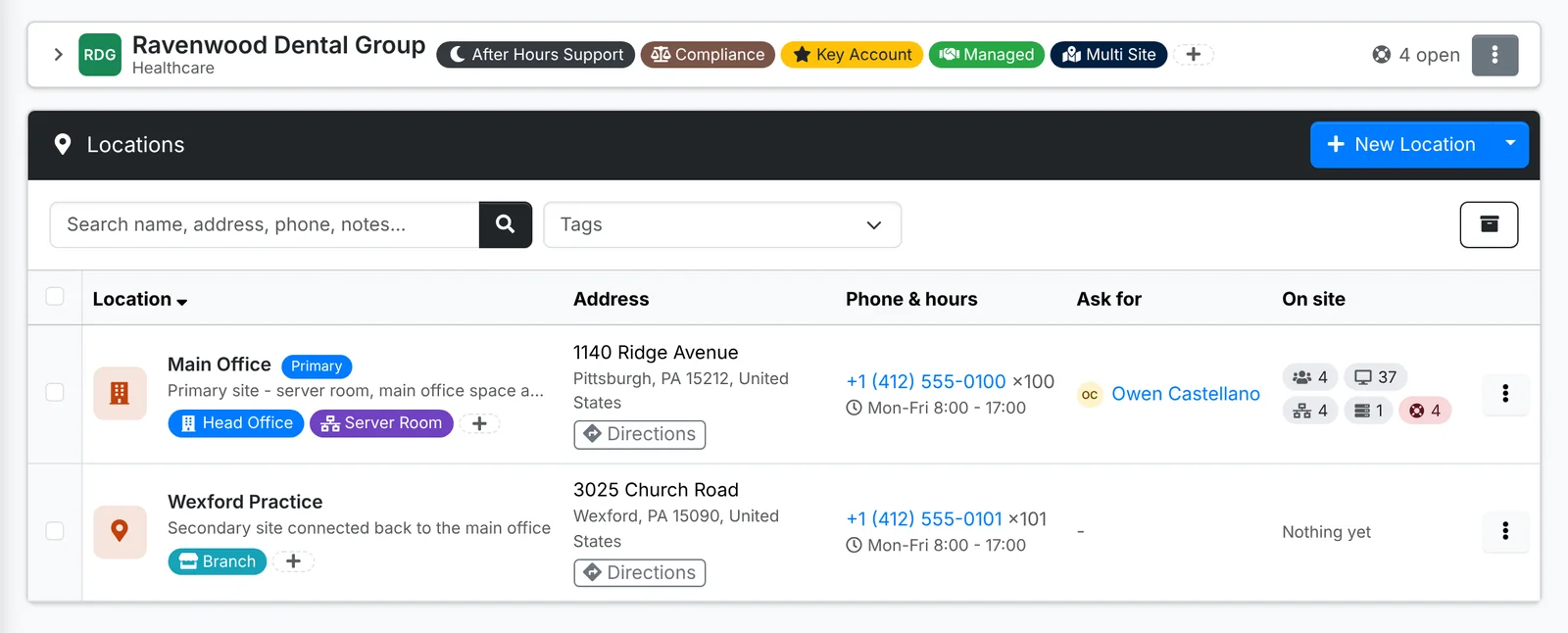
The primary location comes first. Each row shows the address with Directions, the phone number and opening hours, who to ask for on site, and how many people, devices, networks and racks are there.
The ⋮ on a row has Quick look, Edit and Make primary.
Add a location
- Open the client, go to Locations and click New Location.
- On Details, give it a Name, and a description, tags and a photo of the building if you like. Switch on Primary location if this is now their main site.
- On Address, type the street address. Directions and the map use it.
- On Contact, pick the On-site contact to ask for, and the site's phone, fax and Hours.
- On Access, add the Access notes: door codes, where to park, where the equipment is.
- Click Create.
A client's first location becomes its primary location by itself. To make another one primary, use Make primary in its menu.
The location's page
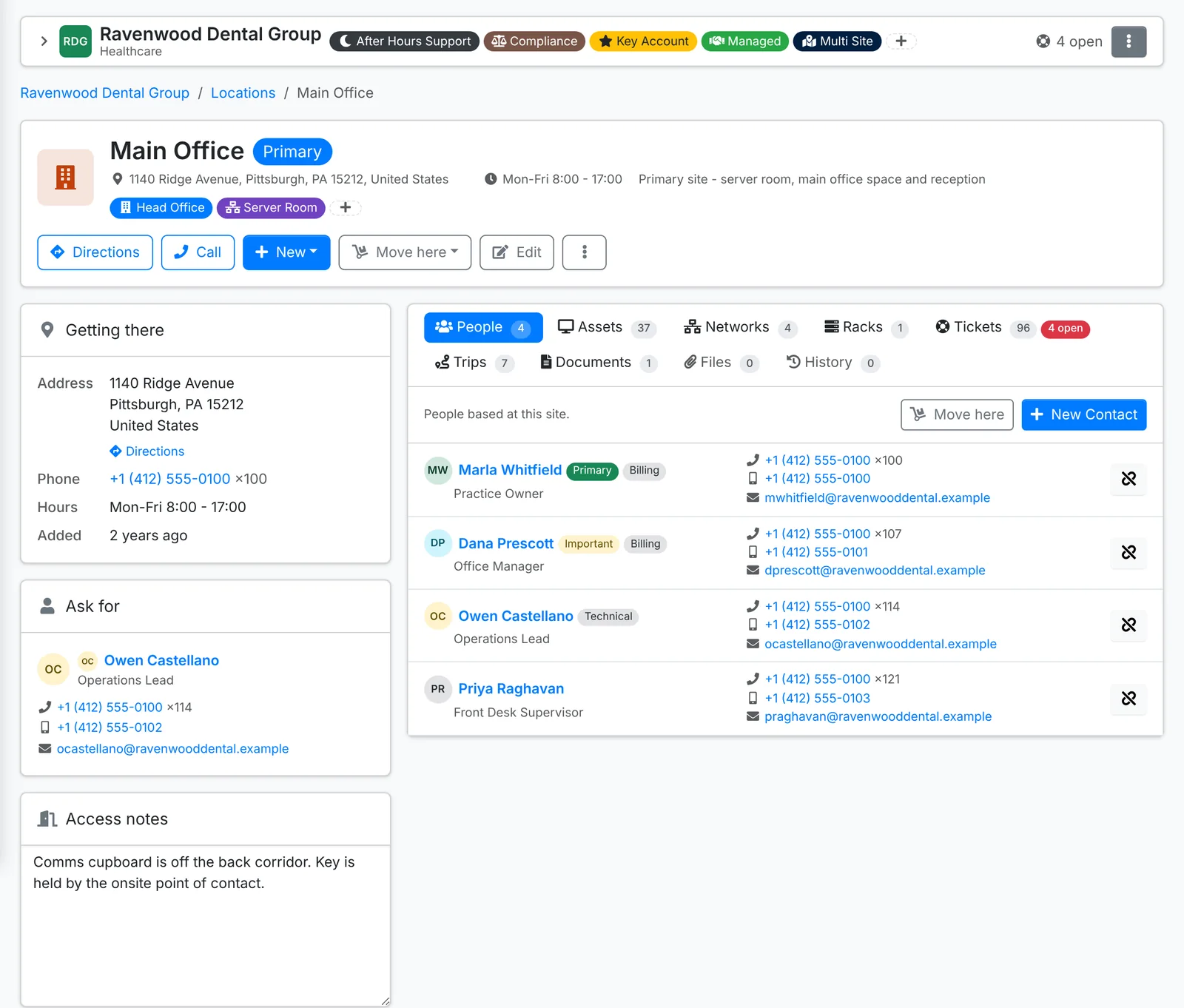
Along the top:
- Directions opens the address in your maps app, and Call rings the site.
- New starts something already set to this location: a Ticket here, a Visit here on the calendar, a contact, asset, network, rack, document or file upload, or a Trip here.
- Move here moves contacts, assets, networks or racks to this location in one go - when a client moves office, say - or links a document or file to it.
- Edit, and ⋮ for the rest.
Down the side:
- Getting there - the address, phone and hours.
- Ask for - the person to ask for on site, with their phone and email.
- Access notes - door codes, where the comms cupboard is, where to park. Type in it and it saves when you click away.
The tabs list everything at the location: People, Assets, Networks, Racks, Tickets, Trips, Documents, Files and History.
Tickets show the site's address, hours and access notes in their Site card, so whoever goes out has them without looking them up. See Working a ticket.