The setup wizard
The steps ITFlow takes you through the first time you open it - checks, the database, your account, your company and region - and restoring a backup instead.
The first time you open ITFlow, it opens the setup wizard. It has seven steps and takes a few minutes. When you finish, the wizard closes for good and you sign in.
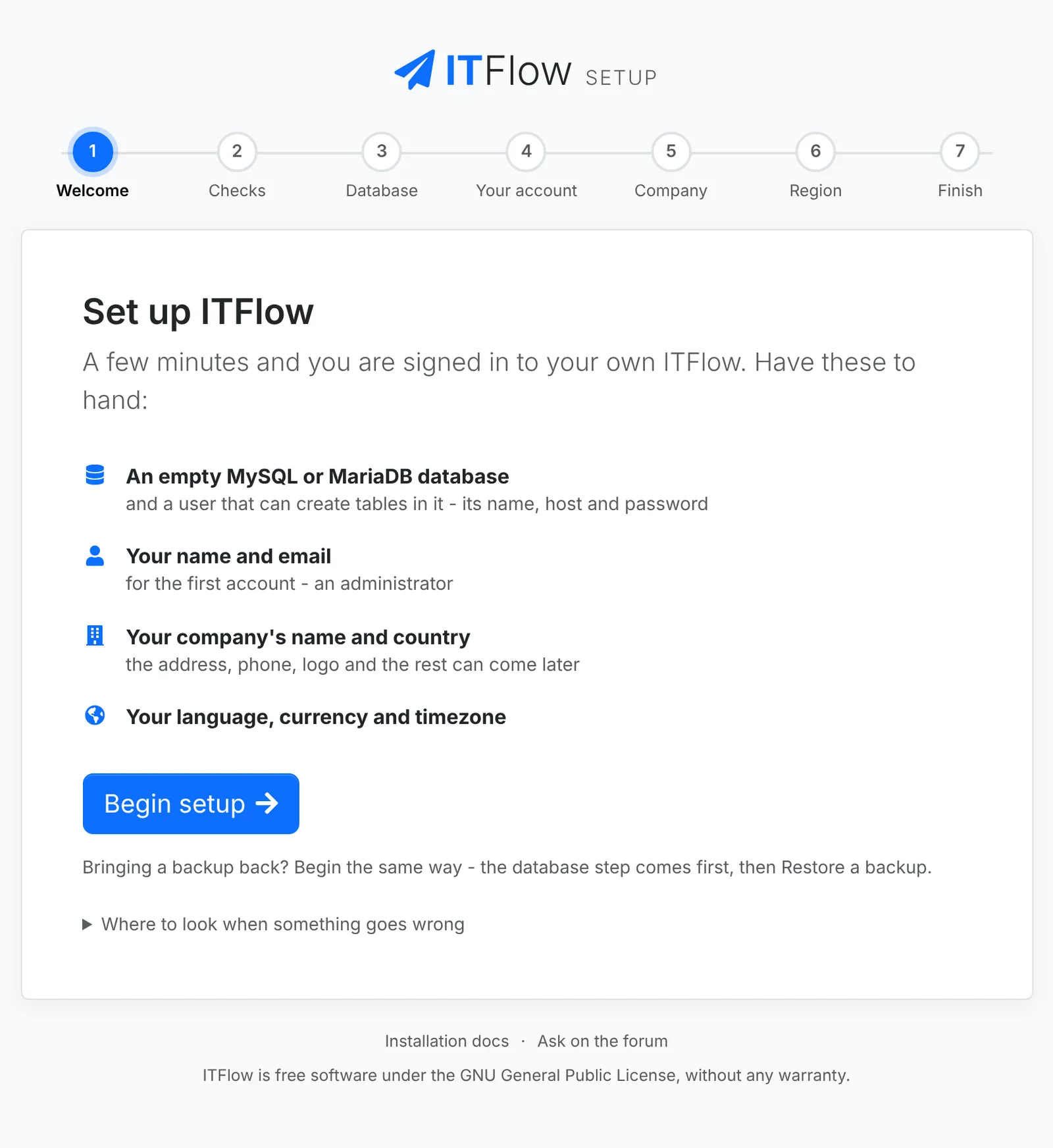
Have these ready:
- The database's name, host, user and password. You don't need these if you used the install script.
- Your name and email address, for the first account
- Your company's name and country
- Your language, currency and timezone
Checks
Setup checks the server against what ITFlow needs.
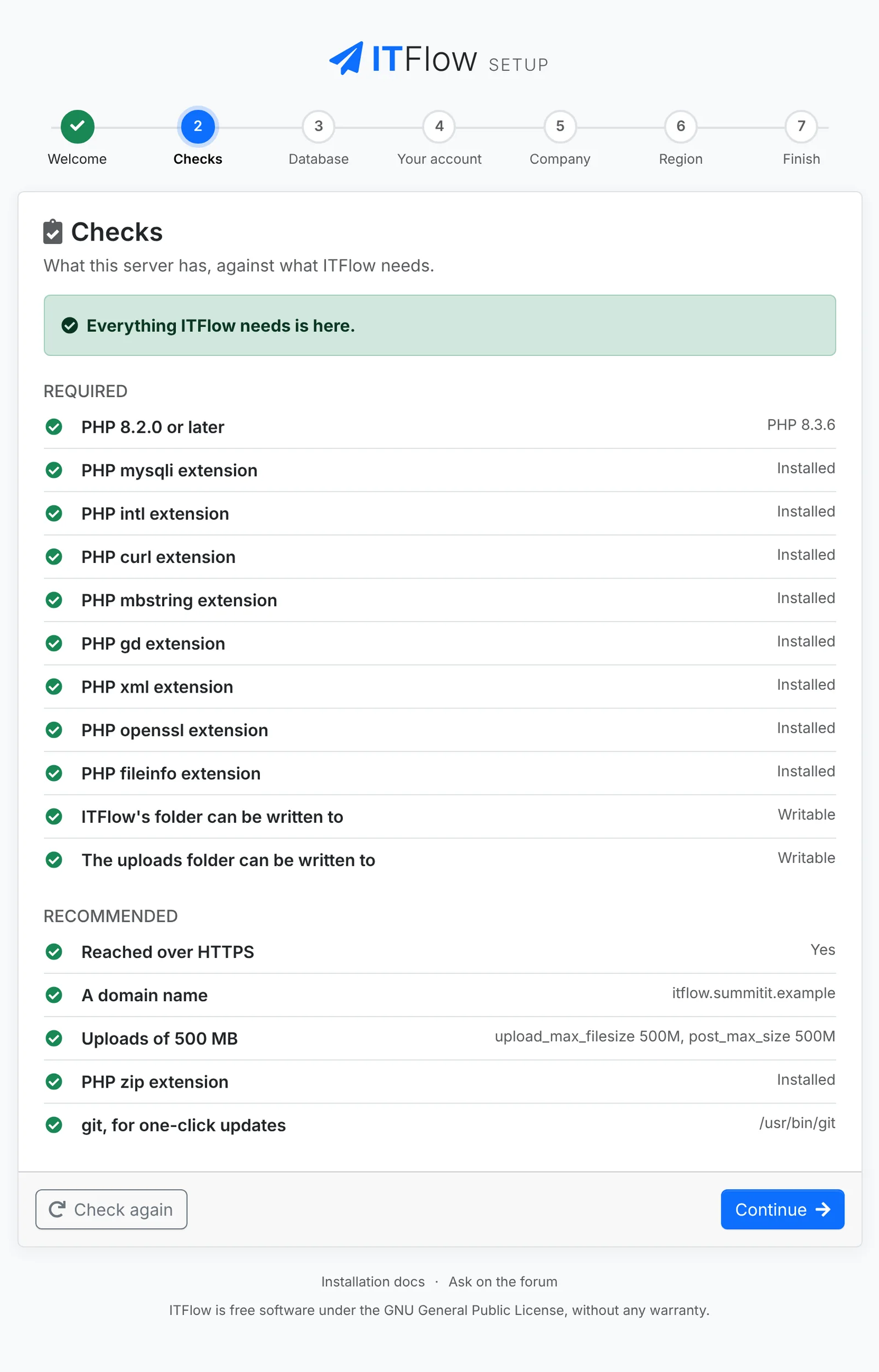
- Required checks must pass before setup can carry on: the PHP version, its extensions, and being able to write to ITFlow's folder and its
uploadsfolder. - Recommended checks are worth fixing, now or later: HTTPS, a domain name, room for 500 MB uploads, the zip extension, and git for updates.
Each check that fails says how to fix it. Fix it, then click Check again. A missing PHP extension, for example, is installed with apt install php-intl followed by restarting the web server.
Database
Enter the empty database's Database name, Host (usually localhost), User and Password, then click Connect and create the tables.
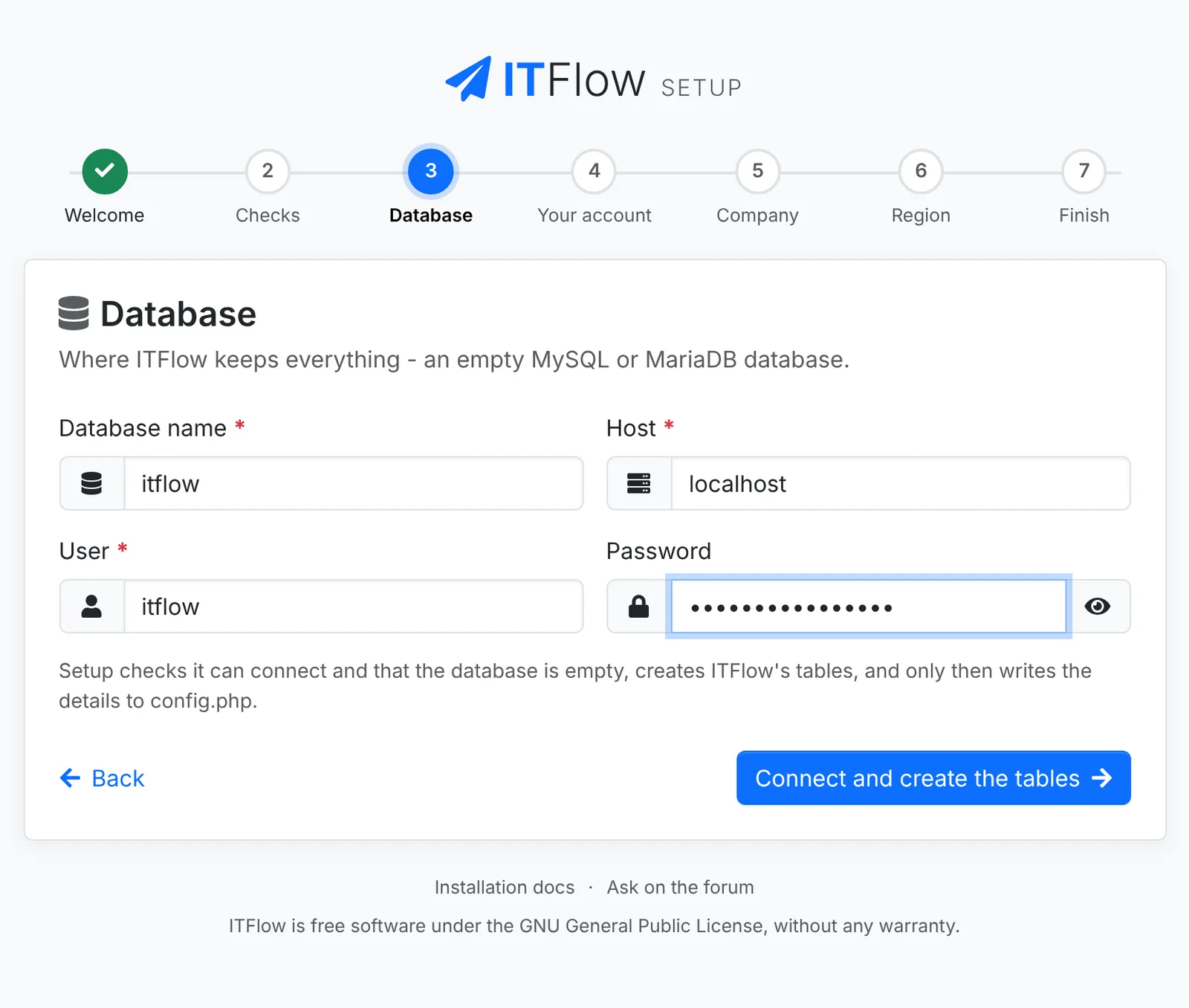
Setup connects, checks the database is empty, and creates ITFlow's tables. Only then does it save the details in config.php.
- If the database already has tables in it, setup stops. A new install needs an empty database.
- If setup can't write
config.php, it shows what to put in the file. Create the file yourself in ITFlow's folder, then click I have created it.
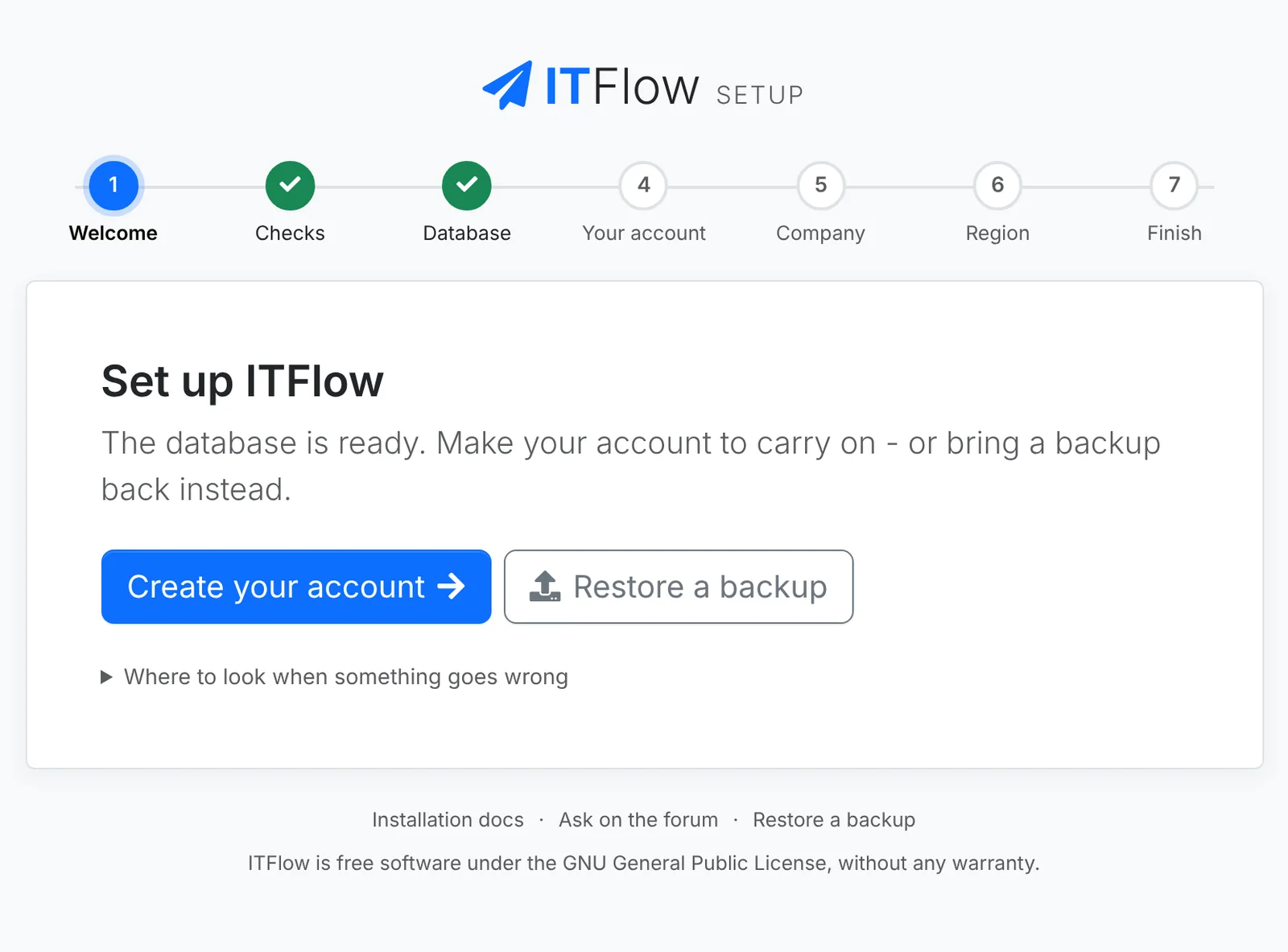
If you used the install script, this step is already done. Setup opens with Create your account:
Your account
Make the first account. It's an administrator.
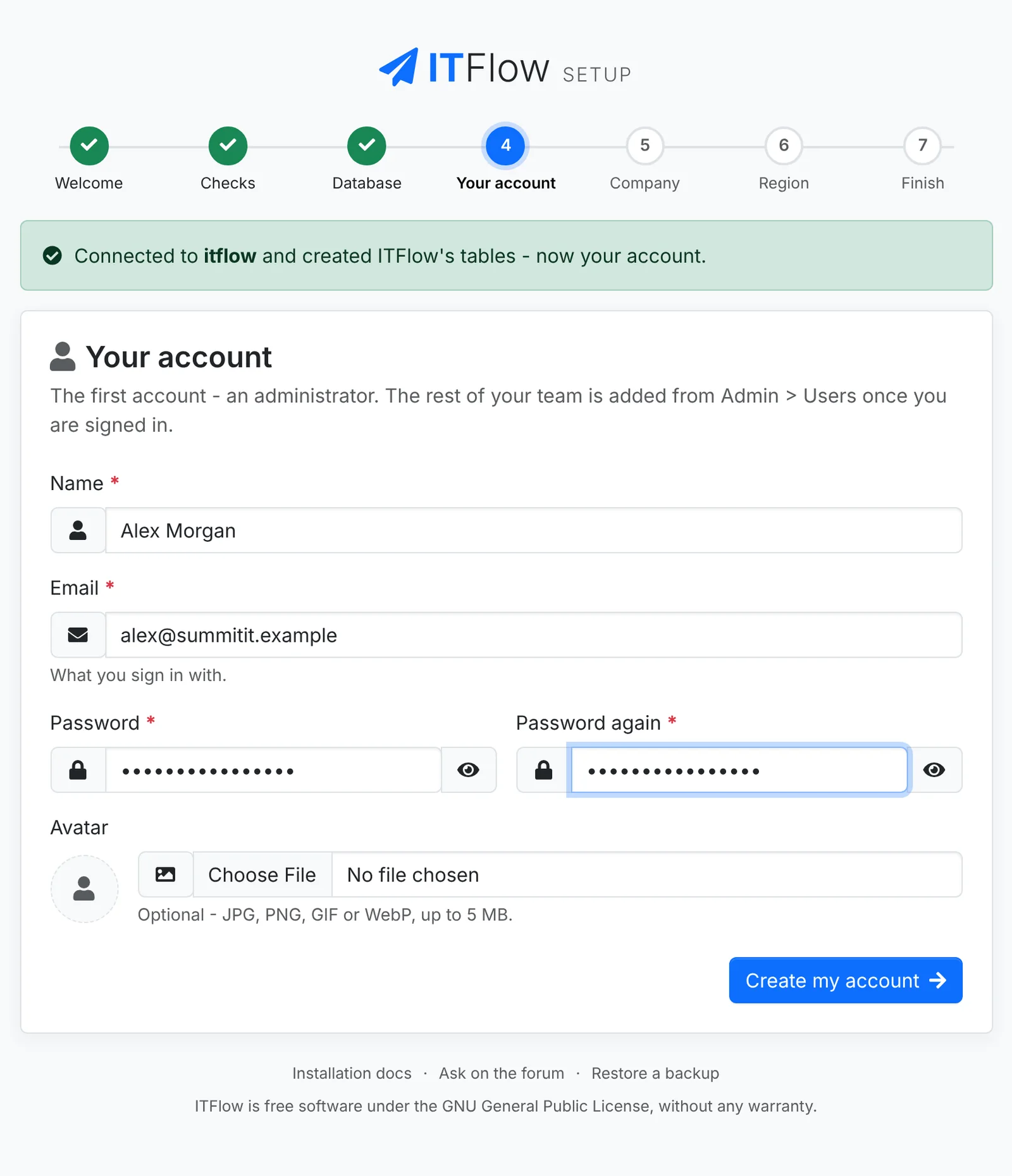
Enter your Name, the Email you'll sign in with, and a Password of at least 8 characters, twice. An Avatar is optional. You add the rest of your team from Admin > Users once you're signed in.
Company
Your company, as it appears on invoices, quotes and emails.
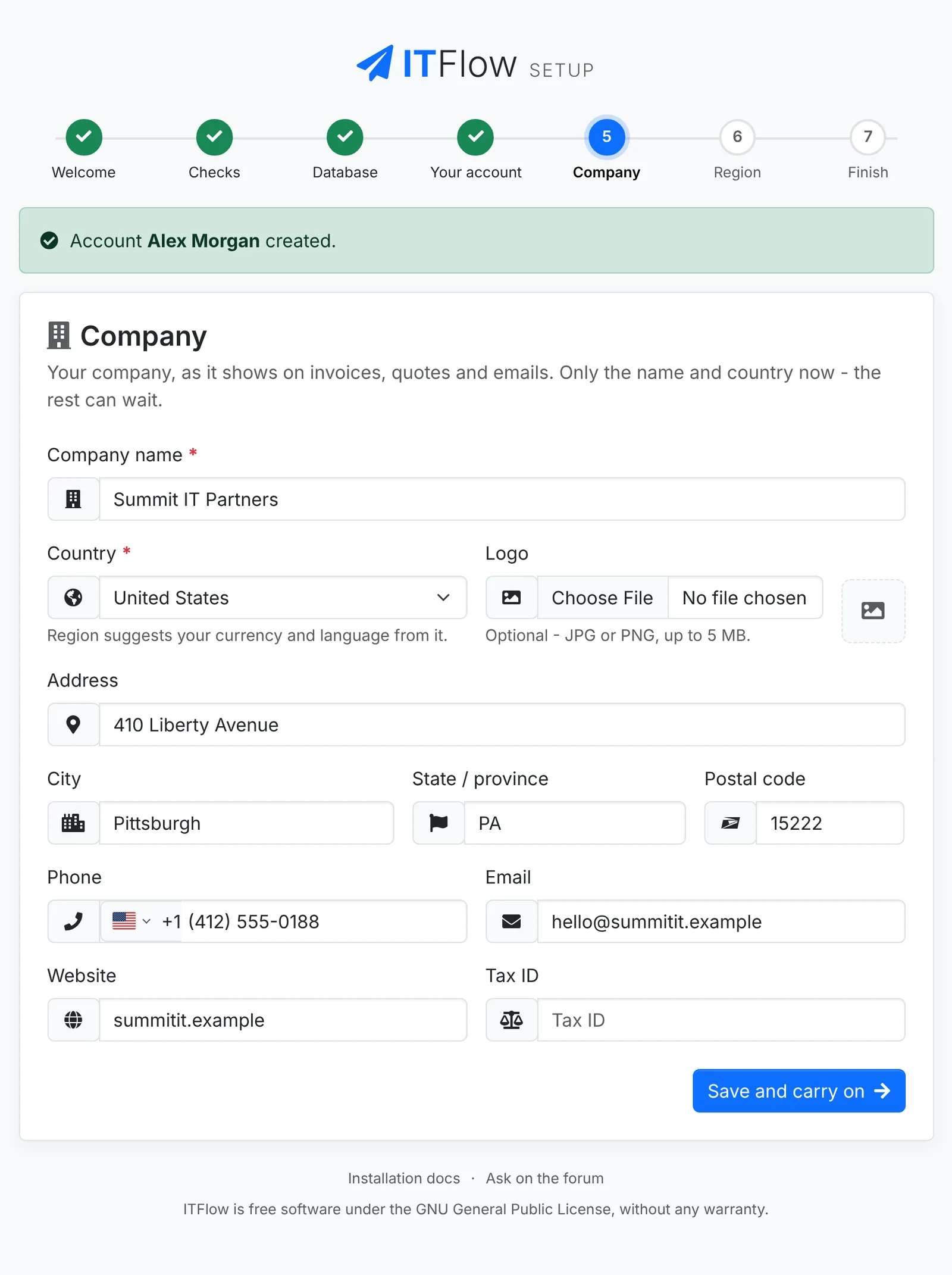
Only the Company name and Country are needed now. The address, phone, email, website, tax ID and logo can wait. You can change any of them later in Admin > Settings.
Region
Setup suggests a language, currency and timezone from your country and your browser. Check them:
- Language - how numbers and dates are written
- Currency - the currency you bill in
- Timezone - where your business is
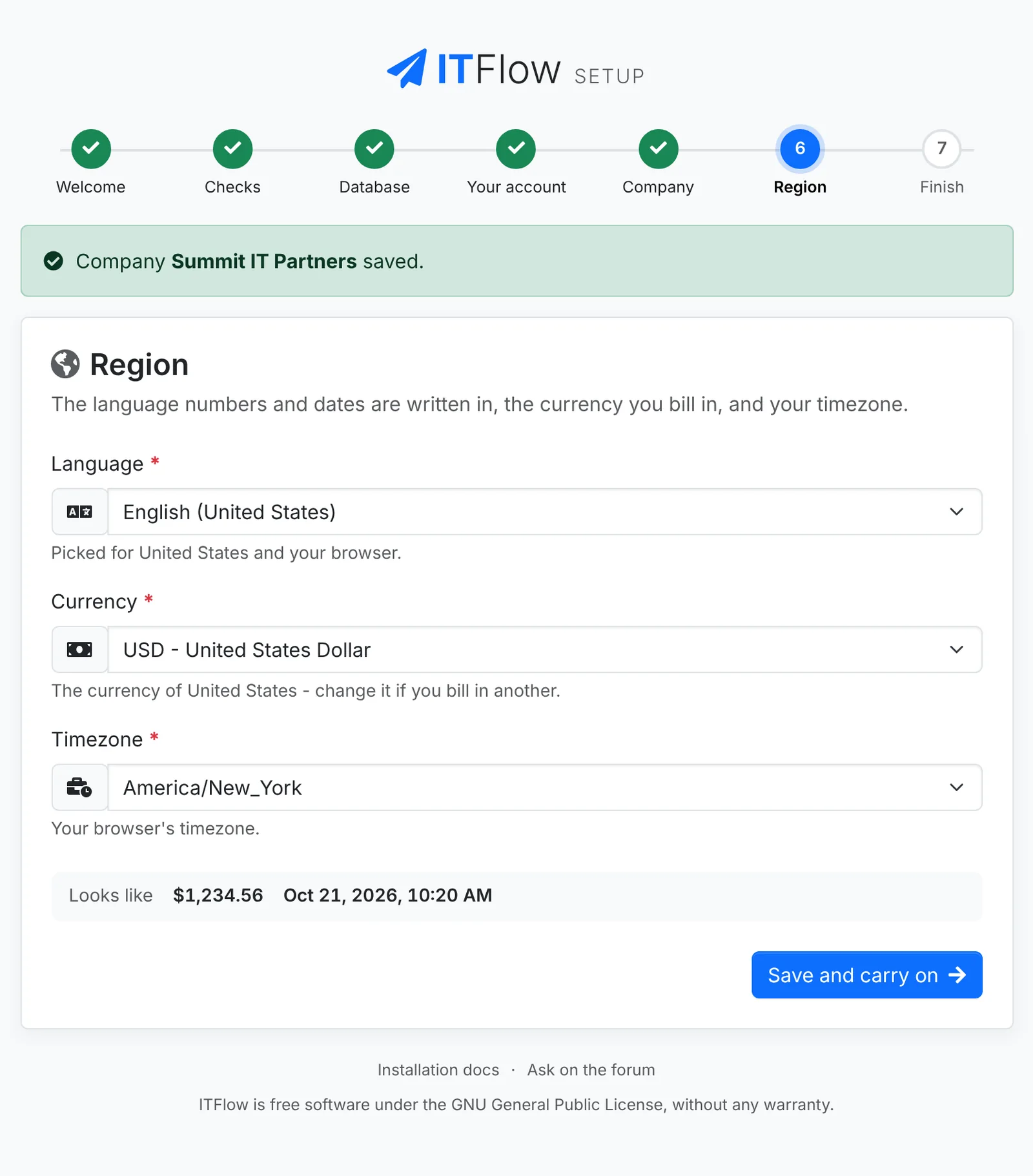
Looks like shows an amount and today's date as ITFlow will write them.
Finish
The last step shows a few things to note before you sign in.
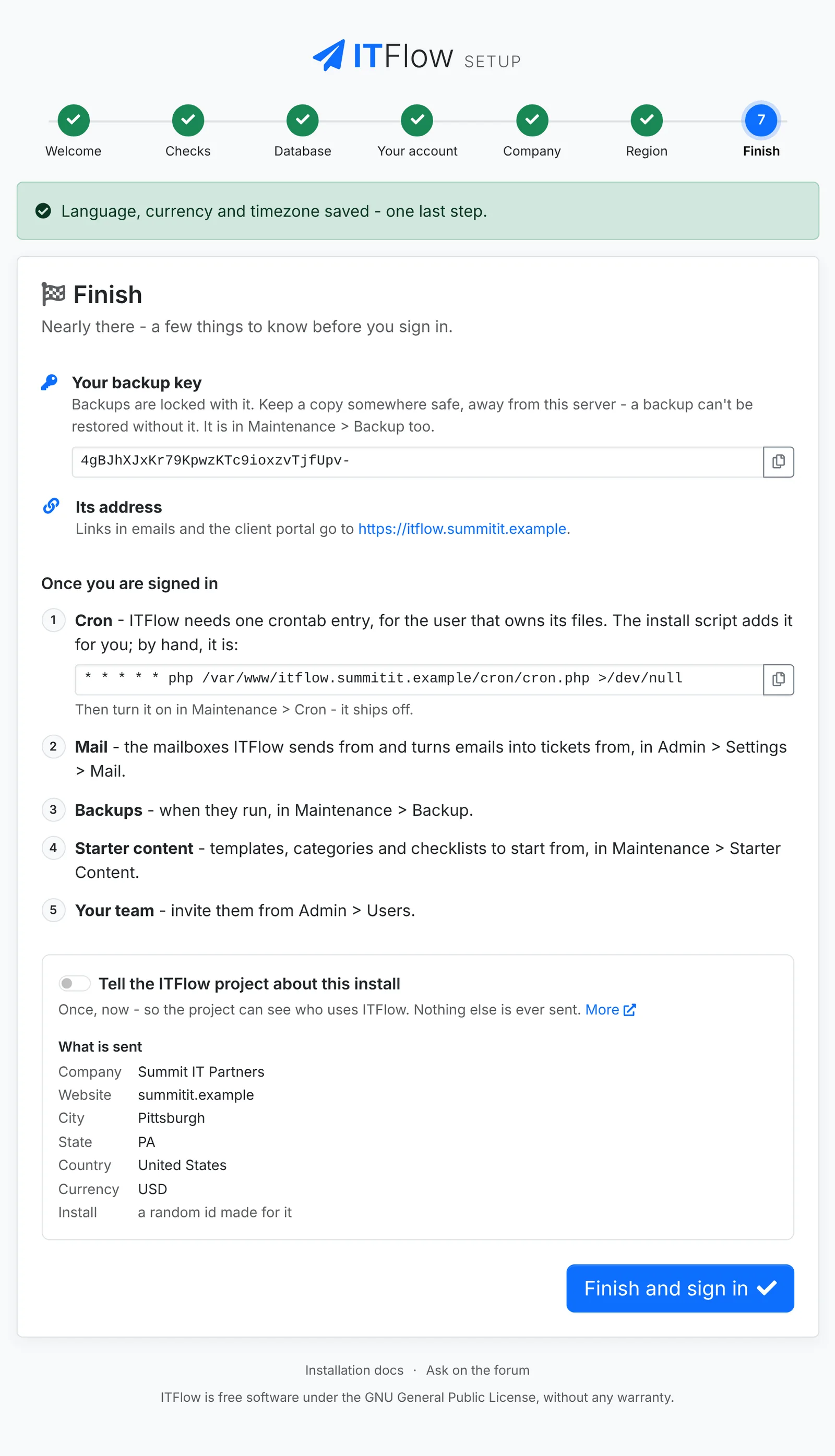
- Your backup key - backups are locked with it. Copy it somewhere safe, away from the server. Without it, nobody can restore a backup. You can also find it later in Admin > Backup.
- Its address - where links in emails and the client portal go
- Once you are signed in - the first things to set up. After installing goes through them.
- Tell the ITFlow project about this install - optional. It sends your company's name, website, city, state, country and currency to the ITFlow project, once, with a random id made for this install.
Click Finish and sign in. Setup closes, and the sign-in page opens.
If you came to setup over http://, Finish warns you that signing in needs HTTPS. Get a certificate first. Only on a test install that stays on your own network, set $config_https_only = FALSE; in config.php instead.
Restore a backup instead
You can bring back an ITFlow you already have - when moving to a new server, say - instead of starting afresh. Do the Database step with an empty database, then click Restore a backup instead of making an account.
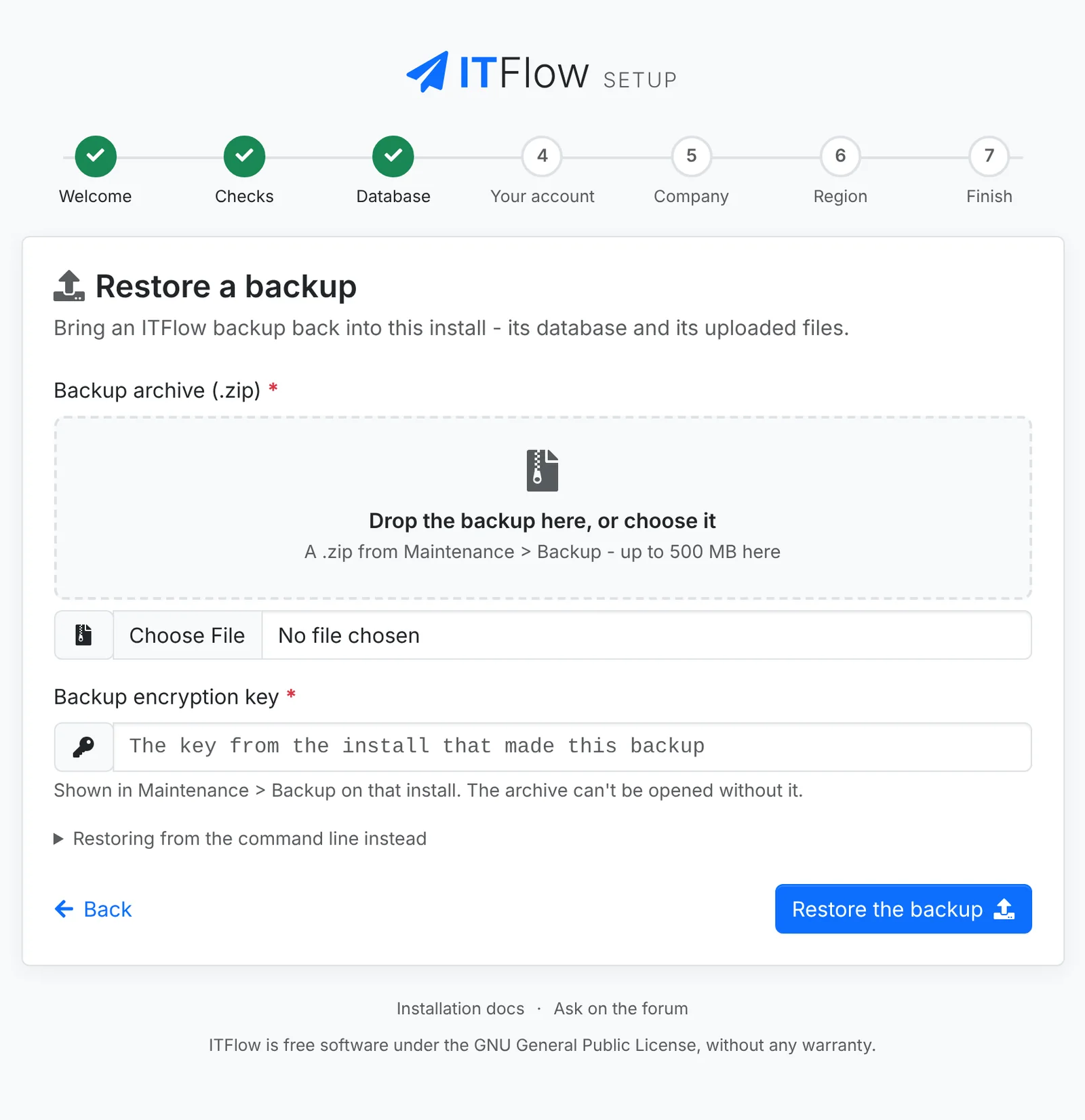
- Choose the backup
.zipfrom the old install's Admin > Backup. - Enter that install's Backup encryption key.
- Click Restore the backup.
The restore replaces the database and the uploads folder. Sign in with an account from the backup. A backup too big to upload is restored from the command line instead.
If setup stops part-way
Setup saves each step as you go. Open ITFlow again and it carries on from where it stopped, with Continue setup. Once setup has finished, /setup goes to the sign-in page.