Users
The agents who sign in to ITFlow - adding them, their role and the clients they see, two-step sign-in, and what to do when someone leaves.
Users are your team: everyone who signs in to ITFlow to work. (Your clients' contacts sign in to the client portal instead - see Giving contacts access.)
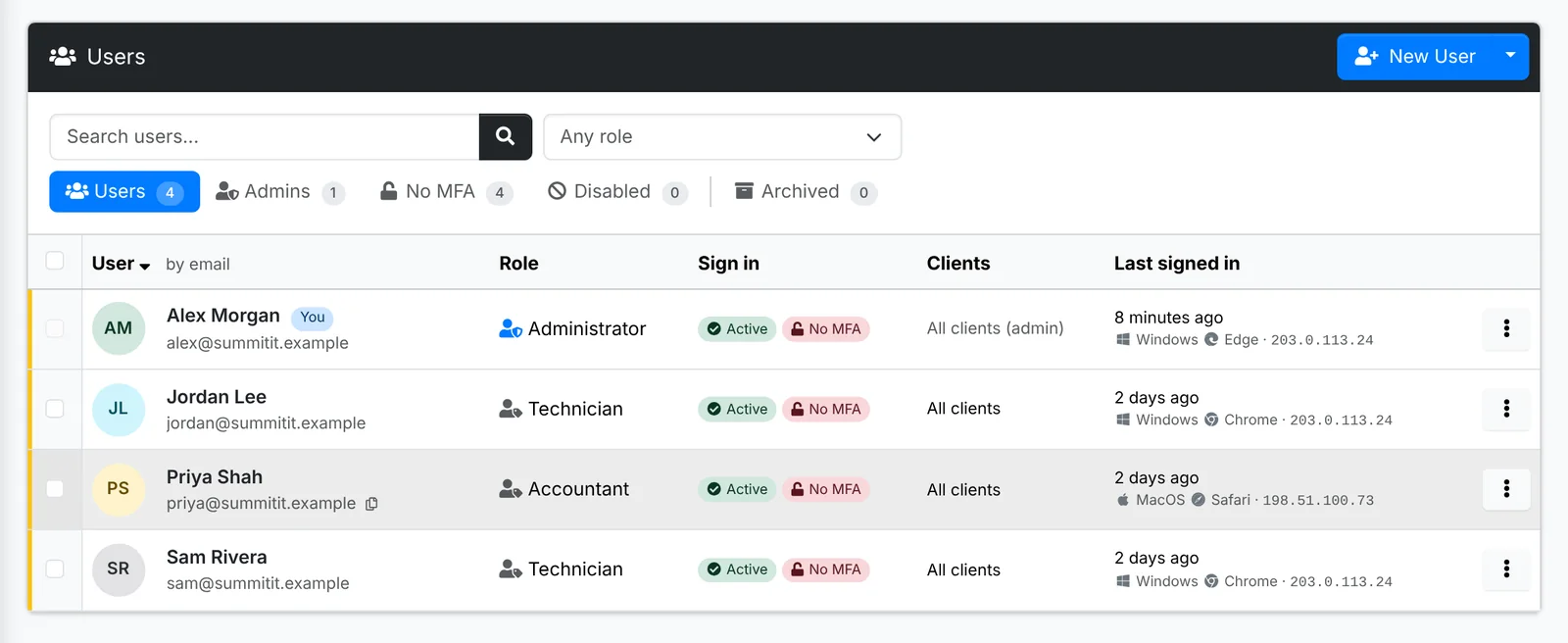
Each row shows the agent, their Role, whether they can sign in and how (with or without two-step sign-in), the Clients they can see, and when they Last signed in and from where. The tabs show Users, Admins, No MFA (not using two-step sign-in), Disabled and Archived.
Your own row can't be changed here - that's your account - so you can't lock yourself out by mistake.
Add a user
- Click New User.
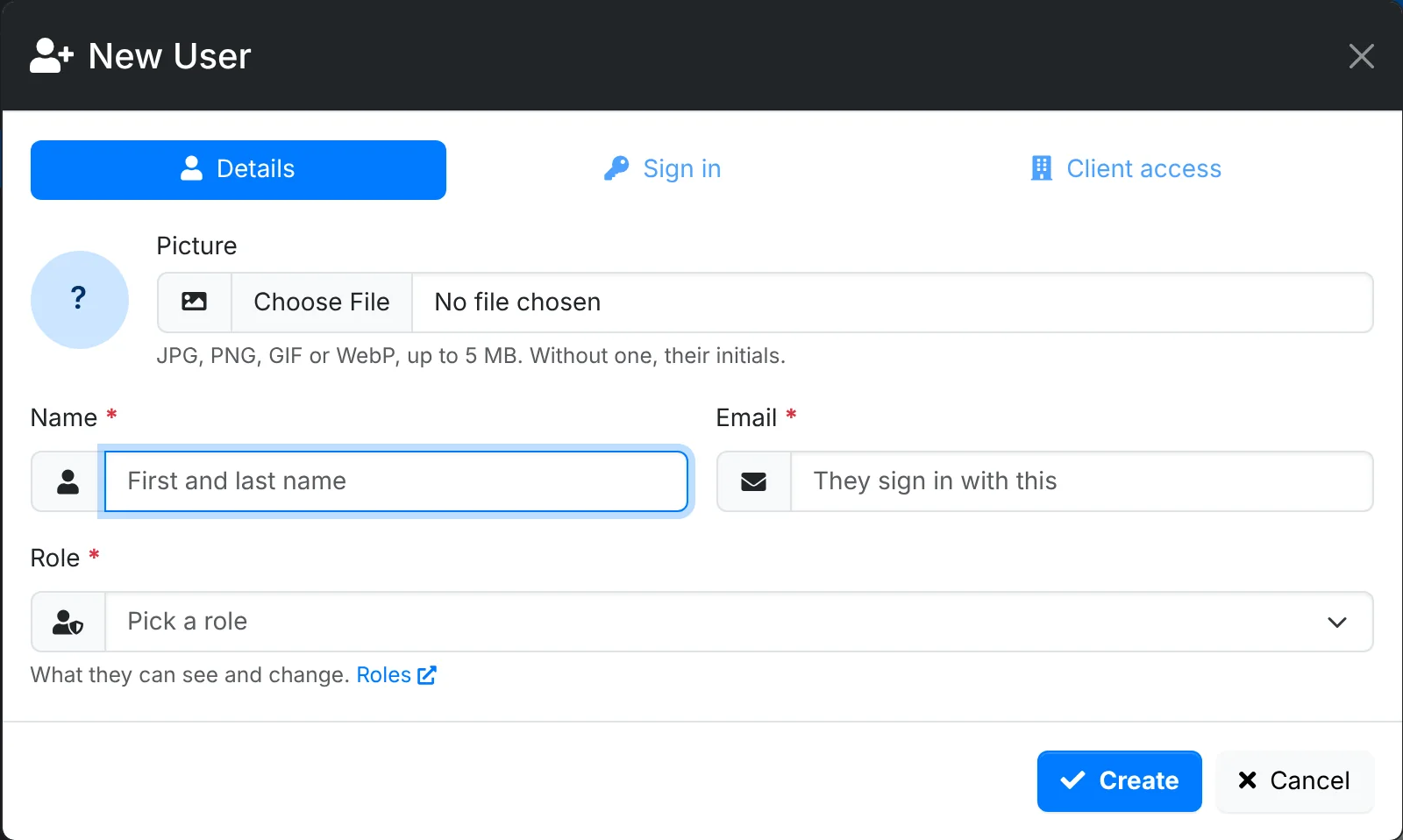
- On Details, add their Name, the Email they sign in with, and their Role - what they can see and change (see Roles). A picture is optional.
- On Sign in, set a password, or switch on Email them their sign in details. Either way, they should change it once they're in. Switch on Require it under Multi-factor authentication to make them set up two-step sign-in at their first sign-in.
- On Client access, limit them to some clients if you need to (see below).
- Click Create.
Which clients they see
By default an agent sees every client. On Client access you can set each client to:
- Only - limits them to the clients marked Only. With none marked, they see every client.
- Never - keeps them out of that client, whatever else is set.
This suits a contractor who looks after one client, or keeping a sensitive client to a few people. Admins always see every client.
Two-step sign-in
The No MFA tab shows who isn't using two-step sign-in. Tick users and use Bulk Action > Require MFA: they're asked to set it up at their next sign-in, and can't turn it off.
If someone loses their phone, open them with Edit and use Reset it under Multi-factor authentication. Their authenticator app and their remembered browsers are forgotten, and they set it up again.
Forget remembered browsers, in the bulk menu, makes them enter a code again everywhere.
When someone leaves
- Disable stops them signing in, and keeps everything as it is - for someone on leave.
- Archive is for good. They're signed out and can't sign in, their password and copy of the credential vault key are wiped, and you hand their open tickets to someone else - or leave them unassigned. Everything they did stays, under their name.
If an agent's account may have been compromised, use Incident response in the menu beside New User. It resets the password of every other agent, shows you the new passwords once to give out by phone, and forgets every remembered browser. Client portal logins are left alone. Change your own password first.
Sign-ins
Admin > Sign-ins shows who signs in and from where: each agent and portal contact with their last sign-in, how many sign-ins and failed ones, and how many addresses they've used. The IP addresses tab shows each address, the accounts it tried, and whether it's being turned away now.
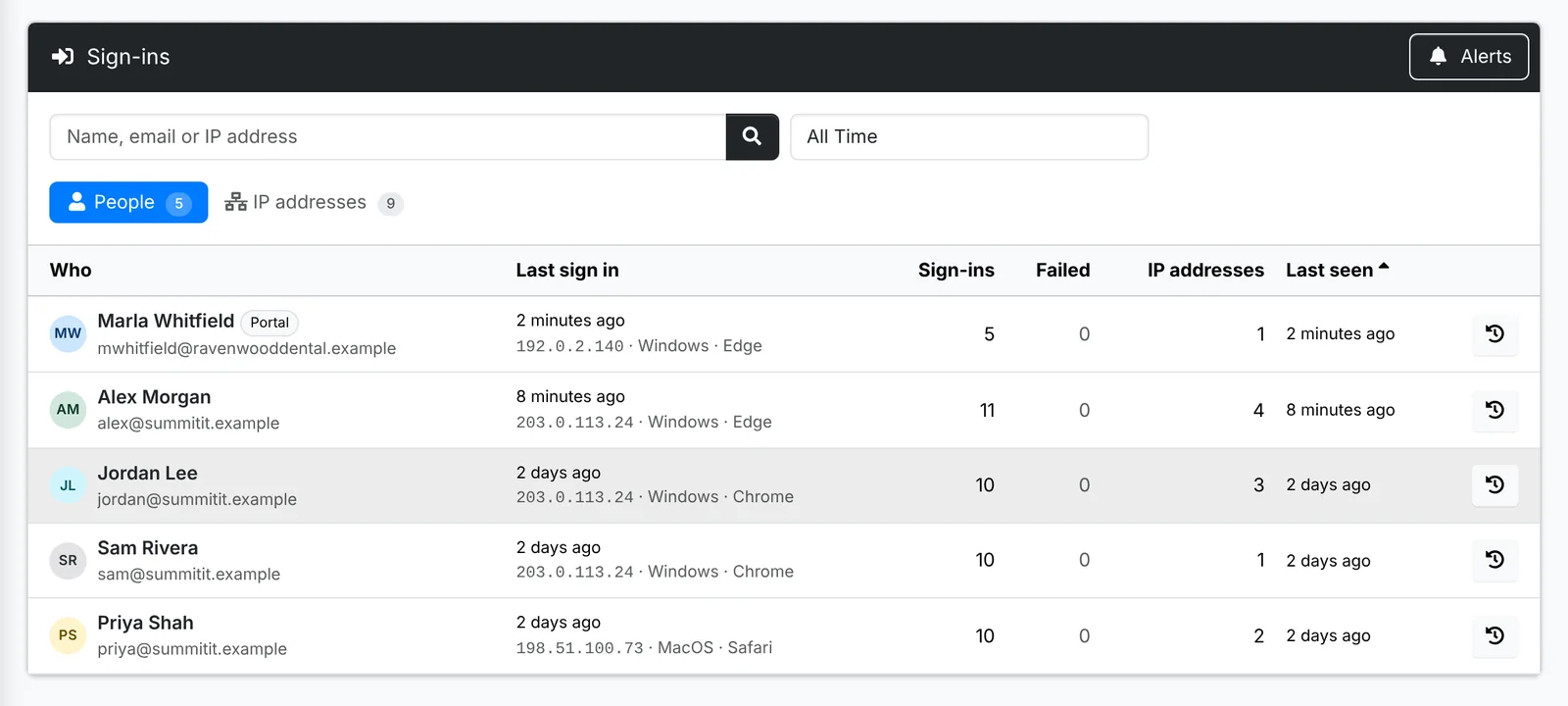
Click one to see its sign-ins in the audit log. Alerts sets when admins are told about failed sign-ins - see Security.