Licenses
The software and subscriptions a client pays for - Microsoft 365, antivirus, backup, line-of-business apps - with seats, keys, who has them and when they renew.
A license is software or a subscription the client has: Microsoft 365 Business Premium, endpoint protection, their dental practice software. It tracks how many seats were bought and who uses them, the keys, the vendor, and when it renews.
The licenses list
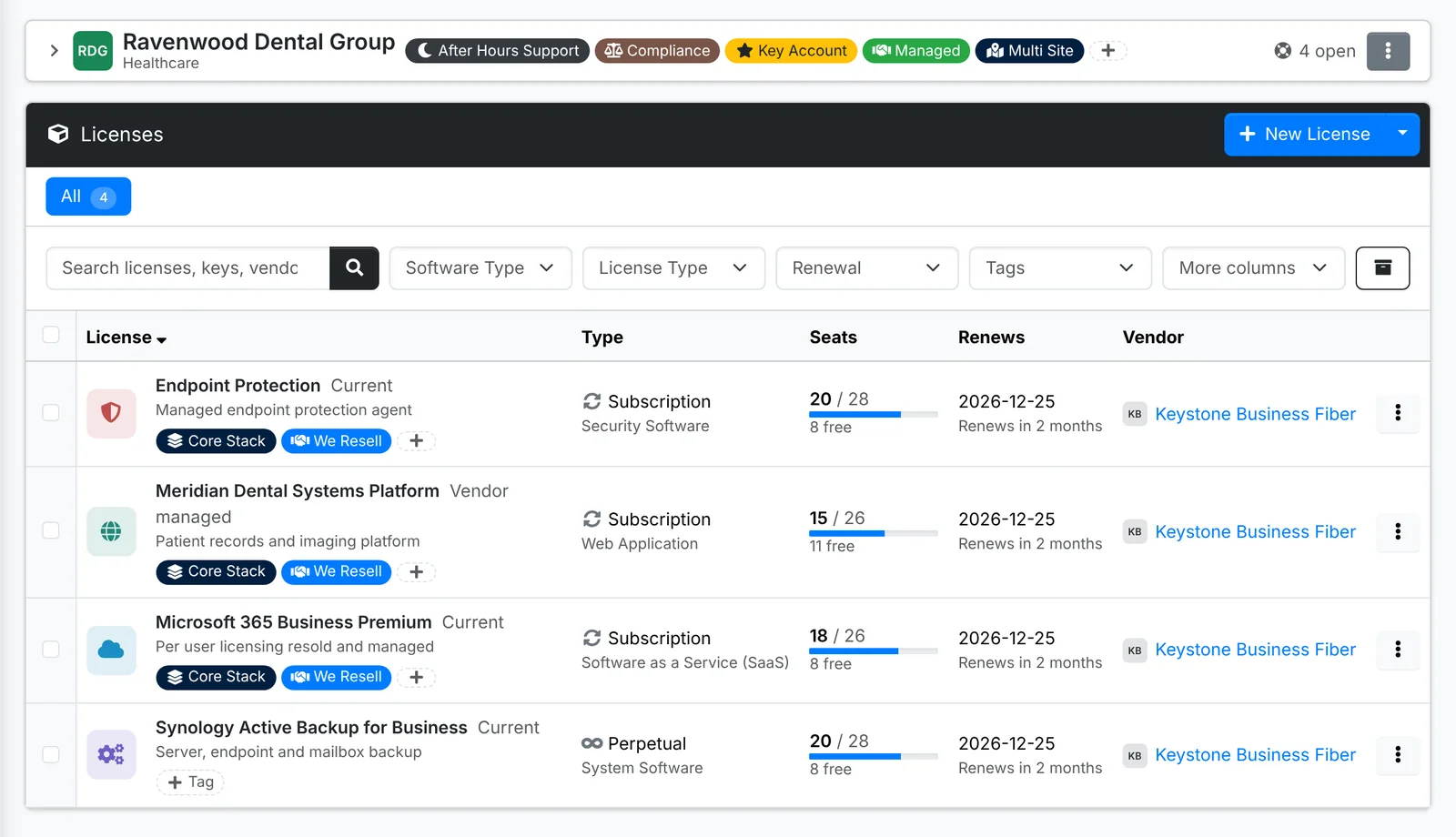
Each row has a seat bar - red when more seats are in use than were bought - and a renewal date that turns amber and then red as it gets close. When there's something to see, tabs show Renewing soon, Expired, Over seats and No seats assigned.
Tick licenses and use Bulk Action to Renew several at once, tag them or archive them.
Add a license
- Open the client, go to Licenses and click New License. To start from one your admin set up, pick it under Start from a template (or New from Template in the button's menu) - see License and vendor templates.
- On Details, type the Name and Version, pick its Type (Software as a Service, Desktop Application, Security Software and so on) and Vendor, and add a description.
- On License, set the License type (Subscription, Device, User, Site, Concurrent, Perpetual and so on), the Seats bought, the License key - or Individual keys, one per line, to hand out one at a time - the Order / invoice reference, and when it was Purchased and when it Renews / expires.
- On Seats, pick the Devices and Users that have it.
- On Notes, add anything else - how it's licensed, where it's managed.
- Click Create.
The license's page
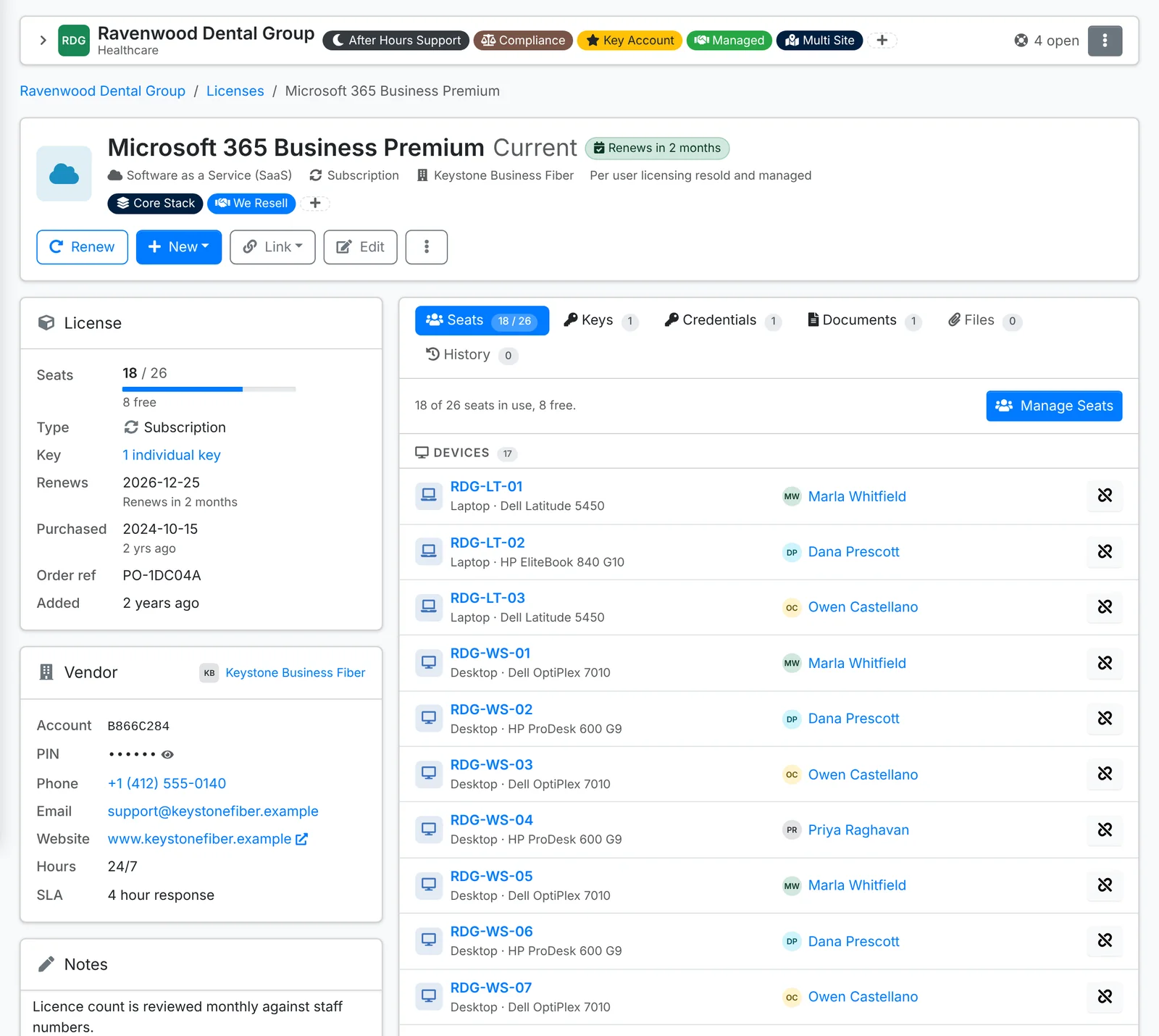
- Renew moves the renewal date on, and New has a Renewal Ticket - a ticket for the renewal, already filled in - as well as keys, documents and files.
- License shows the seats in use against bought, the type, the key, when it renews, when it was bought and the order reference - each copyable.
- Vendor shows your account number, PIN, and the vendor's support line, email, site, hours and SLA.
- The tabs list the Seats - the devices and users that have it, with Manage Seats - the Keys and who each is handed to, linked Credentials, Documents, Files and History.
Individual keys
Some software has a key per install. Paste them on the license, one per line, and hand each to a device or a user from the Keys tab. When a device or user comes off the license, their key goes back to the pool for the next one. An asset's and a contact's pages show their licenses with the key to install.
Renew a license
Click Renew on the license (or tick several in the list and use Bulk Action > Renew). Move the renewal date on by a term - a month, a year - or to a date you pick. The window shows each new date before you save, and records the new order reference.
Licenses renewing soon show on the dashboard, the client's overview, the calendar (Renewals) and the Renewals & Expirations report. Clients see theirs in the portal too, without the keys.
Billing for seats
When you resell a license, its seats can be billed on the client's recurring invoice and follow the seat count each month. See Recurring invoices.