Finding your way around
How ITFlow is laid out - the top bar, the menu down the left, and the way everything for one client sits together under that client.
ITFlow has three parts on every page: the top bar along the top, the menu down the left, and the page itself. Most of your day is spent inside one client at a time, so ITFlow keeps everything for a client - its tickets, devices, logins, documents and invoices - together under that client.
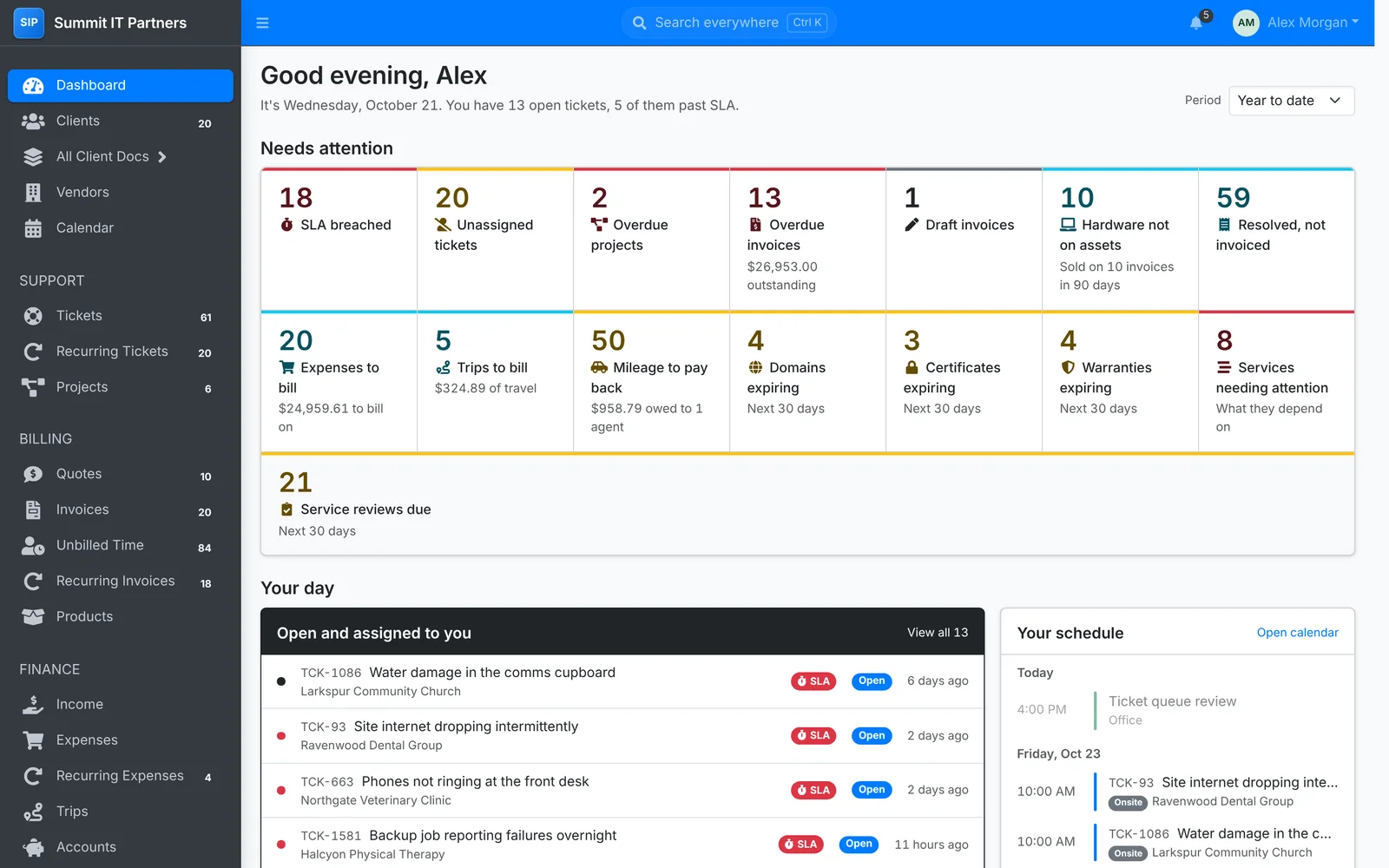
The top bar
From left to right:
- ☰ hides or shows the menu, to give a wide list more room. ITFlow remembers your choice.
- Search everywhere finds anything in ITFlow by name, number, phone number or IP address. Press Ctrl K from any page to open it. See Searching.
- The bell shows your notifications, with a count of the unread ones. See Notifications.
- Your name opens a menu with Account (your profile, password and preferences), Administration if you are an admin, and Logout.
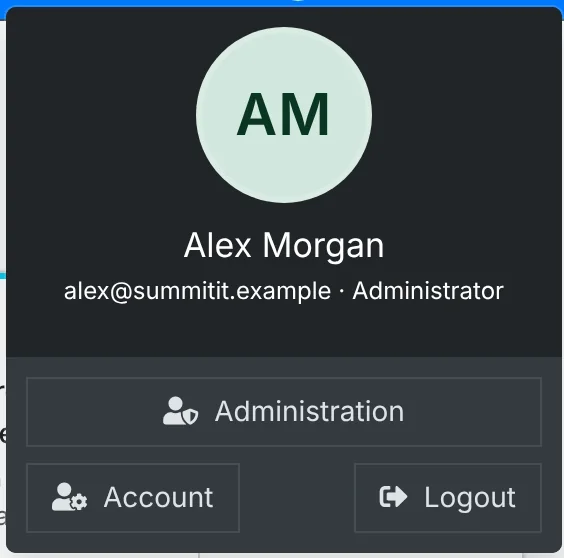
The main menu
The main menu is grouped by the kind of work:
| Group | What's in it |
|---|---|
| (top) | Dashboard, Clients, All Client Docs, Vendors and Calendar |
| Support | Tickets, Recurring Tickets and Projects |
| Billing | Quotes, Invoices, Unbilled Time, Recurring Invoices and Products |
| Finance | Income, Expenses, Recurring Expenses, Trips, Accounts, Transactions and Transfers |
| Tools | Reports, and any links your admin has added |
The numbers beside an item tell you how many are waiting there: open tickets, unpaid invoices, tickets waiting to be billed and so on.
You only see the parts of ITFlow your role can open. A technician who doesn't handle billing won't see Billing or Finance at all. Your admin sets this up in Roles and permissions. Whole parts of ITFlow can also be switched off in Admin > Settings > Modules.
Working inside a client
Open a client from Clients, from search, or by clicking its name anywhere it appears. The menu on the left changes to that client's menu, and every page you open from it shows only that client's records.
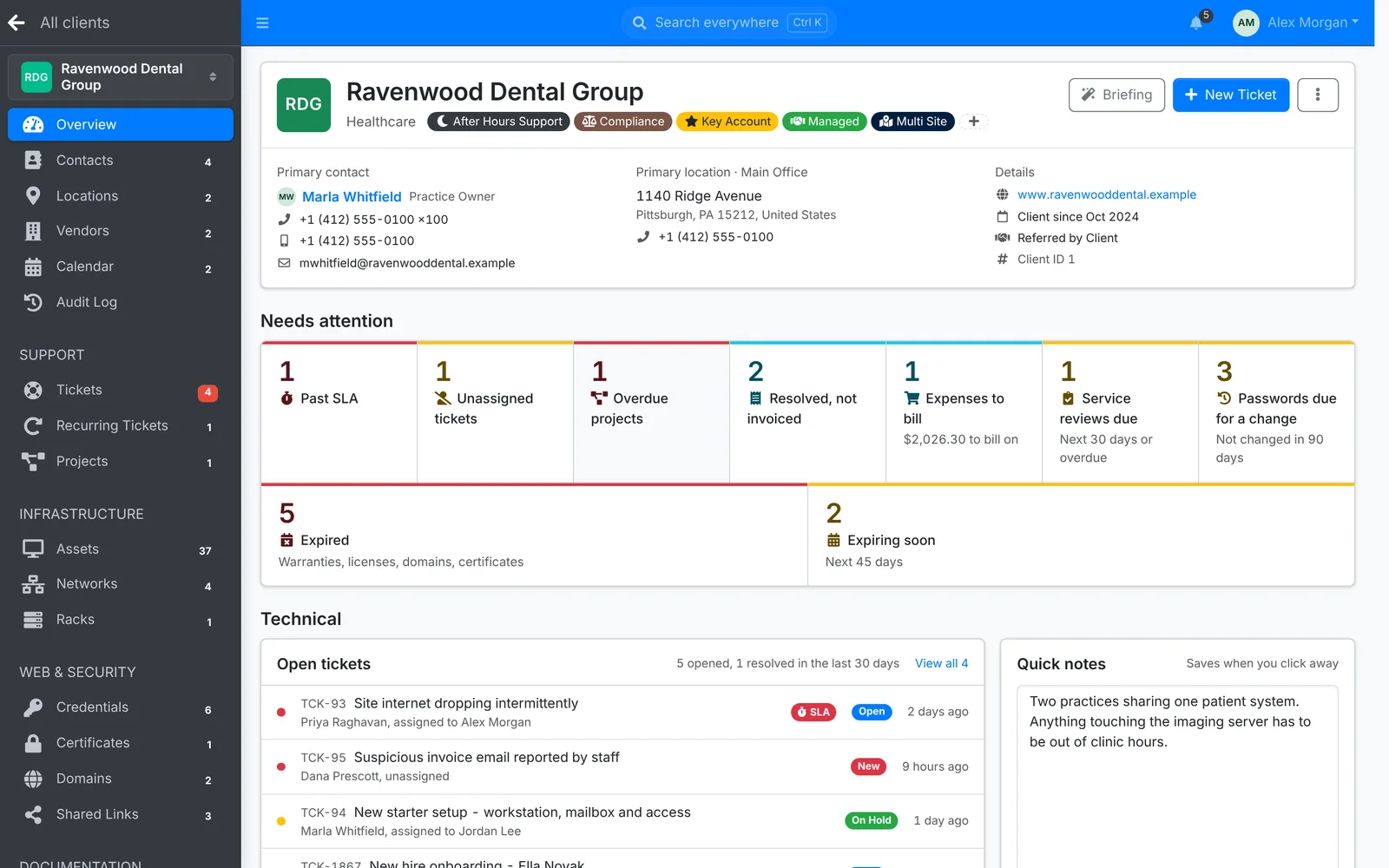
The client menu has:
- Overview - the client at a glance. See The client overview.
- Contacts, Locations, Vendors, Calendar and the client's Audit Log
- Support - the client's Tickets, Recurring Tickets and Projects
- Infrastructure - Assets, Networks and Racks
- Web & Security - Credentials, Certificates, Domains and Shared Links
- Documentation - Licenses, Services and Files
- Billing - the client's Quotes, Invoices, Unbilled Time, Recurring Invoices, Income and Trips
Every page inside a client starts with the client's header: their initials, name, industry and tags, with their primary location, open tickets and balance. Click the arrow at the left of the header to see more about them. The ⋮ button on the right has New Ticket, New Project, Edit Client, Export Data, Client Review and Archive Client.
Switch to another client
Click the client's name at the top of the client menu and pick another client. You stay on the same page - from one client's Assets straight to another's Assets. All clients, above it, takes you back to the clients list.
All Client Docs
All Client Docs in the main menu shows the documentation of every client together: contacts, locations, assets, networks, racks, credentials, certificates, domains, shared links, licenses, vendors and services. Use it when you are looking for something and don't know which client has it, or to see every client's expiring certificates at once.
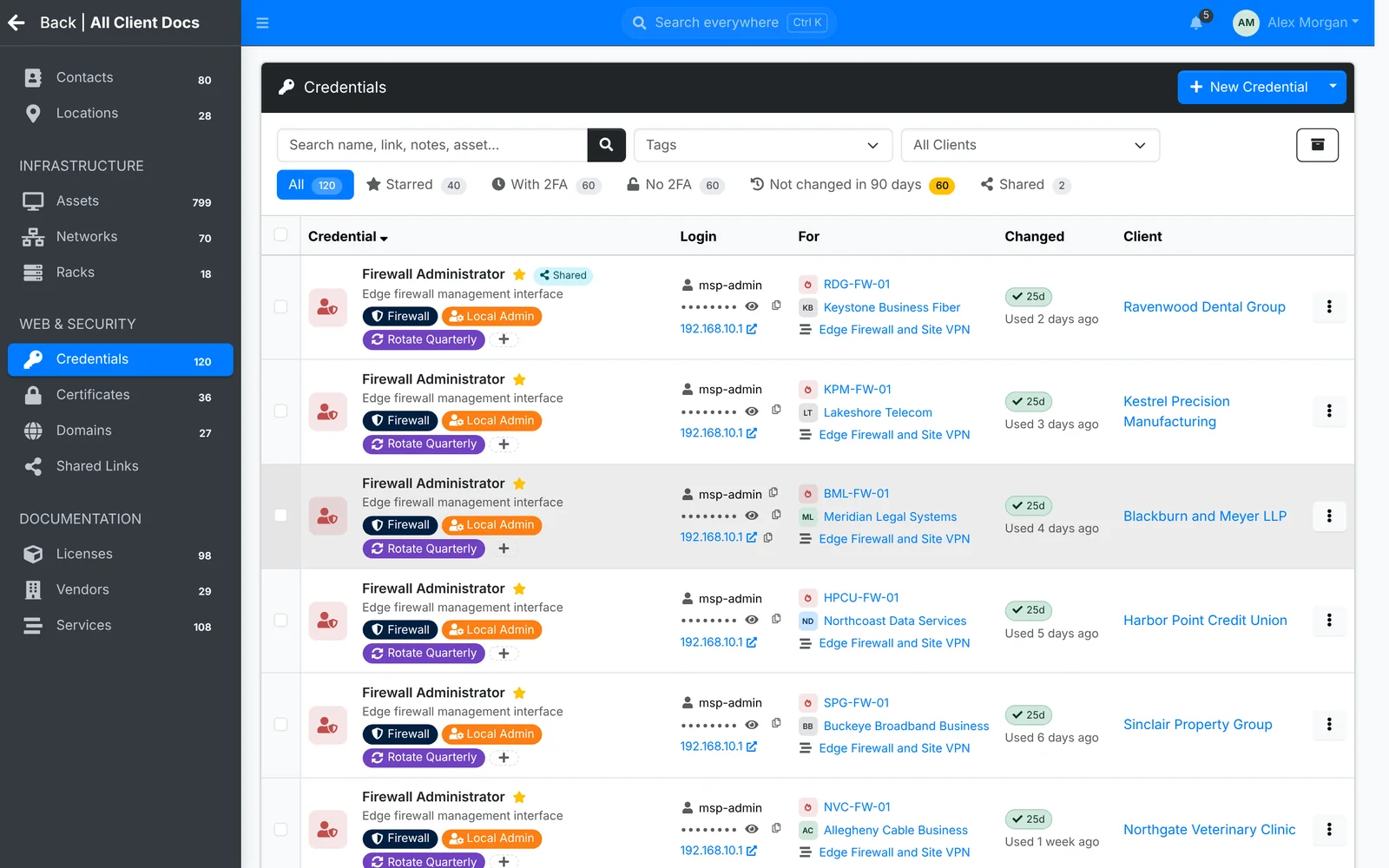
Back at the top of the menu returns you to the main menu.
The dashboard
The Dashboard is the first page you see when you sign in. What it shows depends on your role:
- Needs attention along the top: tickets past their SLA, unassigned tickets, overdue projects, overdue invoices, work done but not invoiced, and domains, certificates, licenses and warranties about to expire. Click any of them to open a list of exactly those.
- Your day: your open tickets, your schedule for the week, the time you have logged this week, and tickets opened against resolved. Admins also see open tickets for each technician.
- Finance, if your role covers sales or the books: income, expenses and profit for the period you pick at the top right, cash flow, money owed to you, your top clients and your account balances.
Administration
Admins have an Administration item under their name in the top bar. It has its own menu - Access, Lists, Integrations, Templates, Maintenance and Settings - and Back to return. See Settings for where to start.
Light or dark
ITFlow can be light or dark. Pick one under your name > Account > Preferences. See Your account.
On a phone or tablet
ITFlow works on a phone. The menu folds away behind the ☰ button, lists change to a layout that fits the screen, and drop-down lists come up from the bottom of the screen.