Calendar
Your team's schedule - booked tickets, events, project dates, service reviews and renewals - and a link to see it in your own phone or Outlook calendar.
The Calendar shows what's booked: tickets scheduled for a visit or a call, events such as meetings and maintenance windows, and dates from the rest of ITFlow. Each client also has its own Calendar in its menu.
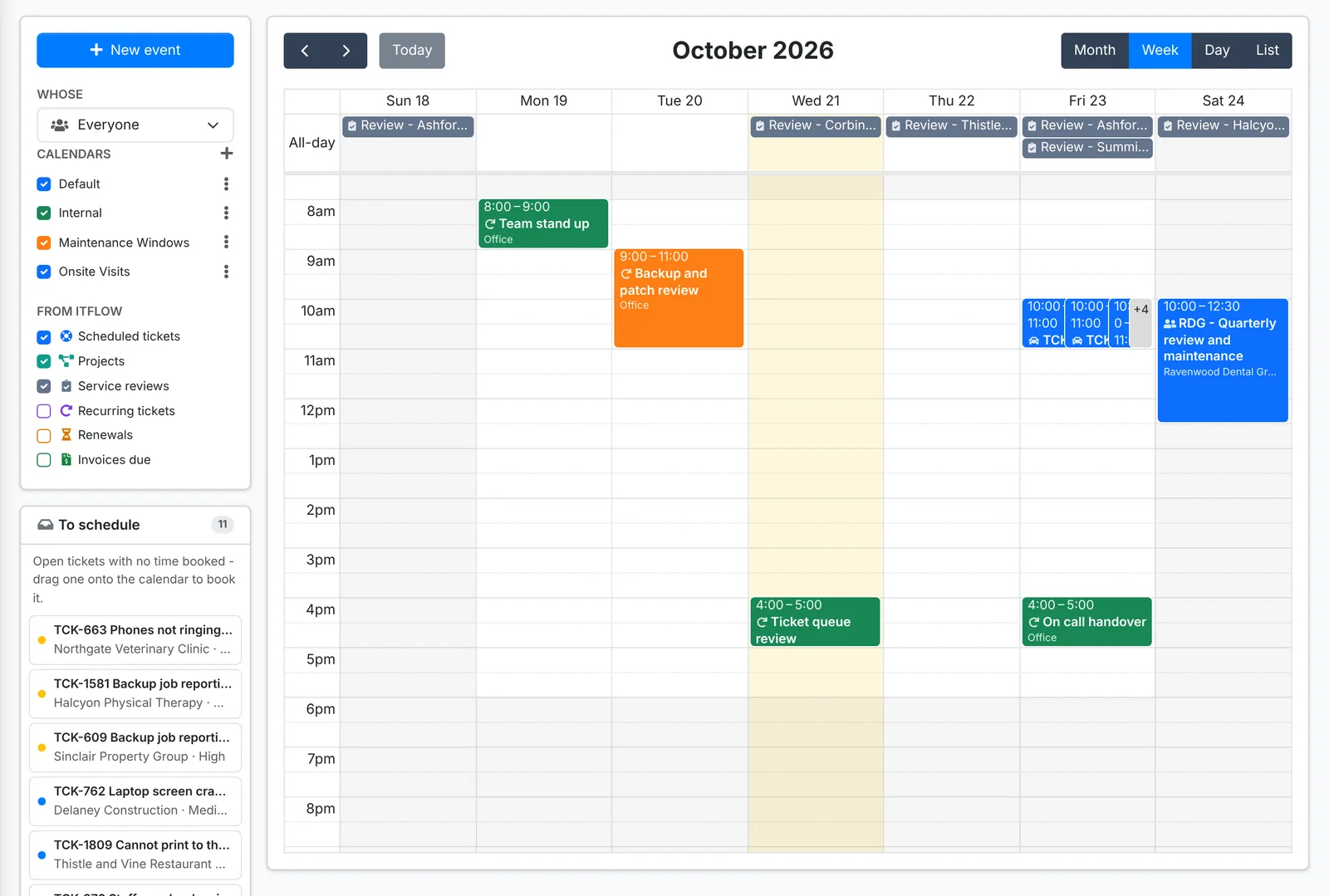
Find your way around
- Month, Week, Day and List at the top right switch the view. The arrows move back and forward, and Today brings you back.
- Whose narrows the calendar to one technician, or shows Everyone.
- Calendars lists your team's calendars - Default, Internal, Maintenance Windows, Onsite Visits and any others you add with the +. Tick or untick one to show or hide it.
- From ITFlow shows or hides Scheduled tickets, Projects (start and due dates), Service reviews, Recurring tickets (when they'll next run), Renewals (domains, certificates, licenses and warranties) and Invoices due.
Click anything on the calendar to open its quick look. Drag a ticket or event to another time to reschedule it.
Book an open ticket
To schedule, under the calendars, lists open tickets that have no time booked. Drag one onto the calendar to book it for that time. You can also book a ticket from the ticket itself - see Working a ticket. When you book from the ticket, the window shows the assigned technician's day, so you can see when they're free.
Add an event
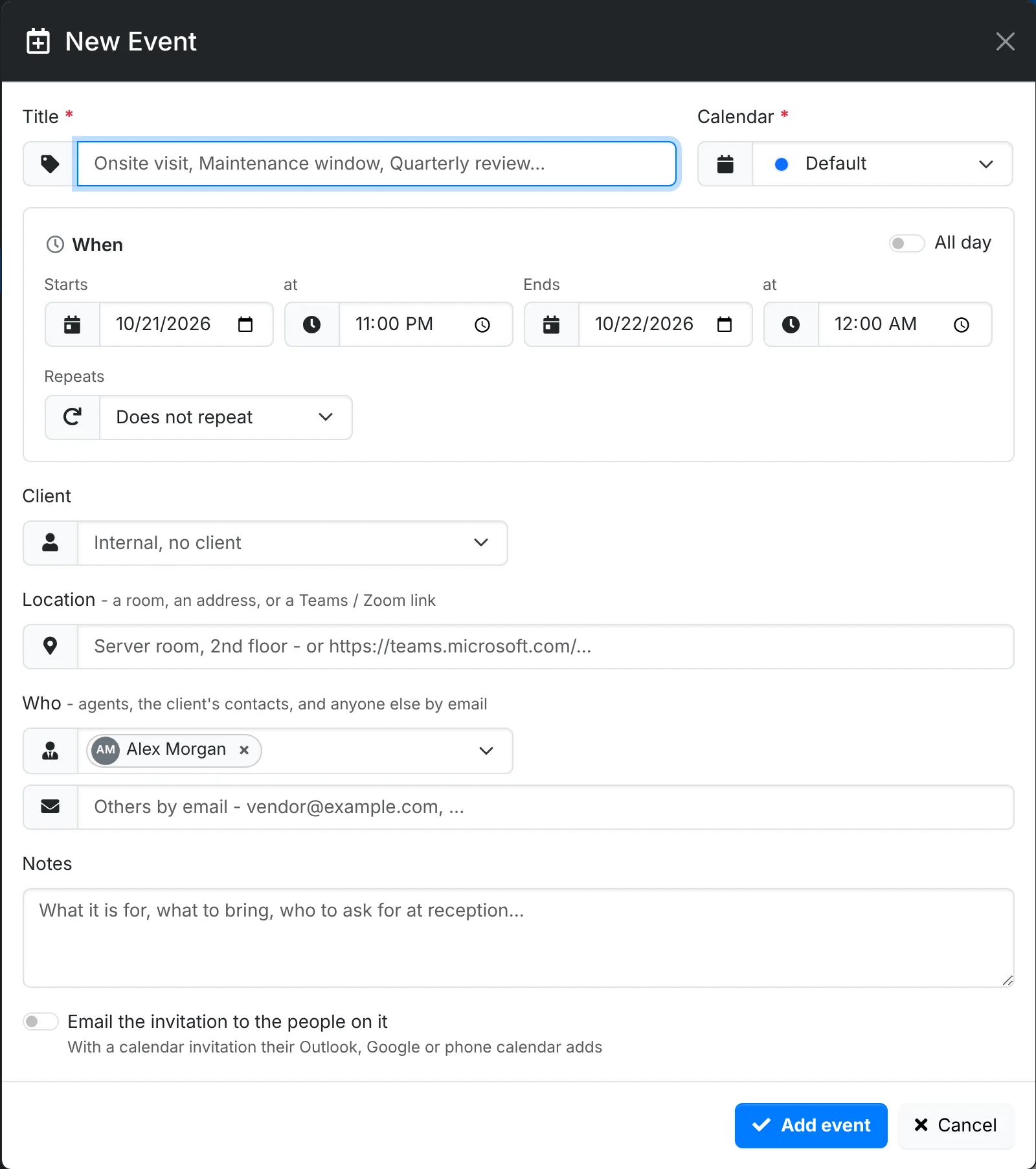
- Click New event, or click (or drag across) a time on the calendar.
- Give it a Title and pick the Calendar it goes on.
- Under When, set when it Starts and Ends, or switch on All day. Under Repeats, pick how often it repeats, if it does - every so many days, weeks, months or years, with an end date and dates to skip.
- Pick the Client, if it's for one, and the Location - a client site, a room, an address, or a Teams or Zoom link.
- Under Who, add technicians and the client's contacts, and anyone else by email.
- Add Notes: what it's for, what to bring, who to ask for.
- Switch on Email the invitation to the people on it to send them a calendar invite their Outlook, Google or phone calendar adds.
- Click Add event.
When you change or cancel an event with an invitation, the people on it get an update or a cancellation, and their calendar follows. An event's quick look can download it as a calendar file, or send the invitation again.
See your schedule on your phone
Every technician has a private link to subscribe to from their phone, Outlook, Google Calendar, Apple Calendar, Nextcloud or Thunderbird. It stays up to date as work is booked.
- On the calendar, click Set it up (or My calendar link once you have one) under the calendars.
- Under What it shows, pick Just mine or The whole team, and which of Scheduled tickets, Events and Projects to include.
- Switch on Busy only to show just the times, with no titles, clients or addresses - for a calendar other people can see.
- Click Make my link, copy it, and follow the setup help for your calendar app.
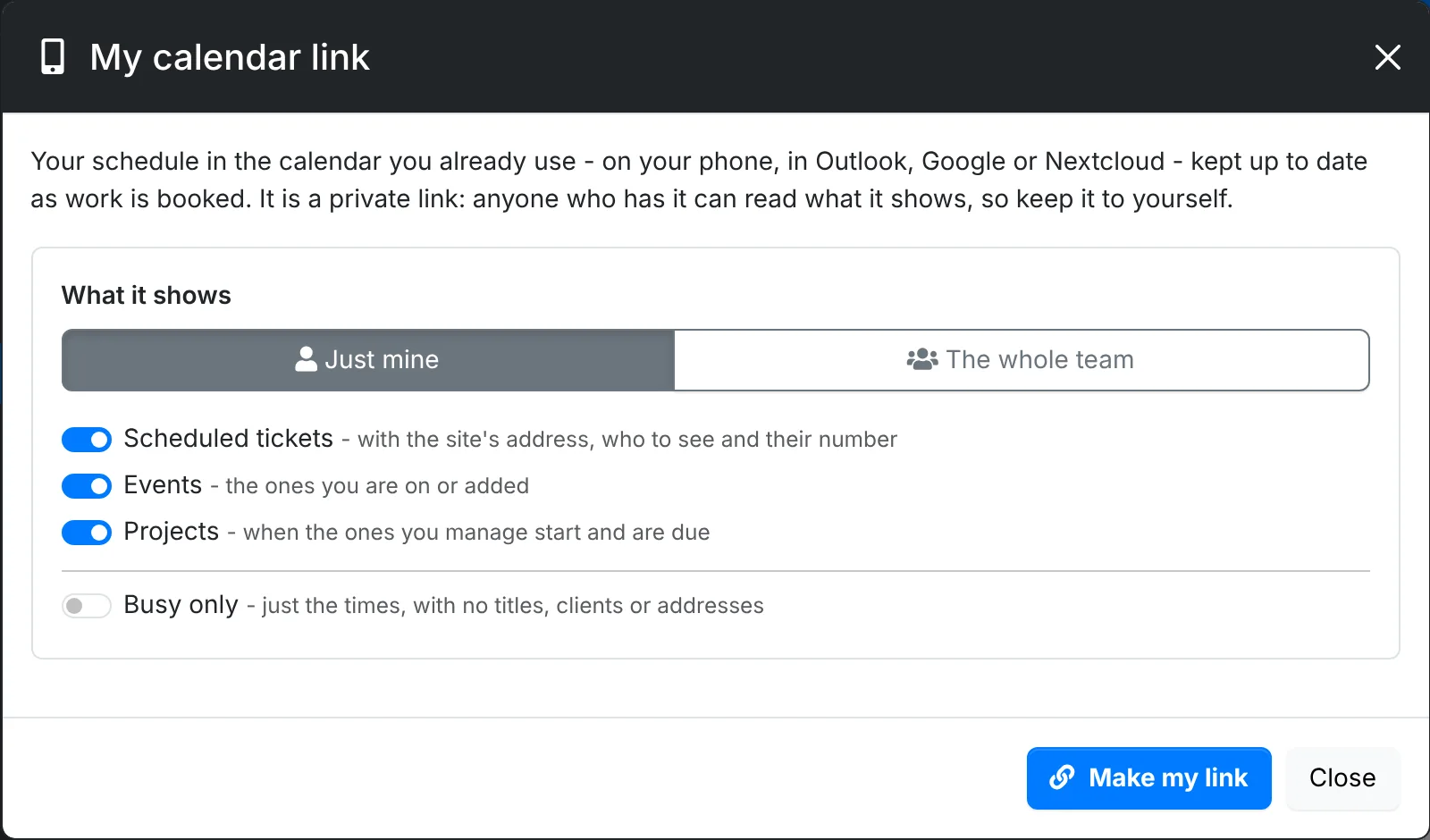
Anyone with the link can read what it shows, so keep it to yourself. If it gets out, click Make a new link in the same window - the old one stops working - or Stop the link altogether. It also stops working when your account is disabled, and only shows what your role and client access let you see.
A calendar can be shared the same way: Share in its ⋮ menu makes a subscription link for that calendar alone.