Shared links
Send a login, a document, a file or a secure note to someone as a link that expires - or ask a client to send you a login safely - instead of putting it in an email.
Never send a password by email: it sits in mailboxes forever. A shared link sends it as a link that only works for a while, only opens a few times, and can ask for a passphrase or a code first. You can see when it's opened, and turn it off at any time.
You can share:
- a login (credential), with its 2FA code if you like
- a document or a file
- a secure note - a Wi-Fi key, a recovery code, anything typed in. It isn't saved anywhere else.
And you can ask for a login: the client gets a form to send you one, instead of emailing it.
Share a login, document or file
- Click Share on the credential, document or file - in its row's menu, its quick look or its page.
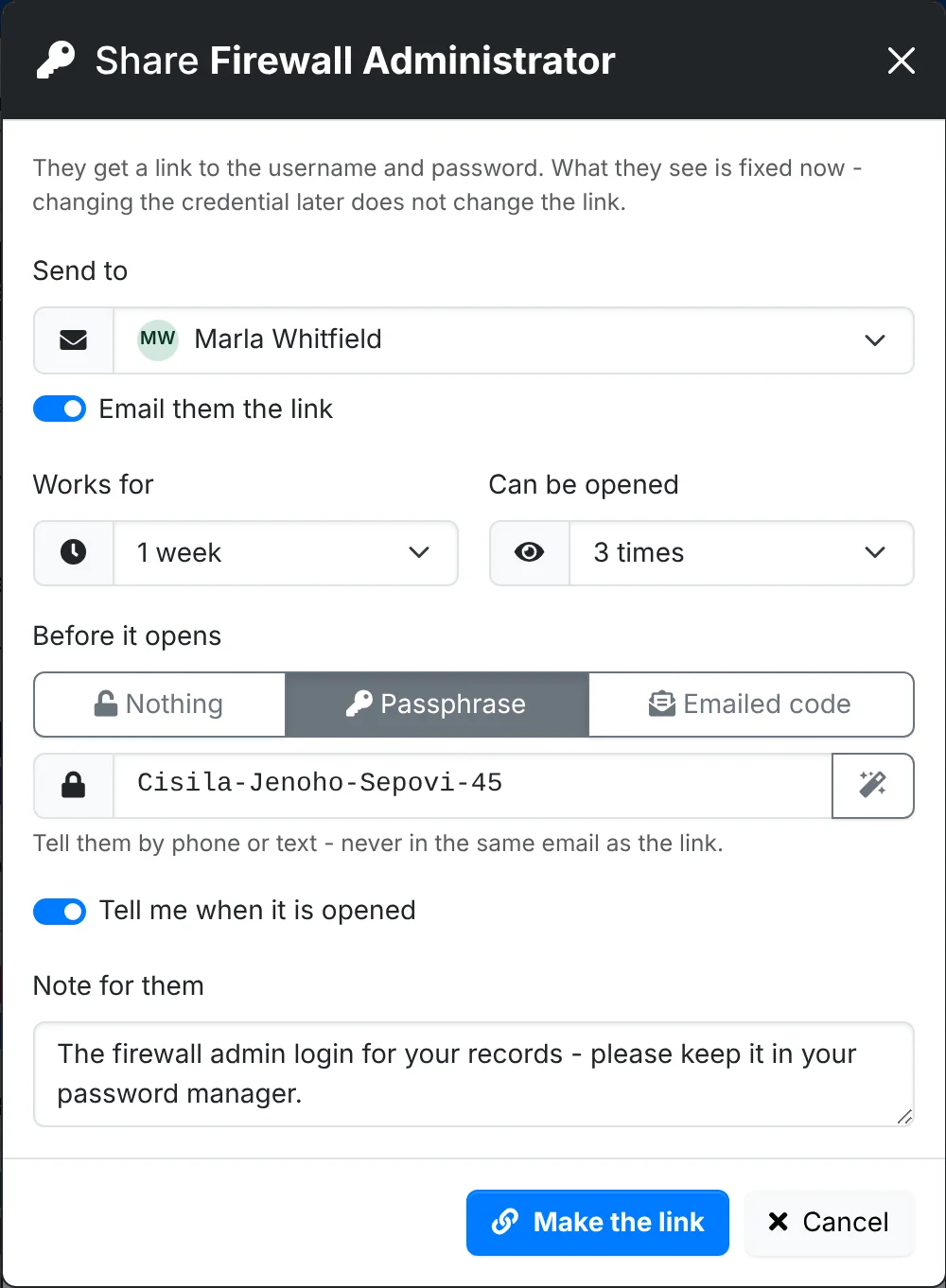
- Send to: pick a contact or type an email address, and switch on Email them the link to send it. Or leave it off and send the link yourself.
- Works for: from 1 hour to 30 days.
- Can be opened: once, twice, 3, 5 or 10 times, or until it expires.
- Before it opens: Nothing, a Passphrase (one is made up for you - give it to them by phone or text, not with the link), or an Emailed code sent to the recipient, so a forwarded link is no use to anyone else.
- Tell me when it is opened - on by default. Add a Note for them if you like.
- Click Make the link.
The link is shown once, with the passphrase - copy them now, as they can't be shown again. QR code shows it as a code to scan, and Make another makes a fresh link with the same choices.
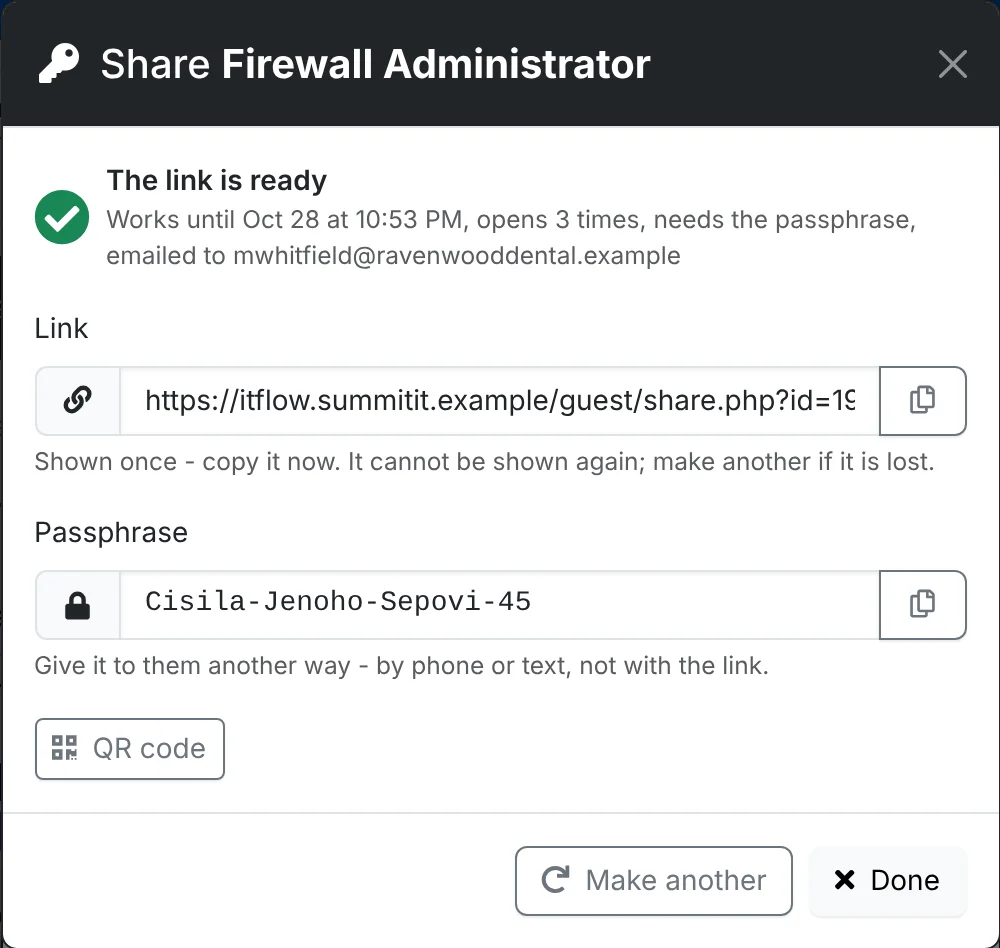
For a login, what they see is fixed when you make the link: changing the credential later doesn't change the link. Five wrong passphrases or codes lock the link.
What the client sees
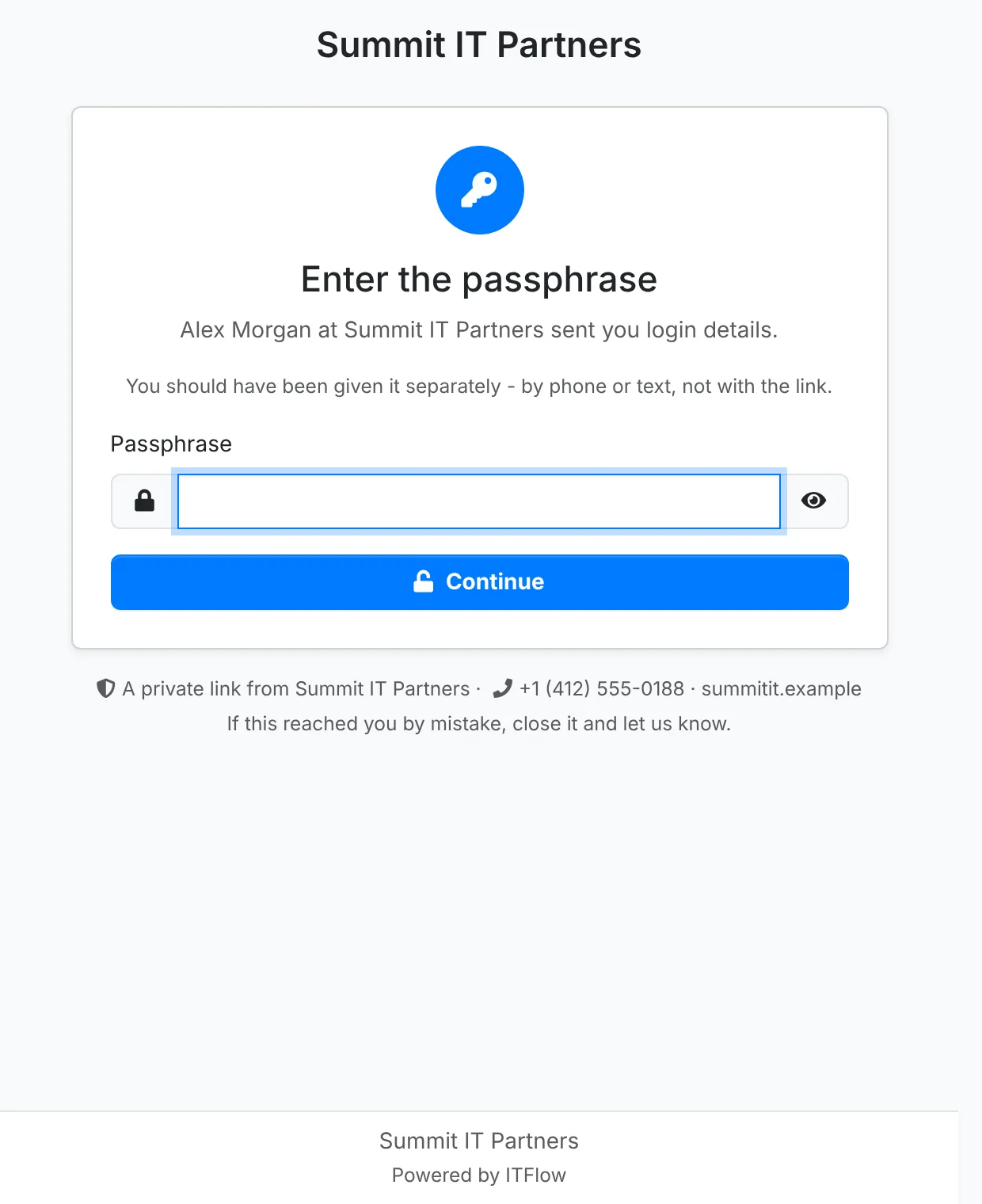
They open the link and, if you set one, type the passphrase or the code from their email. Then they see what you sent, with your company's name, copy buttons, and the 2FA code with a countdown when you included it. When they have what they need, I have what I need - destroy this link ends it.
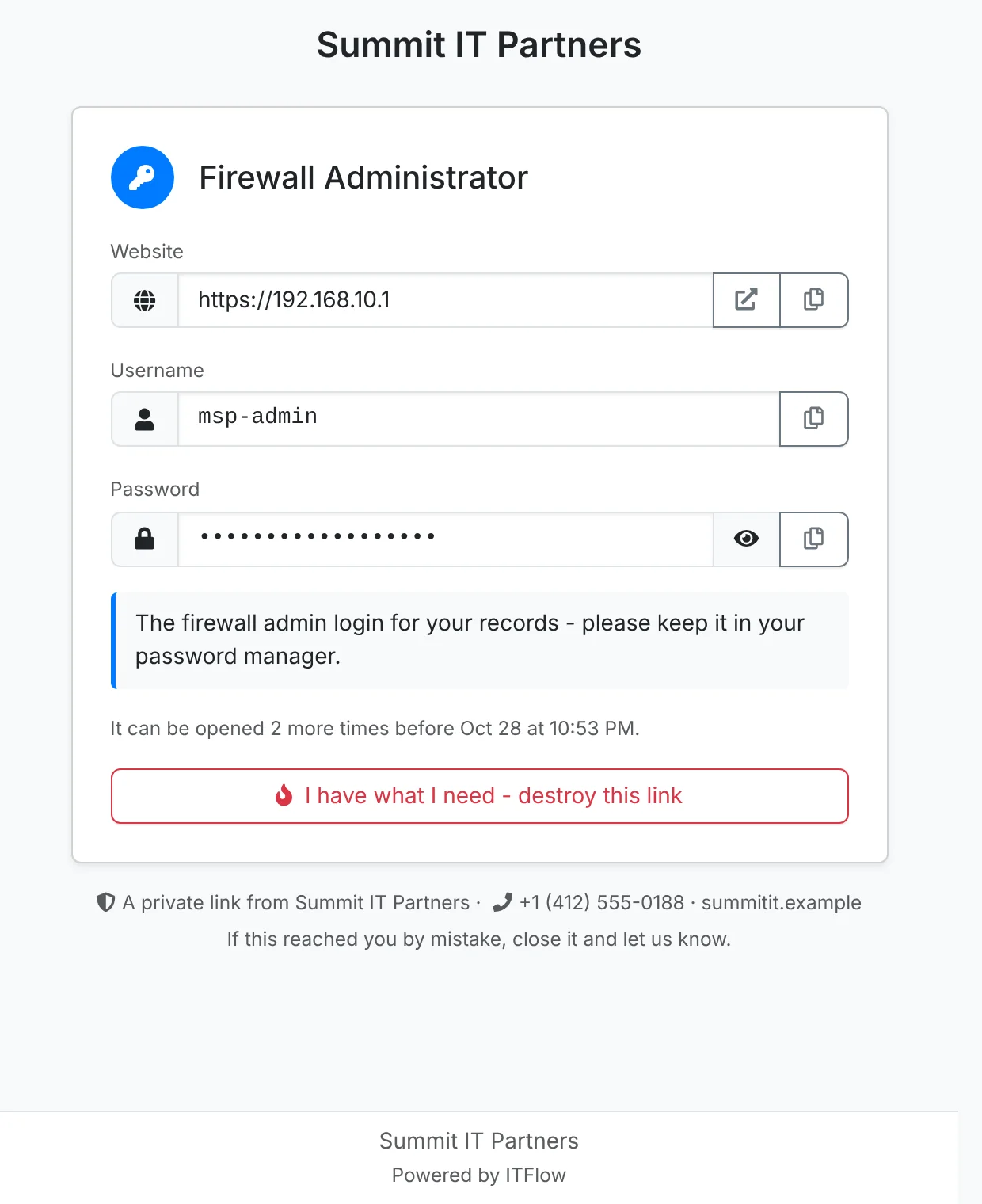
Documents can be printed and files downloaded from their link.
Ask the client for a login
- On the client's Credentials, use the arrow beside New Credential and pick Ask the client for a login.
- Under What do you need?, say what it's for - "Domain registrar login". They see this, and it becomes the credential's name when you save it.
- Pick who to Ask, how long the request Works for, and whether it asks for a passphrase or code first.
- Click Make the request.
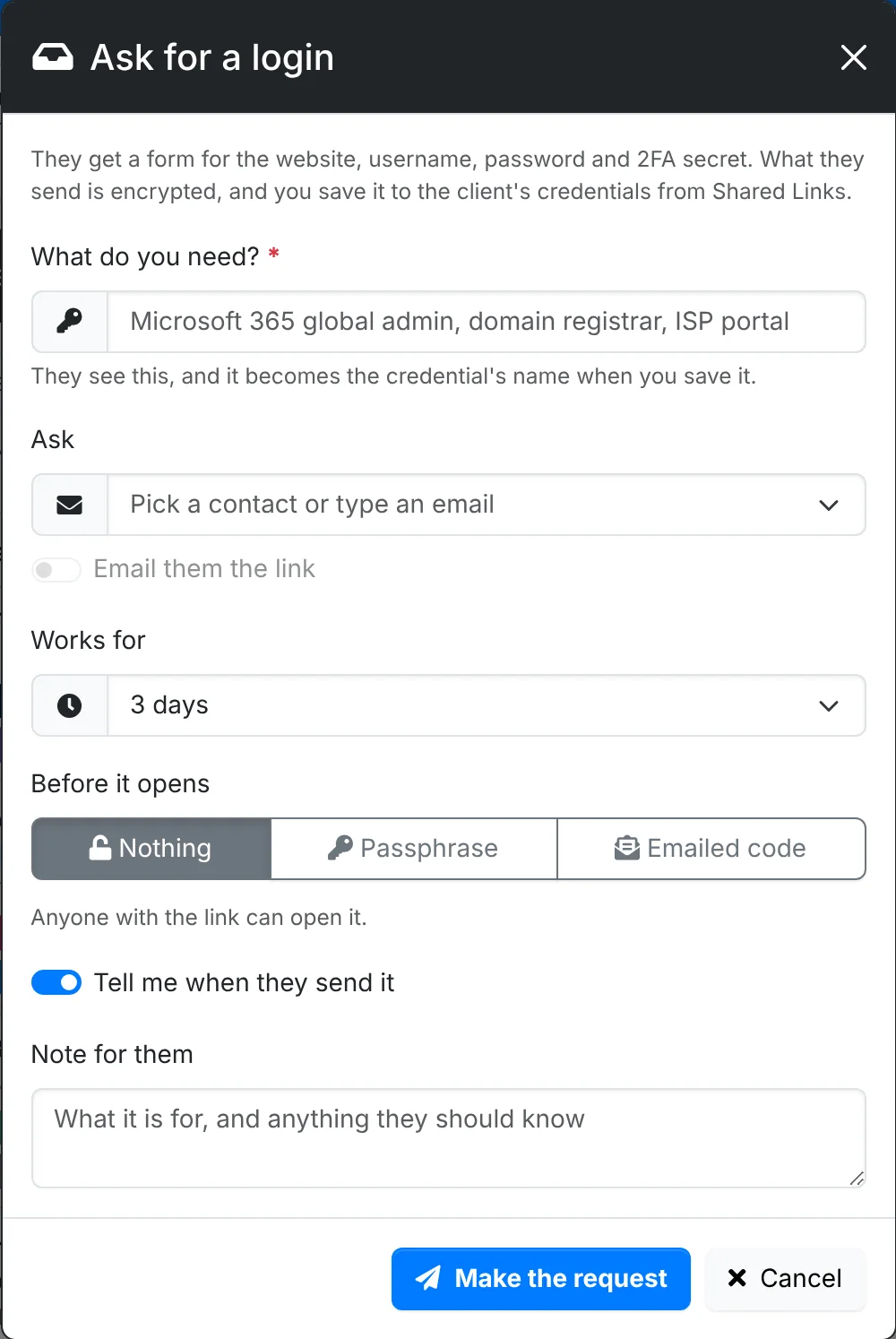
They get a form for the website, username, password and 2FA secret. When they send it, you get a notification and an email, and it waits in Shared Links under Sent back until you save it to the client's credentials or discard it.
Keep track of your links
Each client has Shared Links in its menu, and All Client Docs > Shared Links shows every client's.
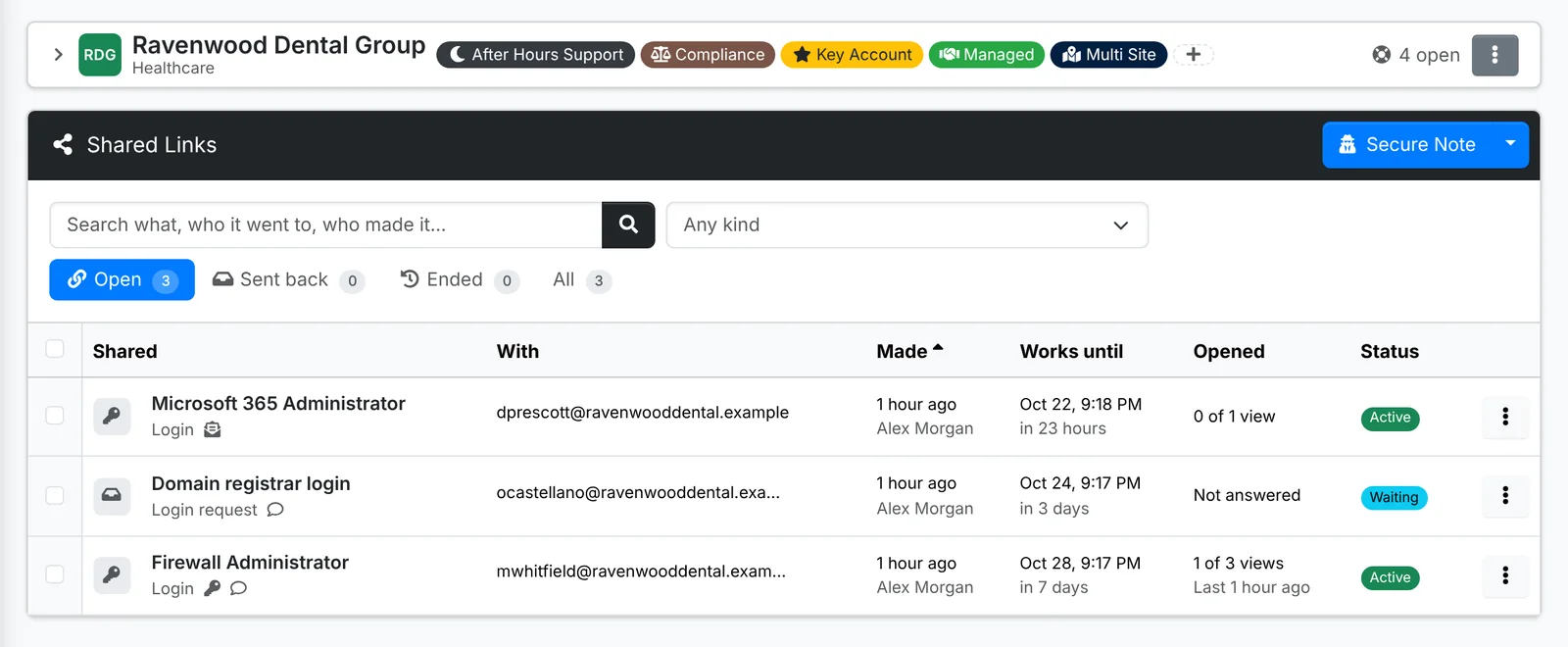
It lists what was shared, who it went to, who made it, until when it works, how often it's been opened, and whether it's active, waiting or ended. The tabs are Open, Sent back, Ended and All.
Click one for its quick look and history: when it was opened, from which address and browser, wrong passphrases, codes sent, and when it ended.
Turn links off
Turn off a link from its menu, or tick several and use Bulk Action > Turn off. When someone leaves your team, or a client's mailbox is compromised, Turn off every open link (in the menu at the top of a client's Shared Links) ends them all at once.
The Secure Note button at the top of Shared Links sends a note. Your admin sets the longest a link may last, and whether passwords and notes must have a passphrase or code, in Admin > Settings > Security.
The key that opens a link is the part after the #, which browsers never send to a server - so it stays out of web server and proxy logs. Logins, notes and what clients send back are encrypted with it, and the key isn't stored, so the database alone can't open them.