Credentials
The logins you keep for clients - usernames, passwords, 2FA codes and where each one opens - kept encrypted, with every look recorded.
Credentials are the logins you hold for a client: the firewall admin, the Microsoft 365 global admin, the backup console, a supplier's portal. ITFlow stores them encrypted, shows a password only when you ask for it, and records every time someone looks.
The credentials list
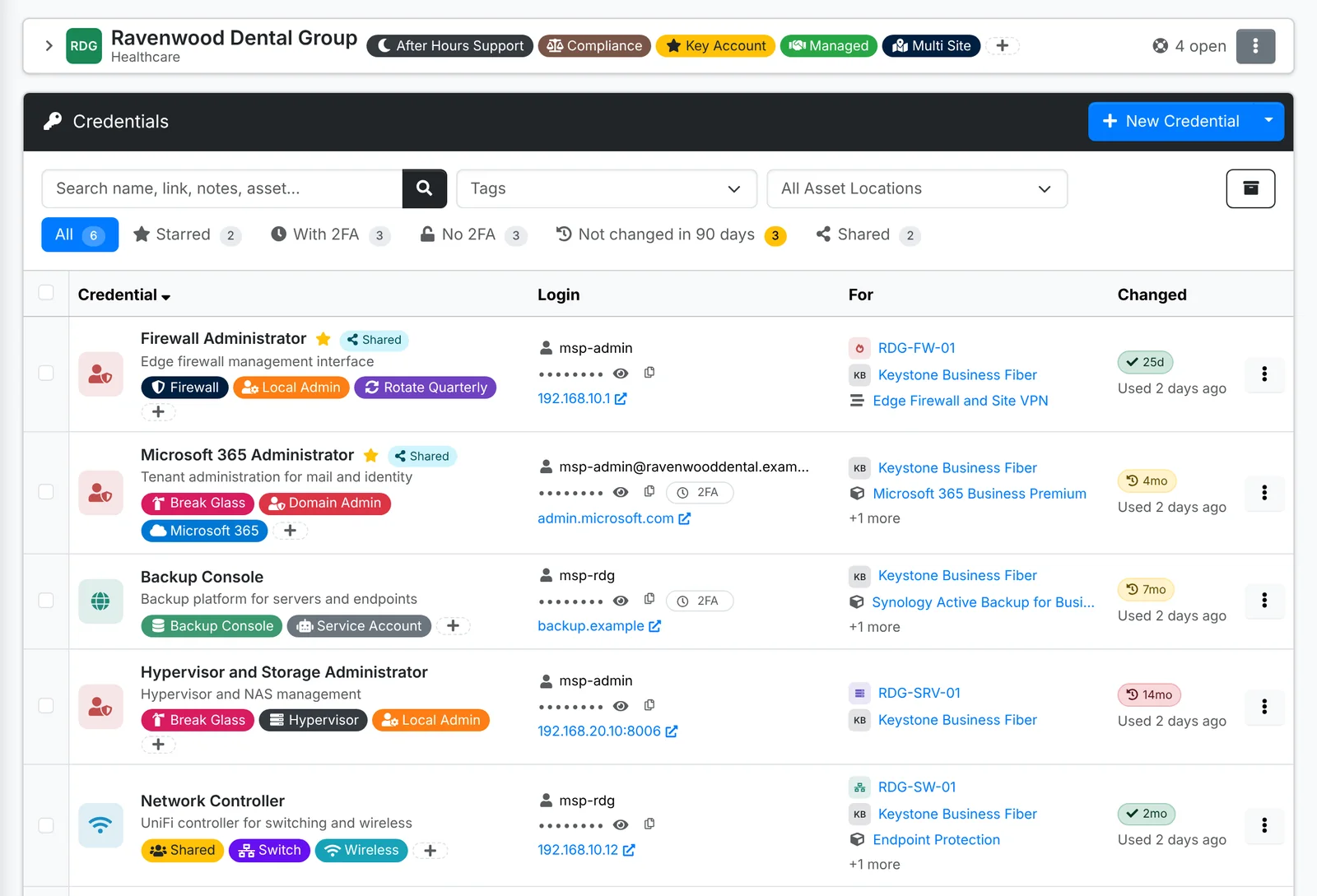
- Tabs: Starred, With 2FA, No 2FA, Not changed in 90 days and Shared (logins you've sent as a shared link).
- Login shows the username with a copy button, the password as dots - click the eye to show it, or copy it without showing it - and where it opens, as a link.
- 2FA fetches the current 6-digit code when you click it, so you can sign in without a phone.
- For shows the device, vendor, service or license the login is for.
- Changed shows how old the password is - green when recent, amber, then red when it's due for a change - and when it was last used.
To see every client's credentials, use All Client Docs > Credentials.
Add a credential
- Open the client, go to Credentials and click New Credential.
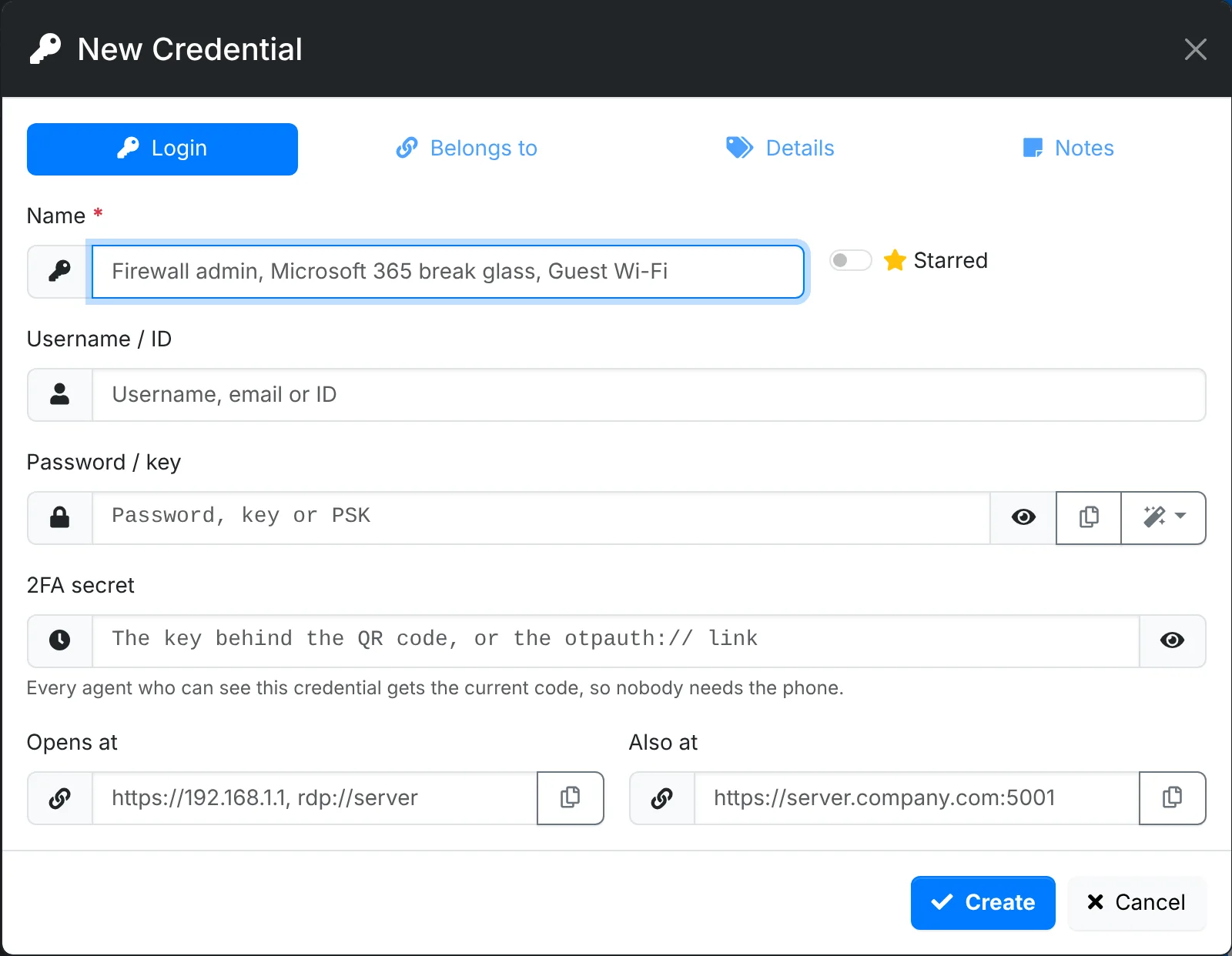
- On Login:
- Give it a Name, such as "Firewall Administrator". Click the star to make it a favorite.
- Type the Username / ID.
- Type the Password / key, or click the generator to make one - a passphrase or a random password. The strength meter shows how strong it is.
- Paste the 2FA secret if it has one. It takes the secret with or without spaces, or the whole
otpauth://link from the setup QR code, and shows the current code so you can check it's right. - Opens at is the address you sign in at. Also at is a second address.
- On Belongs to, link the Asset or Contact it's for.
- On Details, add a Description and Tags - such as Break Glass, Local Admin or Rotate Quarterly.
- On Notes, add anything else.
- Click Create.
To link a login to a vendor, service or license, use Link on that record's page or the credential's quick look.
Look at a password
Click a credential to open its quick look, with the username, the password (hidden until you click the eye), where it opens, its 2FA code, what it's for and its notes.
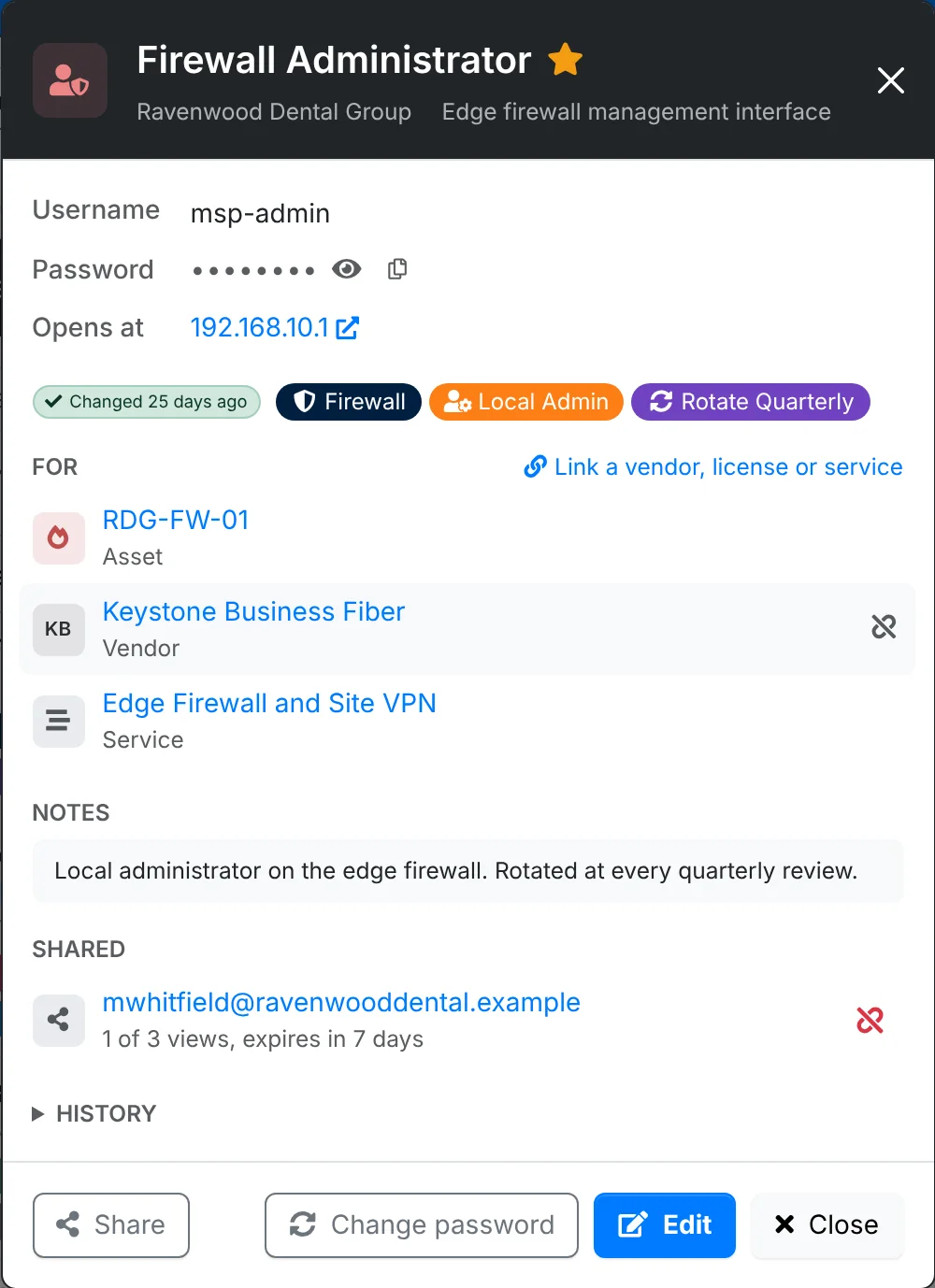
Every time a password is shown or copied, it's recorded in the audit log under Data out. Your admin can see who looked at which password, and when.
Change a password
When you change a password on the system itself, record it in ITFlow with Change password (in the row's menu or the quick look) - it's quicker than editing the whole credential. It saves the new password, dates the change so the credential's age starts again, and notes it in the credential's history. A new password typed in Edit is dated the same way.
Passwords not changed in 90 days show on the client's overview and on the Not changed in 90 days tab. Rotation report, in the New Credential menu, shows every client's passwords by age.
Send a login to the client
Never email a password. Use Share (in the row's menu or the quick look) to send it as a link that works for a set time, can be opened a set number of times, and can ask for a passphrase or a code first. See Shared links.
To get a login from the client - their domain registrar, say - use Ask the client for a login in the New Credential menu. They get a form to fill in, and what they send waits in Shared Links for you to save.