Vendors
The companies you and your clients deal with - internet providers, software makers, distributors - with their support line, account numbers and every case you've opened with them.
ITFlow keeps two kinds of vendor:
- A client's vendors - the companies a client depends on: their internet provider, their line-of-business software, their phone system. When something breaks, these are the people you call on the client's behalf, quoting the client's account number and PIN.
- Your own vendors - the companies you buy from: distributors, licensing partners, your accountant, your landlord. Expenses and products are linked to them, so you can see what you spend with each.
Vendors in the main menu shows your own vendors, with Ours and Clients' to switch between them. A client's Vendors shows just that client's.
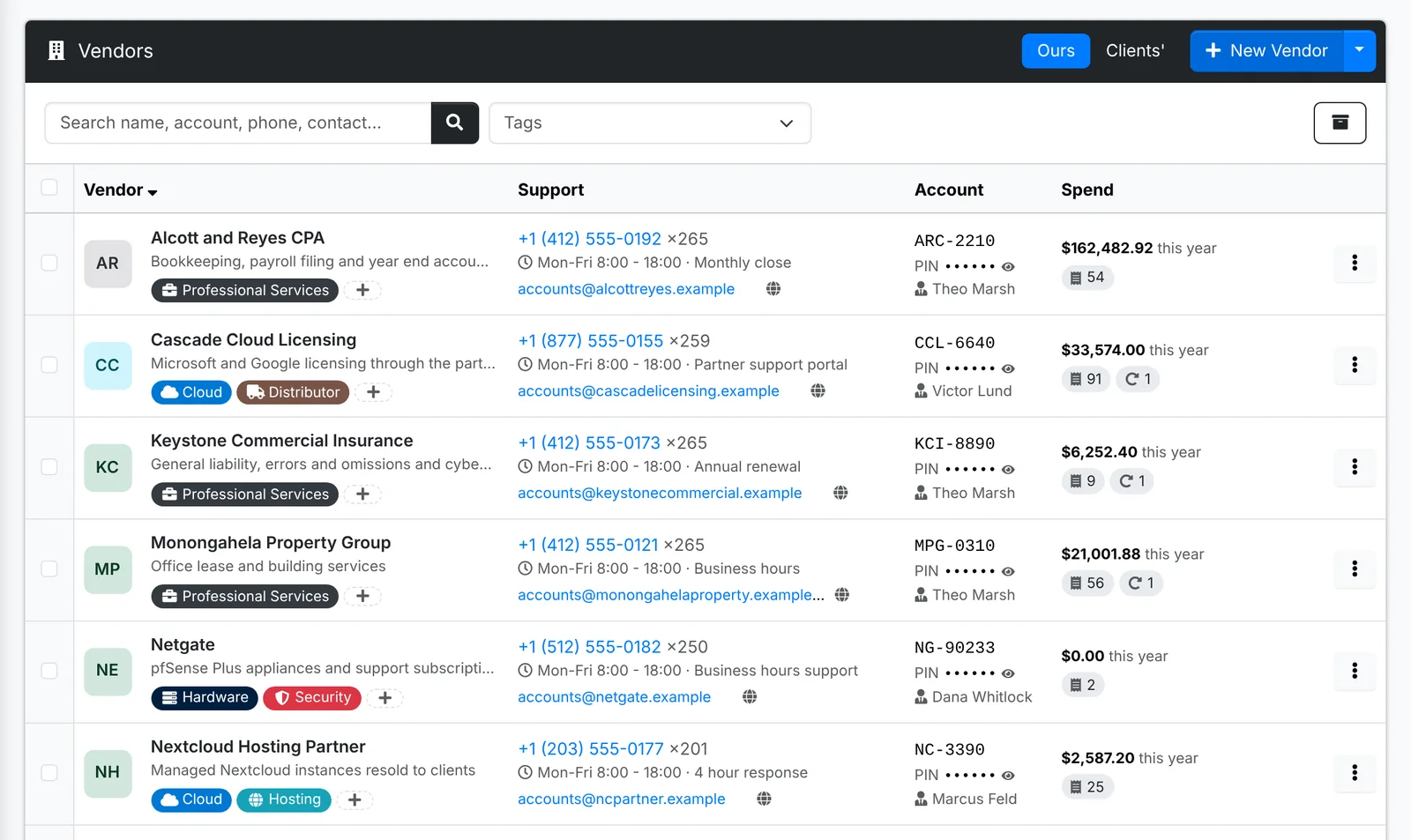
Each row shows the vendor's support line with its extension, their hours and SLA, their support email and site, your account number with the PIN hidden until you click the eye, your account manager, and - for your own vendors - what you've spent with them this year. Starred vendors come first.
Add a vendor
- Go to Vendors (or a client's Vendors) and click New Vendor.
- Fill in the tabs:
- Details - the Name, What they are to you (such as "Primary internet circuit"), and Tags.
- Support - the Support phone and Extension / option, Support hours, SLA, Support email, Support site, Status page and the Support portal you open cases in.
- Account - the Account number, PIN / passcode, and your Account manager with their direct line and email.
- Notes
- Click Create.
Start from a template
Common vendors - Microsoft, Dell, your local internet provider - can be set up once as a vendor template by an admin. Use the arrow beside New Vendor and pick New from Template, or pick one under Start from a template at the top of the New Vendor window: the support details are filled in, and you add the client's own account number and PIN.
A vendor made from a template is kept in step with it: when an admin changes the template's support line or site, every client's vendor made from it changes too. See License and vendor templates.
The vendor's page
The page is built around calling them.
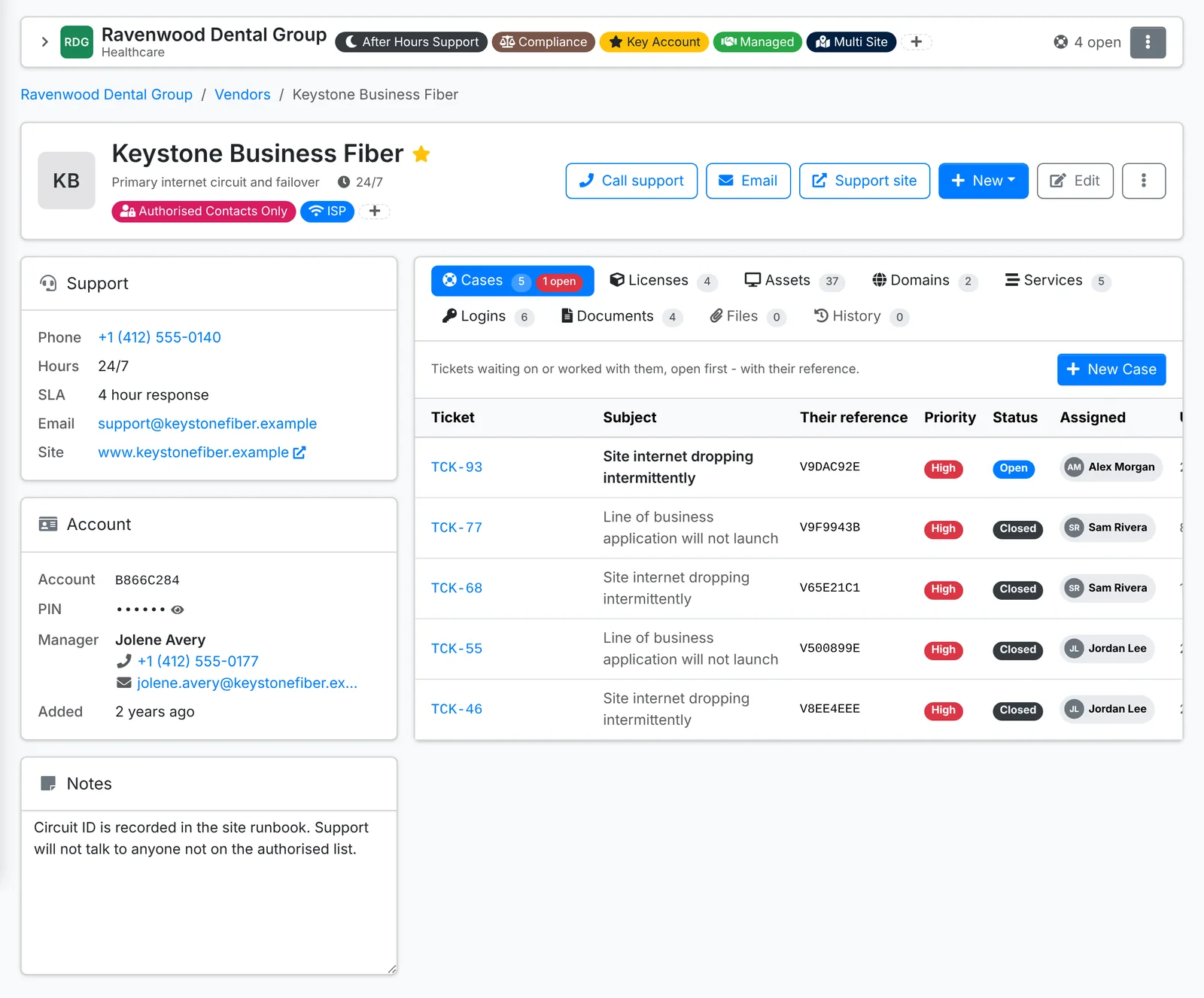
- Call support dials their support line with the extension, and Email and Support site are beside it.
- New starts something with them: a Case with them (a ticket you're working with the vendor), a License from them, an Asset bought from them, a Portal login for their site, a document or a file. For your own vendors there's also an expense.
- Support - phone, hours, SLA, email, support site and status page.
- Account - your account number, the PIN (hidden until you show or copy it), and your account manager's direct line and email.
- Notes, such as who is allowed to call them.
- Also used by lists your other clients with the same vendor - handy when one of them has an outage.
For a client's vendor, the tabs list the Cases you've opened with them (with their reference numbers, open ones first), and the Licenses, Assets, Domains, Services, Logins, Documents and Files that involve them, and History.
For one of your own vendors, the tabs are what you spend with them: Expenses, Recurring expenses, the Products you buy from them, any Cases, the Client domains they host, and History. The page also shows your spend this year, last year and in total.
Opening a case with a vendor
When you need the vendor to fix something - the internet is down, a server part has failed - raise a case:
- Open the vendor and click New > Case with them. This starts a ticket for the client, linked to the vendor.
- Once the vendor gives you their case number, type it into Their reference in the ticket's Edit window.
The ticket shows a Vendor card with their support line, hours, SLA, account number and PIN, and your case number, each with a copy button - so whoever picks up the ticket can chase the vendor without looking anything up. See Working a ticket.
Wondering whether an outage is the vendor's fault? Their status page is linked from the vendor's quick look, the vendors list and the tickets they're on.