Trips and mileage
Log the driving you do for clients - bill them for it, pay agents back for using their own car, and keep a mileage record for tax time.
A trip is a drive: to a client's site for a ticket, to the supplier to collect parts, to the bank. Logging trips does three jobs at once:
- billing - trips for a client can go on their invoice, at your trip charge
- paying agents back - trips in an agent's own vehicle add up to what they're owed, at your mileage rate
- a mileage log - every trip, who drove, where and why, for your records and your accountant
Log a trip
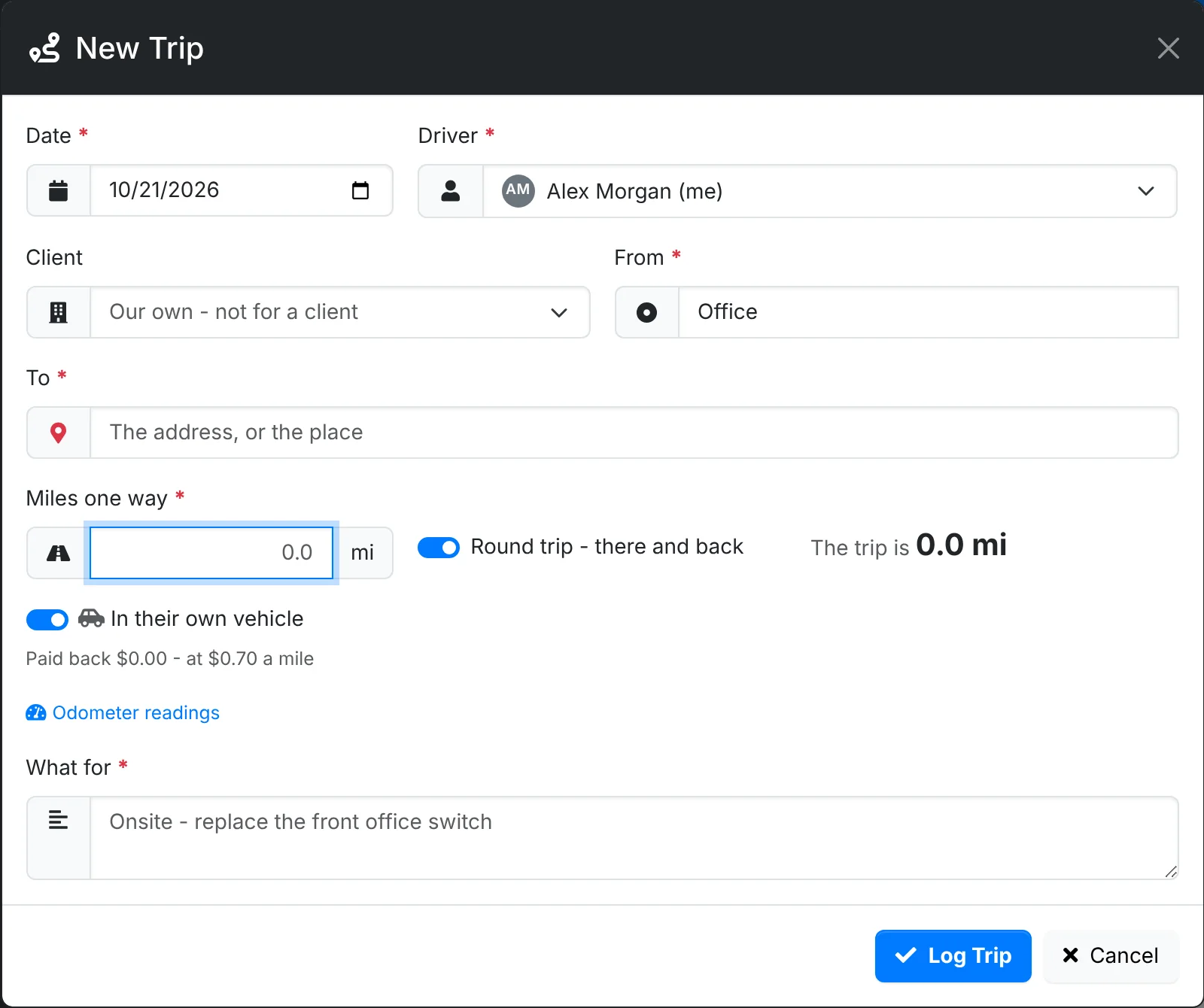
The quickest way is from the ticket: its ⋮ menu has Log a trip, and so does its Trips card. A client's location has Log Trip. Or go to Finance > Trips and click New Trip.
- Check the Date and the Driver. You log your own trips; agents with Financial access can log them for anyone.
- Pick the Client and Their site - or Our own - not for a client for your own errands. Pick For the ticket to link it to a ticket.
- Type where you went From and To. Picking a site fills in where to, and picking a ticket fills in what it was for.
- Type the Miles one way, and leave Round trip on for there and back. ITFlow shows the whole trip. Or open Odometer readings and type the readings At the start and At the end.
- Leave In their own vehicle on if the driver used their own car, so they're paid back for it.
- Bill the client for it starts on for a billable ticket's trip. It says what the trip will bill.
- Say What for, and click Log Trip.
The trips list
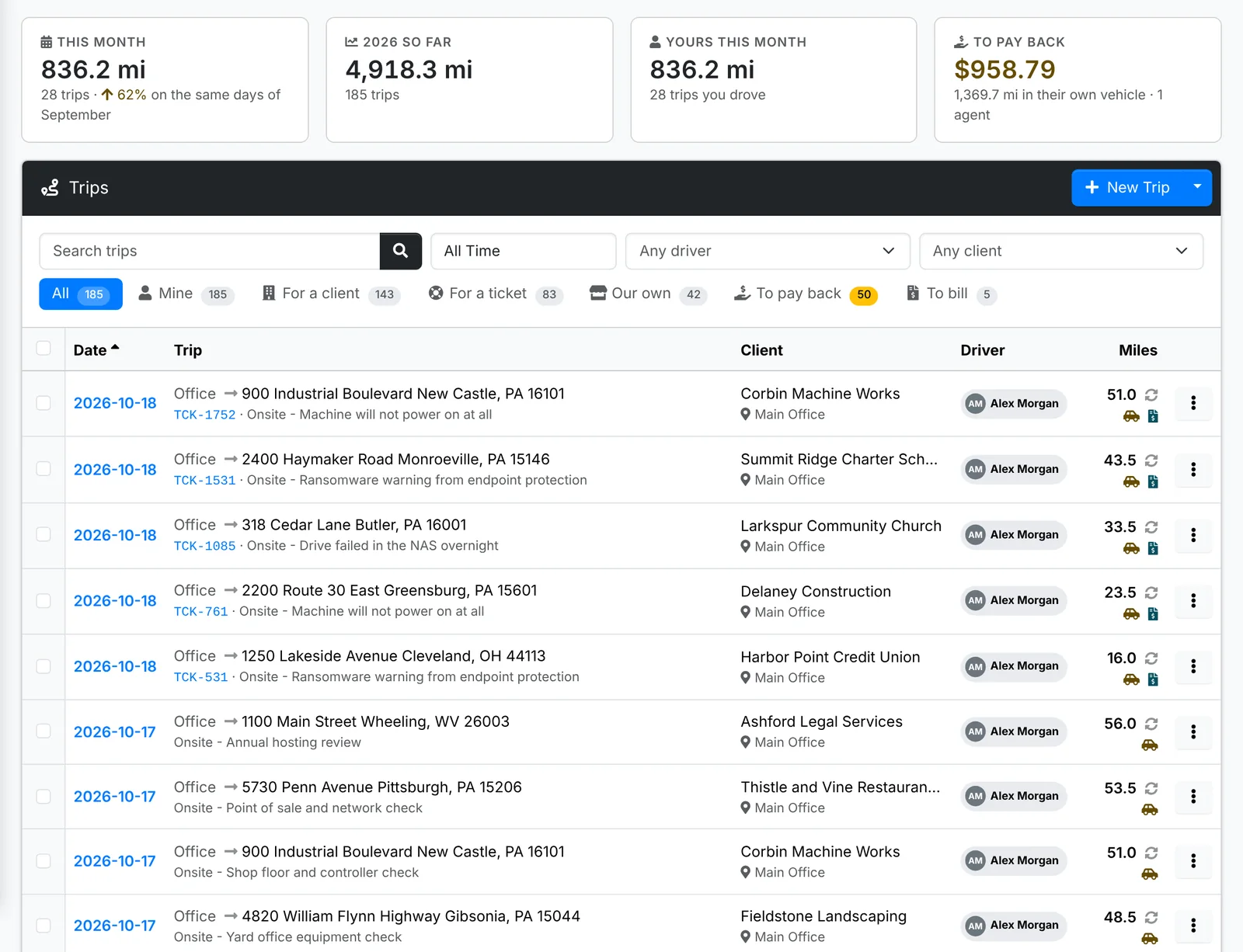
Along the top: the miles This month against the same days of last month, the year So far, Yours this month, and what's owed To pay back to drivers.
The tabs are All, Mine, For a client, For a ticket, Our own, To pay back and To bill. Icons in each row show a round trip, the driver's own vehicle and whether it's billed.
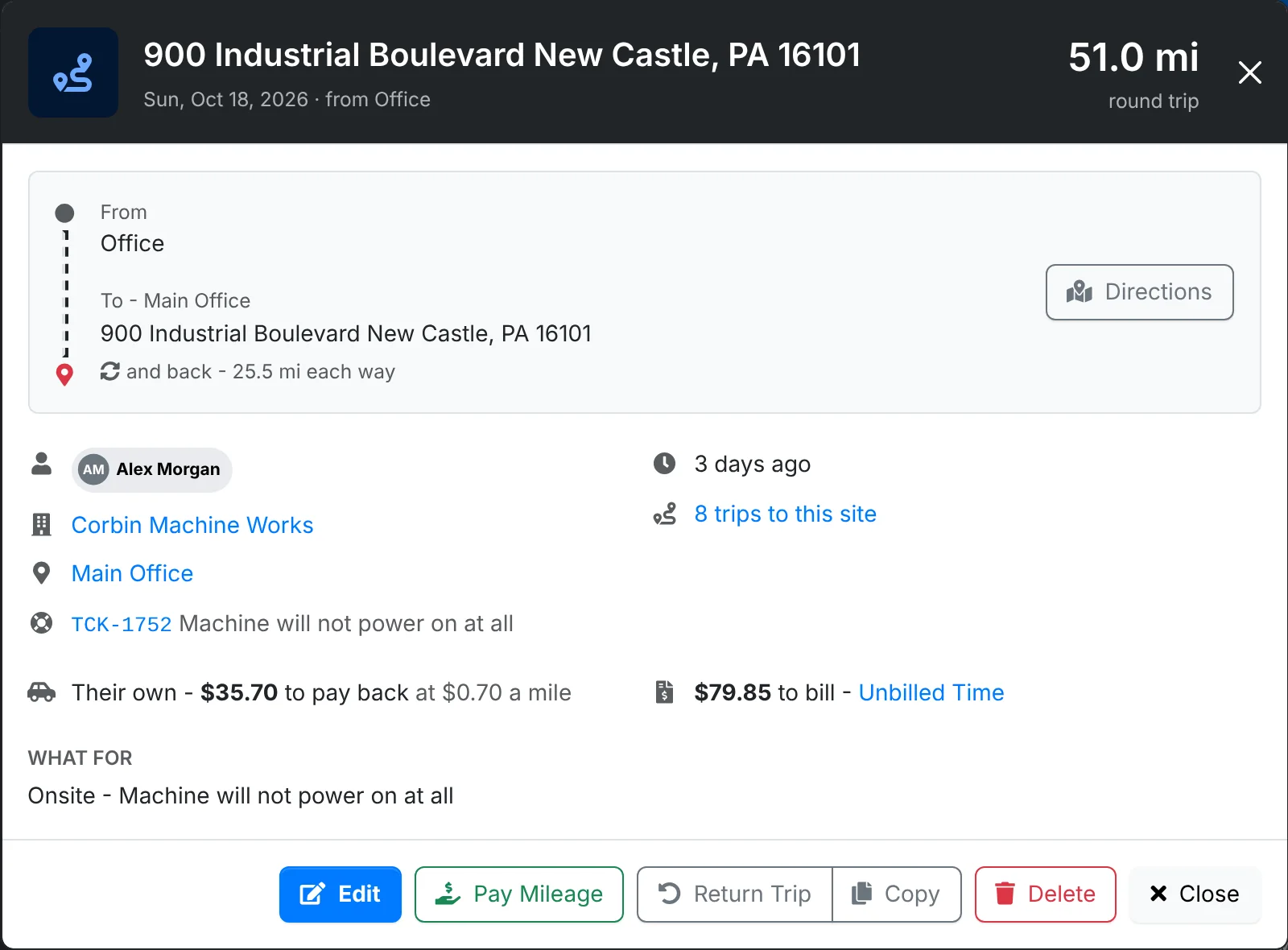
Click a trip for its quick look: where it went, the client, site and ticket, what it's paid back and billed, and Directions to see the route on a map. Return Trip logs the way back, and Copy logs the same trip again.
Tick trips and use Bulk to set the driver, client, vehicle or whether they're billable.
Bill trips to the client
Billable trips wait in Unbilled Time with the client's tickets and expenses, and go on their invoice as a line each - named "Travel" unless your admin changed it, with the route, date and distance in its description. You can change a trip's price there before billing it.
What a trip bills is set by your admin: a Trip charge for each trip, a rate Billed a mile, and how many miles the charge covers before the rate starts.
Pay drivers back
Trips in an agent's own vehicle add up under To pay back, at your mileage rate.
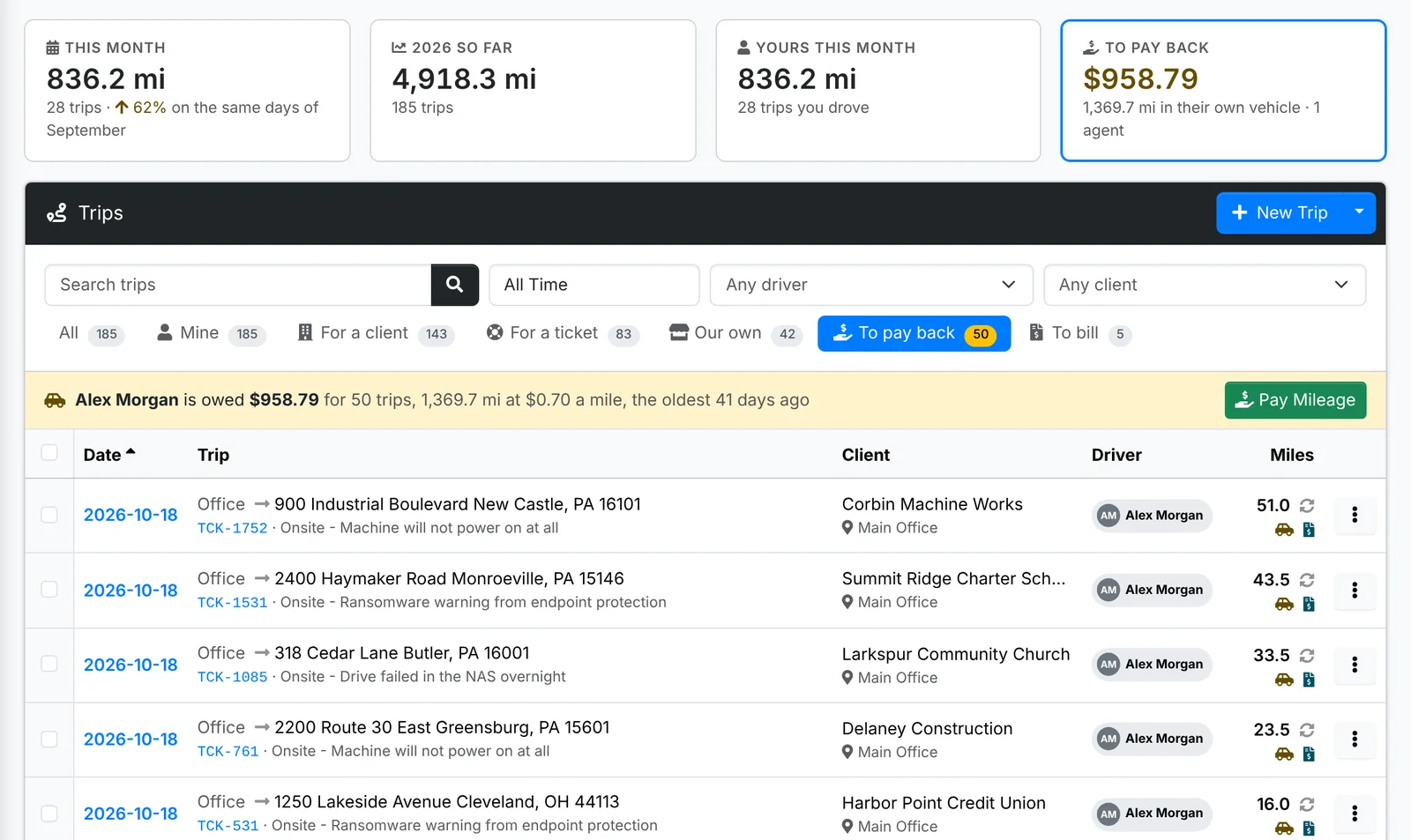
- Open the To pay back tab and click Pay Mileage beside the driver.
- Untick any trips to leave for later. Check the Rate - the usual rate, or the one for when these were driven - and the Date of the mileage expense.
- Switch on Pay it back now if you're paying them today, and pick the account it's Paid back from, how, and a reference.
- Click Pay Mileage.
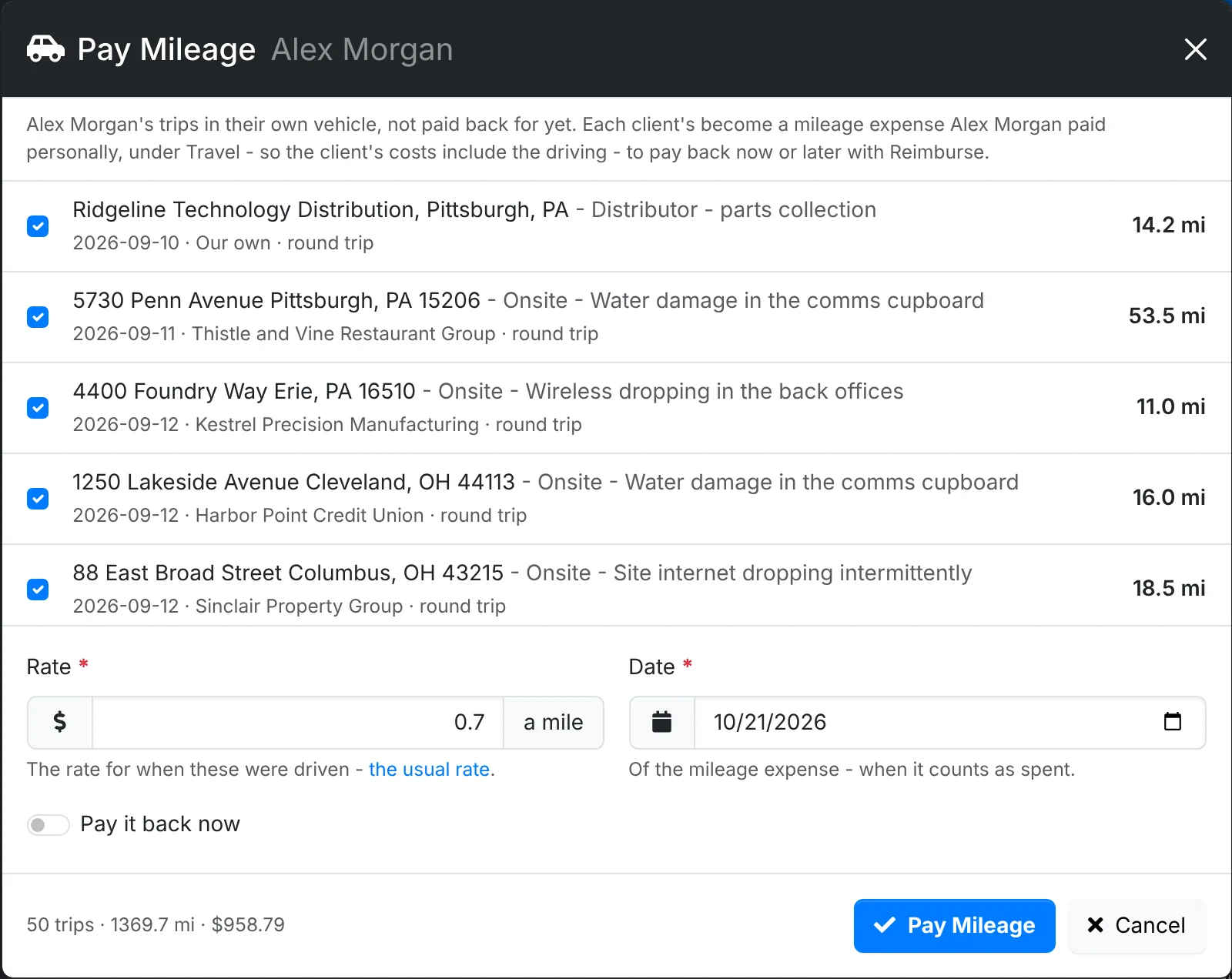
The trips become a mileage expense the agent paid personally, under the client each was for, so each client's costs include the driving. If you didn't pay it back straight away, pay it later from the expense with Reimburse - see Expenses.
Mileage Report, in the menu beside New Trip, totals the miles for a period by driver and by client, with what they come to at a rate you can change - your tax-deduction rate, say. Mileage Rates takes your admin to where the rates are set, in Admin > Settings > Invoices and billing.