Canned responses
Ready-made replies for the things you write every day, filled in from the ticket, that can also set the reply type, status and time for you.
A canned response is a reply you write once and reuse: "we've received your ticket", "your password has been reset", "closing as we haven't heard back". Your admin keeps a shared set for everyone, and you can keep your own.
Use a canned response
- On a ticket, pick Internal note, Public note or Email reply to open the reply box.
- Click Canned response, or type / in the reply and keep typing to narrow the list.
- Search by name or by what it says, and click one (or press Enter for the first).
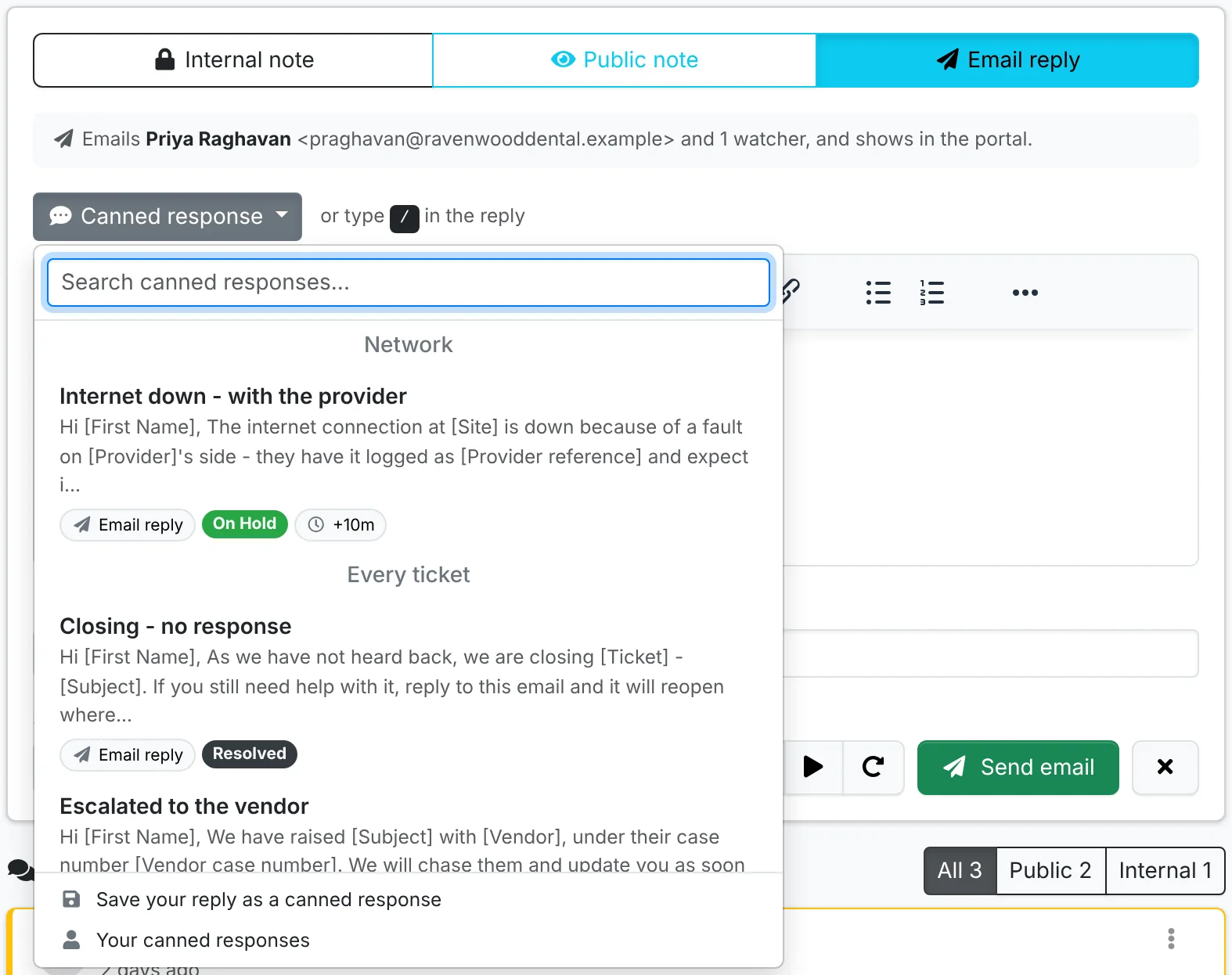
The response goes in where your cursor is. The ones offered are those for the ticket's category and those for every ticket; your own come first, as Yours.
Placeholders
Words in square brackets are filled in from the ticket as the response goes in:
| Placeholder | Becomes |
|---|---|
[Contact], [First Name] | The contact's full name and first name |
[Client] | The client's name |
[Ticket], [Subject] | The ticket number and subject |
[Ticket Link] | A link to the ticket, as the ticket emails have |
[Asset], [Site], [Project] | The ticket's asset, site and project |
[Agent] | You |
[Date], [Month], [Quarter], [Year] | Today |
Anything else in square brackets - [Date of visit] - is left for you to fill in. If you try to send a reply with one still there, ITFlow asks first: Fill them in takes you to the first one, or Send anyway.
What a response can set up
A response can also set up the reply for you - shown under its name in the picker:
- the reply type: internal note, public note or email reply
- the ticket's status after the reply, such as Resolved or On Hold
- minutes to add to the time worked
A line under the picker says what was set, and you can still change any of it before sending.
Files
A response can bring files with it - a how-to, a form to fill in. They show under the picker, each with an × to leave it off, and go out with the reply.
Keep your own
Your own canned responses are offered only to you. To make one:
- From a reply you've written: at the foot of the picker, click Save your reply as a canned response. The contact's name, client, ticket number and the rest are swapped back for placeholders, so it works on any ticket. Check it and save - your reply stays as it was, and the new response is in the picker straight away.
- From scratch: go to your name > Account > Canned Responses and click New Canned Response.
- From a shared one: copy it to yours from your Canned Responses page, and change it as you like.
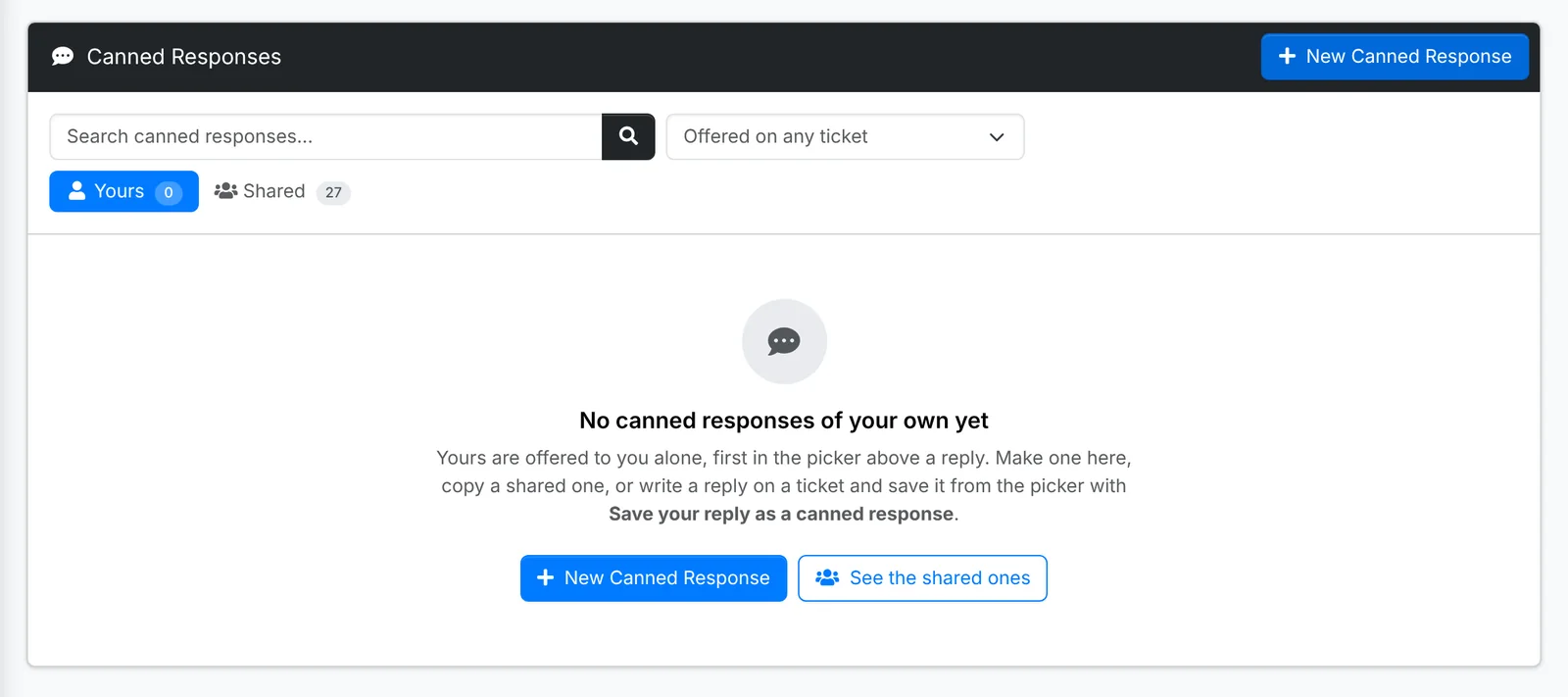
Your account's Canned Responses page lists yours and the shared ones, with how often you've used each.
The shared set is managed by admins in Admin > Canned Responses, including which ticket categories each is offered on. See Shared canned responses.