Racks
Draw a client's racks to scale, front and rear, with every server, switch, patch panel and UPS in its place, and how much space and power is left.
In ITFlowClientsa clientRacks
A rack's page draws it to scale, front and rear, with everything mounted in it. Use it to plan where new kit goes, and so the next person on site knows what's in the cupboard before they open it.
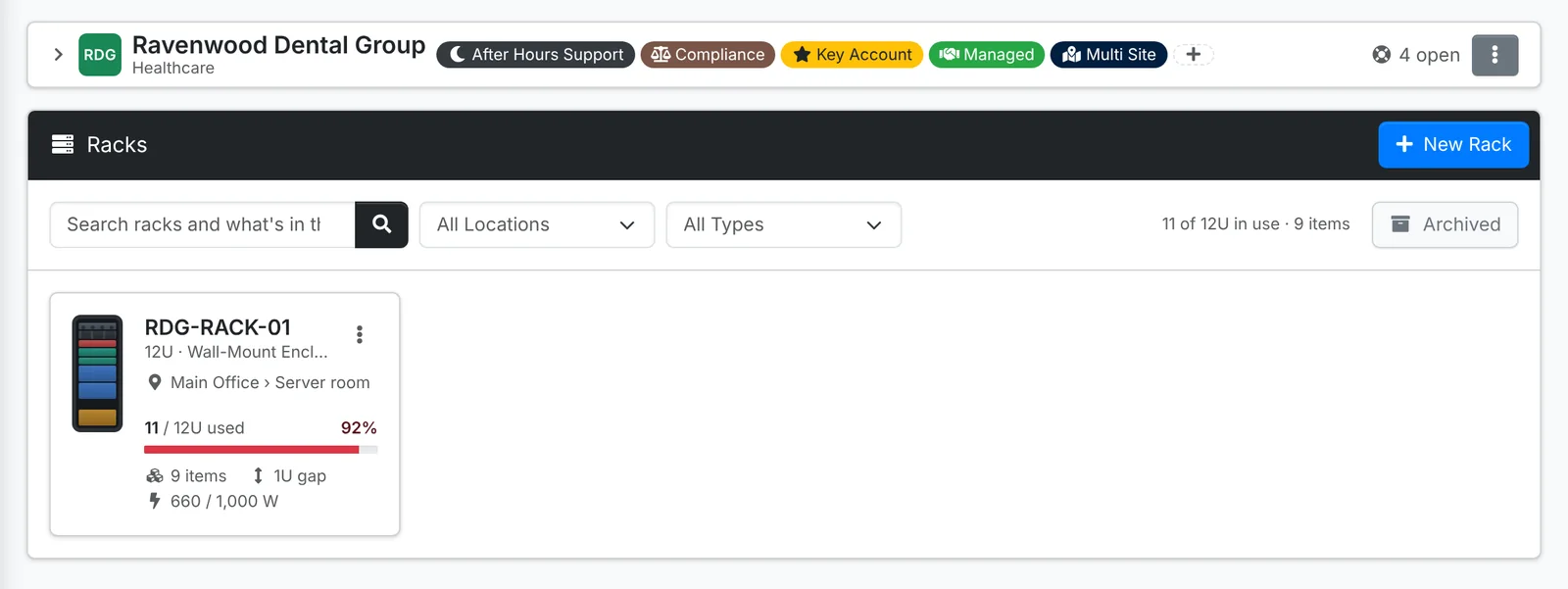
Add a rack
- Open the client, go to Racks and click New Rack.
- Give it a Name and Type (2-post or 4-post open frame, 4-post enclosed cabinet, wall-mount open or enclosed), its Height in U, and whether U1 is at the bottom or the top (Unit numbering).
- Add its Model, Depth, Location and Where in the building - the server room, the comms cupboard.
- Set its Power budget in watts, if you want ITFlow to track how much power is used.
- Add front and rear photos, and notes.
- Click Create.
The rack's page
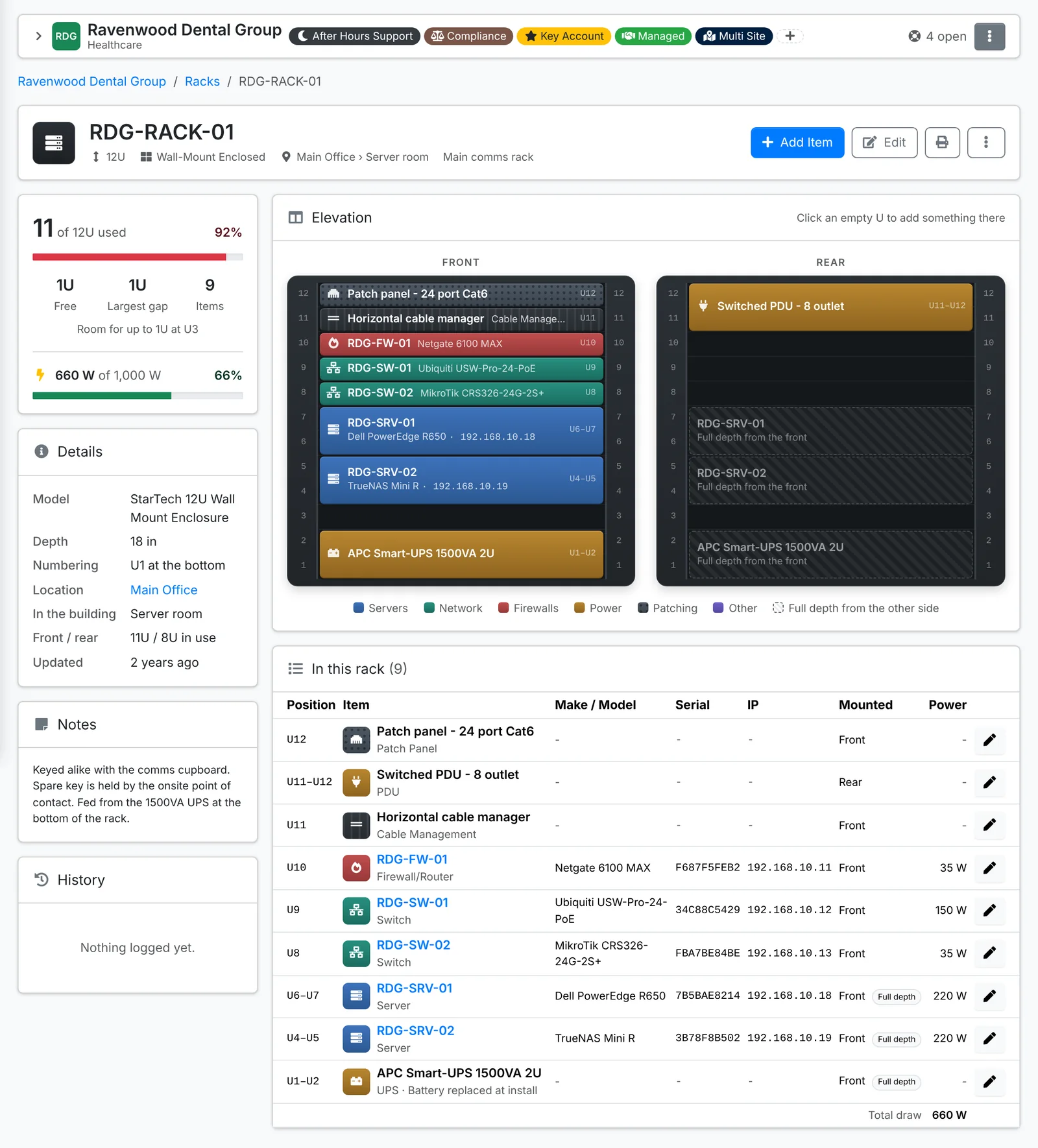
- Down the side: how many U are used and free, the largest gap (and where it is), how many items, and the power used against the budget. Then the rack's details, notes and history.
- Elevation draws the front and the rear. Items are coloured by kind - servers, network, firewalls, power, patching and other. A full-depth item mounted at the front shows as a dashed outline at the rear, so you can see the space it takes.
- In this rack lists every item with its position, make, model, serial number, IP address and which side it's mounted on.
- Not racked yet lists the client's network gear and servers that don't have a place in a rack.
- The print button gives a clean page of the rack to stick on the cupboard door.
Put something in the rack
Click an empty U on the drawing, or Add Item:
- Pick an Asset - a server, switch or other device the client has - or, under What is it, an item that isn't an asset: a patch panel, cable management, a shelf, a PDU, a UPS, a KVM or a blanking panel.
- Set the Lowest U it sits in and its Height in U, which side it's Mounted on (front or rear), and whether it's Full depth.
- Add its Power draw in watts, if you track power, and notes.
- Save.
Click an item on the drawing to edit it or move it. An asset's own page shows which rack it's in and at which U.