Products and stock
Your catalog of services and products - what each costs the client, what it costs you, how it's billed - and the stock you keep on the shelf.
The catalog holds everything you sell, so quotes and invoices are quick to put together and every line is priced the same way:
- Services - labor, managed services, hosting, licenses you resell. Anything you don't keep on a shelf.
- Products - hardware and goods. A product can track its stock, and hardware can become one of the client's assets when you sell it.
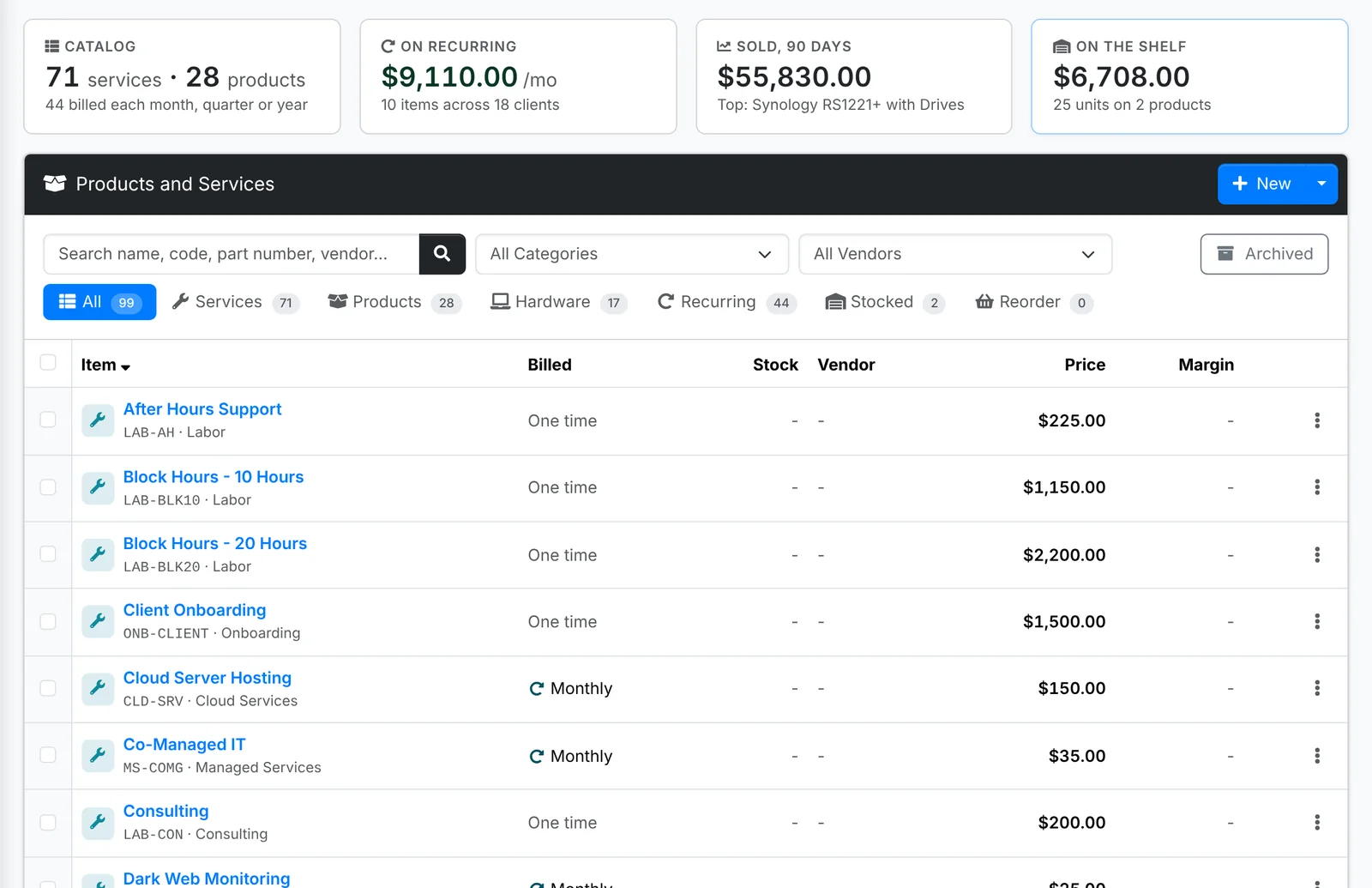
Along the top: how big the catalog is, what's billed on recurring invoices each month, what sold in the last 90 days and what's on the shelf. The tabs are All, Services, Products, Hardware (becomes a client asset when it is sold), Recurring (billed each month, quarter or year), Stocked and Reorder (stock at or under its reorder level, or out).
Tick items and use the bulk menu to set their category or archive them. Archived shows the ones you no longer sell.
Add a service or product
- Click New and pick New Service or New Product. You can switch between the two at the top of the window.
- Give it a Name - what the client sees on the line - and a Category.
- Set its Price, and its Cost - what it costs you. Only agents see the cost; it's how ITFlow works out your margin.
- Pick its Tax. With No tax, its lines take the client's own rate when the client has one.
- Under Billed, pick One time, or Monthly, Quarterly or Yearly for something billed again and again. For a recurring item, Counted can be Per user or Per device: on a recurring invoice the quantity then comes from the client's own count (see Recurring invoices).
- Add a Code (your SKU), the Vendor you buy it from and the Vendor part number you order it as.
- Write the Description the client sees under the line on invoices and quotes, and any Notes for agents - lead time, where to order it, what to check before quoting.
- Click Add.
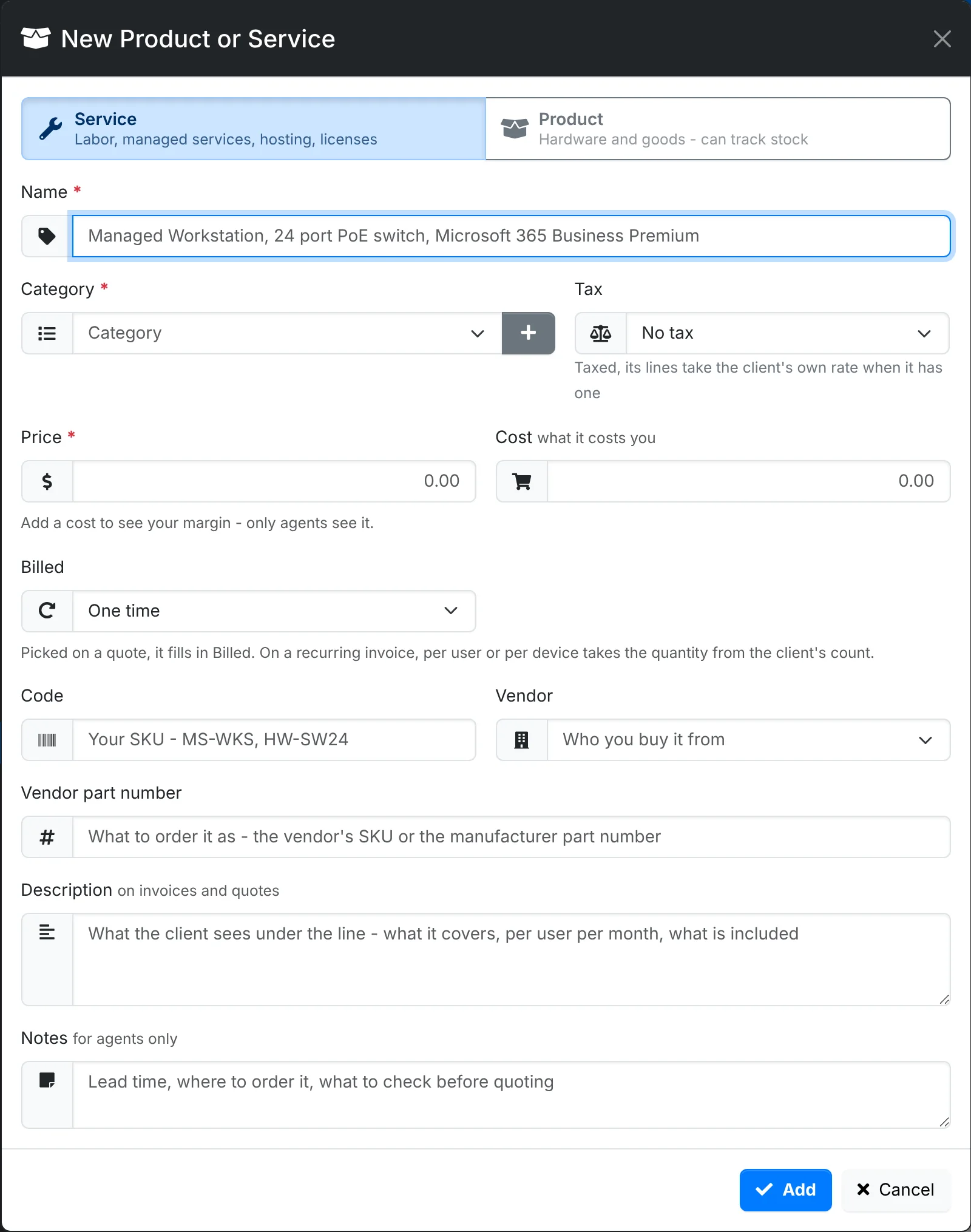
For a product, the window also has Track stock, the reorder level and where it's kept, and Client asset (see below).
To put something from the catalog on a quote or invoice, start typing its name in the Add a line box and pick it. Its price, description, tax and billing come with it - change any of them on the line if you need to.
The product's page
Click an item for its page.
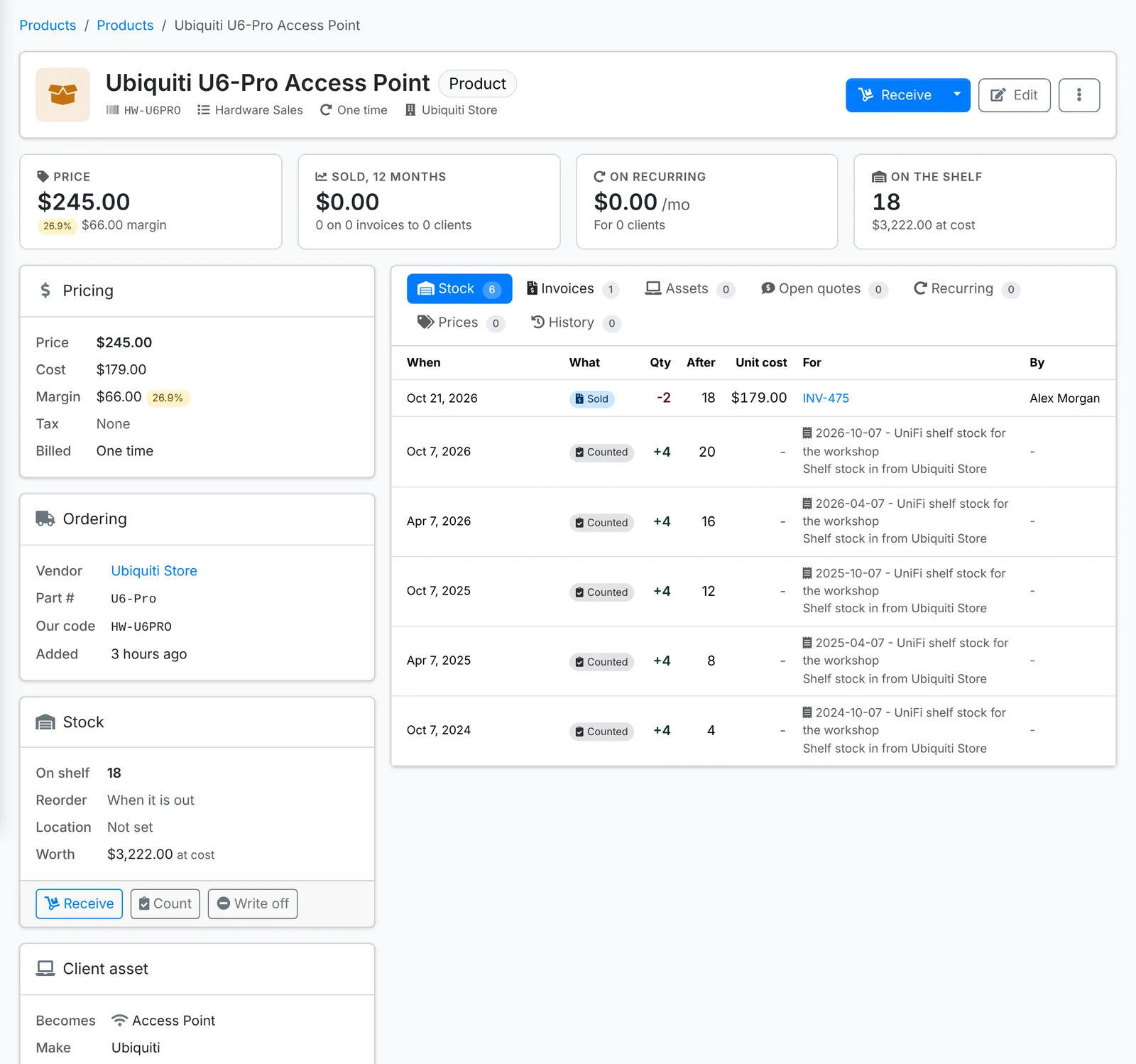
- Along the top: its Price and margin, what it Sold in the last 12 months, what's billed for it On recurring invoices, and how many are On the shelf.
- Pricing, Ordering (vendor, part number, code) and, for products, Stock and Client asset.
- The tabs list its Stock moves, the Invoices and open Quotes it's on, the Assets it became, the Recurring invoices billing it, its earlier Prices, and its History.
Edit changes it, and ⋮ has Copy and Archive. Archiving it takes it out of the catalog; lines it's already on aren't touched.
Keep track of stock
Switch on Track stock for products you keep on the shelf - spare access points, UPSs, cables. Then invoicing one takes it off the shelf, and it can't be sold past what's there. Products without it are ordered as needed, and invoicing them doesn't touch stock.
Set Reorder at and how many to Order, and agents are told when stock gets down to that level. It's listed under the Reorder tab, with its vendor and part number, ready to order.
Stock changes three ways, from Receive on the product's page or the buttons on its Stock card:
| When | |
|---|---|
| Receive | It came in. Say how many and the Unit cost, and link it to the expense you bought it on. Make this the product's cost updates the cost margins are worked out from. |
| Count | You counted the shelf. Type what's there and ITFlow records the difference. |
| Write off | It's gone without being sold: Damaged, Lost or stolen, Used by us, Sent back to the vendor or Other. |
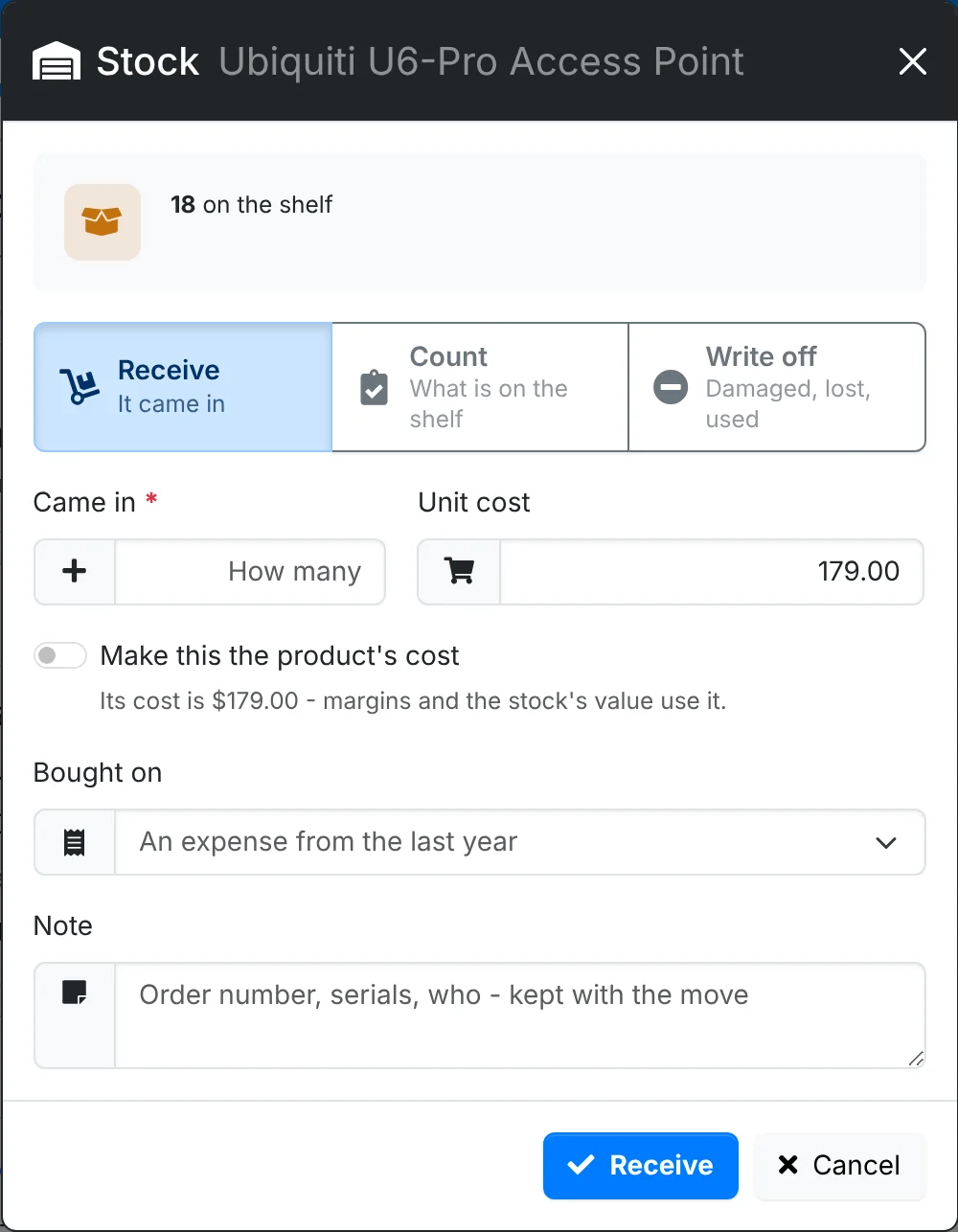
Every move is kept on the product's Stock tab, with who made it and why.
Count everything at once
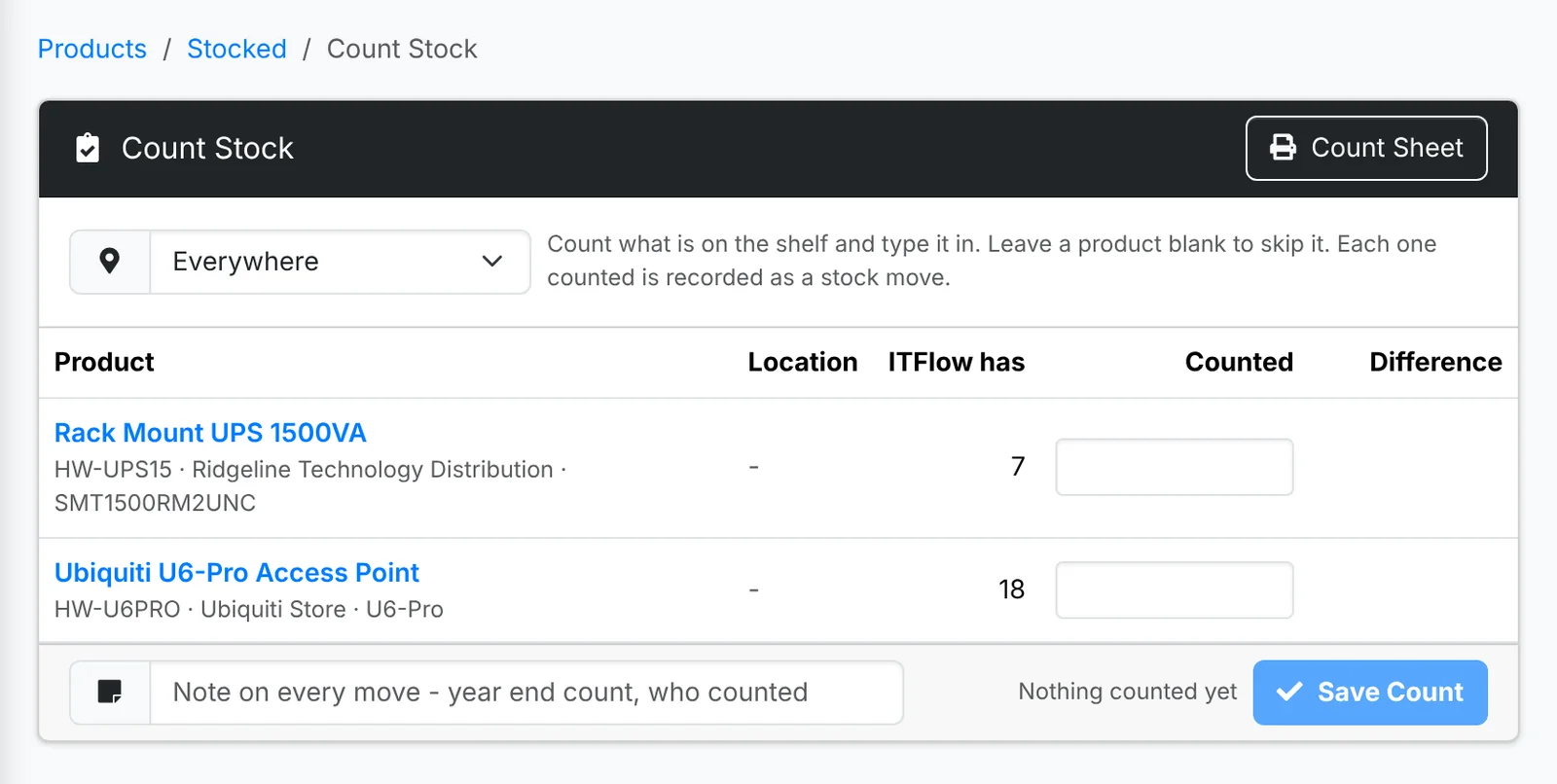
For a year-end or quarterly count, use New > Count Stock. It lists every stocked product with what ITFlow thinks is there. Type what's on the shelf - leave one blank to skip it - add a note for every move, such as "year end count", and click Save Count. Pick a location to count one shelf or van at a time. Count Sheet prints the list, to count on paper first.
Hardware becomes client assets
For hardware the client keeps - a laptop, a switch, a firewall - pick an asset type under Client asset, with its Make, Model and Warranty.
When it's on an invoice, the invoice gets a Hardware card with Add to Assets. That adds each one to the client's assets with its serial number, this make and model, and the warranty counted from the invoice date - so the asset list stays complete without typing it twice.
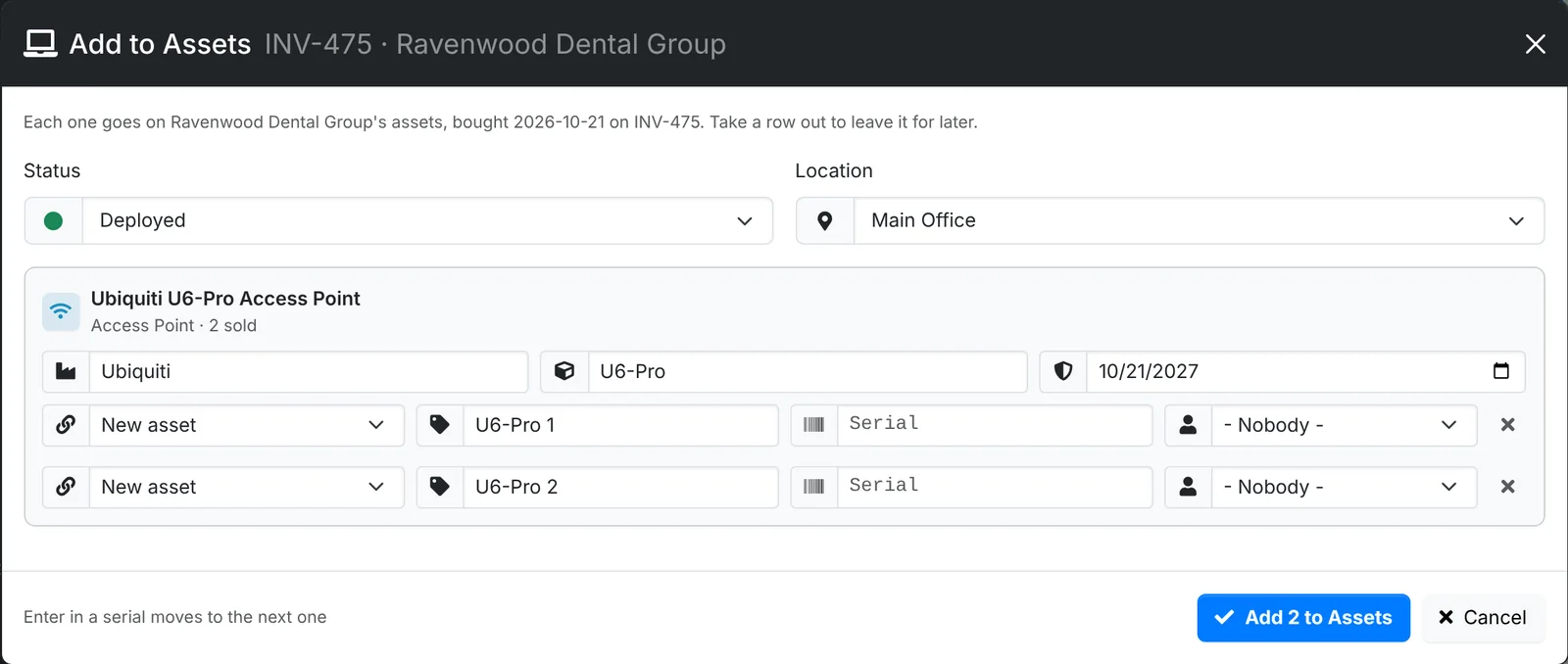
Set the Status and Location for all of them, then for each one pick New asset (or an asset that's already there), and type its name, serial number and who uses it. Pressing Enter in a serial moves to the next one, which suits a barcode scanner. Take a row out to leave it for later - the card shows how many are still to add.
Change prices
When a price goes up or down, change it on the product. Lines already on documents keep their price, so ITFlow helps you bring them in line: New > Update Prices lists the catalog lines on recurring invoices, draft invoices and draft quotes whose price isn't the product's price now.
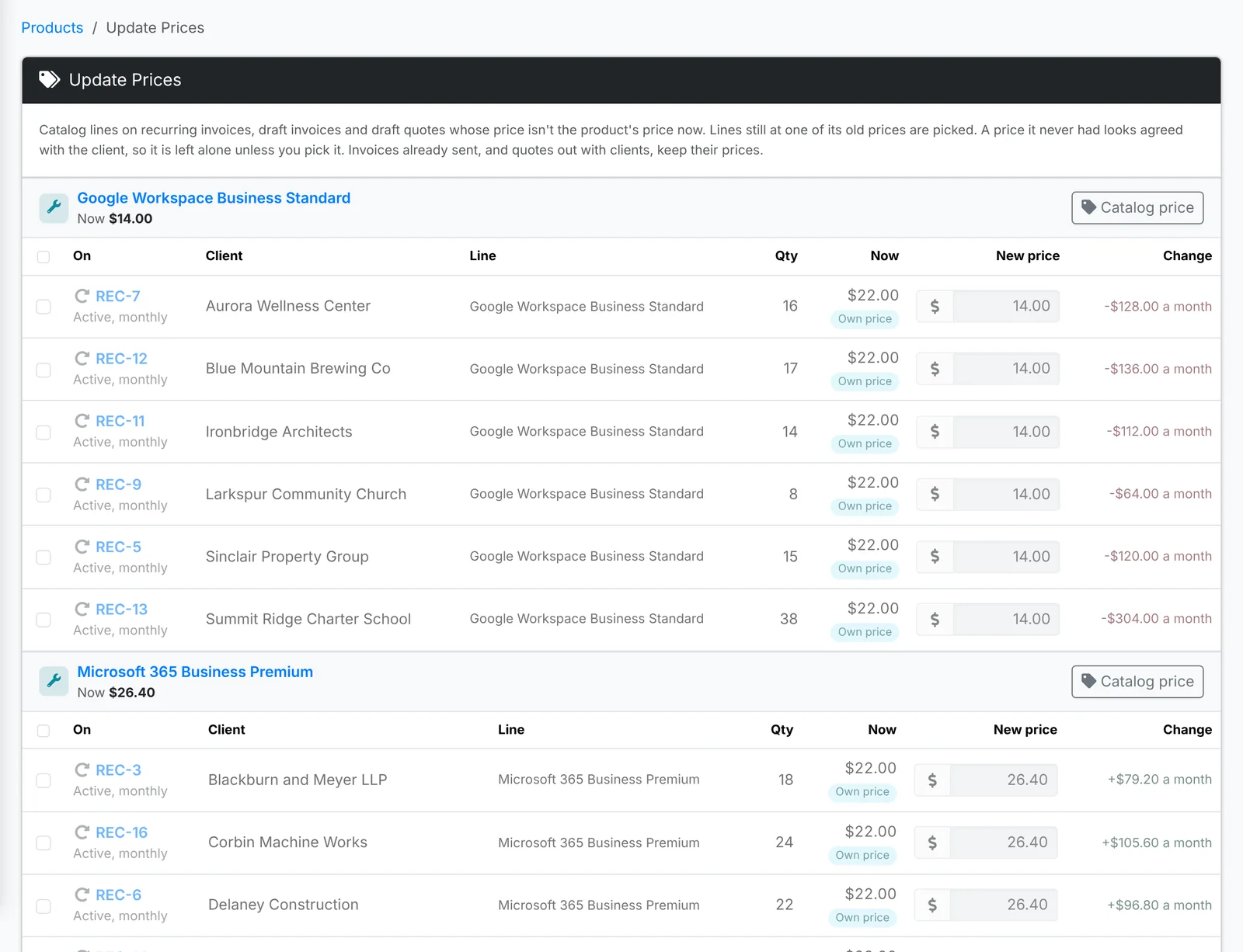
- Lines still at one of the product's old prices are ticked for you.
- A price it never had looks agreed with the client, so it's left alone unless you tick it.
- Invoices already sent, and quotes out with clients, keep their prices.
Change the New price if you need to - Catalog price puts the product's price back - see what each change is worth a month, and click Update Prices.