Client portal settings
Two-step sign-in for portal contacts, signing in with Microsoft 365, and announcements on every client's portal home page.
The client portal mostly looks after itself: who sees what comes from each contact's roles (see Giving contacts access), and your request forms come from ticket templates. The admin side has three things.
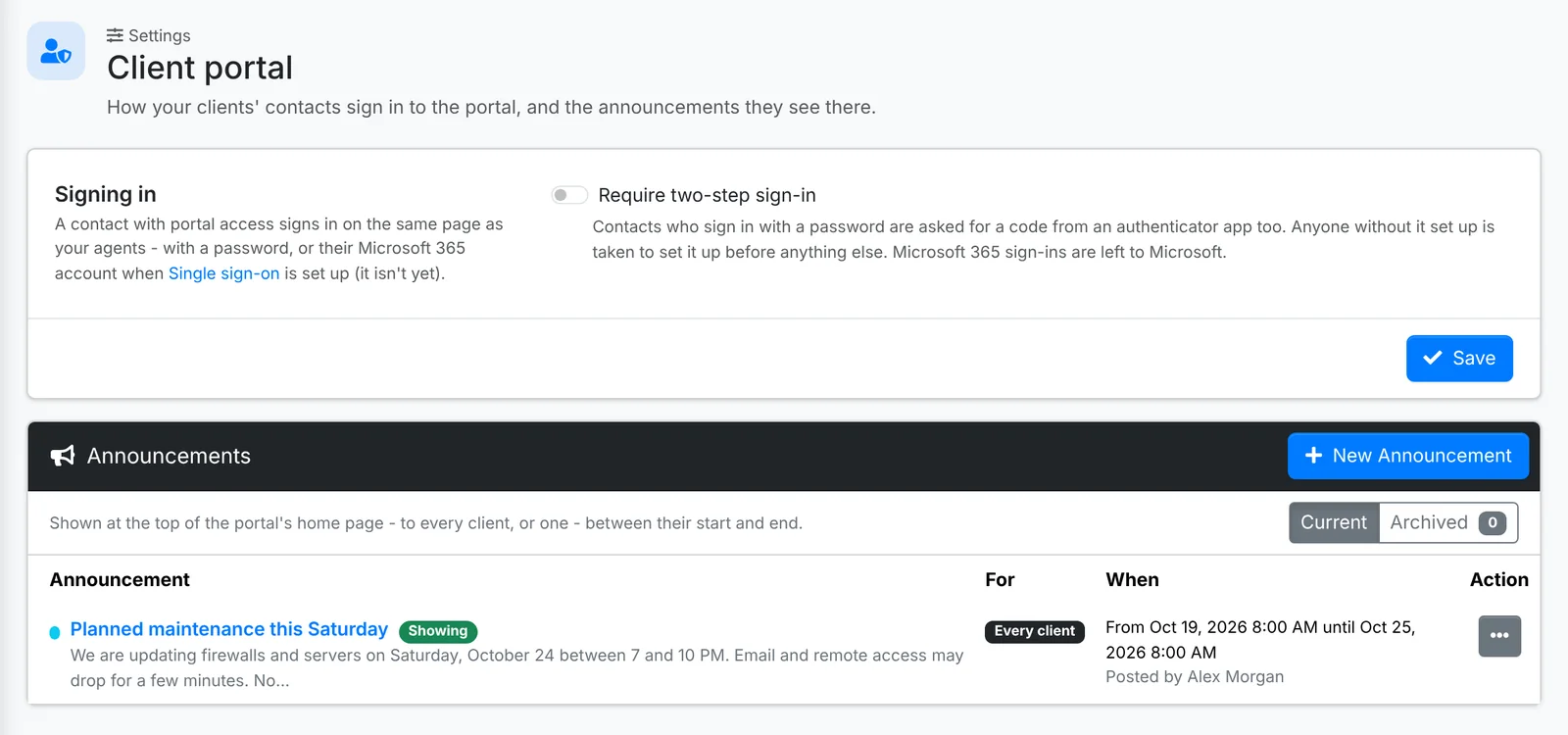
Two-step sign-in
Switch on Require two-step sign-in and contacts who sign in with a password are asked for a code from an authenticator app too. Anyone who hasn't set it up is taken to set it up before anything else. Contacts who sign in with Microsoft 365 are left to Microsoft.
If a contact loses their phone, turn it off for them from their contact page - see Giving contacts access.
Signing in with Microsoft 365
Admin > Settings > Single sign-on lets contacts sign in to the portal with their Microsoft 365 work account, instead of a password.
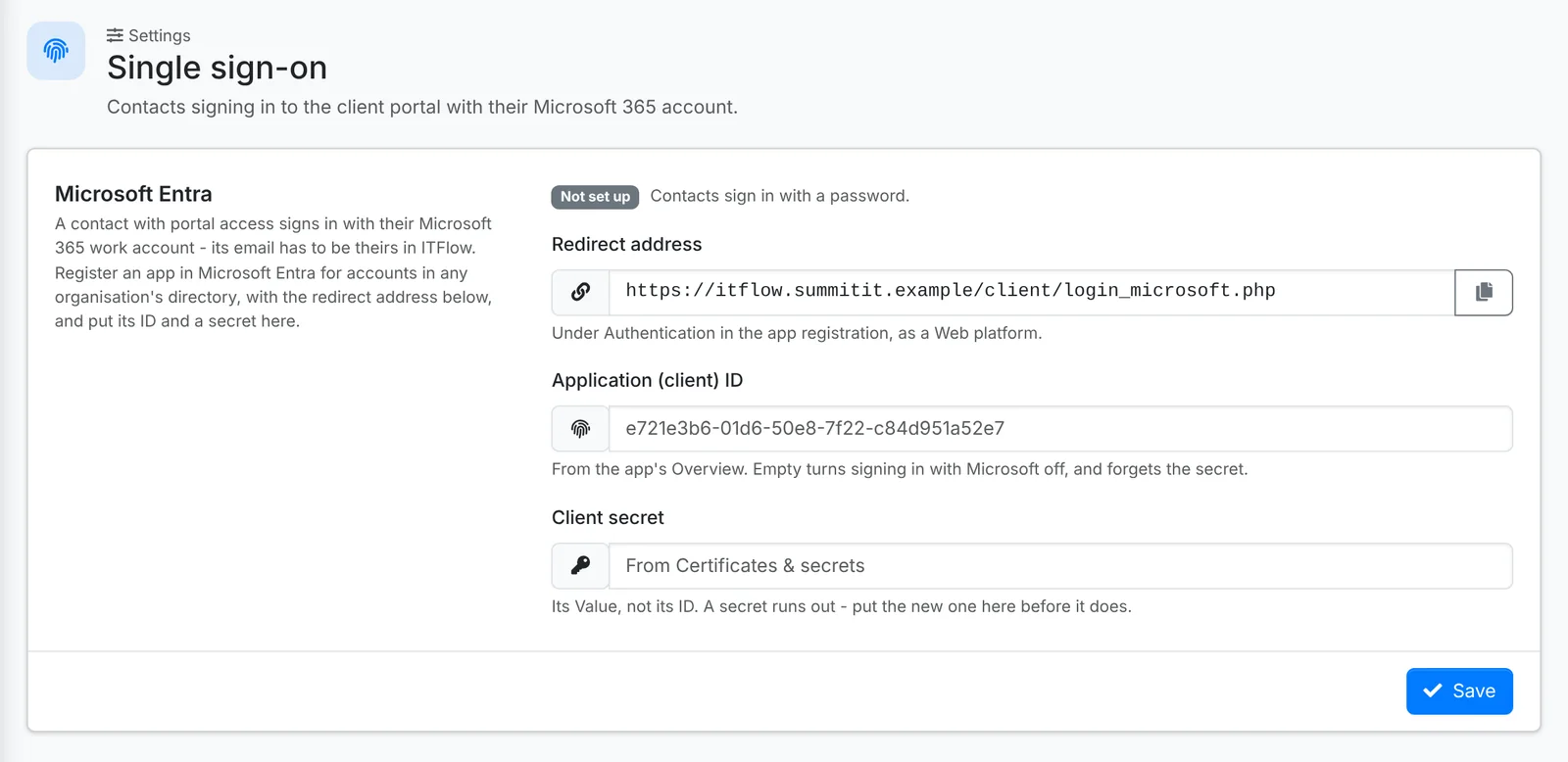
- In Microsoft Entra, register an app for ITFlow, for accounts in any organisation's directory. Under Authentication, add the Redirect address this page shows, as a Web platform.
- Copy its Application (client) ID from the app's Overview, and make a Client secret under Certificates & secrets. Paste both here - the secret's Value, not its ID - and save.
- On each contact who should use it, set Login to With their Microsoft (Entra ID) account.
A contact's Microsoft email has to be their email in ITFlow. A client secret runs out - put the new one here before it does.
Announcements
An announcement shows at the top of the portal's home page - planned maintenance, a holiday closure, a security warning - to every client, or one.
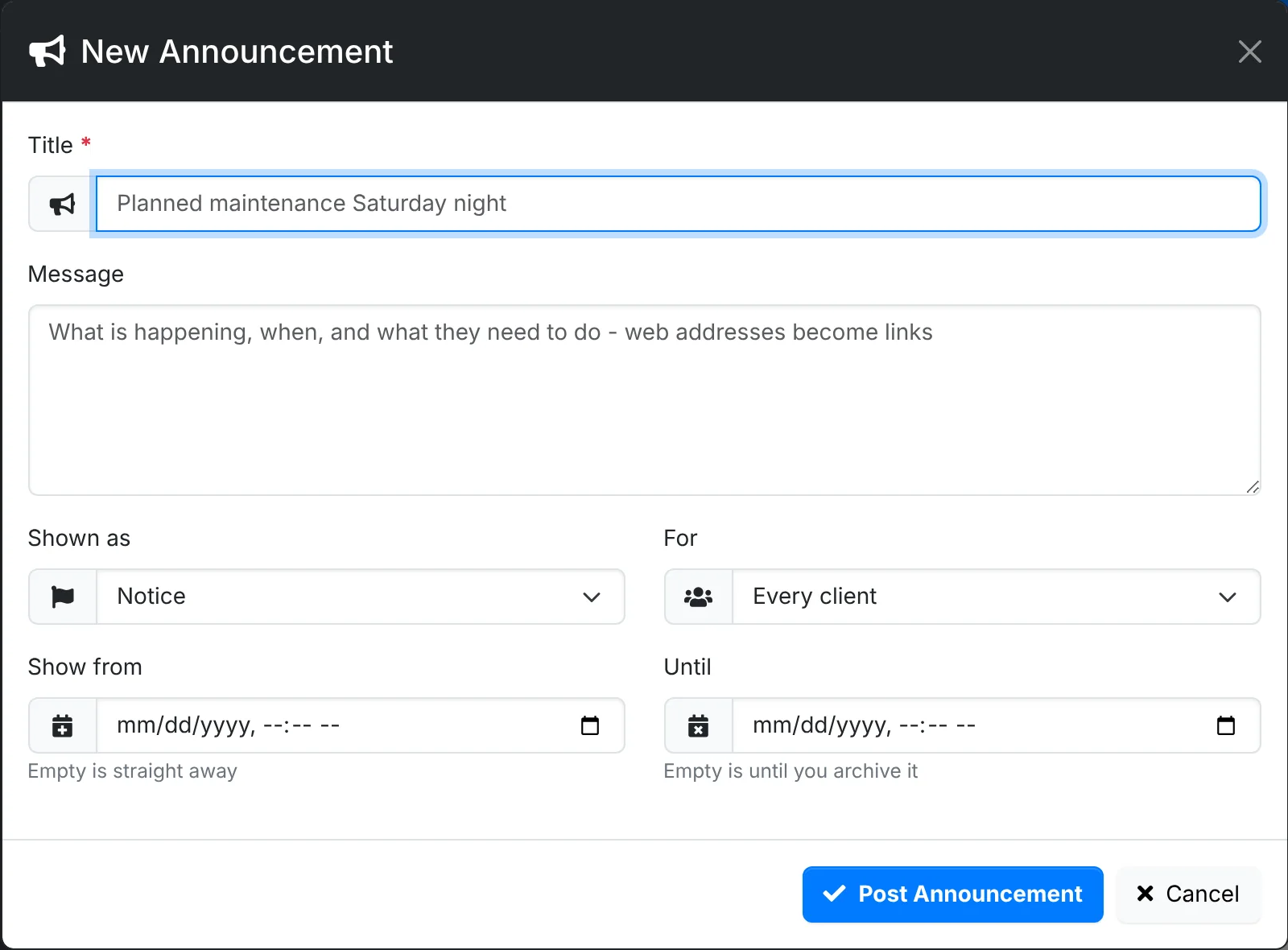
- Click New Announcement.
- Give it a Title and a Message - what's happening, when, and what they need to do. Web addresses become links.
- Pick how it's Shown: Notice, Heads up or Urgent.
- Pick who it's For: every client, or one.
- Set when to Show from and Until. Empty, it shows straight away and until you archive it.
- Click Post Announcement.
Current lists what's showing or still to come, and Archived the ones that are over.