Projects
Group the tickets for a bigger job - a server replacement, an office move, onboarding a new client - and track them against a due date and a budget of hours.
A project groups the tickets for a job that's bigger than one ticket. It has a manager, a start and due date, a budget of hours and a scope, and it shows how far along the work is.
The projects list
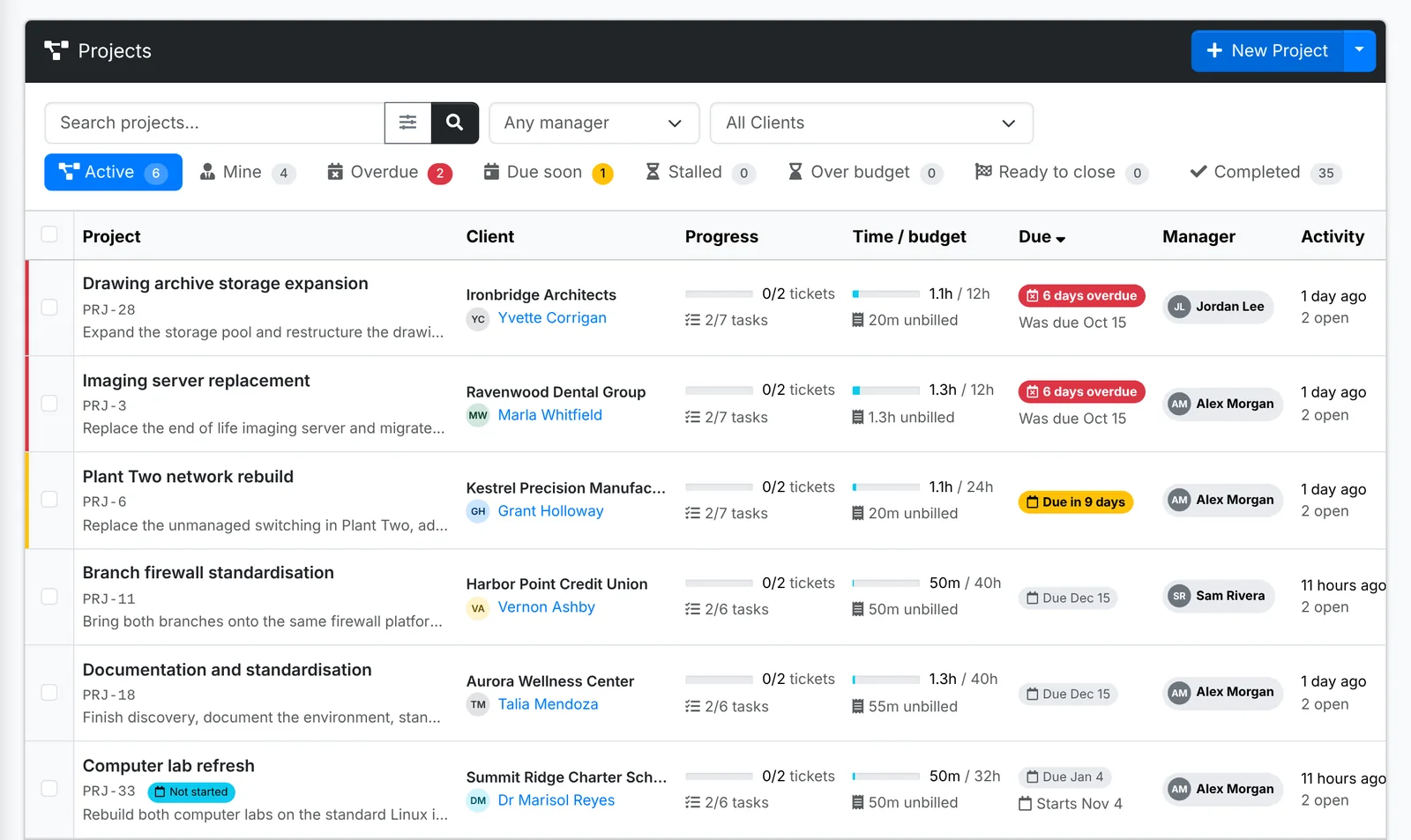
The tabs are the views you'll want: Active, Mine (the ones you manage), Overdue, Due soon (in the next 14 days), Stalled (none of its tickets has moved for 14 days), Over budget (more hours logged than budgeted), Ready to close (every ticket is done), Completed, Archived and All.
Each row shows the project's progress on its tickets and tasks, the time logged against its budget (and how much of it isn't billed yet), when it's due, its manager and the latest activity. Change the manager right in the row.
Bulk Action sets the manager or due date, marks projects complete, reopens, archives, restores or deletes them. Export in the New Project menu downloads the list as a CSV or PDF.
Start a project
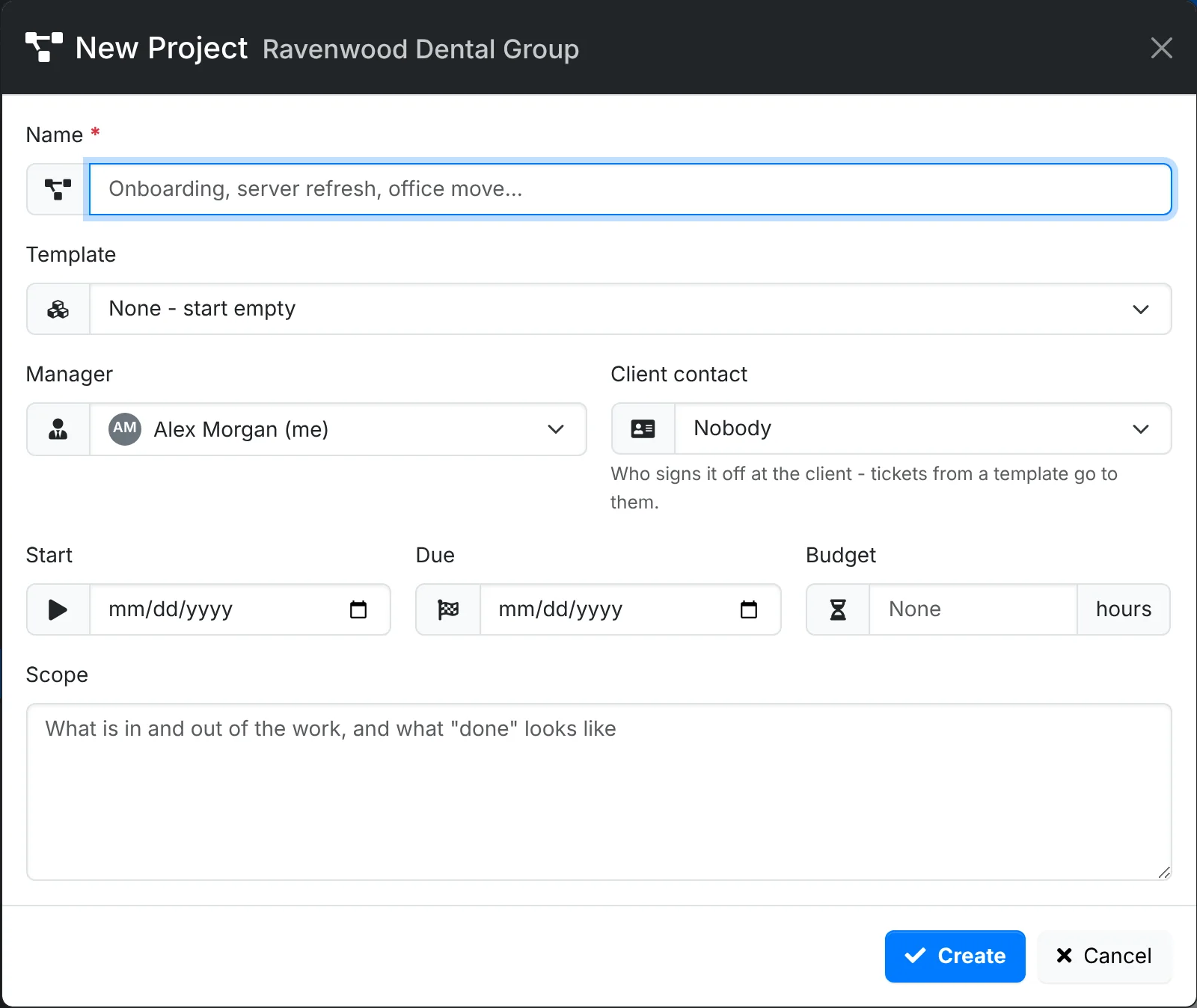
- Go to Support > Projects (or a client's Projects) and click New Project.
- Pick the Client and give it a Name.
- Pick a Template to raise its tickets for you, in order - see below.
- Pick the Manager, and the Client contact who signs it off at the client.
- Set the Start and Due dates and the Budget in hours.
- Write the Scope: what the project is for and what's included.
- Click Create.
Project templates
A project template is a set of ticket templates in order - say, "Client Onboarding": a site survey, documentation, monitoring, backups and a handover. Picking one raises all its tickets, set up as their templates say. Tick Assign the template's tickets to the manager to give them all to the project manager. Your admin makes project templates in Ticket and project templates.
The project's page
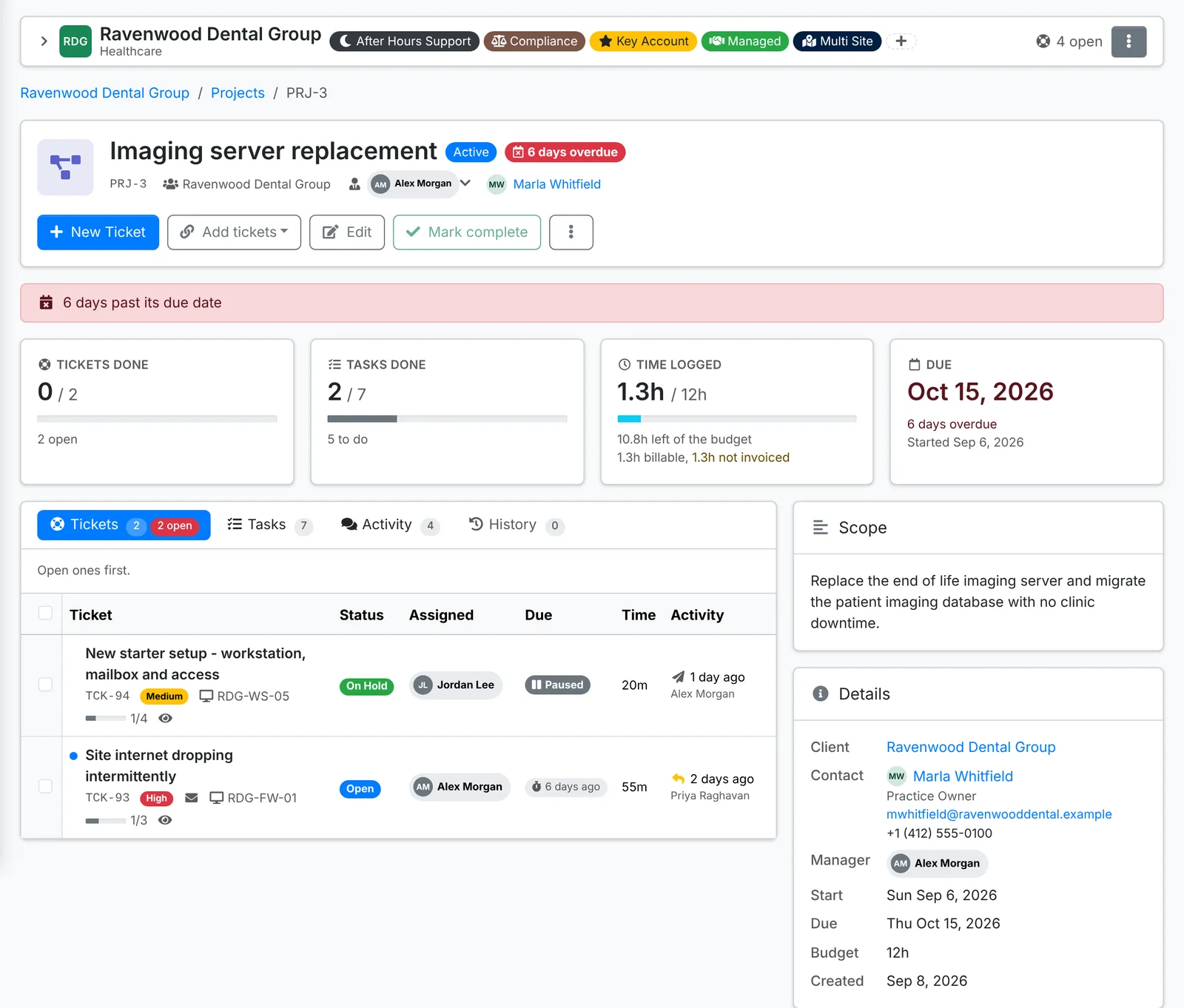
Along the top, a warning shows when something needs a look - past its due date, over budget, stalled. Then four cards: Tickets done, Tasks done, Time logged against the budget (with what's billable and not yet invoiced), and Due.
- New Ticket raises a ticket in the project.
- Add tickets adds Tickets already raised - picked from a list or by number - or more tickets From a project template.
- Edit, Mark complete, and ⋮ for its tickets on the ticket list, Archive and Delete.
The tabs list its Tickets (open first), its Tasks across every ticket, its Activity - the replies on its tickets - and History. Down the side are the Scope, the Details (client, contact, manager, dates and budget) and the Team, with the hours each person has logged.
On the Tickets tab, tick tickets and use Bulk Action to assign them, set their priority or category, reply to them, resolve them, or Take off the project.
Finish a project
When the work is done, click Mark complete. A project with tickets still open says how many first. A completed project can be reopened from the same place.