The tickets list
Every ticket you're working on, with whose move it is, its SLA and when it's due - as a list or as a board.
Tickets lists your tickets, open ones first. It's built to answer one question at a glance: what needs me next?
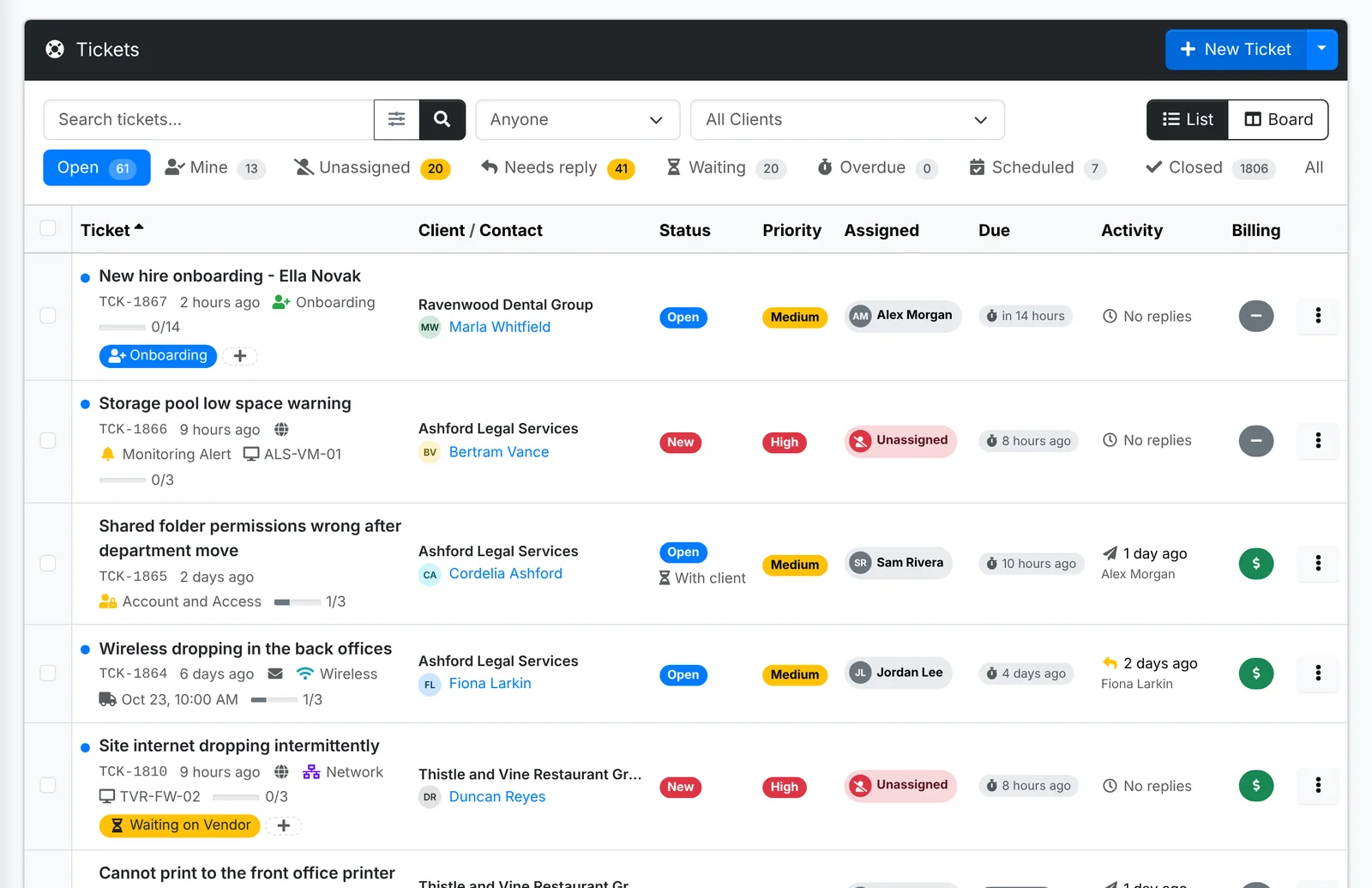
Views
The tabs along the top are the views you'll use most, each with a count:
| View | What it shows |
|---|---|
| Open | Every ticket that isn't resolved or closed |
| Mine | Open tickets assigned to you |
| Unassigned | Open tickets nobody has picked up |
| Needs reply | Open tickets where the client spoke last, or nobody has replied yet |
| Waiting | Open tickets waiting on the client (you replied last) or parked in a status like On Hold |
| Overdue | Open tickets past their due date or their SLA |
| Scheduled | Tickets booked in for a time |
| Closed | Resolved and closed tickets |
| All | Everything |
Beside the search box, pick a technician (Anyone) or a client to narrow any view. The sliders button opens more filters: Status, Priority, Category, Project, Tags, SLA, Billing and when it was Created. Each filter you set shows as a chip under the views, with an × to take it off.
The search box finds tickets by number, subject, client, contact, asset or the vendor's reference.
Reading a row
- A blue dot before the subject means it's your move: the client spoke last, or nobody has replied yet.
- Under the subject: the ticket number, how long ago it was opened, where it came from (an envelope for email, a globe for the client portal, arrows for a recurring ticket), its category, its asset, when it's scheduled, and how many of its tasks are done.
- Client / Contact - who it's for.
- Status - with With client underneath when you're waiting on them.
- Priority and Assigned.
- Due - when the SLA's next target is due, or Breached in red once it's missed. Paused shows when the ticket is in a status that stops the SLA clock.
- Activity - the latest reply: a paper plane when you replied, an arrow when the client did, with who and when.
- Billing - a green $ for billable, grey for not billable.
You can change a ticket's status, priority, technician and billable right in the row: click the value and pick another. See Lists, quick looks and bulk actions.
The ⋮ at the end of a row has Quick look, Open in a new tab, Edit and Assign to me.
The board
Click Board at the top right to see the same tickets as cards in columns by status - New, Open, On Hold and so on. Drag a card to another column to change its status. Dragging to Resolved follows the same rules as resolving on the ticket's page.
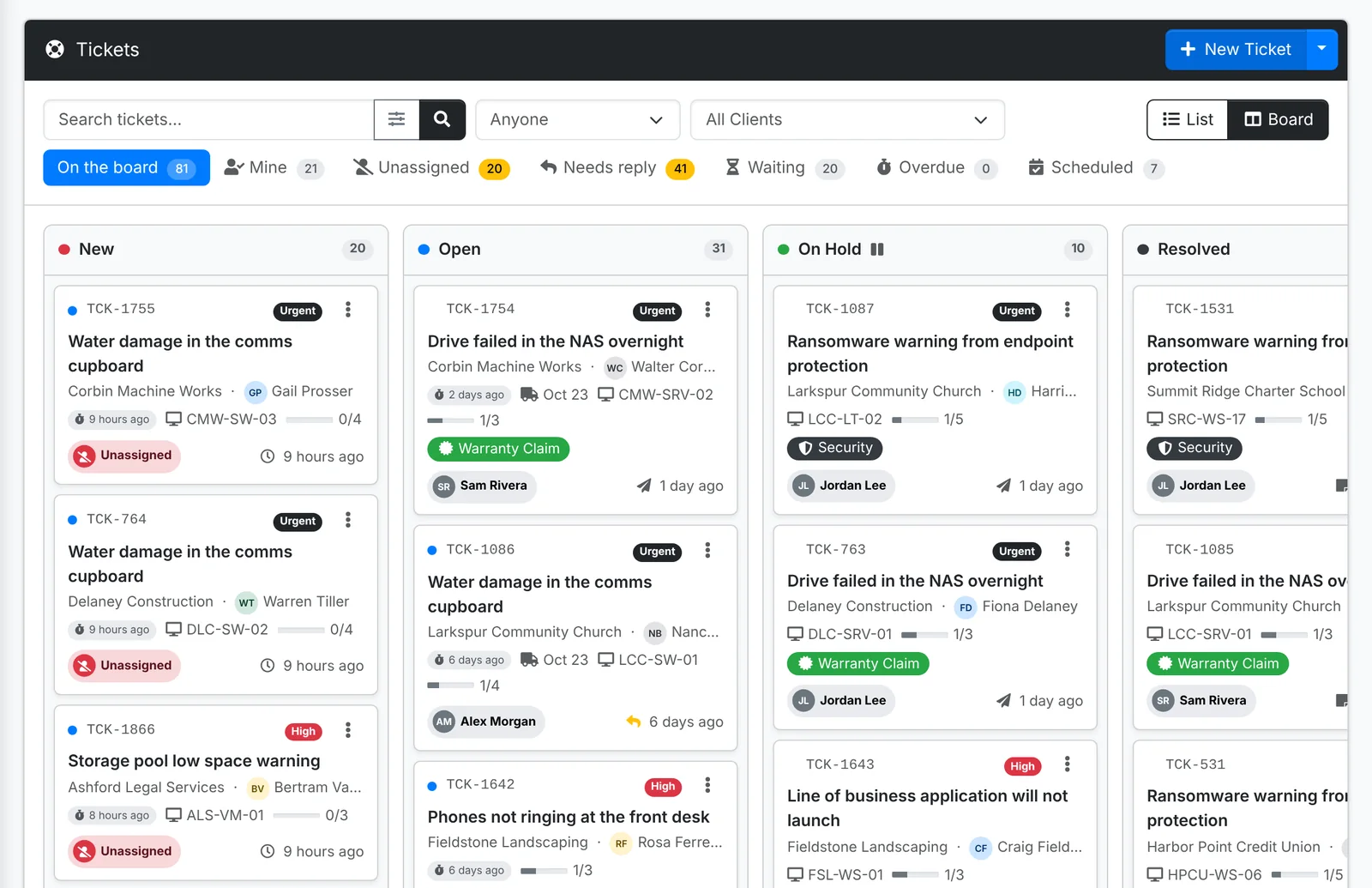
Click List to go back.
Do the same to many tickets
Tick tickets and use Bulk Action to:
- Assign them to a technician - they get one email listing them all
- Set priority or Set category
- add or remove Tags
- Add to a project
- Reply or add a note to each of them at once - see below
- Merge into a ticket, when several tickets are about the same problem
- Resolve them
- Delete them
Reply to many tickets at once
Reply or add a note opens Update & Reply, which sends the same reply to every ticket you ticked - handy when an outage affects many clients. Placeholders such as [First Name] and [Ticket] are filled in for each ticket as it's sent, and you can pick a canned response. Set the status the tickets move to and the time worked on each, or tick Mark as internal to add a note only your team sees.