Assets
Every device you look after - computers, servers, switches, firewalls, printers, phones - with its hardware, network details, warranty, who has it and where it is.
An asset is a device: a laptop, a server, a switch, a firewall, a printer. Its record holds what it is, where it is, who uses it, how to reach it on the network, when it was bought and when its warranty runs out - and links it to its tickets, logins, licenses and documents.
The assets list
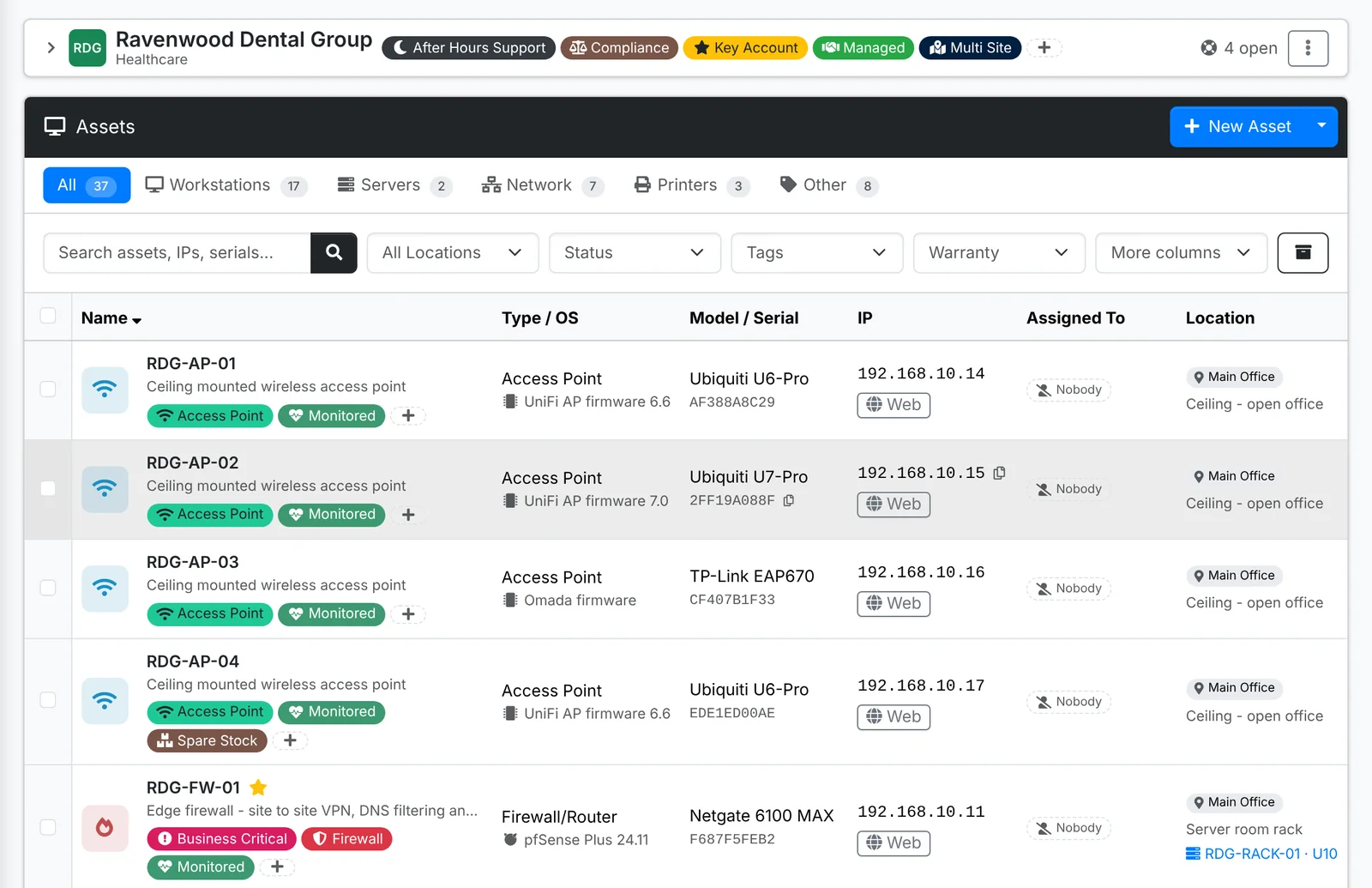
- Tabs split the list by type - Workstations, Servers, Network, Printers and Other - each with a count.
- Filters: location, status, tags and warranty. More columns adds columns to the list.
- Each row shows the device's type icon, name and description, its tags, type and operating system, make, model and serial number, IP address, who it's assigned to, its location and its status.
- Web, SSH and RDP buttons beside an IP address open a connection to the device - the browser for Web, your SSH or remote desktop app for the others.
- The location, assigned contact and status can be changed right in the row.
To see every client's devices together, use All Client Docs > Assets.
Add an asset
- Open the client, go to Assets and click New Asset.
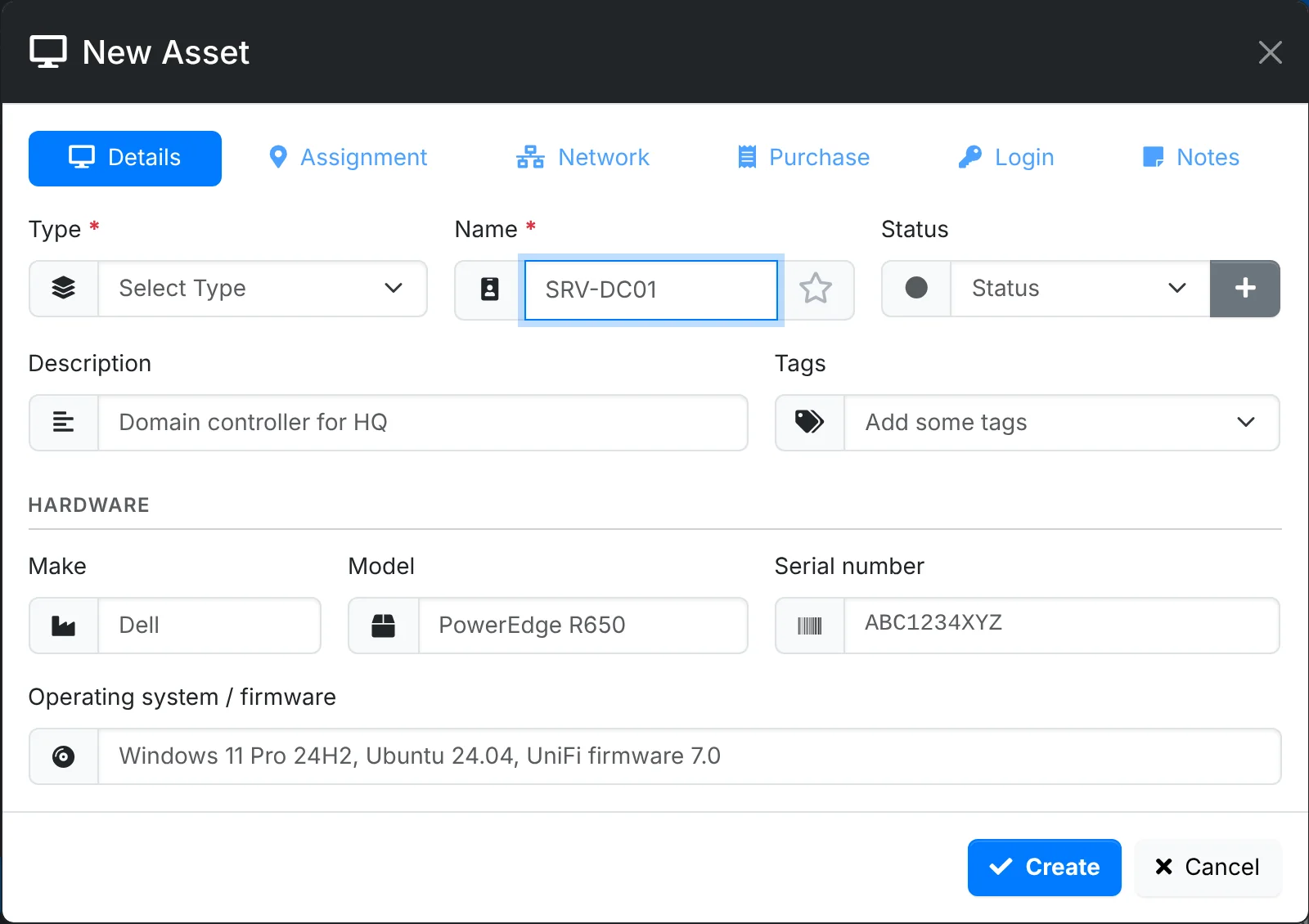
- On Details, pick the Type (desktop, laptop, server, switch, firewall, access point, printer and so on), give it a Name and Status, and fill in the Make, Model, Serial number and Operating system / firmware. Click the star to make it a favorite, which puts it on the client's overview.
- On Assignment, pick its Location, Where in the building it is (a room, a cupboard), and who it's Assigned to.
- On Network, enter its IPv4 address (or switch on DHCP), MAC address, and any NAT or IPv6 address. Link is the address you open it at, such as its management page. A Client link shows in the client portal.
- On Purchase, pick the Vendor, the Order / invoice reference, and when it was Purchased and Installed, and when its Warranty expires.
- On Login, add a username and password for it, which become a credential linked to it.
- On Notes, add notes and a photo.
- Click Create.
Copy, in an asset's menu, starts a new asset from it - handy for a batch of identical laptops. To bring in many at once, use Import in the New Asset menu with a CSV spreadsheet.
Hardware you sell on an invoice can become the client's assets straight from the invoice, with Add to Assets. See Products and stock.
The asset's page
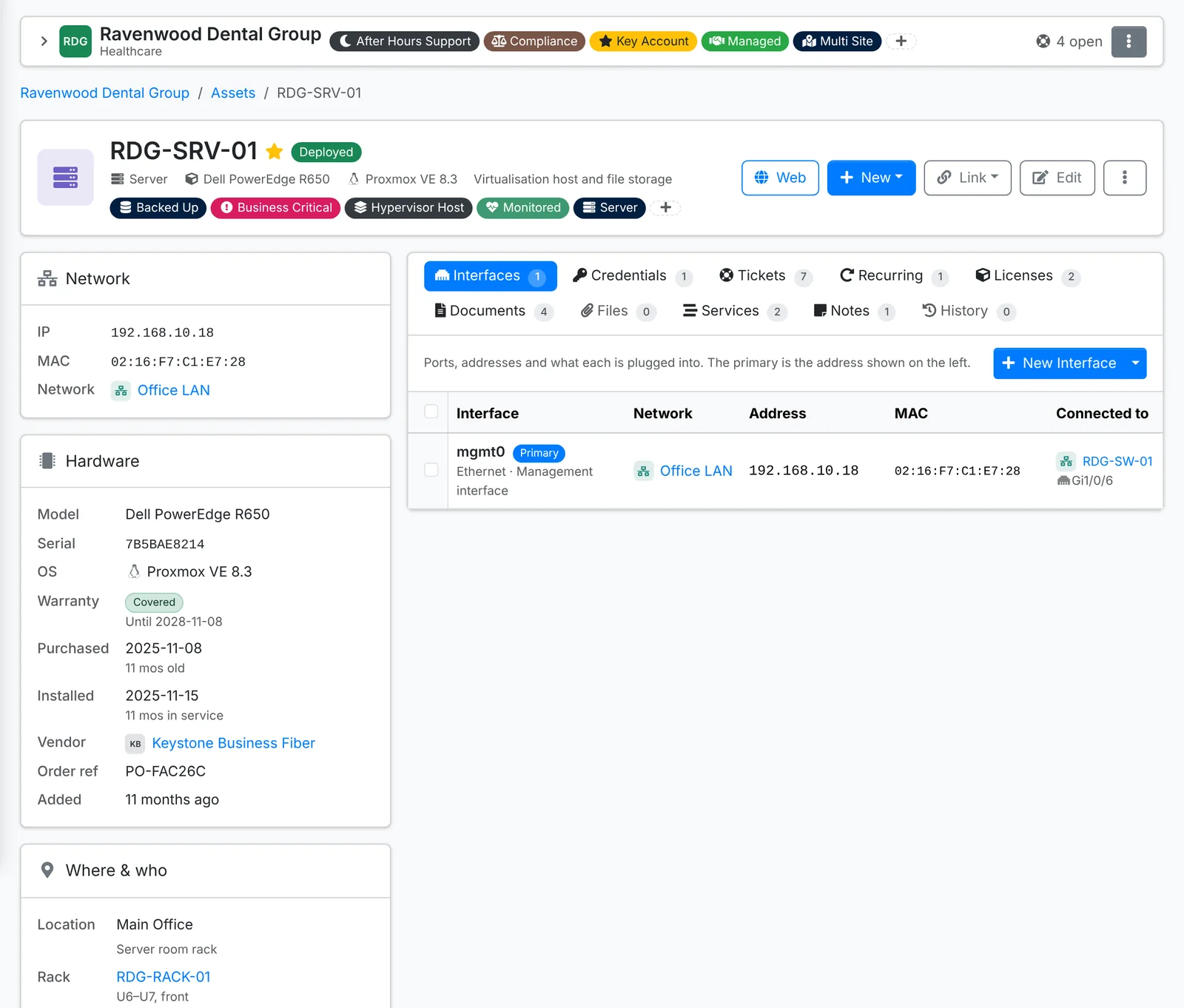
Along the top are the asset's photo or type icon, name, status, type, model and tags, with:
- Web (and SSH or RDP) to connect to it
- New - a ticket, recurring ticket, credential, interface, license, document, file or note for it
- Link - link a service, file or other record that already exists
- Edit, and ⋮ for Copy and Archive
The cards show its Network details, its Hardware - model, serial, operating system, warranty, when it was bought and installed, the vendor and order reference - and Where & who: its location, rack position and who has it. Quick notes save as you click away.
The tabs list its Interfaces, Credentials, Tickets, Recurring tickets, Licenses, Documents, Files, Services, Notes and History.
Network interfaces
An interface is one of a device's network ports or connections: a server's management port, a firewall's WAN port, port 12 on a switch. Each can have its own address on one of the client's networks, its VLANs, and what it's plugged into.
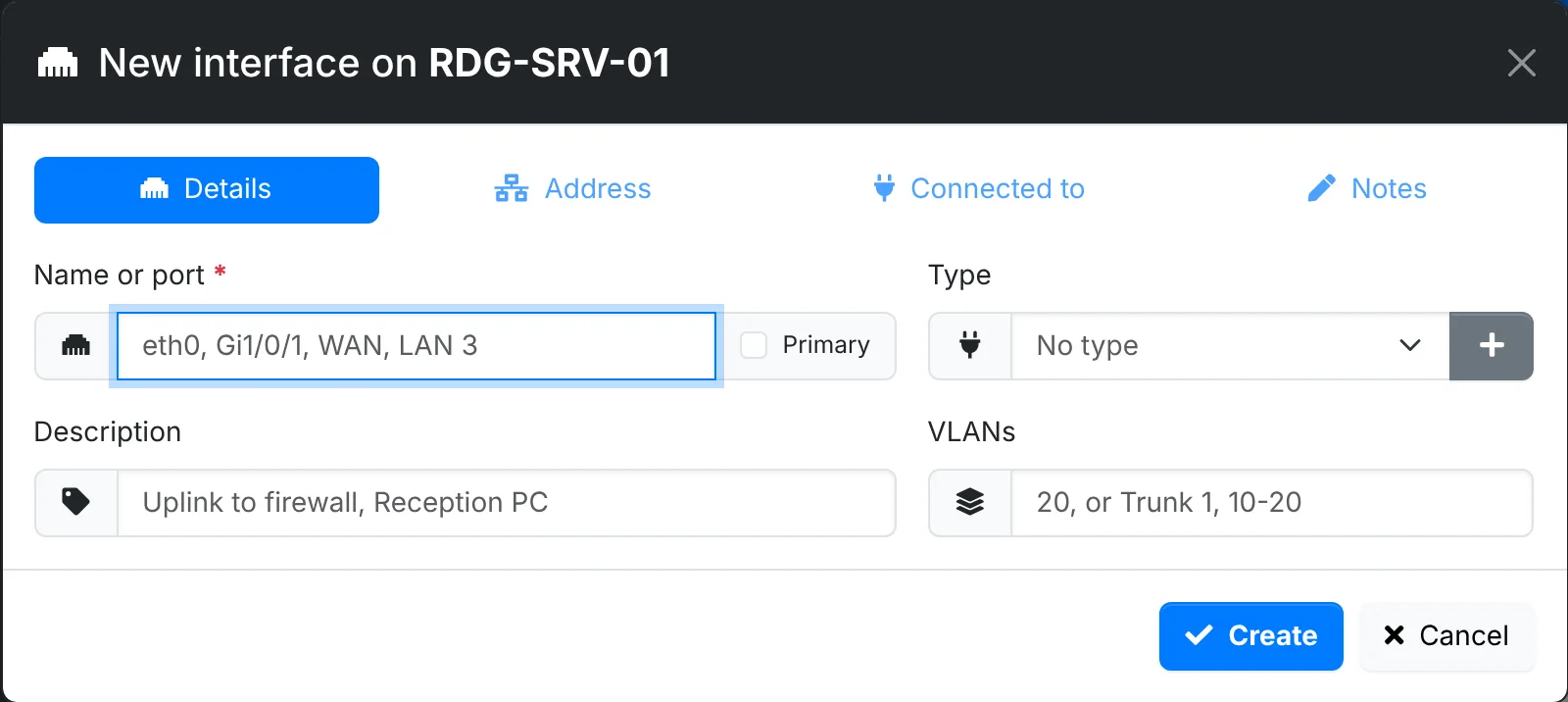
To add one, open the asset and click New > Interface (or New Interface on the Interfaces tab):
- On Details, type its Name or port (eth0, Gi1/0/1, WAN), tick Primary if it's the device's main address, and set its Type and VLANs - a single VLAN, or a trunk such as
Trunk 1, 10-20. - On Address, pick its network and address. ITFlow checks the address is in the network, warns if another device has it, and can fill in the next free one.
- On Connected to, pick the device and port it's plugged into - port 12 on the switch, say. The other end is linked too.
- Click Create.
Port maps
Switches, firewalls and access points show their interfaces as a port map: a grid of ports, coloured by whether each is connected, has an address, or is free. Click a port to see or change it. The list view beside it shows the same ports as a table.
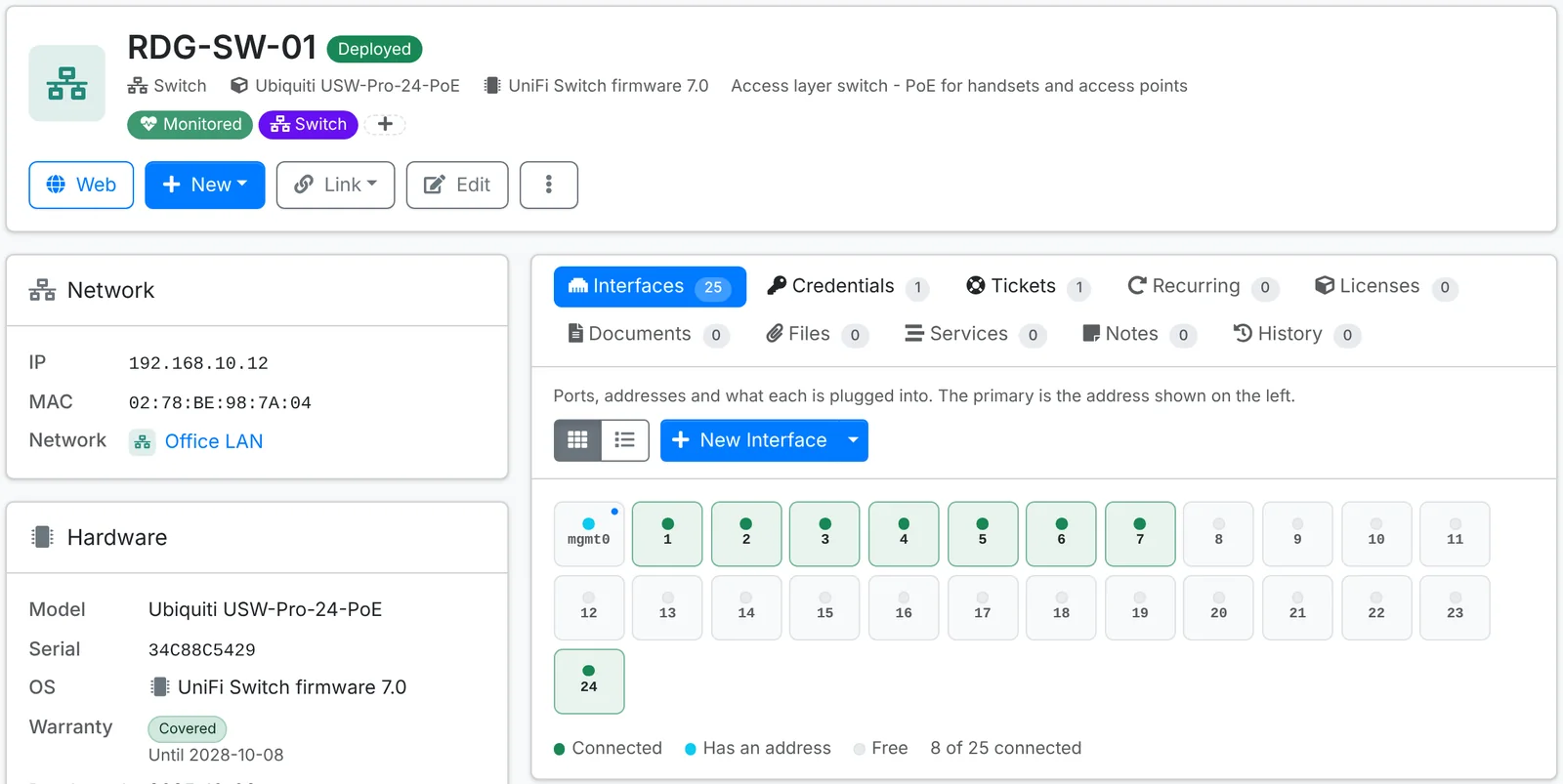
To set up a whole switch at once, use Add a run of ports in the New Interface menu - ports 1 to 48, say. Interfaces can also be imported and exported with their VLANs and connections, and the bulk actions on the Interfaces tab set the network, VLANs or type for many ports, set them to DHCP, or disconnect them.
Status, warranty and lifecycle
An asset's Status - Ready to Deploy, Deployed, Out for Repair, Lost, Stolen, Retired, and any others your admin adds - says where it is in its life. Lost, stolen and retired devices are left out of counts such as per-device billing.
Warranties coming up for renewal show on the client's overview, the dashboard and in Reports (Asset Lifecycle and Renewals & Expirations).
Archive and move
Archive (in the asset's menu, or Bulk Action) takes a device you no longer look after out of the lists, keeping its history. Transfer to Client, in Bulk Action, moves assets to another client - when a device moves between companies you both look after.