Networks and IP addresses
A client's networks and VLANs, with an address plan that shows which IP addresses are in use, by what, and which are free.
A network is one of a client's subnets: the office LAN, the guest Wi-Fi, the server VLAN, the internet connection (WAN). Each network has an address plan - every IP address that's documented or in use, what has it, and the free ranges between them.
The networks list
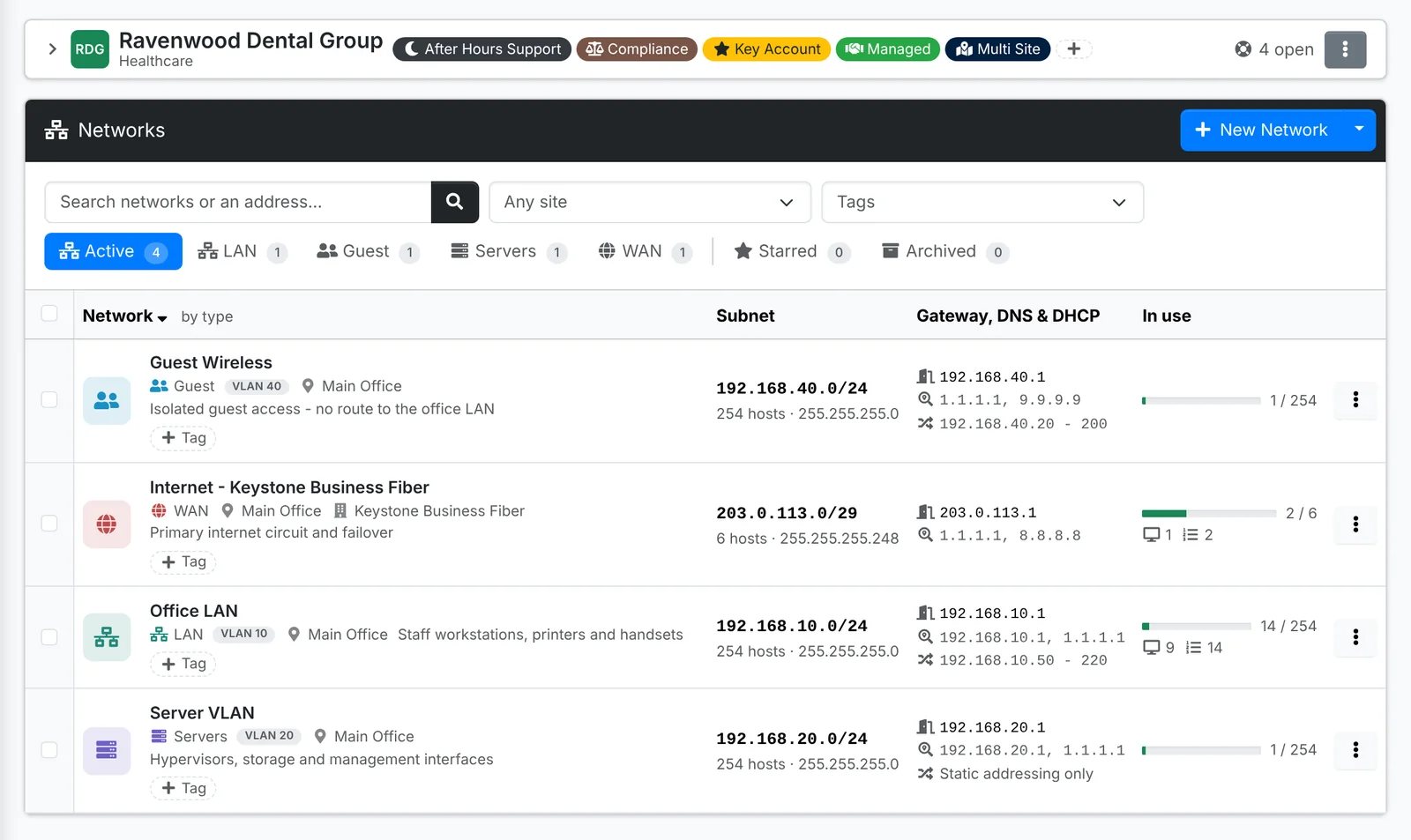
Tabs split the list by type - LAN, Guest, Servers, WAN and so on - plus Starred and Archived. Each row shows the subnet, the gateway, DNS servers and DHCP range, and a bar for how many addresses are in use.
Search finds the network an IP address belongs to: type 192.168.10.57 and the office LAN comes up.
Add a network
- Open the client, go to Networks and click New Network.
- On Details, give it a Name and Type (ITFlow guesses the type from the name - "Guest Wi-Fi" is a guest network), a Description, its Site and VLAN, and for a WAN, its Provider.
- On Addressing, type the Subnet, such as
192.168.10.0/24. ITFlow shows how many addresses it has and suggests the Gateway and DHCP range, which you can change. Add the DNS servers. - Click Create.
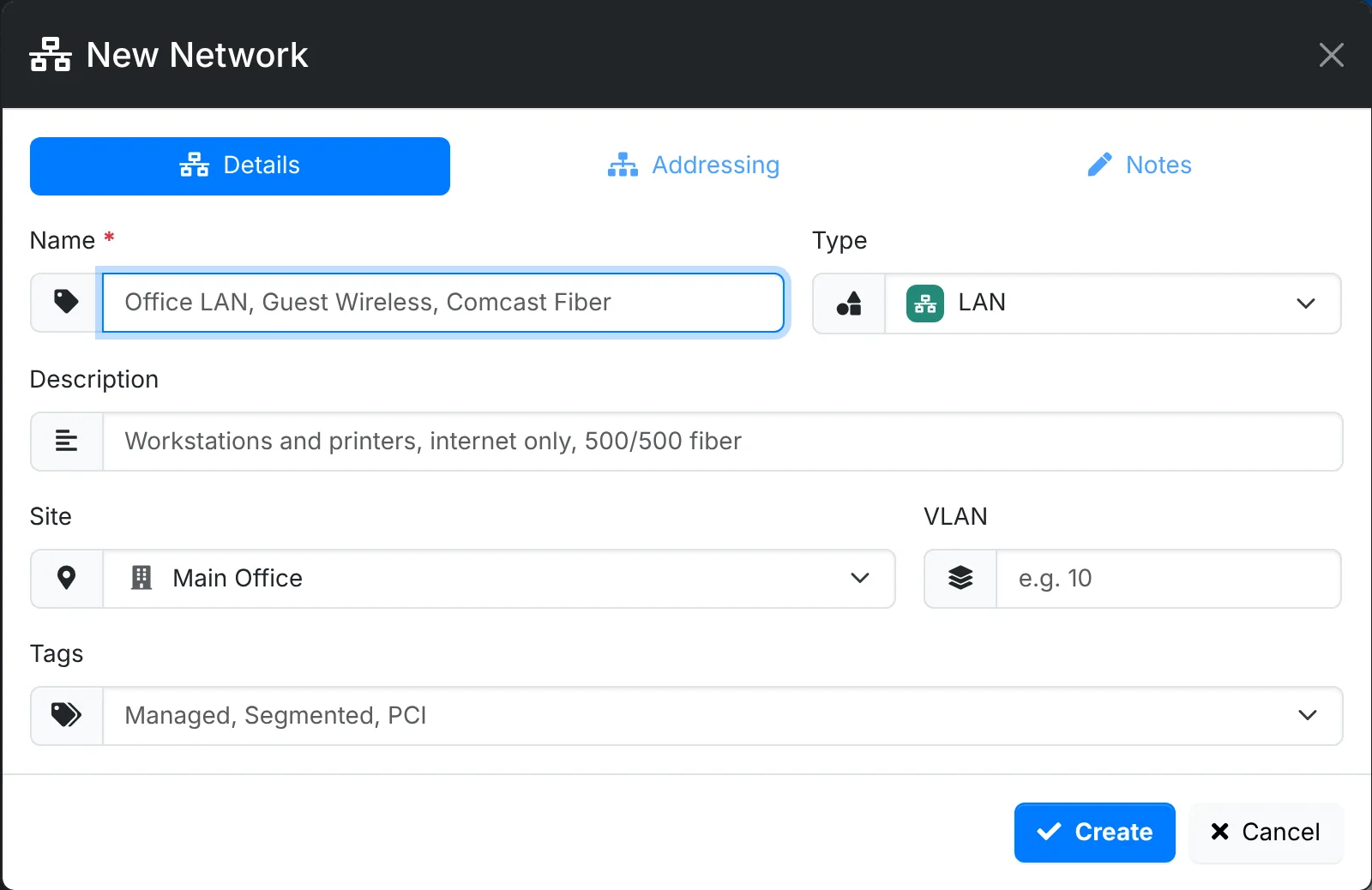
ITFlow warns you when a new network overlaps one the client already has.
The address plan
Open a network to see its address plan.
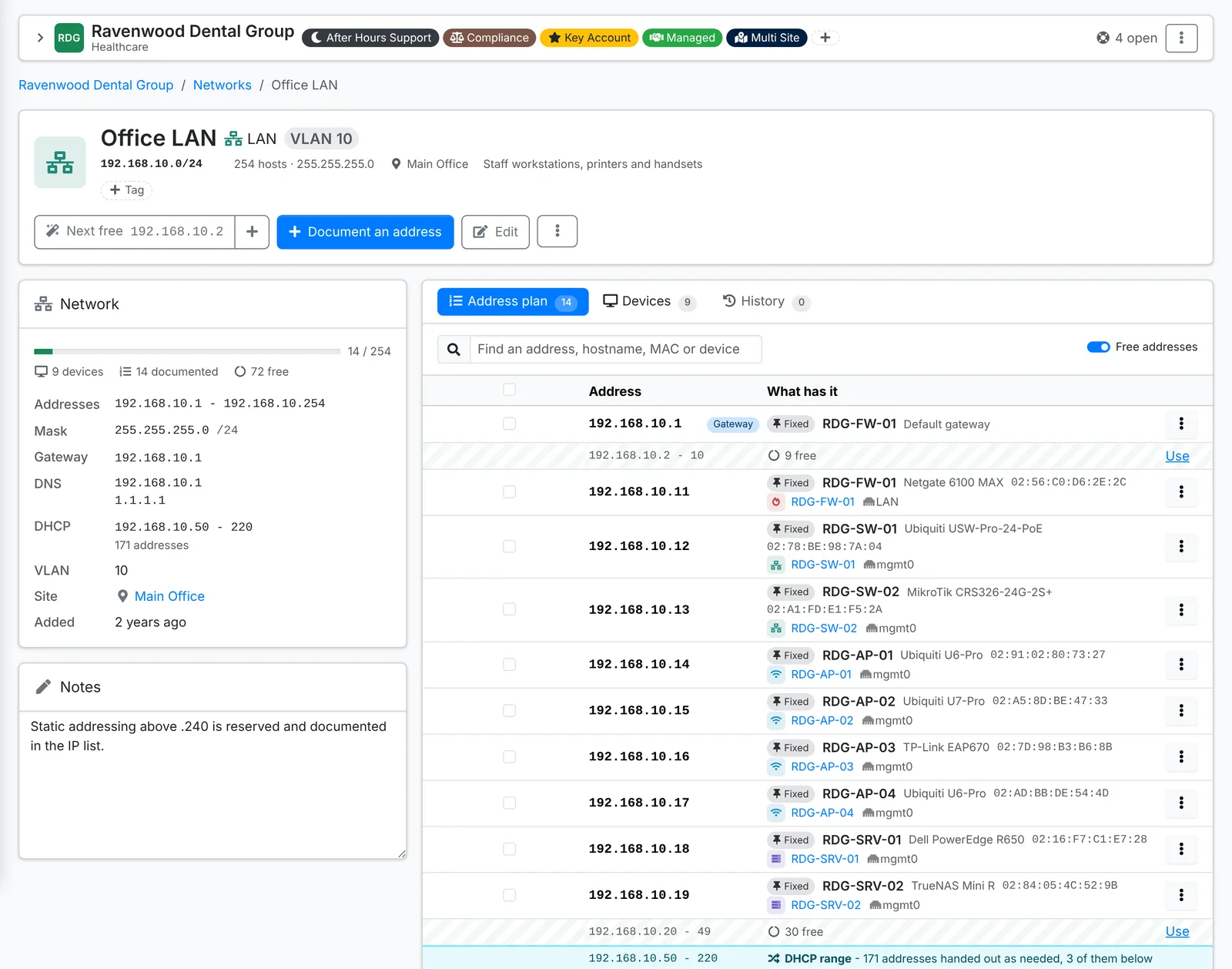
The Network card shows the addresses, mask, gateway, DNS, DHCP range, VLAN and site, with how many addresses are taken by devices, documented, and free. For a WAN, the provider's phone, account number and hours show too.
The Address plan tab lists, in order:
- addresses taken by a device's interface - with the device, its MAC address and the port
- addresses you've documented on their own - a printer you don't manage, a reserved address
- the free ranges between them, each with a Use button
It flags problems: two devices with the same address, an address in the DHCP pool that's set as fixed, a MAC address that doesn't match, and addresses outside the subnet.
- Next free at the top fills in the next free address. Click + beside it to document it.
- Document an address adds one address, or a run of addresses - up to 256 at a time.
- Free addresses switches the free ranges on or off.
The Devices tab lists every device with an interface on the network.
Kinds of documented address
When you document an address, say What it is:
| Kind | Use it for |
|---|---|
| Fixed | An address set on the device itself |
| DHCP reservation | An address the DHCP server always gives one device, by its MAC address |
| Held back | An address kept free on purpose, for something coming later |
| Floating | An address that moves between devices, such as a cluster or failover address |
Tick addresses and use Selected to change their kind or delete them. Import addresses and Export addresses, in the network's menu, take a CSV spreadsheet.
Give a device its address on its own page, as an interface, rather than documenting it on the network. That way the network, the device and the port it's plugged into all stay in step.