Connect ITFlow to your mail - sending invoices, replies and alerts, and reading your support mailbox to turn email into tickets - and check what goes out.
ITFlow sends a lot of email - ticket replies, invoices, quotes, reminders, alerts - and can read your support mailbox to turn incoming email into tickets. Both are set up in Admin > Settings > Mail, on its tabs: Sending, Receiving, From Addresses, Tests and Previews. A green dot on Sending and Receiving means each is set up.
Sending
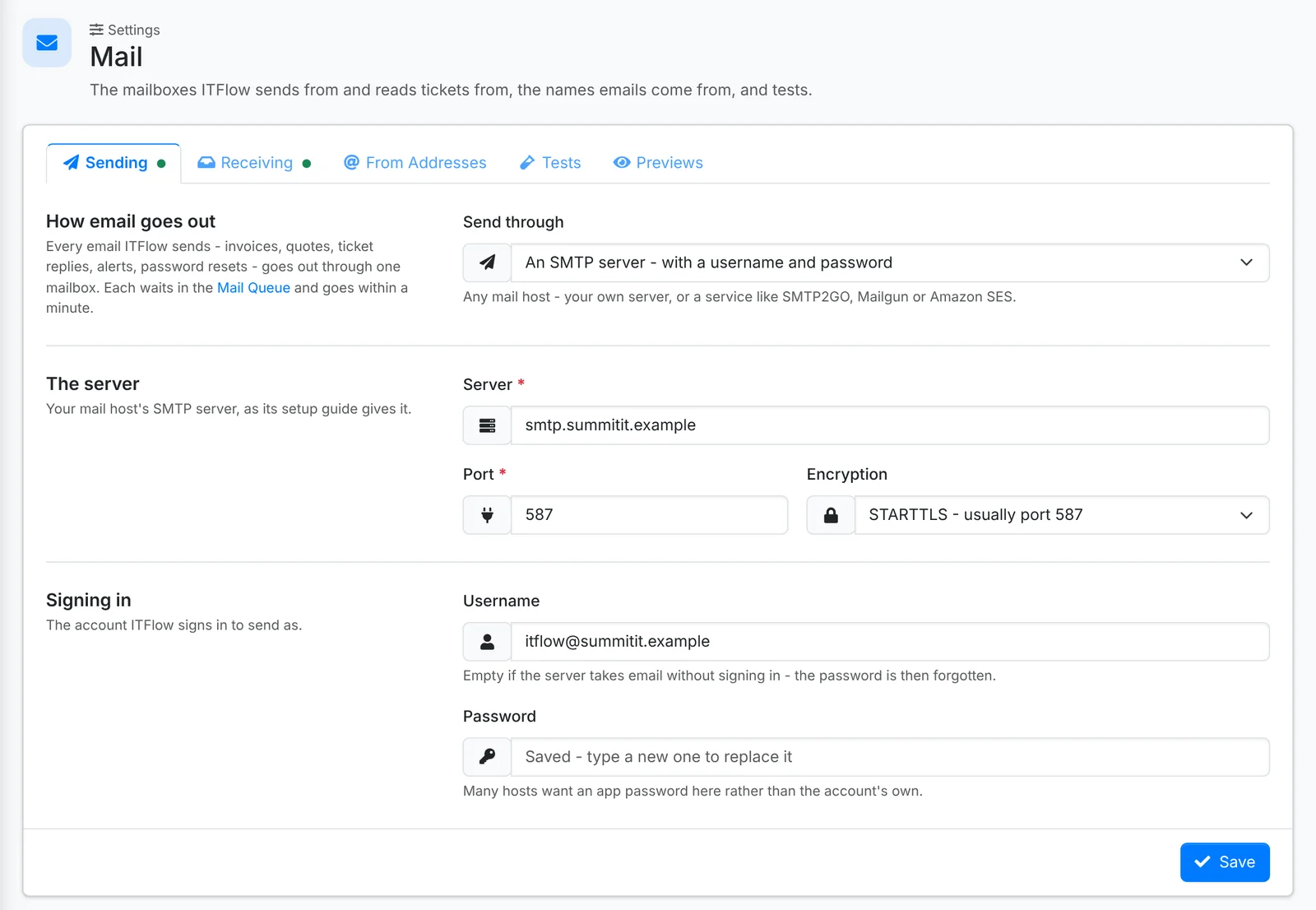
Under Send through, pick how email goes out:
- An SMTP server - with a username and password - your own mail server, or a service such as SMTP2GO, Mailgun or Amazon SES
- Google Workspace - signed in with OAuth
- Microsoft 365 - signed in with OAuth
- Off - ITFlow sends no email at all, and keeps nothing to send later
For a server, type the Server, Port and Encryption (STARTTLS, usually port 587, or SSL/TLS, usually 465), and the Username and Password it signs in with. Many hosts want an app password rather than the account's own.
For Google or Microsoft, register an app with them and put its details under The app - Client ID, Client secret and, for Microsoft, Tenant ID - then connect the mailbox. The page gives you the Redirect address to paste into the app registration. Sending and receiving share the same app.
Saved passwords and secrets are never shown again. Leave a field empty to keep what's saved.
Receiving
Under Read mail from, pick an IMAP server, Google Workspace or Microsoft 365, and the mailbox to read - usually your support address. Then switch on Turn emails into tickets in ticket settings.
Every minute, the Ticket Email Parser job reads the mailbox: a new email becomes a ticket, and a reply goes onto its ticket, found by the ticket number in its subject.
From addresses
The address and name each kind of email comes from - System emails (alerts, password resets), Invoices, Quotes and Tickets - such as billing@ for invoices and support@ for tickets. Each has to be an address the sending mailbox may send as: itself, an alias, or a shared mailbox it can send as.
Tests and previews
Tests sends a test email, checks that the support mailbox can be read, and - with Google or Microsoft - that the sign-in still works, so you see a problem before your clients do.
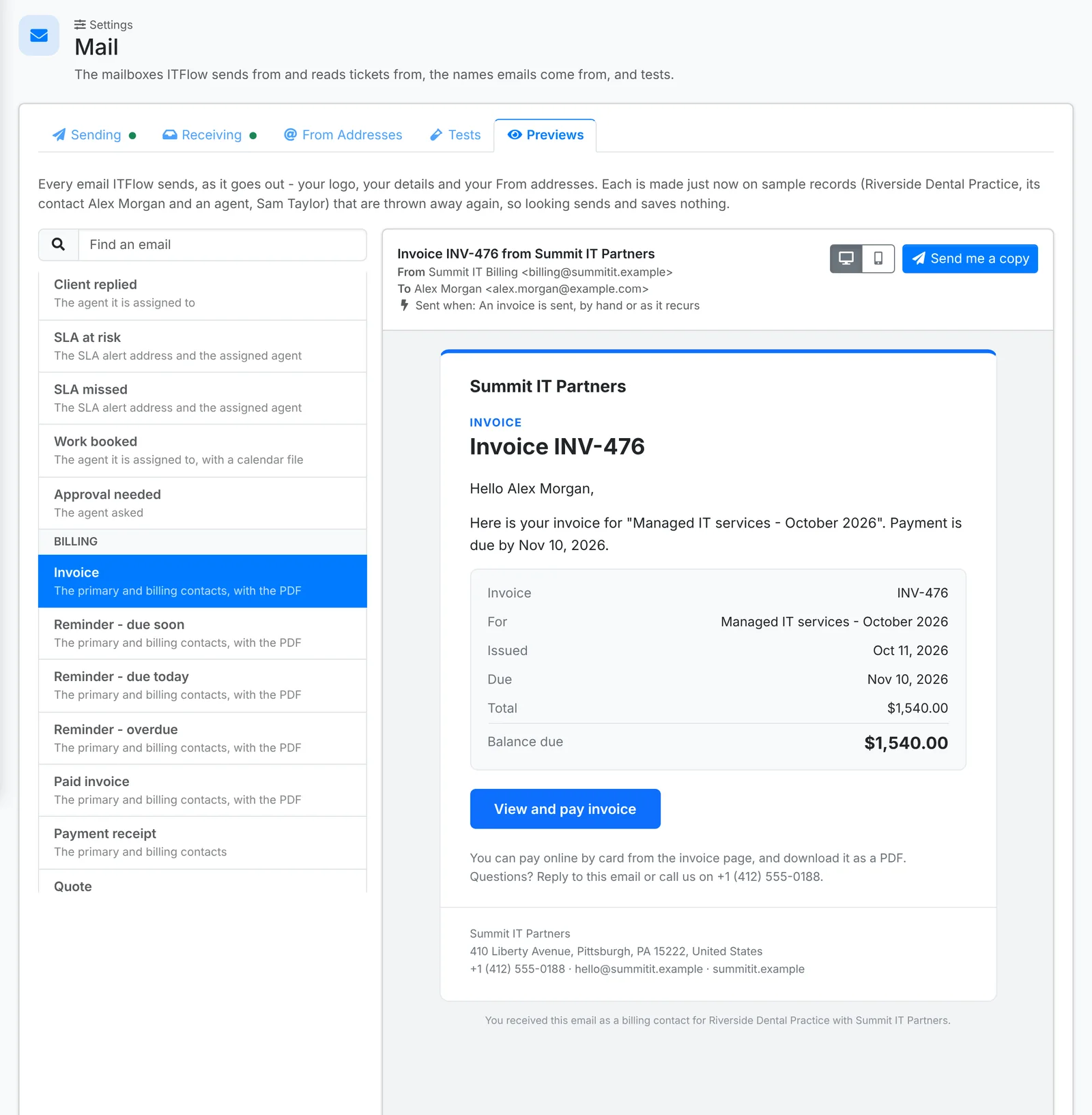
Previews shows every email ITFlow sends, as it goes out - with your logo, your details and your From addresses - and who gets it. Each is made on sample records, so looking sends and saves nothing. Send me a copy sends one to you, to see it in your own mail app.
The mail queue
Everything ITFlow sends goes through Admin > Mail Queue. The Mail Queue job sends what's waiting every minute.
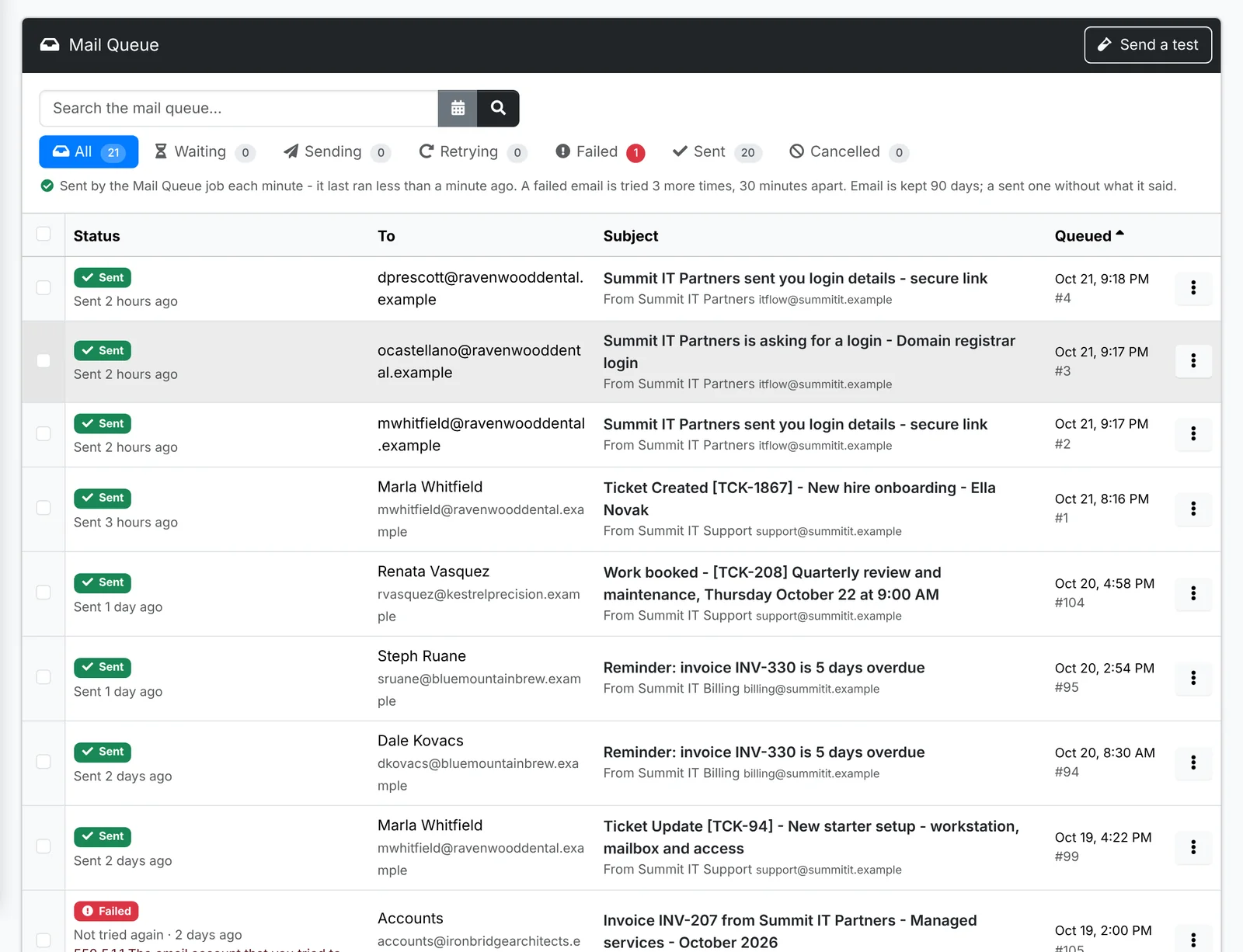
The tabs are Waiting, Sending, Retrying, Failed, Sent and Cancelled. A failed email is tried again a few times before it's marked Failed - its row says why, such as an address that doesn't exist. Tick emails to Retry now, Cancel or Delete them. Sent, failed and cancelled email is kept for 90 days.
If something is stopping email going out - sending switched off, or cron not running - it says so at the top.
Notifications
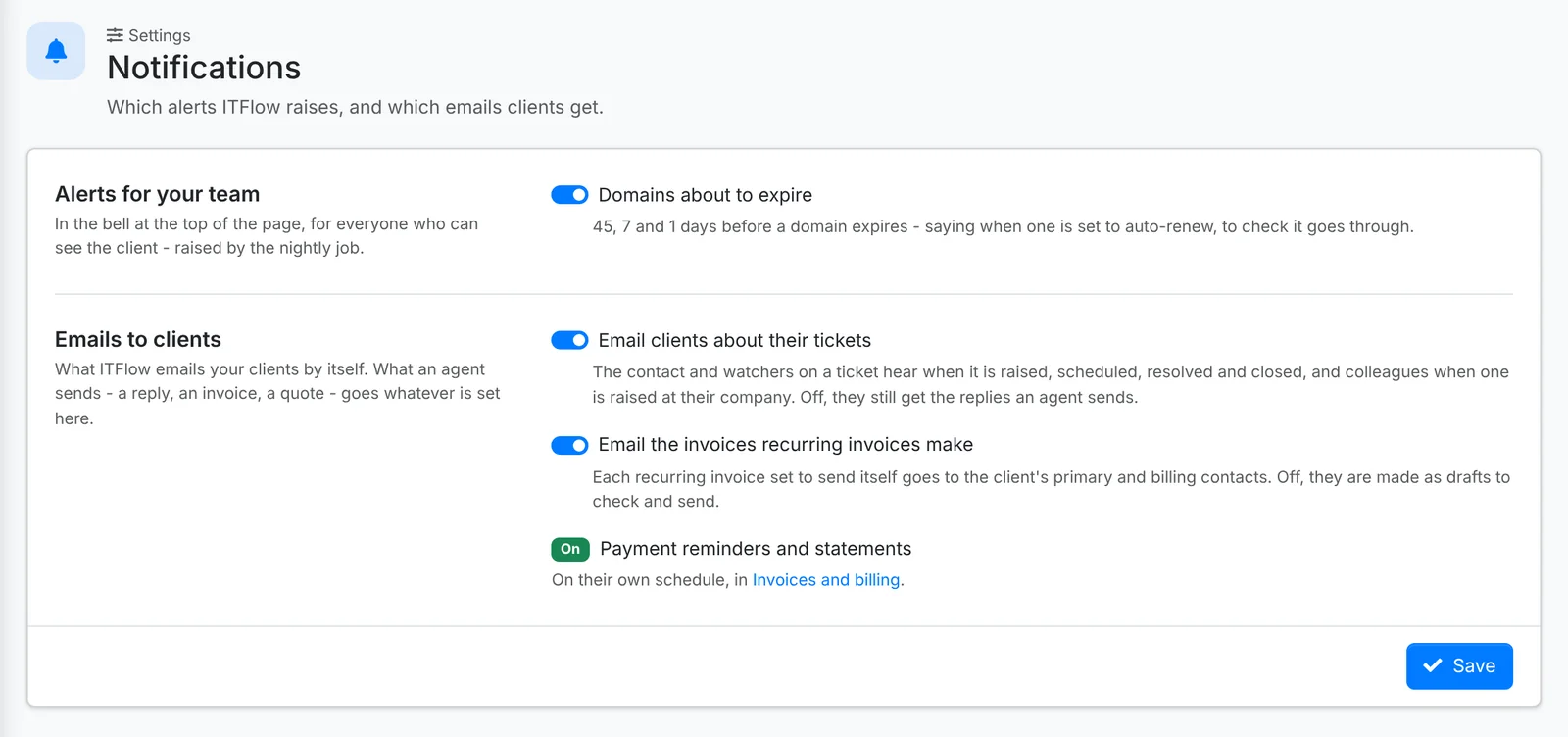
Admin > Settings > Notifications decides which emails ITFlow sends clients by itself, and the alerts it raises for your team:
- Domains about to expire - an alert 45, 7 and 1 days before a domain expires
- Email clients about their tickets - the contact and watchers hear when a ticket is raised, scheduled, resolved and closed. Off, they still get the replies your agents send.
- Email the invoices recurring invoices make - off, they're made as drafts to check and send
Payment reminders and statements have their own schedule, in Invoices and billing.