Your account
Your name, picture and email signature, your password and multi-factor sign-in, how ITFlow looks for you, and a record of everything you've done.
Click your name in the top bar and pick Account. Your account has its own menu: Profile, Security, Preferences, Canned Responses and Activity.
Profile
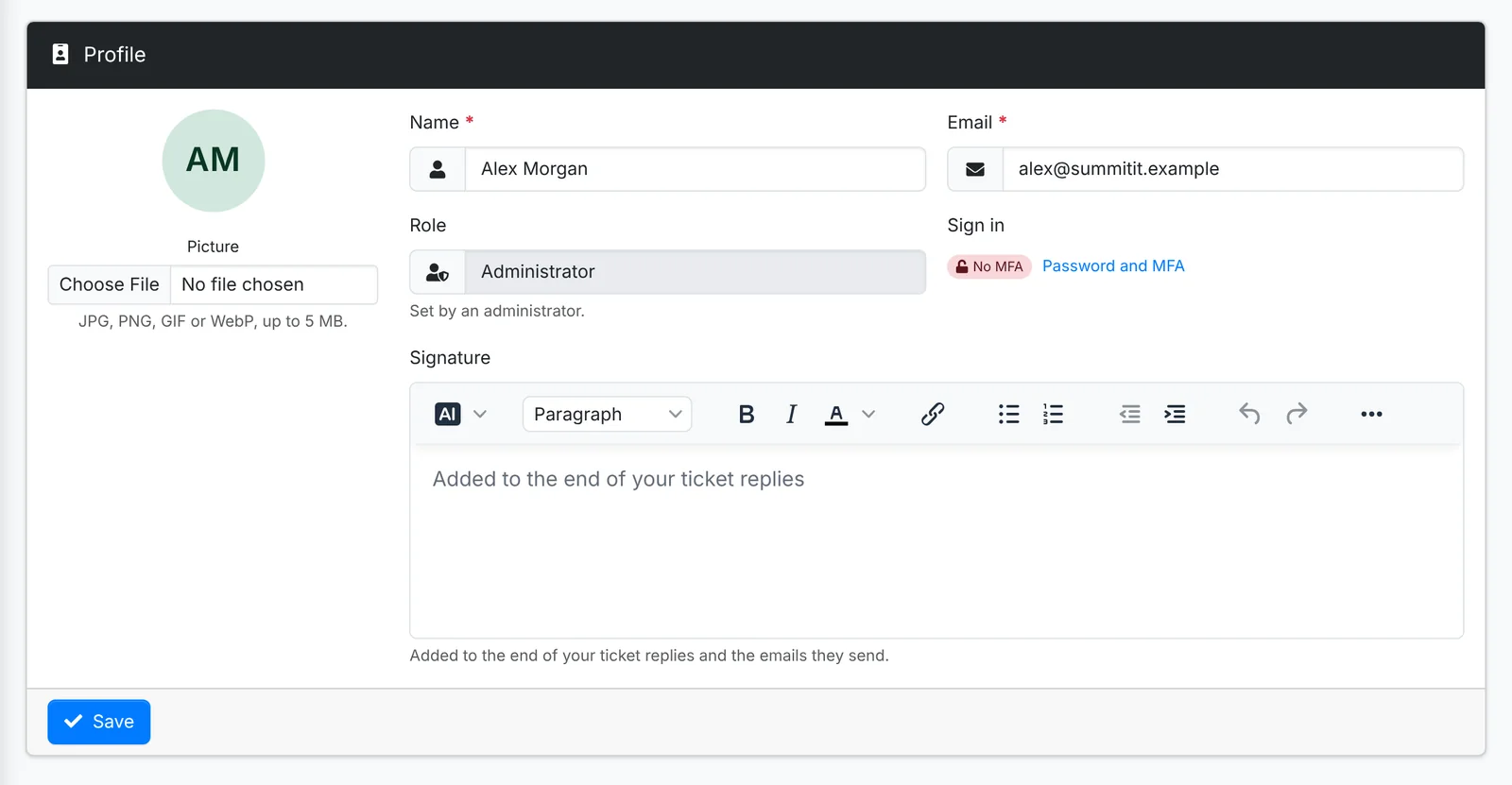
- Picture - a JPG, PNG, GIF or WebP of up to 5 MB. Without one, ITFlow shows your initials in a colour of their own, the same everywhere you appear.
- Name and Email - the email is also what you sign in with.
- Signature - added to the end of your ticket replies and the emails they send.
- Role - what you can open in ITFlow. Only an administrator can change it.
Click Save when you're done.
Security
Change your password
- Go to Account > Security.
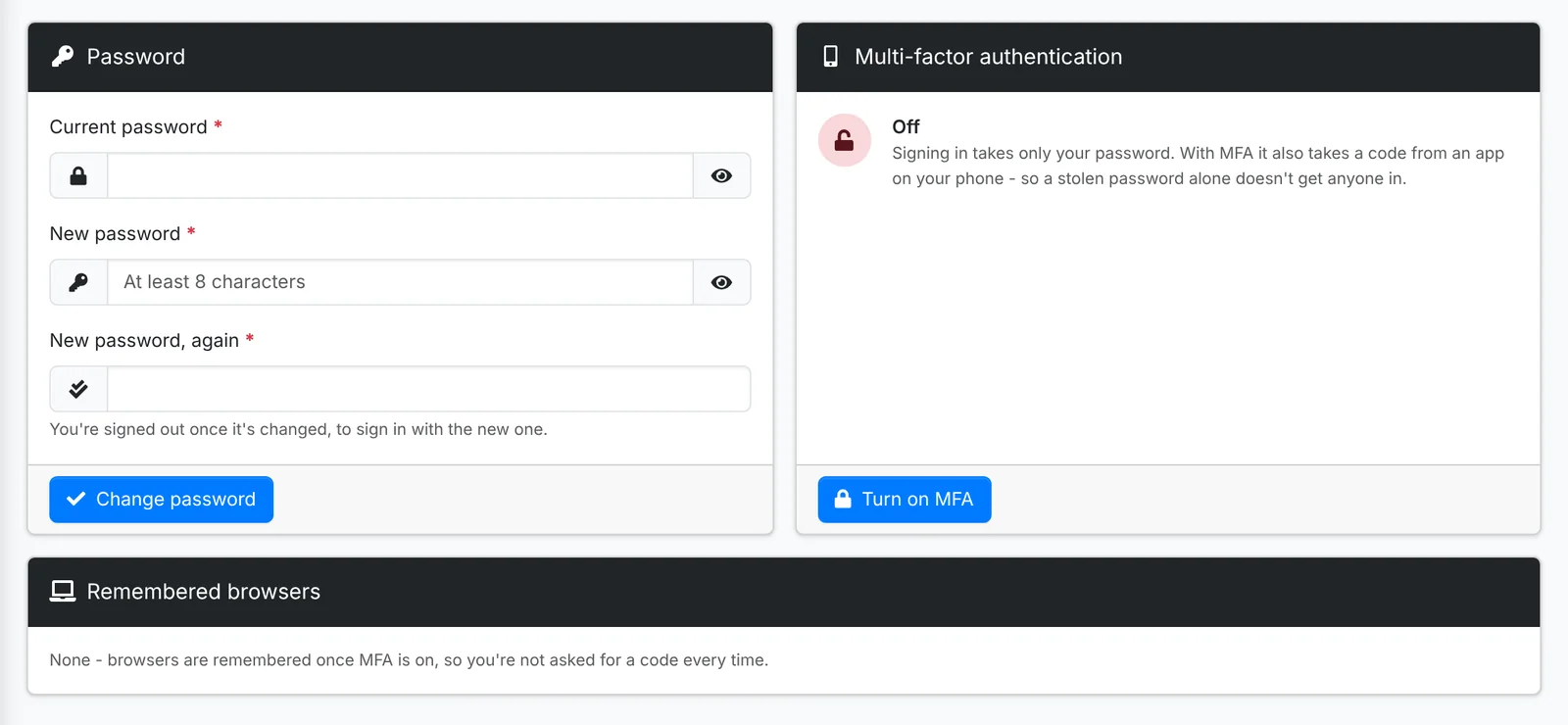
- Type your Current password, then the New password twice. It must be at least 8 characters.
- Click Change password. You're signed out, so you can sign in again with the new one.
Turn on multi-factor authentication (MFA)
With MFA on, signing in takes your password and a 6-digit code from an app on your phone, so a stolen password alone doesn't get anyone in. Your administrator may require it - in that case ITFlow asks you to set it up when you sign in.
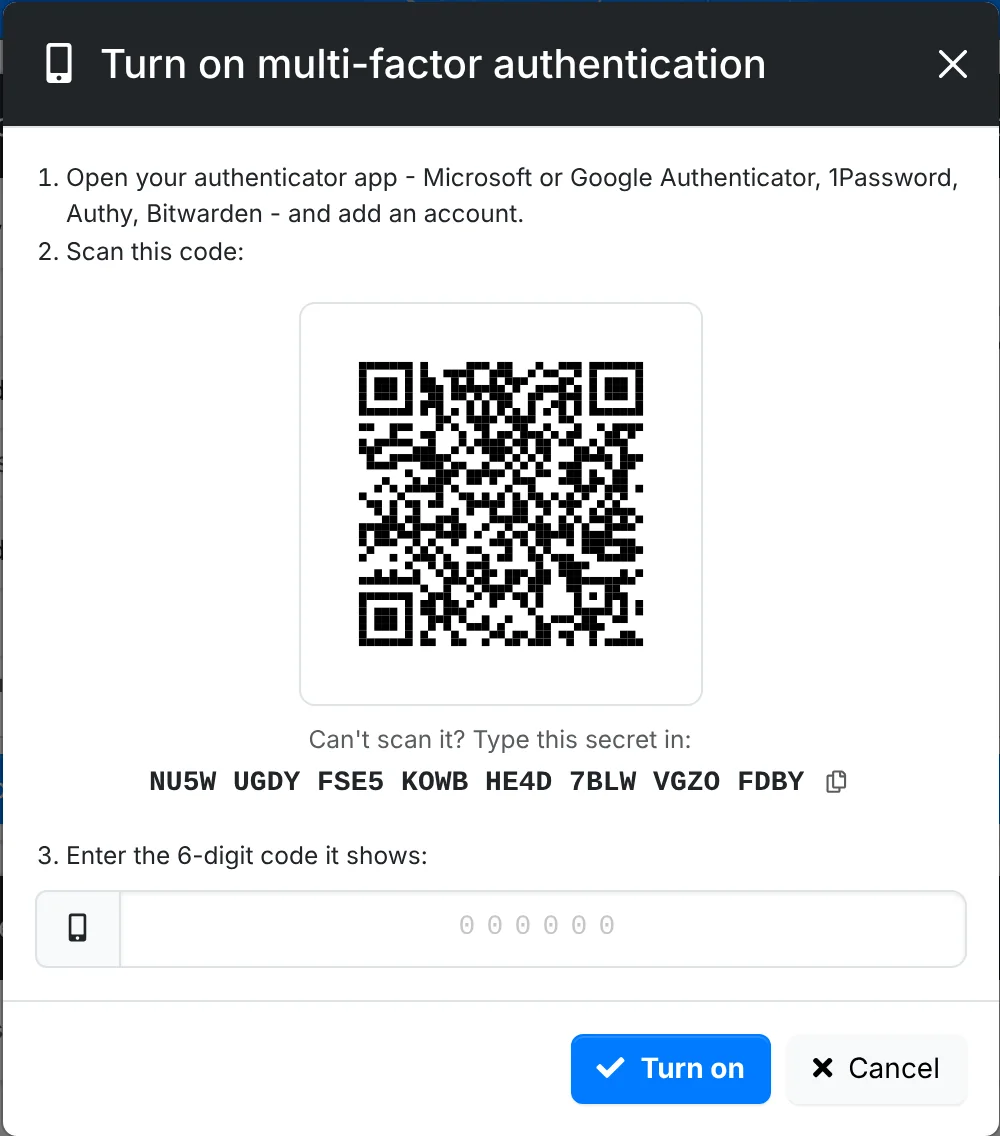
- Go to Account > Security and click Turn on MFA.
- Open your authenticator app - Microsoft or Google Authenticator, 1Password, Authy, Bitwarden - and add an account.
- Scan the QR code. If you can't scan it, type the secret shown under it into the app instead.
- Type the 6-digit code the app shows, and click Turn on.
When you sign in with your code, tick Remember this browser and ITFlow doesn't ask for a code in that browser again for a while (your admin sets how long). Remembered browsers, on the same page, lists them. Click Forget beside one, or Forget all, and the code is asked for again there - do this if you lose a laptop or sign in on a shared computer.
Got a new phone? If you can turn MFA off yourself, turn it off and on again with the new phone. If your administrator requires MFA, ask them to reset it - you set it up again at your next sign in.
Preferences
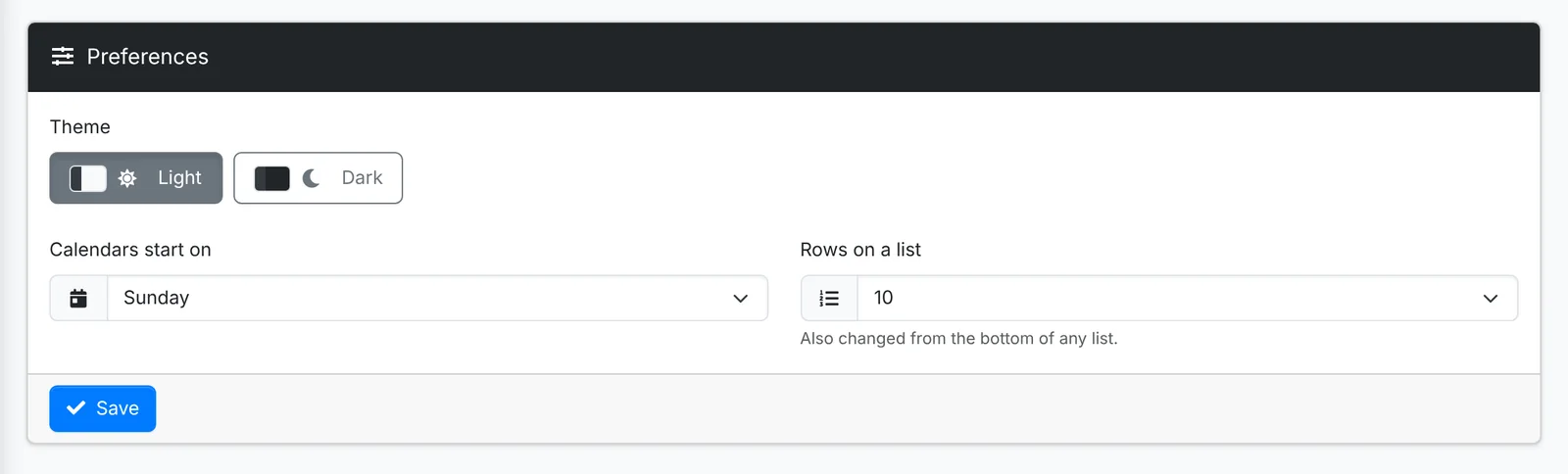
- Theme - Light or Dark.
- Calendars start on - the first day of the week on the calendar and date pickers.
- Rows on a list - how many rows every list shows on a page. You can also change this at the foot of any list.
Your canned responses
Canned Responses in your account lists the canned responses you keep for yourself, alongside the shared ones, with how often you've used each. See Canned responses.
Activity
Activity is everything you've done in ITFlow: changes, deletions, sign-ins, and data that went out (passwords you looked at, exports and downloads). Search it, pick a date range, or use the tabs to see one kind.
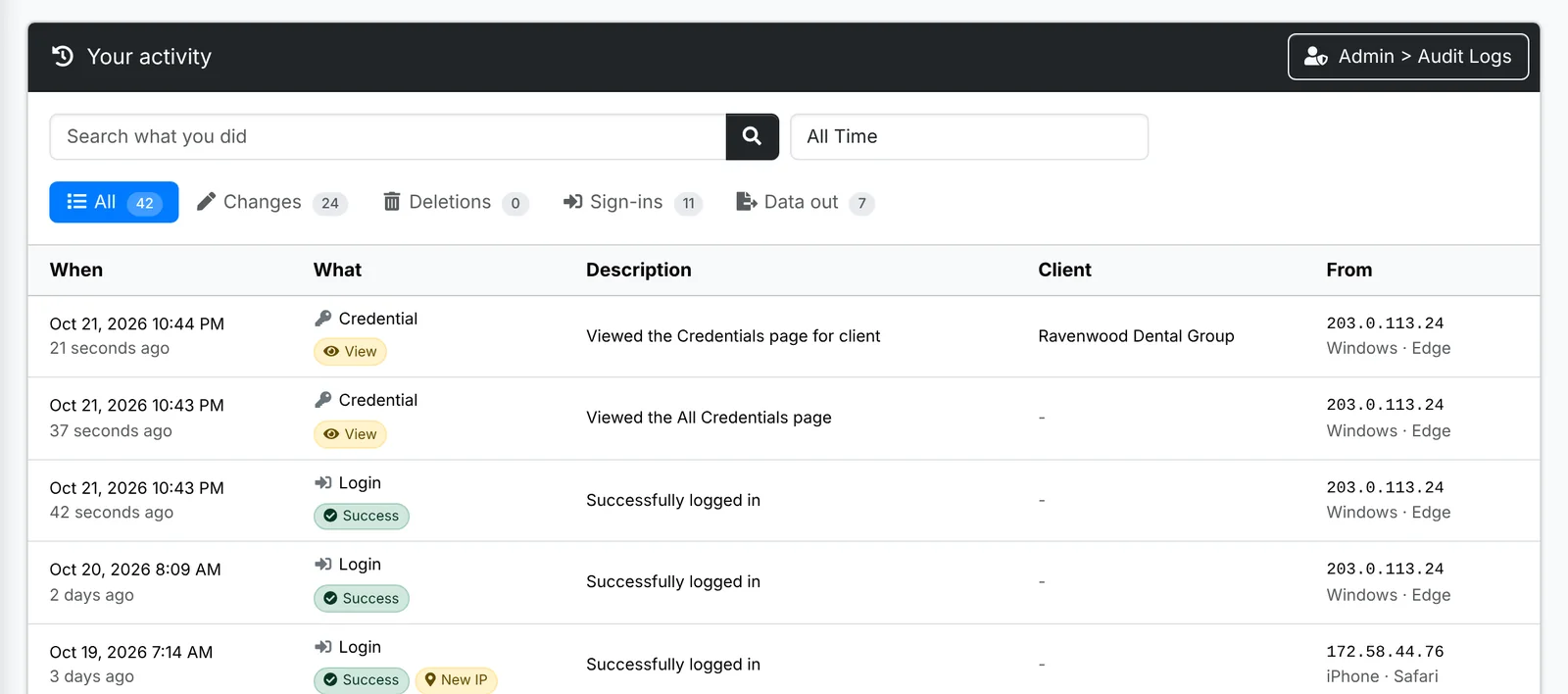
Each sign-in shows the IP address and the browser and system it came from. A sign-in from an IP address your account hasn't used before is marked New IP.
If you see a sign-in that wasn't you, change your password straight away, turn on MFA if it isn't on, and tell your administrator.