Reminders and statements
Chase unpaid invoices without lifting a finger - automatic payment reminders, late fees and monthly statements - or send one by hand.
ITFlow can chase payment for you. Your admin sets a reminder schedule once, and every unpaid invoice follows it until it's paid. You can also send a reminder or a statement yourself at any time.
Automatic payment reminders
When your admin switches on payment reminders, ITFlow emails a reminder on the days they choose:
- a few days before it is due - "3, 7" sends two
- on the due date
- some days after it is due - such as 7, 14 and 30 days late
- then every so many days until it's paid
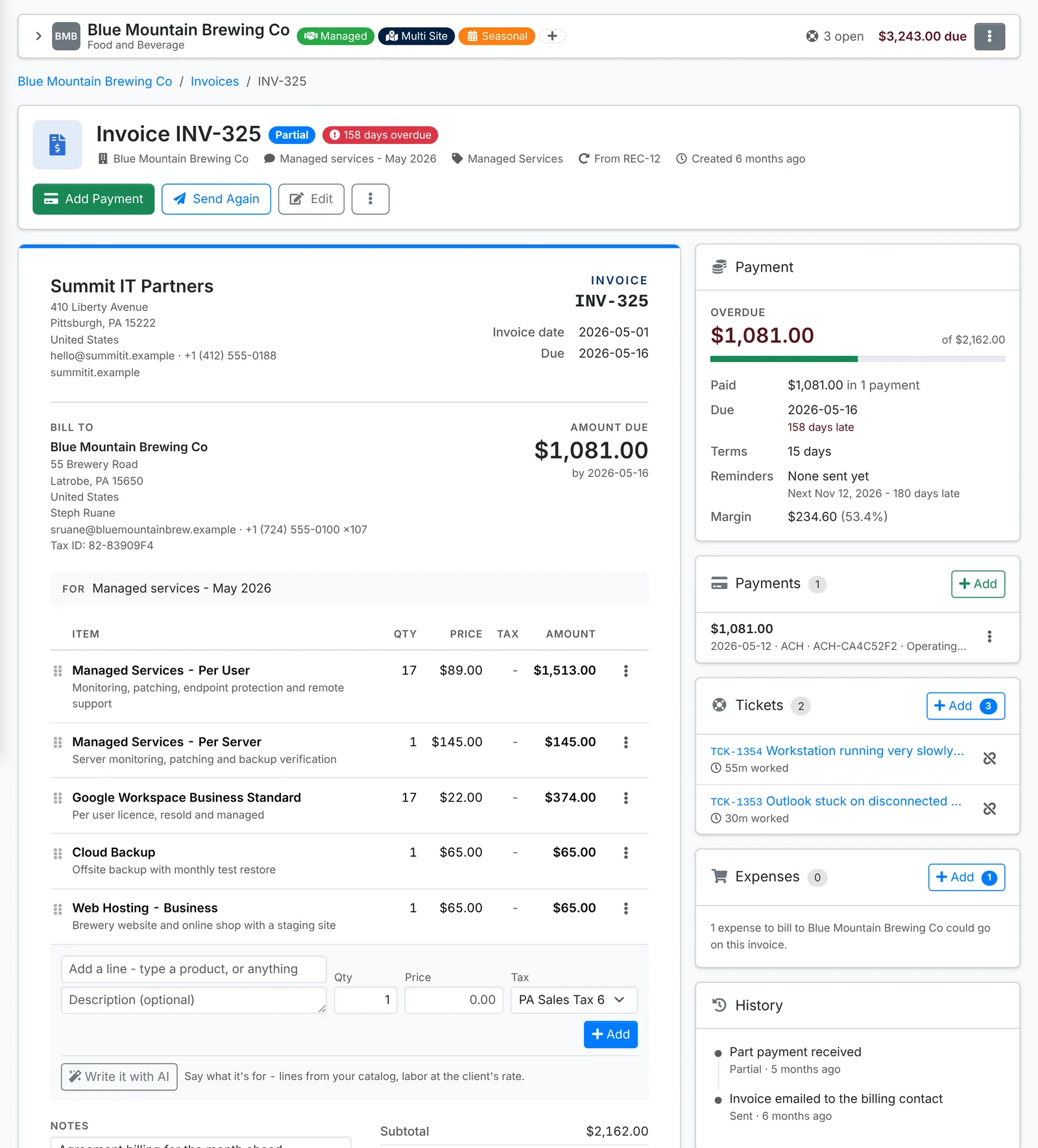
Reminders go to the client's primary and billing contacts, with the invoice's link so they can pay it there and then. Each invoice's Payment card shows the reminders sent and when the next one is due.
Some things are left out:
- clients with Payment reminders and statements switched off in their billing details
- an invoice that a recurring invoice's autopay will charge on its due date isn't reminded before then
Agents get a notification about late invoices on their reminder days too, so someone can pick up the phone.
Late fees
Your admin can also add a late fee: a percent of what's still owed, added to the invoice as a line of its own every 30 days late, while reminders are on. Say so in your invoice footer, so clients know before it comes.
Send a reminder yourself
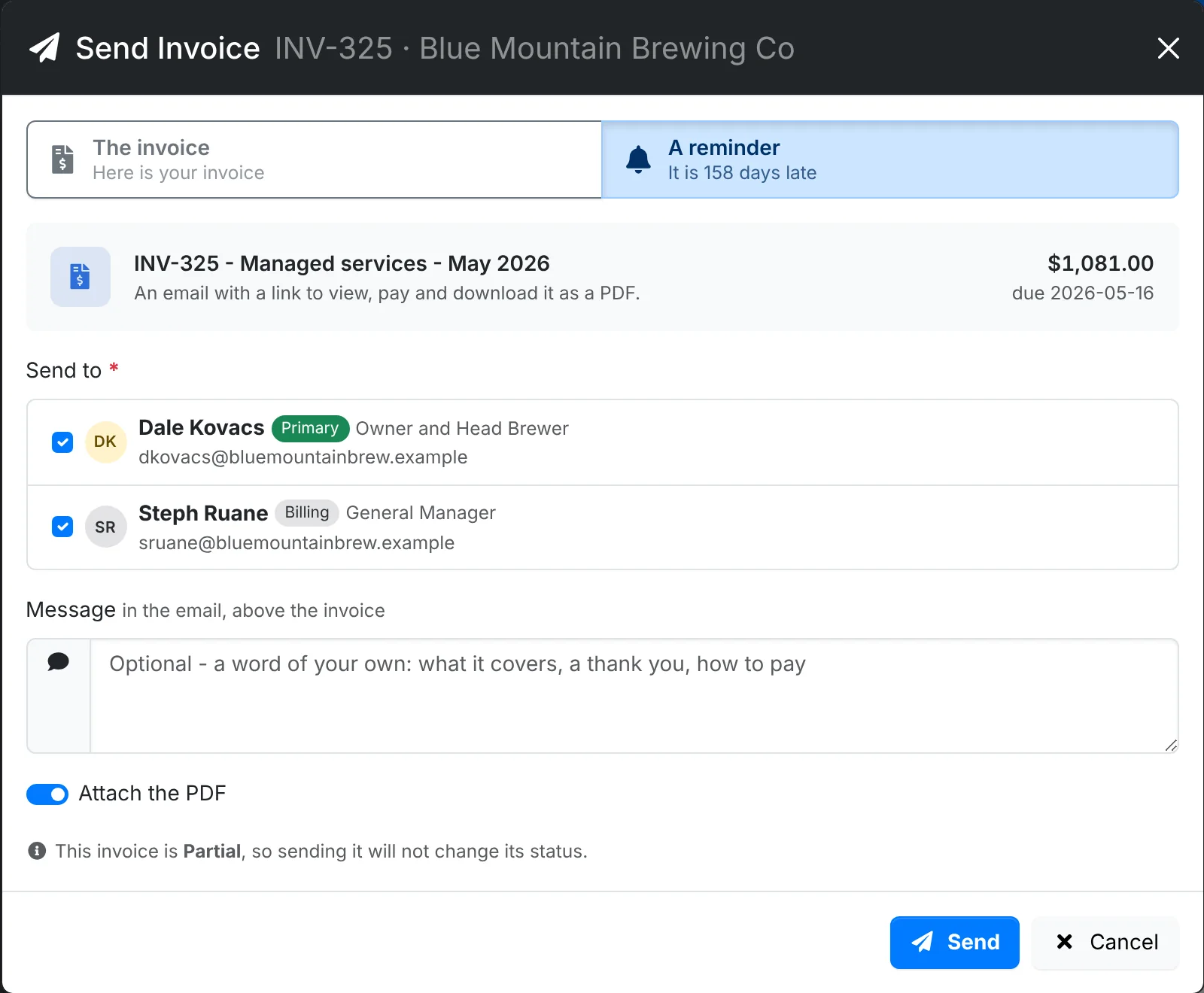
On a sent invoice that's still owed, use ⋮ > Send Reminder. The Send Invoice window opens with A reminder picked, saying how late it is. Pick who it goes to, add a word of your own, and click Send.
Statements
A statement lists a client's invoices - what's open, how late each is and what's owed in all - as an email and a PDF. It's the easiest way to sort out a client with several unpaid invoices.
To send one, open the client's Invoices, use the arrow beside New Invoice and pick Send Statement.
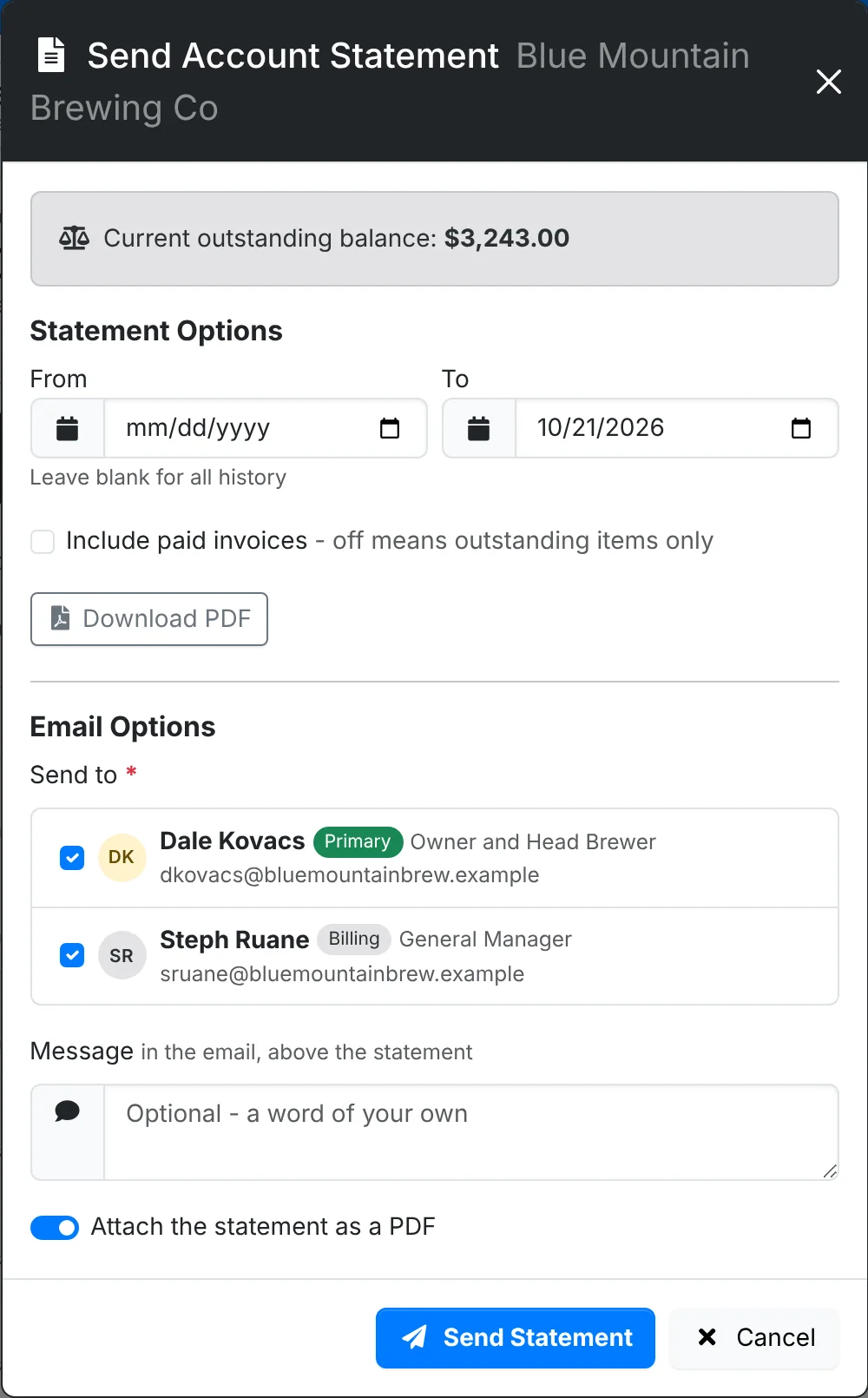
- Set the period From and To. Leave From blank for all their history.
- Switch on Include paid invoices for a full history. Off, it shows only what's outstanding.
- Download PDF gets the statement without sending it.
- Pick who to Send to, add a message if you like, and click Send Statement.
Statement PDF in the same menu downloads it straight away.
Your admin can also have a statement emailed to every client with a balance on a set day each month.
The reminder schedule, late fees and monthly statements are set in Admin > Settings > Invoices and billing, along with whether invoice, reminder and statement emails attach the PDF. Reminders and statements need outgoing mail set up.