Contacts
The people at your clients - who to call, who pays the bills, who can sign in to the portal, and everything linked to them.
A contact is a person at a client: the owner, the office manager, the person who rings about the printer. Their contact record holds how to reach them, their role at the client, whether they can use the client portal, and everything linked to them - their computer, their logins, their tickets.
The contacts list
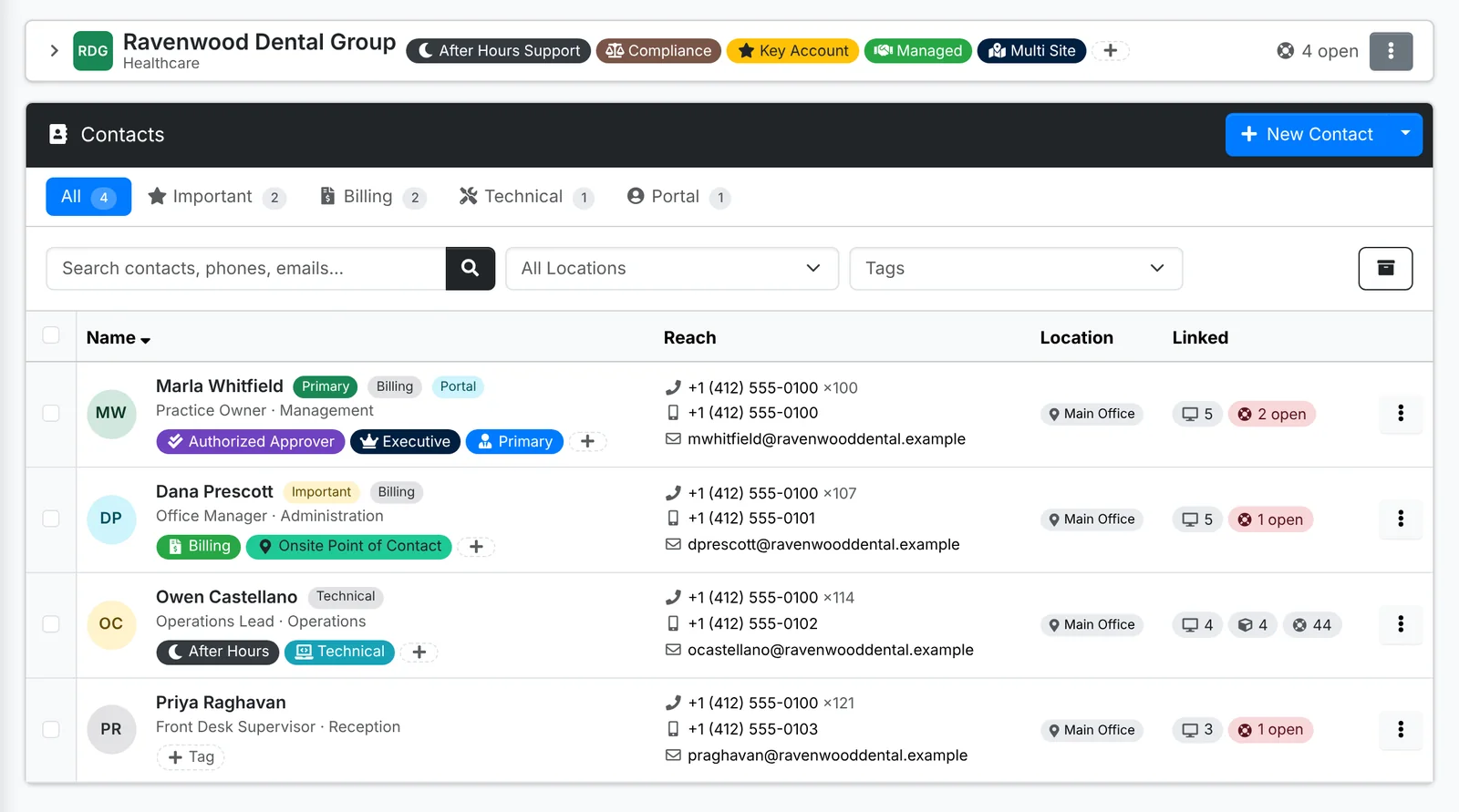
The tabs split contacts by role - Important, Billing, Technical and Portal (those who can sign in to the client portal). Each row shows:
- the contact's name, title and department, with role labels such as Primary and Billing, and their tags
- Reach - phone with extension, mobile and email, each with a copy button when you point at it
- Location - click it to change which of the client's sites they're based at
- Linked - how many assets, logins and licenses they have, and their open tickets
To see the contacts of every client together, use All Client Docs > Contacts.
Add a contact
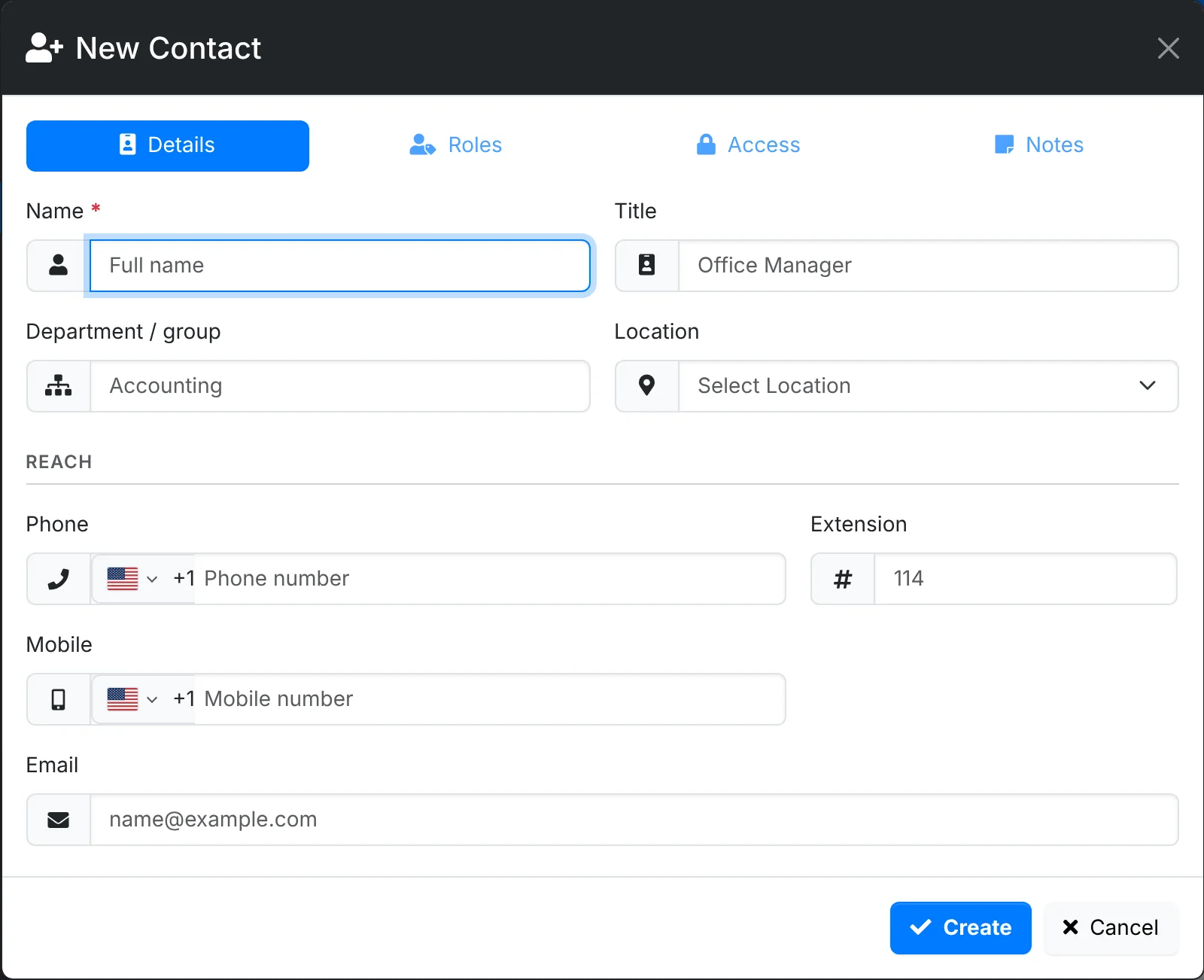
- Open the client and go to Contacts, then click New Contact.
- On Details, type their Name, then their Title, Department / group, Location, phone numbers and Email. ITFlow tells you if another contact already has that email.
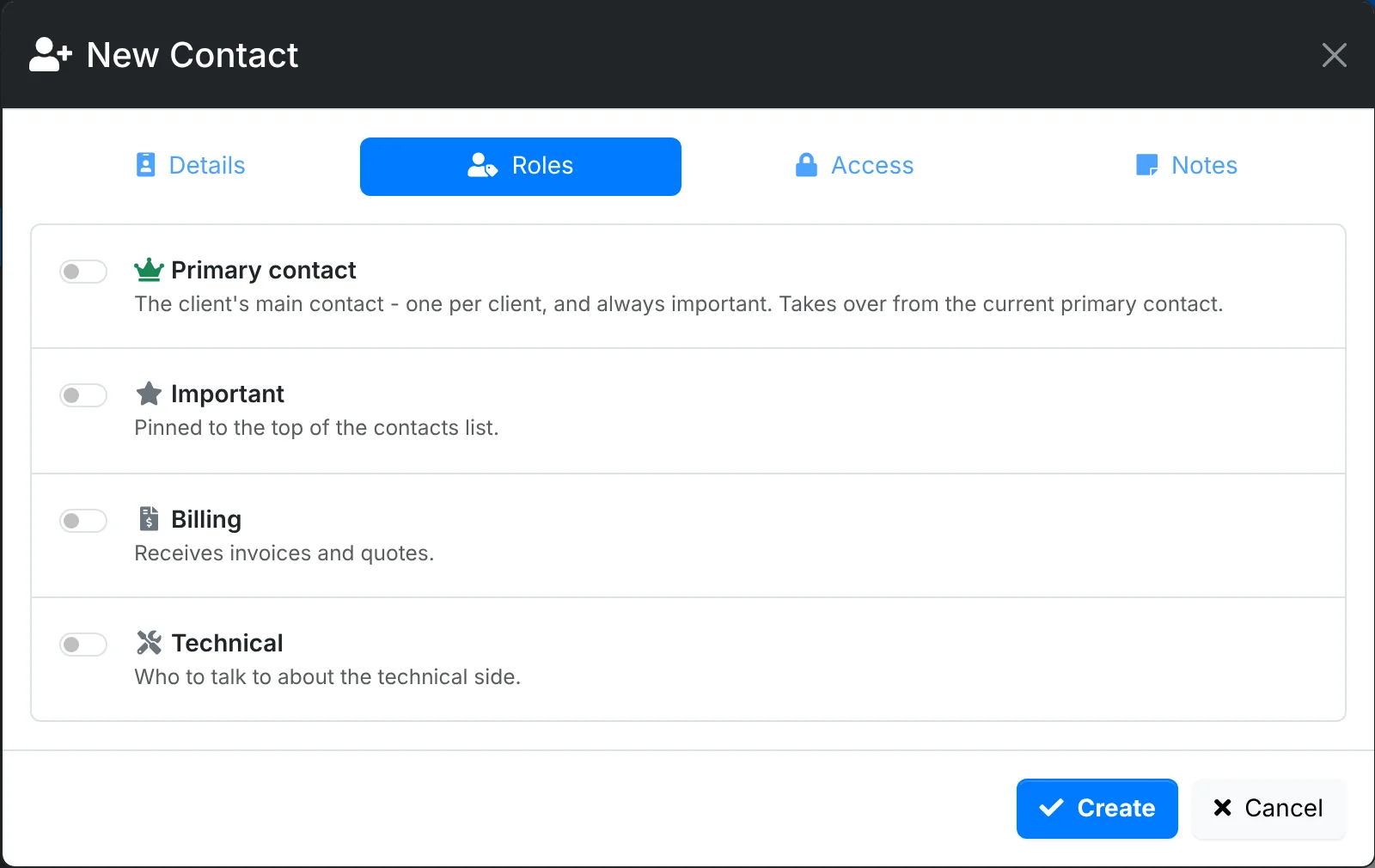
- On Roles, switch on what applies:
- Primary contact - the client's main contact. There is one per client, so this takes over from the current one.
- Important - pinned to the top of the contacts list.
- Billing - receives invoices and quotes.
- Technical - who to talk to about the technical side.
- On Access, set up the client portal if they need it (see below), and a PIN to check it's really them when they call.
- On Notes, add notes, tags and a photo.
- Click Create.
Give a contact client portal access
On the contact's Access tab, set Login:
- With a password - they sign in to the client portal with their email and a password. Leave Password empty and tick Email them an invite to the portal, and they get a link to set their own.
- With their Microsoft (Entra ID) account - they sign in with their work Microsoft account, if your admin has set this up.
- No access - the default.
What they see in the portal depends on their roles: billing contacts see invoices, technical contacts see devices and documentation, and the primary contact can manage their company's contacts. See Giving contacts access.
The contact's page
Click a contact's name to open their page.
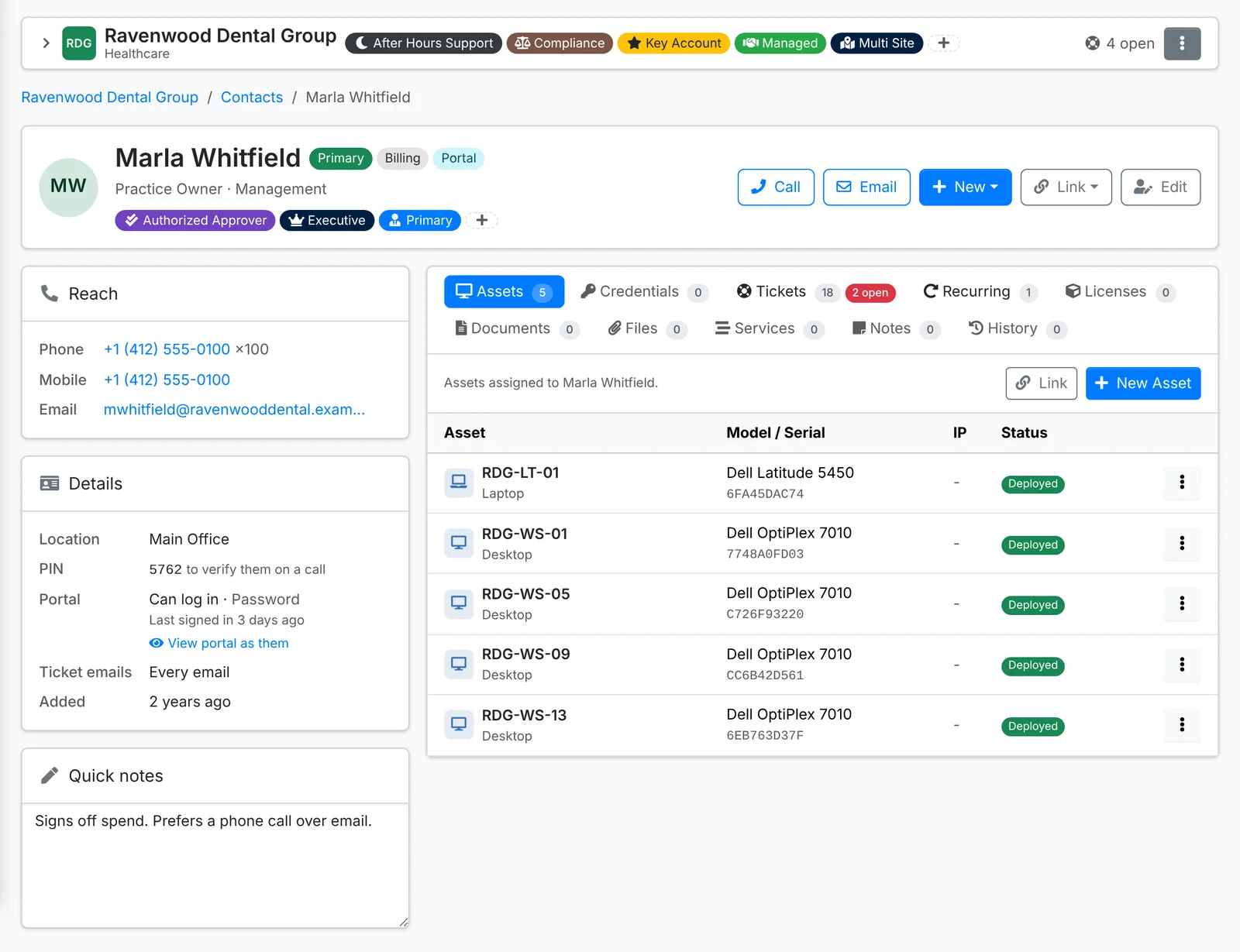
- Along the top: Call and Email, New (a ticket, recurring ticket, meeting, asset, credential, document, file, license or note for them), Link (to link a service, file or other record that already exists) and Edit.
- Reach - their phone numbers and email.
- Details - their location, their PIN, whether they can sign in to the portal and when they last did, and which ticket emails they get. View portal as them opens the client portal as they see it, read only.
- Quick notes - notes that save as you click away.
- Tabs for their Assets, Credentials, Tickets, Recurring tickets, Licenses, Documents, Files, Services, Notes and History.
Raising a ticket from a contact's page fills in the client and contact for you, and shows if they already have open tickets.
Archive a contact
When someone leaves the client, archive their contact instead of deleting it, so their old tickets still make sense. Archiving takes away their portal access and their billing, technical and important roles.
Archive is in the ⋮ menu on the contact's row and on their page. Beside it, Anonymize & Archive also wipes their name, email, phone numbers and other personal details, and blanks them out of their tickets - for a person who has asked to be forgotten. It needs full access to clients, and can't be undone.
The primary contact can't be archived. Make someone else the primary contact first.
Archived contacts are under Archived on the contacts list, each with Restore in its menu.
Bulk actions
Tick contacts in the list and use Bulk Action to assign them to a location, set their department, phone or roles, tag them, email them, or archive them.